








For the millions of users who treat their operating system as a playground for innovation, the Windows Insider Program has become a cornerstone of the modern computing experience. What began as a bold experiment in 2014 has evolved into a sophisticated, multi-tiered pipeline that dictates the future of the Windows ecosystem. However, as Microsoft continues to iterate on its development methodology, the complexity of the program has reached new heights. For both the curious power user and the enterprise IT administrator, understanding the nuances of these "channels" is no longer optional—it is a necessity for maintaining a stable and productive digital environment.
The Evolution of the Windows Insider Program
The journey began in October 2014 with the release of the Windows 10 Technical Preview. At that time, the concept was revolutionary: open the doors of Microsoft’s development labs to the public, allowing enthusiasts, developers, and IT professionals to stress-test the OS before it hit the mainstream.
This feedback loop proved instrumental in shaping Windows 10 into the platform it is today. When Windows 11 arrived, the program matured, moving away from a singular "preview" model toward a segmented, channel-based strategy. Throughout 2026, Microsoft introduced its most significant structural overhaul yet, aiming to streamline the user journey. Despite these efforts, the program remains a complex labyrinth of "Experimental" and "Beta" tags, requiring a clear roadmap to navigate.
Core Concepts: Understanding the Insider Landscape
At its heart, the Insider program is a bidirectional communication channel. Microsoft provides early access to features, and in return, participants provide diagnostic data and qualitative feedback.
The Golden Rule of Previews
Before diving into the technical configurations, a word of caution is paramount: Preview builds are inherently unstable. By design, these versions of Windows contain unfinished code, experimental APIs, and potential vulnerabilities that can cause system crashes, data loss, or peripheral incompatibility.
Industry best practices dictate that Insider builds should never be installed on a primary, mission-critical machine. The most effective testing methodology involves:

- Dedicated Hardware: Using a secondary laptop or desktop exclusively for testing.
- Virtualization: Deploying Windows 11 within a virtual machine (VM) environment, allowing for "snapshots" that can revert the system to a clean state if an update causes a catastrophic failure.
Setting Up: A Step-by-Step Guide for Individuals
Enrolling in the program is a straightforward process, but configuring your device correctly is where the real work begins.
1. Enrollment
Visit the official Windows Insider Program portal and register with your Microsoft Account. This is the "passport" that grants you access to the flighting servers.
2. PC Configuration
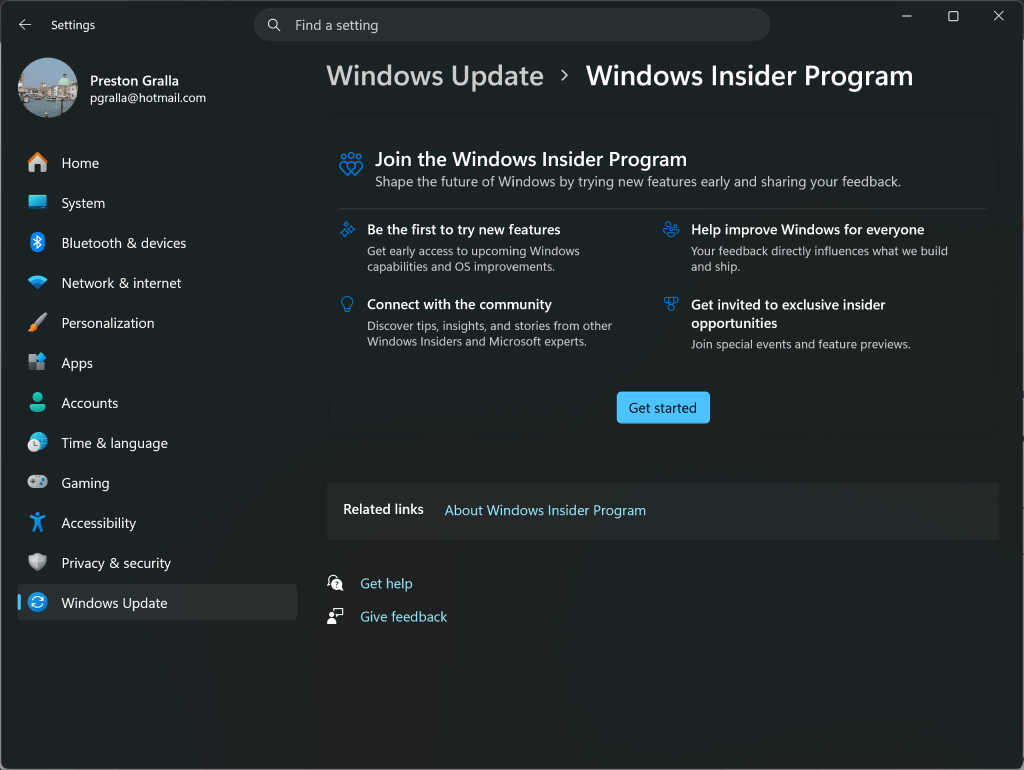
Once registered, you must authorize individual devices via the Settings > Windows Update > Windows Insider Program menu. A critical prerequisite is enabling diagnostic data:
- Navigate to Settings > Privacy & security > Diagnostics & feedback.
- Toggle "Send optional diagnostic data" to On. Without this, the telemetry pipeline remains closed, and you will be unable to receive preview builds.
3. Choosing Your Channel
The "channel" you select dictates the frequency and stability of your updates.
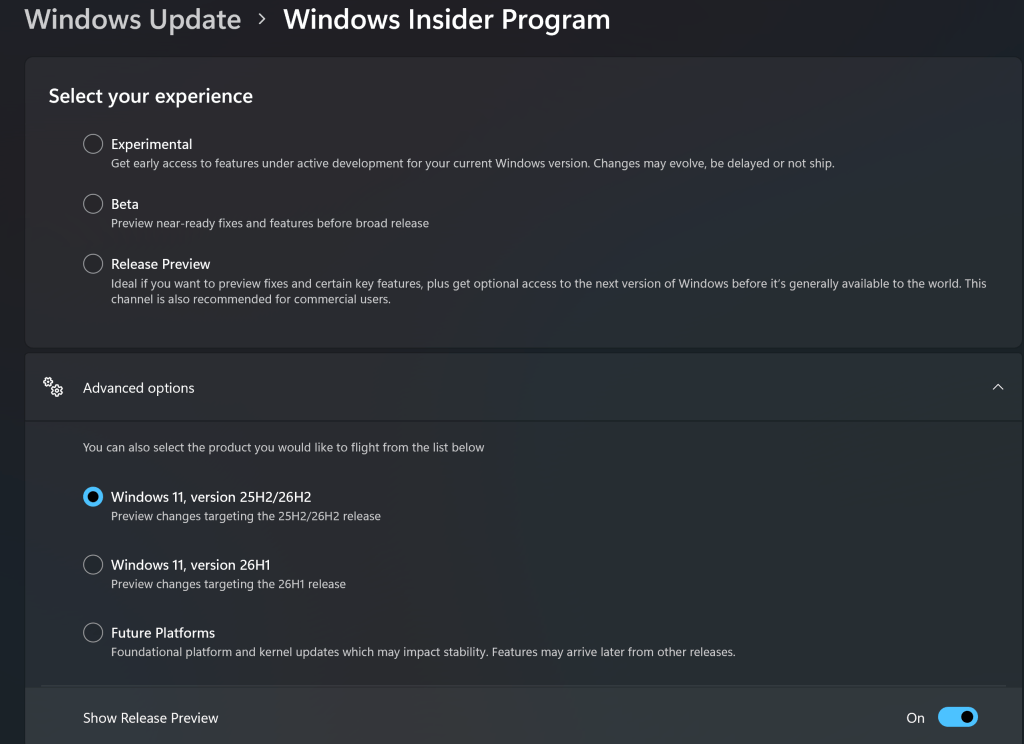
- Experimental Channel: The "bleeding edge." This channel receives the newest features as soon as they are compiled. It is the most volatile environment and is intended for users who want to be the first to see experimental interface changes and kernel tweaks.
- Beta Channel: The "balanced" option. Here, features are more refined and have passed through the initial fire of the Experimental channel. It is ideal for users who want to test upcoming releases without the high risk of daily system instability.
- Release Preview Channel: The "pre-launch" environment. This is the safest bet, containing fixes and minor feature updates scheduled for the next major Windows 11 public rollout.
The Reality of Controlled Feature Rollouts (CFRs)
One of the most persistent frustrations for users has been the "missing feature" phenomenon. You read the release notes, you install the update, yet the new feature is nowhere to be found.
This is the result of Controlled Feature Rollouts (CFRs). Microsoft uses this method to A/B test features, enabling them for a subset of the user base to monitor telemetry and performance impact before a full-scale deployment.
Empowering the User: Feature Flags
In a major win for transparency, Microsoft has introduced "Feature Flags" in the Experimental channel. This allows users to bypass the arbitrary nature of CFRs. By navigating to Settings > Windows Update > Windows Insider Program > Feature flags, users can manually toggle specific experimental features on or off. While this does not apply to every backend change, it provides a much-needed layer of agency for the advanced user.
IT Administrators and the Enterprise Perspective
For IT professionals, the Insider program is not just for curiosity—it is a planning tool. The Windows Insider Program for Business provides the infrastructure to test compatibility across enterprise-grade software stacks, such as Microsoft 365, internal line-of-business applications, and security protocols.
Managing the Fleet
IT admins can manage builds centrally using:
- Group Policy Objects (GPOs): For domain-joined machines.
- Microsoft Intune: For modern, cloud-based device management.
- Entra ID Integration: To ensure that only authorized testing groups have access to specific preview rings.
Strategic Recommendations for IT
IT departments should utilize the Release Preview Channel for the majority of their testing fleet to ensure that upcoming patches do not break enterprise workflows. The Beta Channel should be reserved for a small, isolated pilot group of "power users" who can identify potential compatibility issues well before the production-ready build hits the wider organization.
Official Responses and Strategic Implications
Microsoft’s official stance on the program remains focused on the "co-creation" of Windows. In recent communications, company representatives emphasized that the recent overhaul was designed to move away from the "everything everywhere all at once" update model.
The implication for the market is clear: Microsoft is shifting toward a continuous development cycle. The days of "big-bang" OS releases are fading, replaced by a steady, iterative stream of improvements. By participating in the Insider program, users are not just "testing"; they are effectively acting as the final quality assurance layer in a massive, global engineering operation.
Conclusion: Is the Insider Program Right for You?
Participation in the Windows Insider Program is a commitment to the process of software evolution. For the individual, it offers a window into the future of computing and a chance to have a voice in the development of the world’s most popular OS. For the IT administrator, it is an essential risk-mitigation tool.
However, the cost of admission is vigilance. Between managing channel switches—which often require a complete OS wipe if moving from Experimental back to a more stable channel—and navigating the shifting sands of feature flags, the program demands a level of technical literacy that goes beyond the average user. If you are prepared to handle the occasional bug and stay informed through the official Windows Insider Blog, the program remains the most rewarding way to engage with the Windows platform.
Stay curious, keep your backups current, and remember: in the world of the Insider, the only constant is change.