







Main Facts: Stripping Back the Myth of Windows Power Plans
Windows 11 features a staggering array of settings, toggles, and adjustments ostensibly designed to make your PC run faster. However, power users know that the most consequential performance-enhancing tweaks are rarely found in the surface-level UI; instead, they are buried deep within registry edits, system policies, and command-line prompts. Windows power plans are a prime example of this phenomenon.
While the average user dismisses power plans as glorified battery-saving presets for laptops, these profiles dictate how Windows balances power consumption against hardware performance under various workloads. Microsoft provides standard profiles—such as "Balanced" and "High Performance"—directly out of the box. Yet, a hidden, high-octane profile remains locked away from the standard Control Panel interface: "Ultimate Performance."
Built specifically for high-end workstations, this mode promises to eliminate micro-latencies by preventing the CPU from ever truly resting. But does it deliver a meaningful performance boost in everyday tasks and modern gaming, or is it merely a recipe for higher electricity bills and unnecessary thermal stress? Testing reveals a nuanced reality: for most gamers, the mode is largely redundant, but for specific CPU-bound workloads, it offers targeted benefits at a noticeable cost.
Chronology and Discovery: How the Hidden Plan Evolved
The "Ultimate Performance" power plan is not entirely new to the Windows ecosystem; it was first introduced by Microsoft during the Windows 10 era (specifically with version 1803) in response to feedback from enterprise workstation users. High-end hardware users running continuous, intensive multi-threaded applications—such as computational fluid dynamics, massive video rendering pipelines, and complex financial modeling—suffered from the minute performance dips caused by aggressive power-saving transitions.
By default, standard power plans constantly adjust processor states to save energy and reduce heat. Even the "High Performance" plan allows for minor micro-throttling to maintain efficiency. Microsoft designed Ultimate Performance to build upon the foundations of High Performance, stripping away even the most negligible power-saving delays to squeeze every last drop of throughput from enterprise-grade silicon.
When Microsoft transitioned these architectures into Windows 11, the Ultimate Performance plan remained hidden behind a command-line gatekeeper. It was omitted from the default dropdown menu to prevent everyday laptop users and casual desktop owners from unknowingly accelerating fan wear, increasing idle power consumption, and running their systems hotter than necessary without realizing the trade-offs involved.

Technical Deep-Dive: What Actually Changes Under the Hood?
To understand whether Ultimate Performance makes a tangible difference, one must examine how Windows power plans manipulate core system hardware—primarily the CPU.
1. Processor Performance Scaling and Minimum States
On a standard "Balanced" power plan, Windows allows the system’s processor to scale its clock speed dynamically based on immediate demand. On many modern architectures, the minimum processor state can drop to 0%, letting individual cores downclock aggressively at idle to save power.
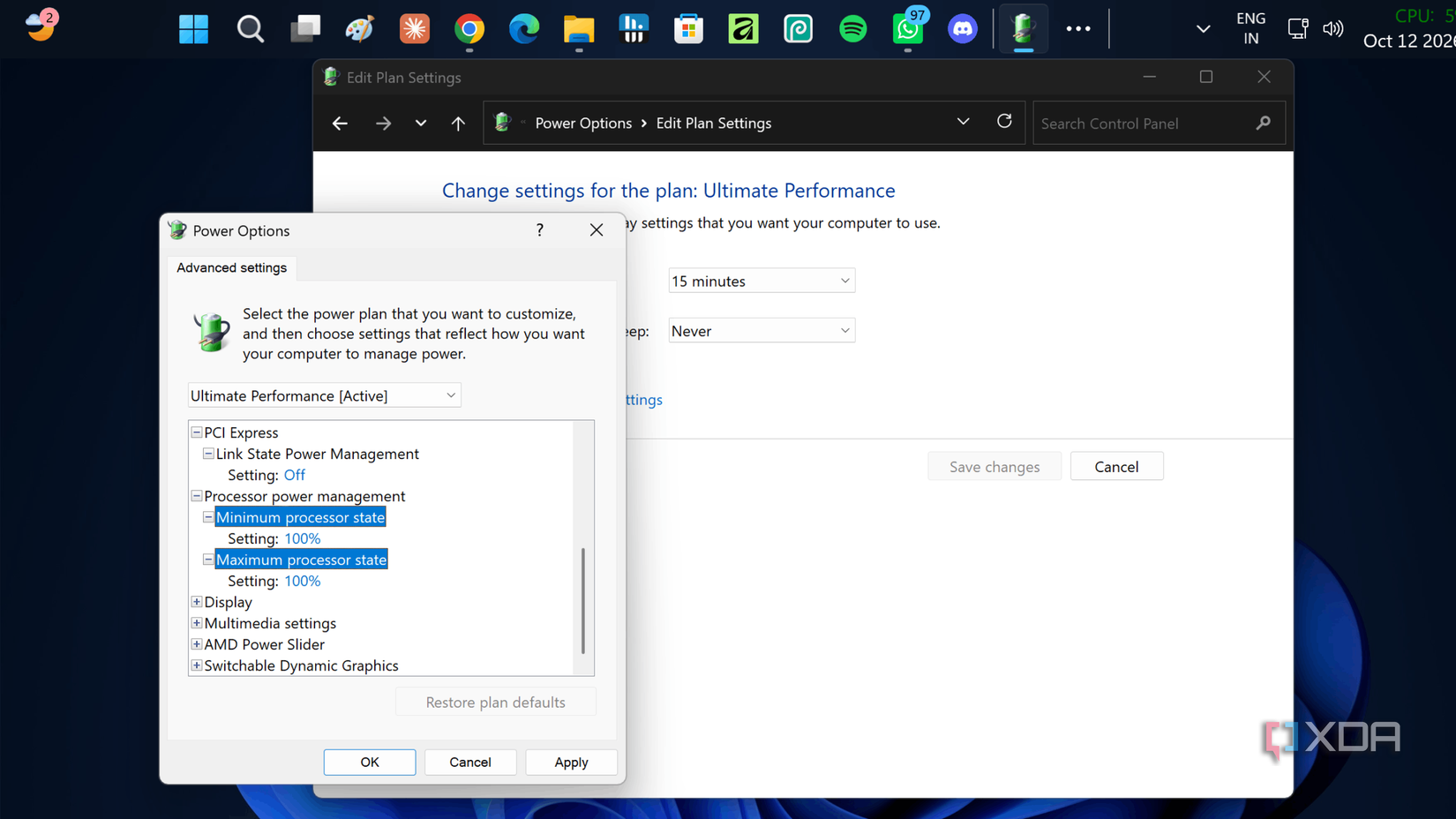
Conversely, the Ultimate Performance plan pins the minimum processor state to 100%. This does not mean your CPU constantly runs at maximum wattage or peak turbo frequency; rather, it means the operating system revokes the CPU’s freedom to downclock during idle periods. The processor remains primed at its baseline clock speed, eliminating the fraction of a millisecond it takes for a standard plan to ramp up frequency when a sudden workload arrives.
2. Core Parking Mechanics
Core parking is an advanced energy-saving feature where Windows dynamically disables idle CPU cores to reduce power draw and thermal output.
- Balanced Plan: Waits until active cores reach approximately 80% utilization before unparking additional cores. It also reparking cores rapidly as soon as demand subsides.
- High Performance Plan: Lowers the unparking threshold to roughly 65% and keeps awakened cores active for longer periods.
- Ultimate Performance Plan: Disables core parking entirely. All available physical and logical cores remain awake, alert, and ready to execute instructions instantaneously.
Step-by-Step: How to Unlock Ultimate Performance
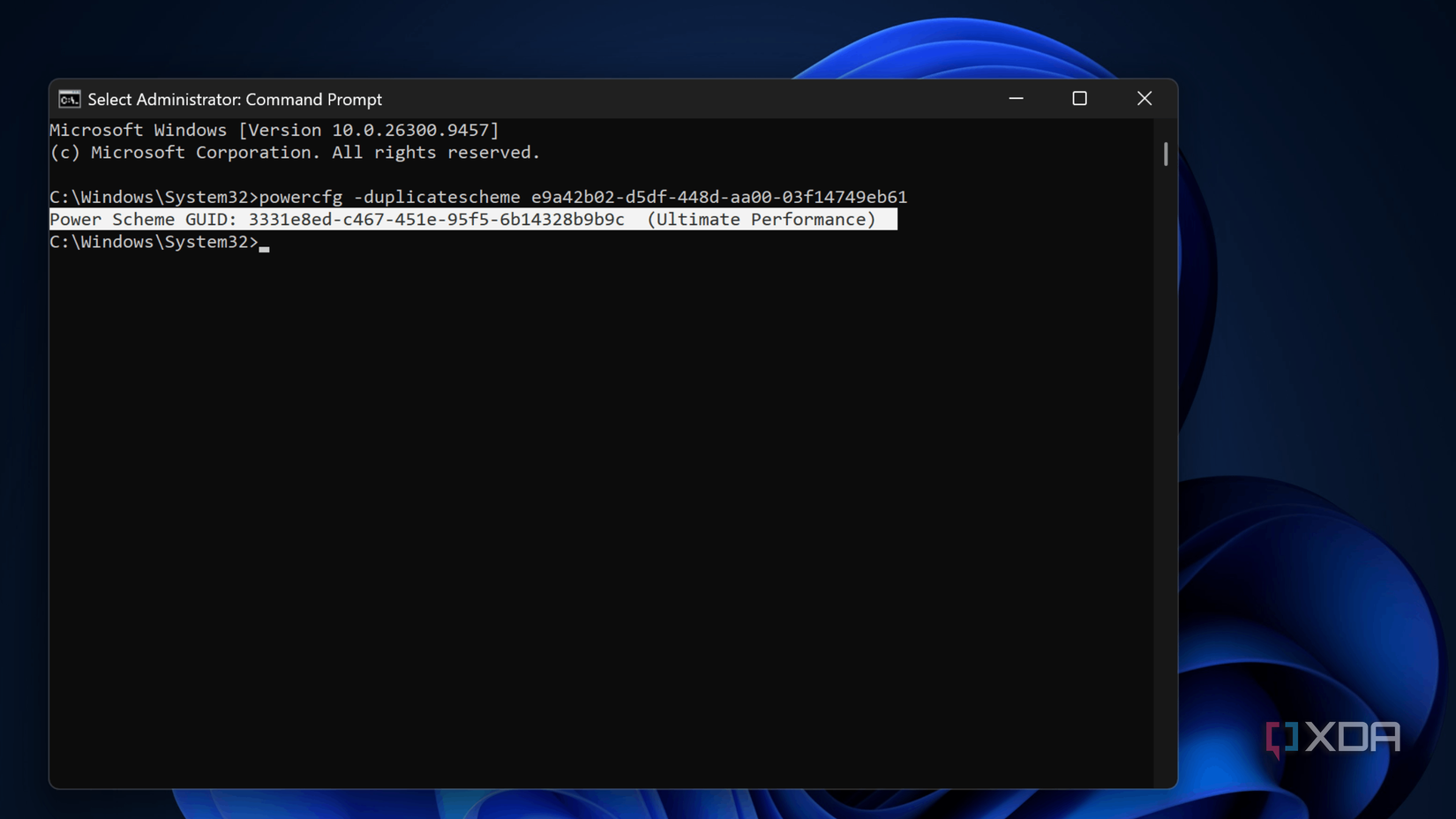
Because Microsoft deliberately hides the Ultimate Performance power plan from the standard Windows 11 graphical interface, unlocking it requires a brief trip to the Command Prompt.
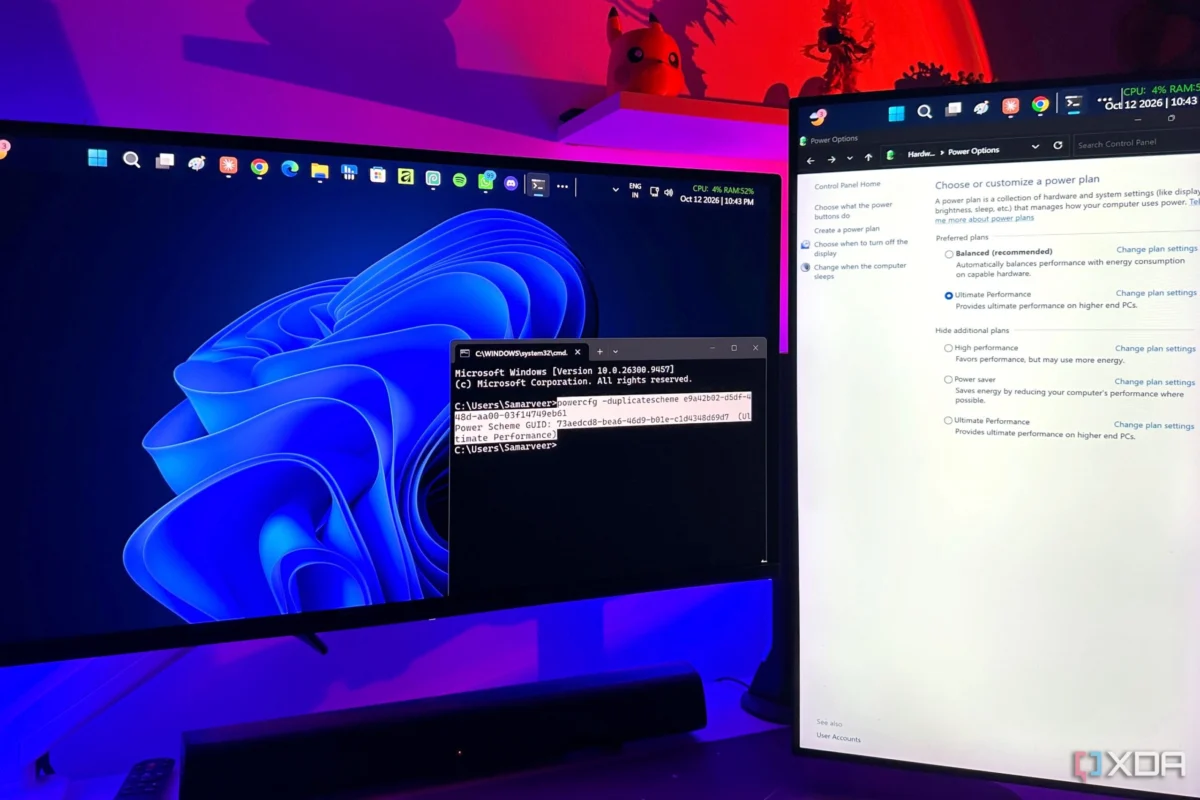
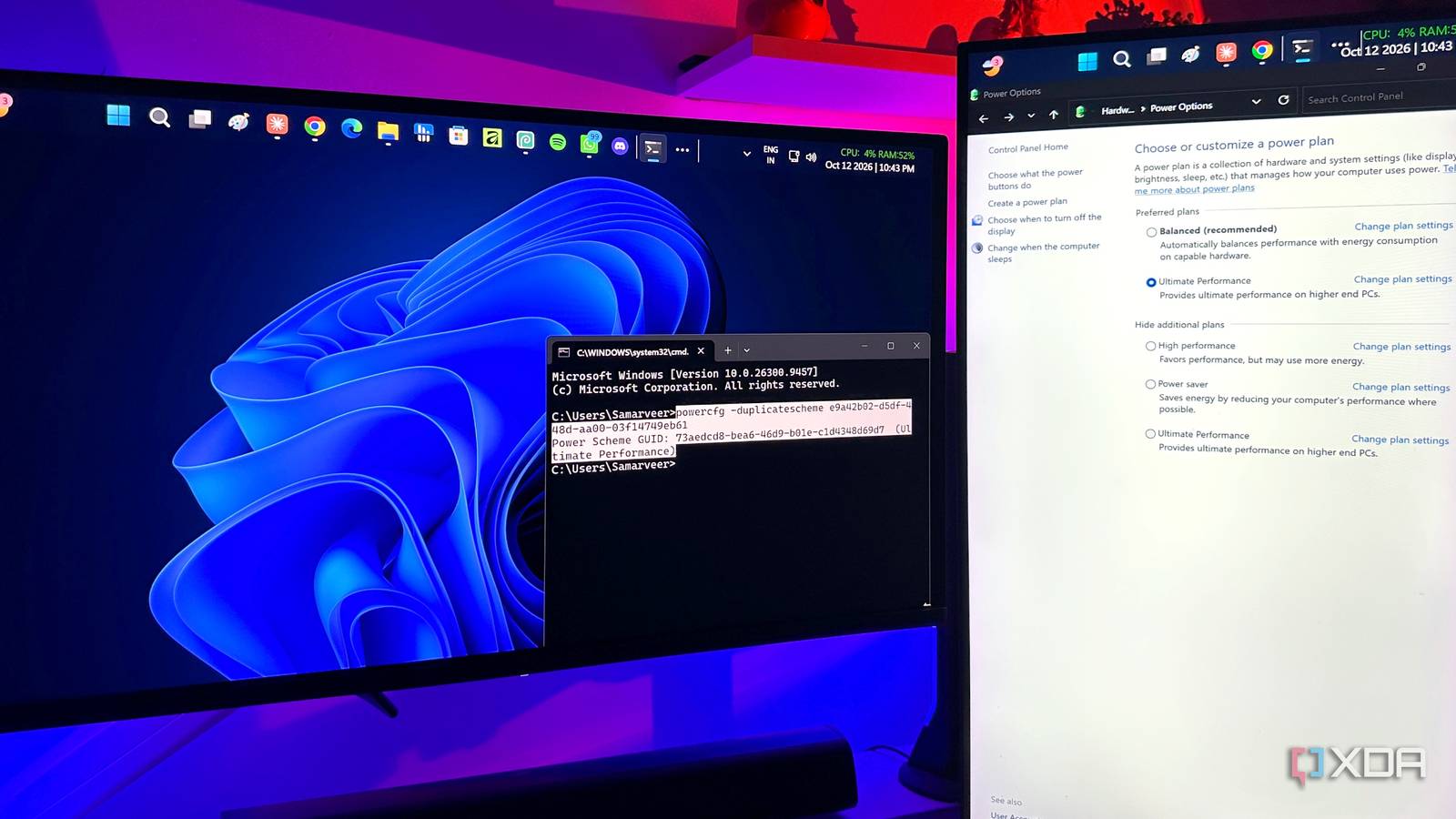
powercfg -duplicatescheme e9a42b02-d5df-448d-aa00-03f14749eb61Execution Steps:
- Open the Windows Start Menu and type cmd.
- Right-click on Command Prompt and select Run as administrator.
- Copy and paste the exact command string shown above and press Enter.
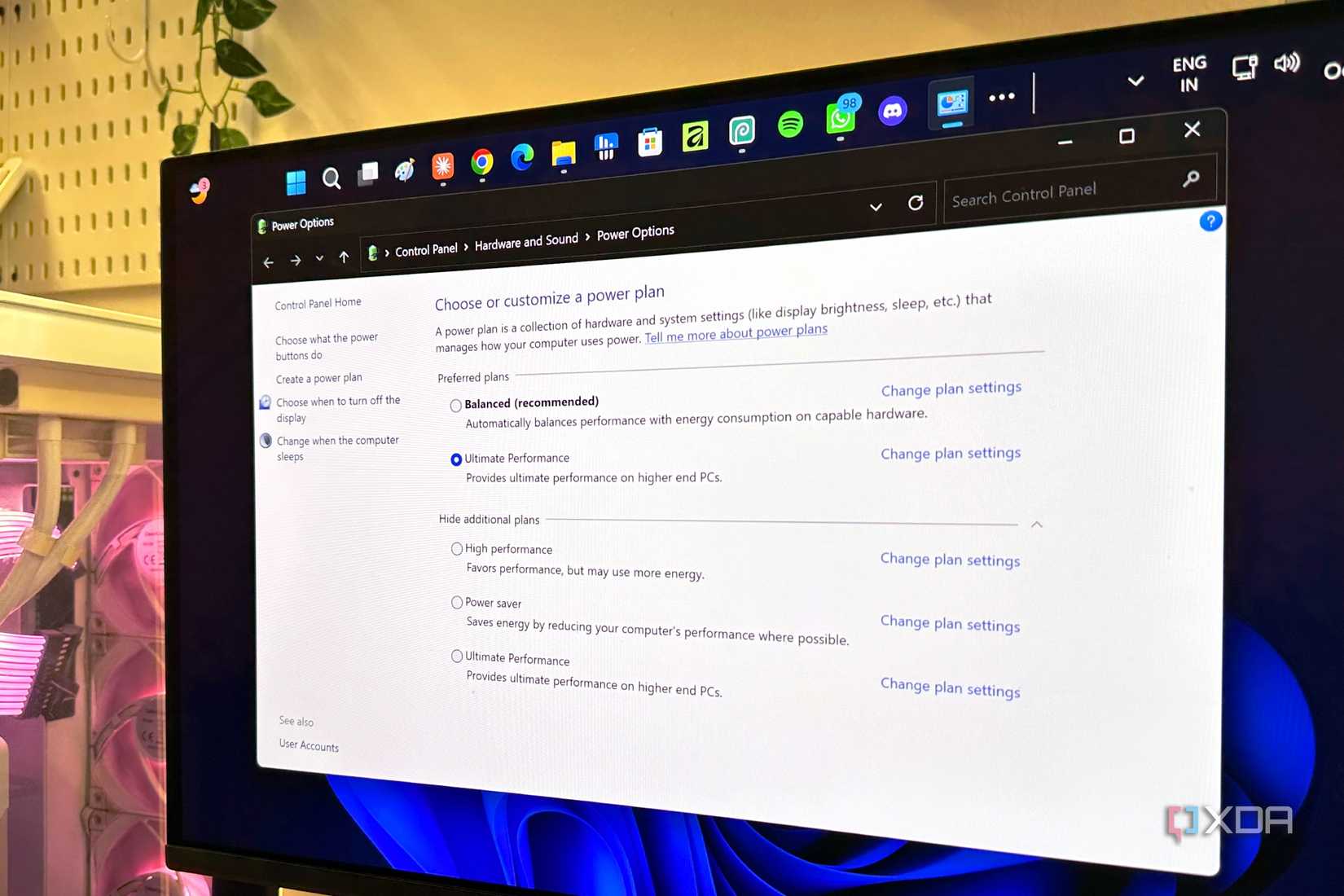
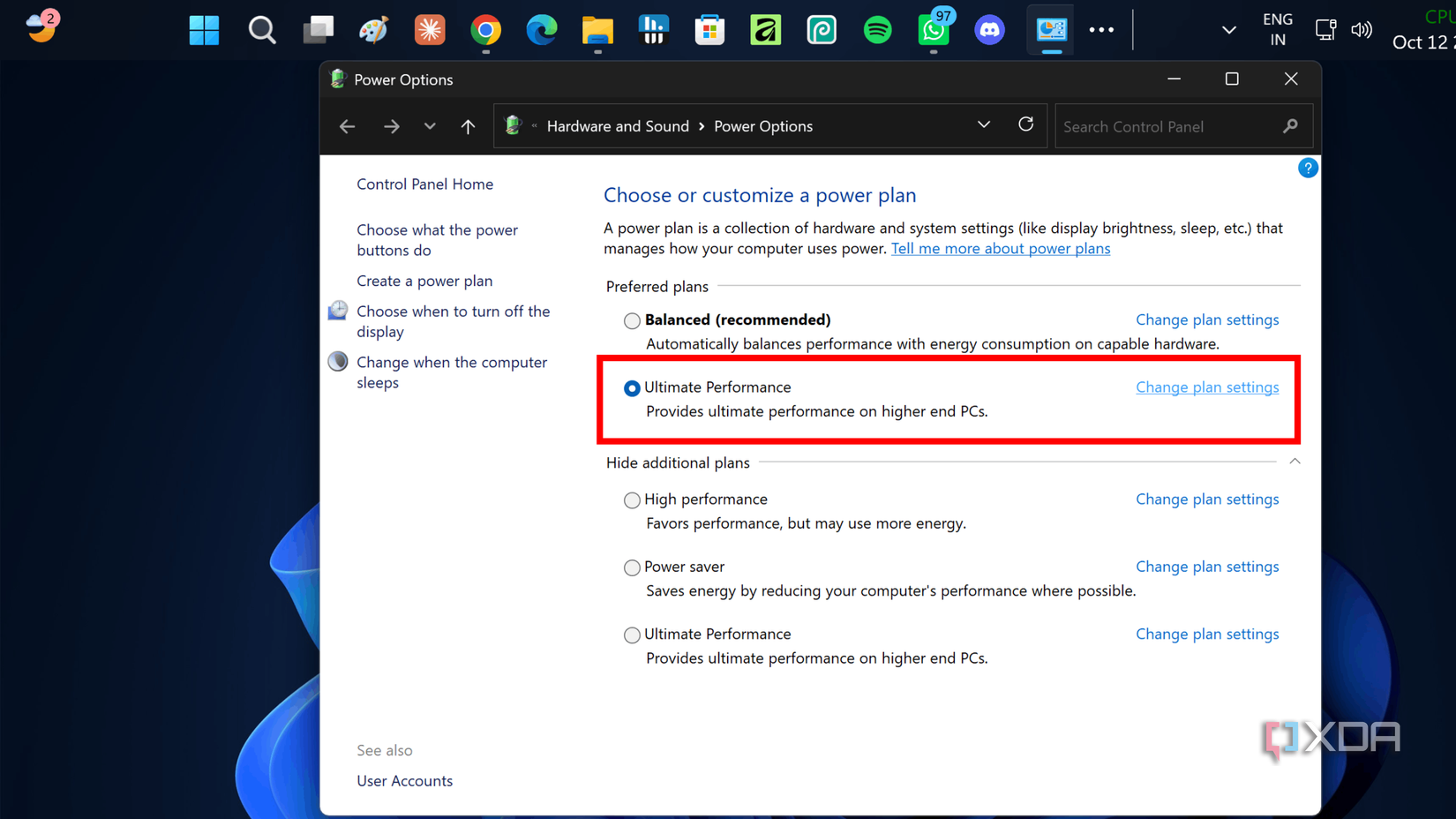
- Open the classic Control Panel, navigate to Hardware and Sound > Power Options.
- Alongside the traditional Balanced and High Performance options, you will now see Ultimate Performance available for selection.
Once enabled, users can click Change plan settings > Change advanced power settings to further fine-tune specific processor states, PCI Express link state power management, and cooling policies to tailor the profile to their specific system constraints.
Supporting Data: Gaming and Workload Performance Analysis
To evaluate whether removing idle power settings translates to real-world gaming gains, performance metrics were gathered across four demanding modern titles. To isolate CPU behavior, DLSS Frame Generation and other synthetic load-reducers were deliberately avoided. The benchmark suite includes a mix of GPU-bound single-player epics and heavily CPU-bound multiplayer environments.
| Game Title & Settings | High Performance (Avg. FPS) | High Performance (1% Low) | Ultimate Performance (Avg. FPS) | Ultimate Performance (1% Low) |
|---|---|---|---|---|
| Fortnite (High Settings) | 101 FPS | 72.3 FPS | 108 FPS | 83.4 FPS |
| Cyberpunk 2077 (Ultra Settings) | 102 FPS | 89.0 FPS | 100.6 FPS | 87.0 FPS |
| Black Myth: Wukong (High Settings) | 95 FPS | 78.0 FPS | 95 FPS | 78.0 FPS |
| Forza Horizon 5 (Extreme Settings) | 118 FPS | 96.8 FPS | 114 FPS | 91.0 FPS |
Analyzing the Results
- Single-Player GPU-Bound Titles (Cyberpunk 2077, Black Myth: Wukong, Forza Horizon 5): In these graphically intensive games, performance differences between High Performance and Ultimate Performance fell entirely within the margin of error. Because the graphics card is the primary bottleneck, freeing up minor CPU micro-latencies yields no discernible improvement to average frame rates.
- Competitive CPU-Bound Titles (Fortnite): Fortnite proved to be the exception. Due to continuous real-time building physics, hundred-player network updates, and rapid computational demands, the elimination of core parking and immediate CPU responsiveness yielded a measurable jump. While the average frame rate moved modestly from 101 FPS to 108 FPS, the 1% low metrics improved significantly from 72.3 FPS to 83.4 FPS, resulting in a smoother, more stutter-free visual experience during intense combat sequences.
Official Responses and Engineering Perspectives
Operating system architects and hardware manufacturers have long debated the necessity of aggressive performance plans on consumer hardware. Official stances from Microsoft engineering blogs emphasize that modern Windows 11 scheduling algorithms are remarkably sophisticated.
Features like Intel’s Thread Director and AMD’s native OS power collaboration work in tandem with the "Balanced" power profile to dynamically deliver peak single-core turbo frequencies precisely when an application demands them, without sacrificing acoustic profiles or thermal headroom.
Hardware vendors (including motherboard manufacturers and CPU makers) generally advise against running workstation-class power profiles on standard desktop builds unless a specific application profile calls for it. The consensus is clear: modern processors transition between power states so rapidly that the tangible performance delta of keeping a chip fully unparked and pinned at a 100% minimum state is negligible for 95% of use cases.
Implications: Thermals, Laptops, and Practical Recommendations
While unlocking Ultimate Performance sounds enticing on paper, it introduces several crucial trade-offs that every PC builder and laptop owner must consider.
The Thermal and Acoustic Cost
By forcing processor cores to remain unparked and banning the CPU from downclocking during idle periods, thermal output naturally rises. Even when doing light tasks like web browsing or text editing, the CPU package temperature sits noticeably higher. This triggers more aggressive fan curves, resulting in louder acoustic profiles and increased wear-and-tear on cooling fans over time.
Why Laptop Users Should Avoid It
If you are running Windows 11 on a gaming laptop or productivity notebook, avoid the Ultimate Performance power plan. Laptops operate under strict thermal constraints and finite battery capacities. Forcing a mobile processor to run unparked and fully awake at all times will drastically deplete battery life while pushing internal temperatures dangerously close to thermal throttling thresholds, ultimately degrading performance rather than enhancing it.
The Verdict: Who Should Use It?
- Desktop Users: If you render 3D scenes, compile massive codebases, run intensive data simulations, or play ultra-competitive esports titles where every single frame and 1% low matters, unlocking Ultimate Performance is worth the minor command-line effort.
- Casual Users & Single-Player Gamers: If your daily routine involves web browsing, office productivity, and playing graphically demanding AAA single-player games, stick with the default Balanced plan or a customized High Performance setup. You will save on electricity, keep your room cooler, maintain quieter fan speeds, and notice virtually zero difference in your gaming experience.