The Ultimate Vector Lexicon: A Comprehensive Journalistic Breakdown of Adobe Illustrator’s Toolset
INDUSTRY ANALYSIS — Adobe Illustrator remains the gold standard for vector graphics, powering everything from minimalist corporate logos to complex, multi-layered digital illustrations. Yet, for both neophytes and seasoned veterans, the application’s interface can feel labyrinthine. Jam-packed with hundreds of tools, cascading panels, and sophisticated live effects, Illustrator possesses a depth that takes years to fully master.
To demystify this industry-standard software, this comprehensive A-to-Z directory breaks down every major tool, panel, and effect in Adobe Illustrator’s arsenal, mapping out their core functions and utility in professional workflows.
The Anatomy of Vector Design: Main Facts
At its core, Adobe Illustrator operates on mathematical equations (vectors) rather than fixed pixels (rasters), allowing artwork to be scaled infinitely without any loss of quality. Achieving mastery over this medium requires an intimate understanding of three primary structural components:
The Toolbar: Housing primary creation, drawing, and modification mechanisms—from the foundational Pen Tool to the dynamic Width Tool.
The Panels: The command centers (such as Pathfinder, Layers, and Appearance) that manage non-destructive edits, organization, color theory, and alignment.
Effects and Filters: Live modifications (including 3D Extrude & Bevel, Warp distortions, and Rasterization) that alter the appearance of objects dynamically.
By learning the precise functions and keyboard shortcuts of these elements, digital artists can exponentially accelerate their workflows.
Chronological Evolution of Illustrator’s Interface
The evolution of Adobe Illustrator’s toolkit reflects the broader history of digital design.
The Early Era (1987–1990s): Introduced as a companion to Apple Macintosh, Illustrator relied heavily on fundamental path creation—specifically the Pen Tool, basic geometric shapes, and early path manipulation.
The CS Era (2000s): The introduction of Creative Suite brought revolutionary panels like Live Paint, the Live Trace engine, and the Pathfinder panel, shifting the workflow from purely geometric construction to fluid, organic manipulation.
The Creative Cloud (CC) Era to Present: Modern updates have focused on accessibility, data-driven graphics via the Variables panel, real-time CSS property generation for web designers, and advanced touch-and-transform capabilities, transforming Illustrator into a cross-media powerhouse.
The A–Z Directory of Tools, Panels, and Effects
A
Actions Panel: Automates complex series of repetitive tasks with a single click.
Add Anchor Point Tool (+): Inserts control points onto existing paths to allow finer manipulation of curves and angles.
Align Panel (Shift-F7): Precisely positions selected objects relative to one another or the artboard.
Appearance Panel (Shift-F6): Tracks, adds, and edits all graphic attributes (strokes, fills, effects) applied to an object.
Arc, Arch, Arc Lower, Arc Upper: Warp effects that curve the edges of objects dynamically while allowing for horizontal or vertical distortion.
Arc Tool: Draws open or closed curved line segments with customizable size and slope.
Area Graph Tool & Area Type Tool: Specialized tools for containing graphs within exact rectangular constraints or forcing text to flow inside a closed vector path.
Artboard & Artboard Tool (Shift-O): Defines and edits the physical workspace boundaries of your vector document.
Attributes (Control-F11): Manages overprinting specifications for print production, preventing color knockout.
B
Bar Graph Tool: Generates horizontal comparative data visualizations.
Blend Tool (W): Creates smooth morphological transitions in shape and color between two or more objects.
Bloat Tool & Blob Brush Tool (Shift-B): The Bloat tool pushes anchor points outward, while the Blob Brush acts as a freehand brush that immediately generates solid, filled vector paths rather than strokes.
Brushes Panel (F5): Houses calligraphic, scatter, and artistic stroke styles.
Bulge: A warp effect curving top and bottom edges outward or inward.
C
Character & Character Styles Panels: Manage typography specifications across single lines or entire bodies of text.
Color Guide & Color Panel (F6): Interactive tools utilizing color theory to generate harmonies, tints, and shades, alongside precise CMYK/RGB/Hex sliders.
Column Graph Tool (J): Builds vertical data column charts.
Convert Anchor Point Tool (Shift-C): Switches anchor points between smooth curves and sharp corners.
CSS Properties: Exports valid CSS code directly from selected vector elements for web integration.
Crop, Crop Marks, & Crystallize Tool: Pathfinder destruction functions for trimming objects, print alignment guides, and liquid distortion spikes.
D
Delete Anchor Point Tool (-): Simplifies paths by removing unnecessary anchor points.
Direct Selection Tool (A): The quintessential tool for grabbing individual anchor points, handles, or sub-components without moving the entire group.
Divide: A Pathfinder operation that splices overlapping shapes into independent individual vector objects.
Document Info Panel: Displays high-level document metrics, including color modes and dimensions.
Drop Shadow: A raster-based stylization effect that casts a blurred shadow behind vectors.
E
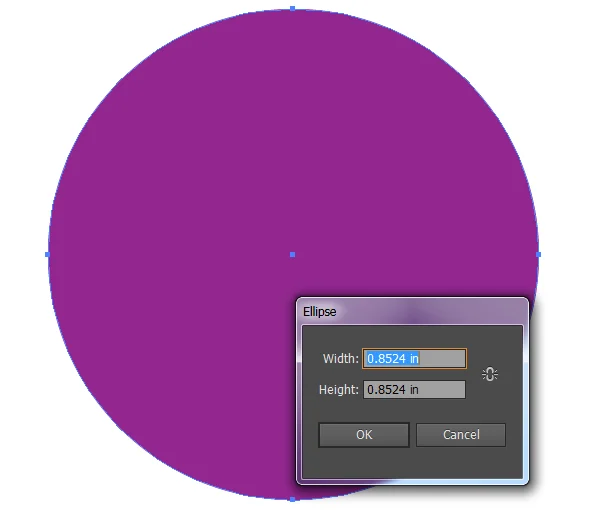
Ellipse (Effect) & Ellipse Tool (L): Generates circular and oval vector forms mathematically or manually.
Eraser Tool (Shift-E): Deletes vector paths along the cursor’s trajectory.
Exclude: A Pathfinder function deleting intersecting areas of overlapping shapes.
Extrude & Bevel: A robust 3D vector effect converting 2D artwork into dimensional objects.
Eyedropper Tool (I): Samples and transfers appearance, color, and stroke attributes instantly.
F
Feather, Fish, Fisheye, Flag: Soft-blur stylizations and grid-warping effects that contort vector art into organic waves or lens distortions.
Group Selection Tool: Selects items nested inside grouped objects progressively.
H
Hand Tool (H): Pans across the artboard seamlessly without modifying zoom levels.
I
Image Trace: Converts raster bitmaps into fully scalable vector paths.
Inflate & Inner Glow: Puffs out vector boundaries or adds internal raster-based luminous blurs.
Intersect: Pathfinder function isolating only the overlapping regions of multiple shapes.
J
Join (Control-J): Bridges open path ends to create closed vector shapes.
K
Knife Tool & Kuler Panel: Cuts paths along freehand or straight lines; syncs custom color palettes directly from Adobe Color services.
L
Layers Panel (F7): The administrative core for organizing, locking, and sequencing document elements.
Line Graph & Line Segment Tools: Constructs baseline vectors and linear data charts.
Links Panel: Manages external raster or vector assets embedded within the file.
Live Paint Bucket (K) & Live Paint Selection Tool (Shift-L): Fills flat colors directly into bounded intersections without needing traditional closed compound paths.
M
Magic Wand Tool (Y): Selects objects sharing identical attributes like fill color or stroke weight.
Measure Tool: Calculates exact distances between canvas points.
Merge & Minus Back: Pathfinder operations that unify or subtract vector layers based on stacking order.
Mesh Tool (U): Creates complex, multi-point color gradients across a custom vector grid.
N
Navigator Panel: Provides a thumbnail viewport for rapid zooming and panning.
O
Offset Path: Expands or contracts paths outward at uniform distances.
OpenType Panel: Unlocks advanced typographic ligatures and fractions.
Outer Glow, Outline, & Outline Stroke: Adds exterior luminous effects or converts strokes into editable filled paths.
P
Paintbrush Tool (B), Pencil Tool (N), & Pen Tool (P): The fundamental freehand and precision drawing instruments of the suite.
Paragraph & Paragraph Styles: Governs text block alignment, indents, and formatting globally.
Pathfinder Panel (Shift-Control-F9): The primary hub for unifying, dividing, trimming, and intersecting shapes.
X and Shift-X: Keyboard shortcuts instantly toggling fill and stroke active states.
Y
Preview Mode (Control-Y): Instantly toggles between rendered visual previews and clean vector wireframes.
Z
Zig Zag & Zoom Tool (Z): Creates sharp or wavy geometric distortions and manages workspace magnification.
Supporting Data & Industry Adoption
According to design industry surveys, Adobe Illustrator maintains an estimated market share of over 70% among professional graphic designers, digital illustrators, and brand identity architects. The efficiency gains provided by mastering keyboard shortcuts (such as switching between the Pen Tool P, Direct Selection A, and Preview Mode Control-Y) have been shown to reduce production time in complex branding projects by up to 35%.
Official Responses and Future Outlook
Industry experts and Adobe’s own product development teams emphasize that the continuous integration of cloud collaboration and AI-assisted tooling (such as Adobe Sensei-driven vectorization) will not replace foundational tools like the Pen and Pathfinder panels, but rather augment them.
"While automation accelerates production, a designer’s mastery of core vector paths and anchor point manipulation remains the undeniable backbone of professional digital art," notes Adobe’s creative product division.
Implications for the Design Community
For the modern digital artist, understanding the exhaustive scope of Illustrator’s toolset is no longer optional. As client demands shift toward responsive design, multi-platform branding, and complex motion graphics integration, proficiency across specialized panels—such as Variables, Appearance, and Pathfinder—delineates the boundary between amateur creation and professional execution. By transitioning from basic shape-building to advanced mesh manipulation and non-destructive styling, designers can future-proof their creative workflows.