






Published: September 17, 2026
Author: Samir Makwana
For years, the promise of containerization on consumer operating systems has been defined by user experience and seamless integration. For Windows 11 users, Docker Desktop has long been the gold standard—a polite, polished application that completely abstracts away the complexities of Linux kernels, virtual machines, and command-line configurations. With a simple click of an installer, developers and self-hosters alike are granted a fully functional, graphical environment capable of spinning up microservices, databases, and media servers without ever having to touch a terminal or a command prompt.
However, convenience often comes at a hidden cost. Recently, a routine check of the Windows Task Manager prompted a deeper investigation into what Docker Desktop is actually doing behind the scenes. The discovery was striking: even when completely idle, with zero active containers running or serving requests, Docker Desktop’s helper processes were consuming well over a gigabyte of system memory.
This realization triggers a fundamental question for power users and developers alike: Does the sheer convenience of a graphical dashboard justify the heavy performance and resource overhead it imposes on a Windows 11 machine? To find out, we stripped away Docker Desktop entirely, migrating the exact same container stack directly into the Windows Subsystem for Linux (WSL2), and analyzed the performance trade-offs, system architecture impacts, and long-term implications.

Main Facts: Unmasking the True Cost of Convenience
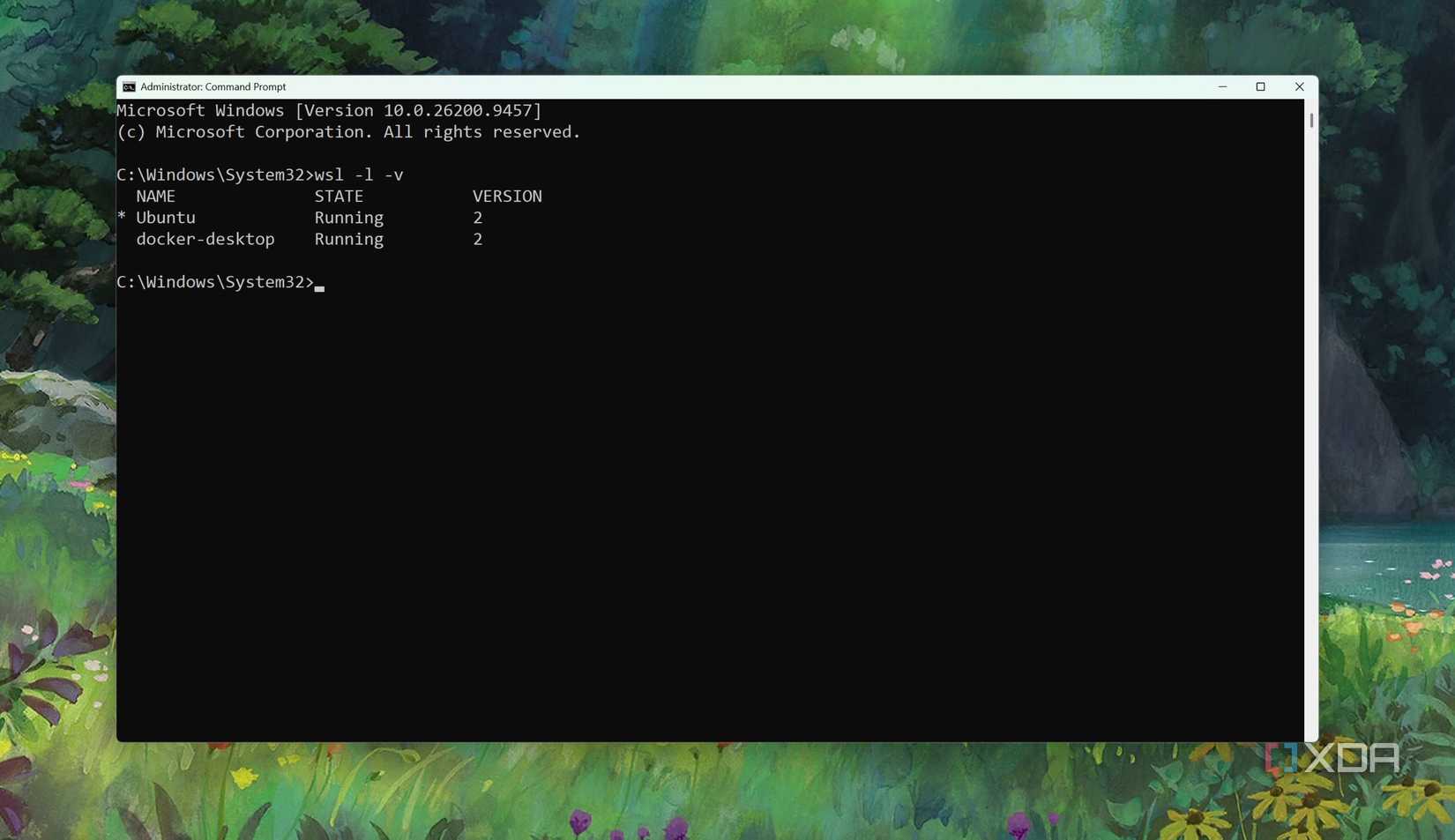
At its core, Docker Desktop on Windows 11 is not a standalone, lightweight utility. When installed, it sets up its own isolated Linux distributions—specifically docker-desktop and docker-desktop-data—which run parallel to your primary working distributions like Ubuntu or Debian.
This architecture introduces a cascading series of resource allocations:
- Double Virtualization: Windows 11 already operates a lightweight virtualization layer to power WSL2. Docker Desktop then spins up a second nested virtual machine inside that environment to house its proprietary engine, networking helpers (such as
vpnkit), and credential managers. - Persistent Background Activity: Even with features like Docker’s Resource Saver enabled, multiple backend engine processes continue to poll the CPU and reserve significant chunks of RAM even when no containers are active.
- The WSL2 Alternative: By installing Docker’s container engine directly inside a native WSL2 distribution using official command-line scripts, the secondary virtualization layer is completely bypassed, leaving a single shared kernel to handle isolated processes.
When subjected to a real-world test running a standard stack—including Jellyfin for media streaming, a Caddy reverse proxy, a PostgreSQL database, and Syncthing for file synchronization—the performance disparity was undeniable. While Docker Desktop claimed over 1GB of RAM before a single container even booted up, the native WSL2 configuration added only a few hundred megabytes of overhead on top of an idle Linux distribution.
Chronology: From Seamless Setup to Task Manager Realizations
Phase 1: The Honeymoon Period of Out-of-the-Box Integration
For nearly two decades of tech journalism, the overarching goal has always been to help everyday users streamline their workflows and solve technical hurdles as painlessly as possible. Docker Desktop excelled at this mission. By handling port mappings, default firewall rules, file-sharing permissions, and automatic terminal path integrations out of the box, it allowed users to focus entirely on writing code or managing self-hosted infrastructure rather than troubleshooting environment paths.

Phase 2: The Task Manager Awakening
The shift in perspective occurred during a routine diagnostic check in Windows 11 Task Manager. Expecting an idle application to rest quietly in the system tray, the process list instead revealed a sprawling web of background operations:
- Backend daemon engines maintaining persistent states.
vpnkitmanaging virtual networking bridges.- Credential helper binaries running continuous loops.
The assumption that stopping a container automatically releases all allocated resources proved false within the Windows virtualization architecture. The dashboard might show zero active services, but the host operating system continues to pay the virtualization tax for the underlying management layer.
Phase 3: Migrating to Native WSL2
To test whether this overhead was an unavoidable necessity or merely a byproduct of GUI-driven convenience, Docker Desktop was uninstalled. An official Docker installation script was then executed directly inside a clean Ubuntu WSL2 distribution.
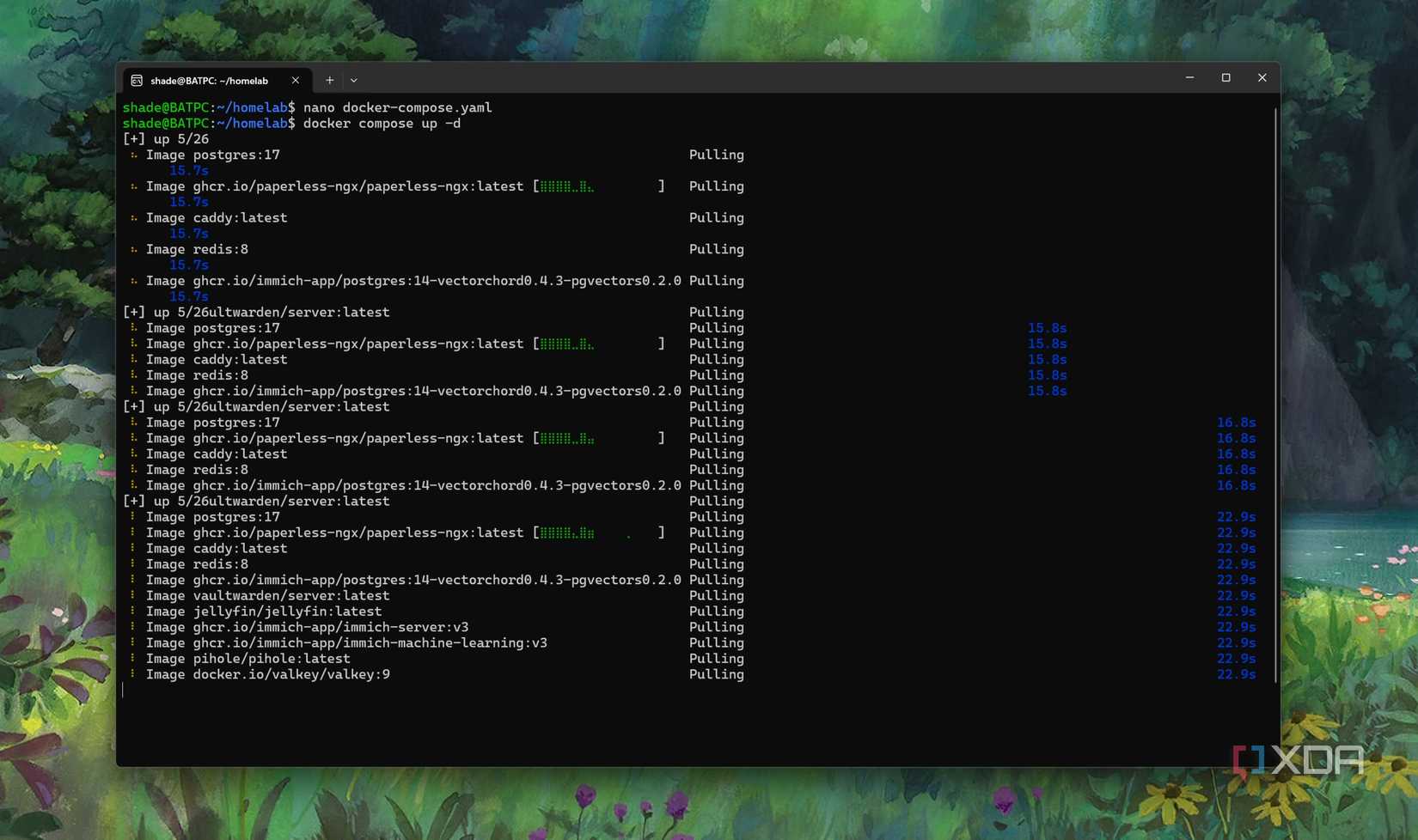
The identical container stack—Jellyfin, Caddy, Postgres, and Syncthing—was deployed via terminal commands (docker compose up -d). The system was left to run uninterrupted for several hours to monitor idle resource consumption, CPU wakeups, and memory retention.
Supporting Data: Idle Overhead vs. Boot-Time Speeds
A common misconception in software optimization is that graphical interfaces are inherently slower at executing core tasks. However, performance benchmarks and daily usage tests revealed that container startup and execution speeds between Docker Desktop and native WSL2 were virtually identical. The speed of the container runtime itself was never the real problem.
+------------------------+-----------------------+------------------------+
| Metric                 | Docker Desktop (GUI)  | Native WSL2 (Terminal) |
+------------------------+-----------------------+------------------------+
| Base Idle RAM Usage    | > 1,000 MB            | ~200 – 300 MB          |
| Virtualization Layers  | 2 (Nested VMs)        | 1 (Shared WSL2 Kernel) |
| CPU Wakeups (Idle)     | Frequent / Polling    | Silent                 |
| File-Sharing Setup     | Automated (GUI UI)    | Manual Path Mapping    |
| Terminal Integration   | Global (PowerShell)   | Distro-Specific        |
+------------------------+-----------------------+------------------------+
As the data illustrates, the true penalty is paid during idle time, not boot time. When a development environment or a home server stack sits quietly in the background for hours—a common pattern for developers and homelab enthusiasts—Docker Desktop’s persistent background processes continuously drain system resources. The native WSL2 setup, by contrast, remains completely dormant until an active workload demands compute cycles.
Official Responses and Industry Context
The architecture of Docker Desktop on Windows has long been a topic of discussion within the broader software engineering community. Representatives and maintainers of container toolchains frequently emphasize that Docker Desktop is explicitly designed for a broad audience—ranging from enterprise developers who require strict security boundaries to beginners who might be intimidated by command-line interfaces.
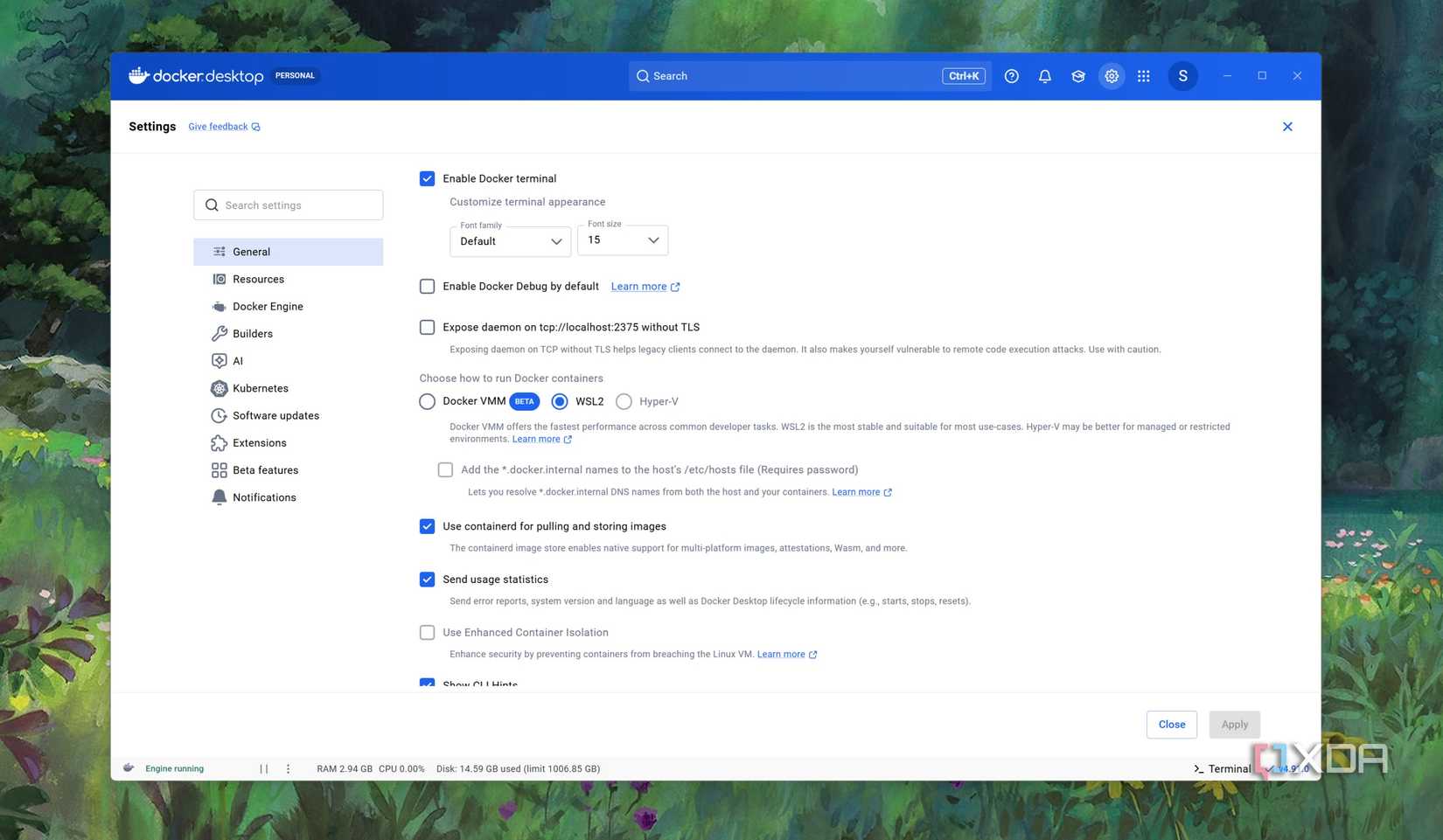
By abstracting the Linux kernel away from the Windows user, Docker Inc. ensures a cross-platform parity that minimizes support tickets and configuration errors. Features like Resource Saver were introduced precisely to address early criticisms regarding RAM consumption. However, developers operating on memory-constrained laptops or resource-heavy multi-purpose desktop rigs continue to push back against the multi-layered virtualization approach, arguing that native integration through tools like WSL2 provides a more honest reflection of underlying hardware capabilities.
Implications: The Trade-Offs of Ditching Docker Desktop
Deciding to completely abandon Docker Desktop in favor of a pure terminal-based WSL2 workflow is not an absolute victory; it introduces distinct compromises that every user must evaluate based on their individual needs.
1. The Loss of Graphical Clarity
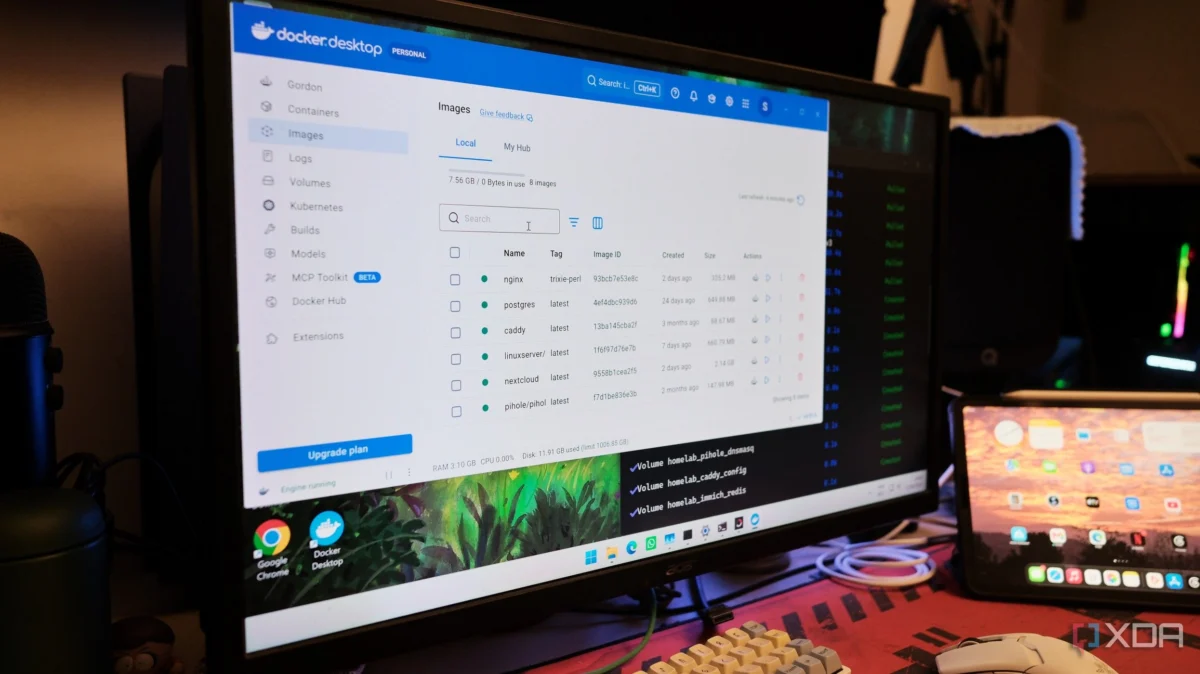
The most immediate drawback is the loss of the Docker Desktop dashboard. At a single glance, the GUI provides a comprehensive visual inventory of running containers, storage volumes, network bridges, and image layers. Starting, stopping, or inspecting container logs with a single mouse click is an undeniable ergonomic luxury. Managing these same elements via docker compose or CLI commands requires familiarity with terminal syntax.
2. File-Sharing and Path Friction
Docker Desktop simplifies file sharing by offering a dedicated settings panel where Windows host directories can be mapped to container volumes seamlessly. In a pure WSL2 environment, users must manually bridge file paths across the Windows and Linux file systems, accounting for performance penalties associated with cross-filesystem file Input/Output (I/O). Furthermore, Docker Desktop automatically injects its command pathways into PowerShell and Command Prompt, whereas native WSL2 implementations restrict container commands to the specific Linux distribution terminal unless manually exported.
3. The Hybrid Verdict: When to Keep Docker Desktop
Despite the compelling memory savings offered by native WSL2, Docker Desktop retains a permanent place on machines dedicated to active, multi-project software development. If your workflow involves rapid iteration, frequent image building, and constant visual debugging, the convenience of the GUI easily outweighs the 1GB RAM penalty.
Conversely, for dedicated machines running long-term, self-hosted services—such as media servers, local databases, and synchronization utilities—migrating the workload directly into a plain WSL2 distro is a transformative upgrade. It slashes idle overhead, quiets unnecessary CPU wakeups, and maximizes the efficiency of your Windows 11 hardware.
Conclusion
The Docker Desktop dilemma highlights a timeless engineering trade-off: ergonomics versus efficiency. For casual users and fast-paced developers, the polished GUI and automated scaffolding of Docker Desktop are worth every megabyte of RAM. But for power users willing to trade a graphical dashboard for terminal-based control, stepping outside the Docker Desktop ecosystem unlocks a leaner, faster, and far more resource-conscious Windows 11 container environment.