How to create cinematic visual effects with AI video editing tools
You don’t need a Hollywood budget or years of editing experience to create cinematic video effects or even more advanced AI video effectsanymore. Start with strong footage, use AI tools such as Envato VideoGen, Runway ML, or DaVinci Resolve for cleanup and enhancements, and finish with your own creative polish.
With today’s AI video editing tools, you can automate complex tasks like rotoscoping, relighting, and color grading, freeing you up to focus on storytelling and style. AI isn’t here to replace your creativity; it’s here to make it faster, easier, and more fun.
Want to create cinematic visual effects without advanced editing skills or expensive software? This article is designed for beginners who want to learn how to use AI video editing tools to quickly create professional video effects. Whether you’re a 3D artist, video editor, animator, or just someone curious about what’s possible, we’ll walk you through how it works and how to use AI tools to make your videos look like they belong on the big screen.
But let’s jump straight in with which AI tools are actually beginner-friendly and deliver the most cinematic results right out of the box.
There are loads of AI tools out there right now, but some are way more beginner-friendly than others, especially for creating cinematic visual effects and for AI in video editing. If you’re just starting out, you’ll want tools that are simple, intuitive, and help you create cinematic results without needing complex workflows or high-end gear.
Here are a few beginner-friendly AI video effects tools worth exploring, each designed to help you bring professional-quality effects to life in minutes, not days.
1. Envato VideoGen
VideoGen is Envato’s own AI text-to-video tool, and it’s a great place to start if you’re new to cinematic effects. Available to all Envato subscribers, the tool works well for social media posts, presentation visuals, and YouTube thumbnails. It’s particularly helpful when you need to create video content but don’t have a background in video production or the time or budget to shoot. Here’s what was created with VideoGen in just a few minutes using the prompt: “An orange with a face, hanging in the tree with other oranges, until a blackbird lands on it and begins pecking.”
</figure>
Pros:
Cons:
2. Runway ML
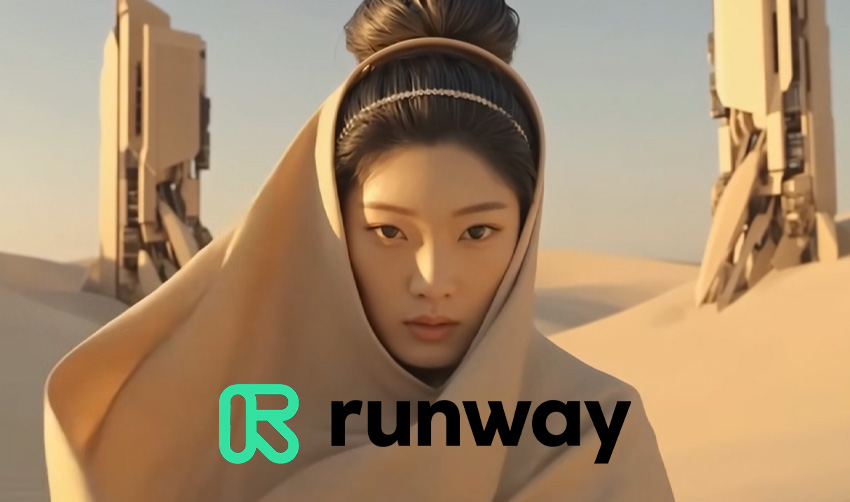
Runway ML is a browser-based AI video editor built for creators who want advanced results without the technical overhead. It’s packed with smart, accessible features that make it ideal for experimenting, even if you’re completely new to VFX or video editing. Honestly, it’s one of the easiest (and most fun) tools to play with when you’re learning the ropes.
Pros:
Cons:
3. Adobe Premiere Pro + Adobe Firefly
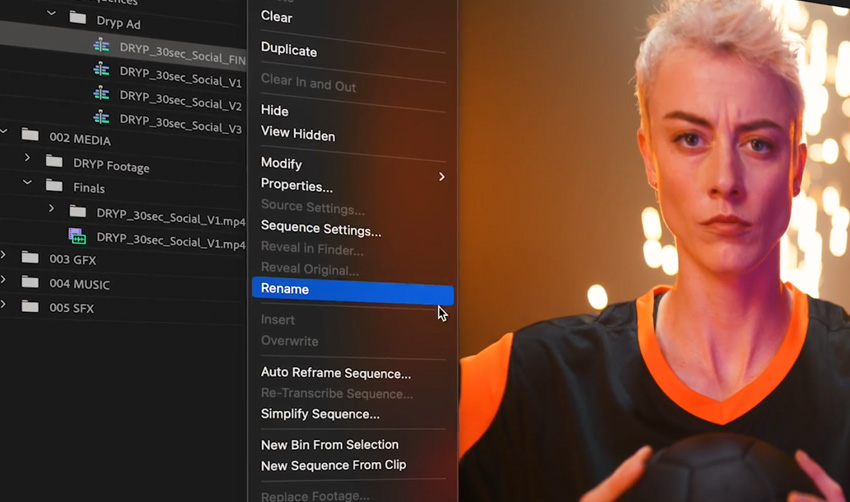
If you’re already editing in Adobe Premiere Pro, chances are you’ve been using AI tools without even realizing it. Adobe’s Firefly technology is now built directly into Premiere Pro, giving you a powerful blend of automation and creative control inside a professional-grade editor.
For beginners ready to grow their skills, this setup strikes a great balance. You can start simple and expand into more advanced visual effects in the same workspace.
Pros:
Cons:
4. DaVinci Resolve (Neural Engine)
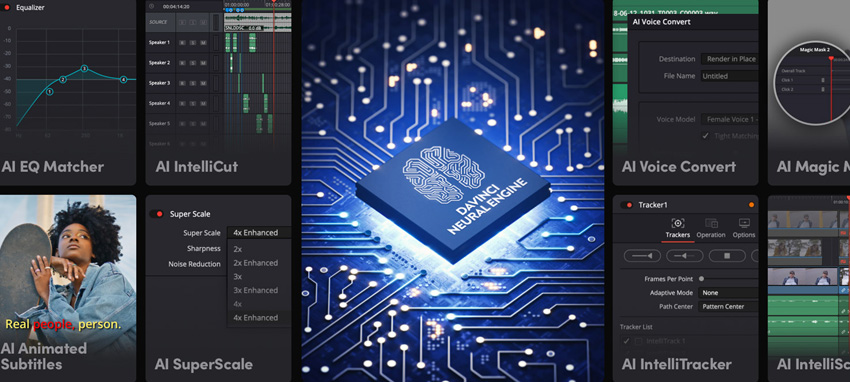
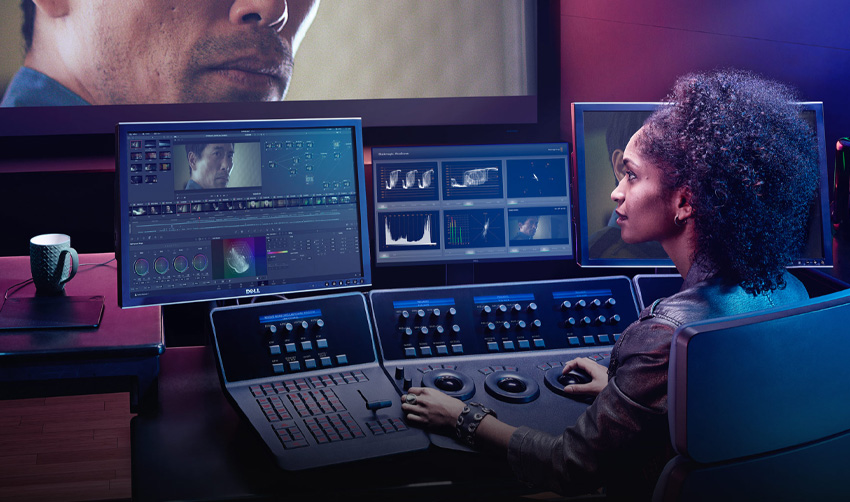
DaVinci Resolve is a powerhouse for color grading, and the Neural Engine adds a bunch of AI magic to the mix. It’s more advanced than some of the other options here, but still very accessible for beginners with a little exploration.
The Neural Engine helps automate complex editing tasks like face refinement, smart masking, and speed warping, making cinematic results faster (and far more fun) to achieve. And the best part? The free version is surprisingly capable, offering most of the essential features without major restrictions.
Pros:
Cons:
5. CapCut
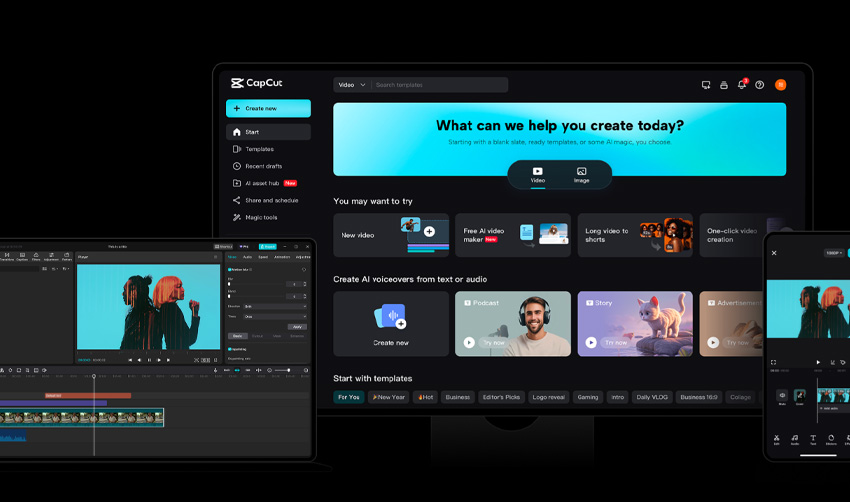
CapCut has evolved from a mobile app into a surprisingly capable desktop video editor, making it a solid choice for creators who want to produce short, cinematic clips fast. If you’re creating short cinematic clips for social media, this tool is fast, free, and surprisingly powerful for how simple it is to use.
It’s clean, intuitive, and packed with clever AI features, from background removal to motion tracking, that help you focus on storytelling instead of technical tweaks.
Pros:
Cons:
6. Canva Video Editor
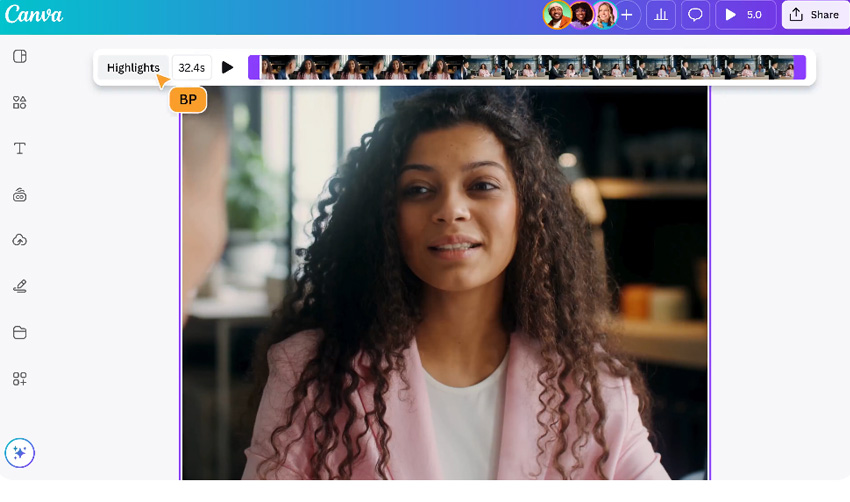
While Canva isn’t a traditional VFX platform, its AI-powered video editor makes it a great starting point for beginners who want polished results without diving into complex timelines or visual effects workflows. It’s a great place to start if you’re more of a designer than a video editor, and it helps you to create storytelling-driven videos with style and ease.
Pros:
Cons:
What is AI in video editing?
AI in video editing is like having a really smart assistant who understands your footage and helps you edit faster (and sometimes better). It doesn’t just follow instructions; AI tools learn from huge amounts of visual data and apply that knowledge to your own clips, making it easier than ever to create professional-quality AI video effects.
Here’s a breakdown of what that actually means:
If you’re brand new to video effects, AI tools are easily the fastest route to cinematic results without getting overwhelmed. You don’t need to be an expert; you just need the right tool and a bit of curiosity.
This is the most exciting part! There is just so much that AI can do. AI-powered tools can now handle a large portion of VFX work. From background removal to cinematic color grading, today’s AI features give creators the power of a mini post-production studio right on their laptop.
Here are some of the most useful (and beginner-friendly) ways AI is transforming video editing:
In short, AI gives you creative control without the complexity; it’s like having a mini VFX studio built into your laptop. And the best part? Most of these tools are super intuitive, even if you’ve never touched After Effects or DaVinci Resolve before.
Creating cinematic visual effects might sound complicated, but with AI tools on your side, it’s honestly more accessible than ever. You don’t need to know how to animate explosions or spend hours keyframing masks. You just need a bit of planning, a creative eye, and the right AI features to handle the technical side.
Step 1: Start with strong footage and storytelling
The better your source material, the more effectively AI tools can elevate it, whether you’re color grading, relighting, or adding dynamic effects later.
Step 2: Use AI for cleanups and time-saving tasks
This is where AI truly earns its place in your video workflow. Instead of spending hours doing frame-by-frame cleanup work, you can let the tools handle the technical stuff while you focus on the creative side.
Here’s how AI can save you serious editing time:
With these cleanups handled automatically, you can focus on what really matters: building the emotion, rhythm, and storytelling that make your visuals stand out.
Step 3: Add cinematic polish
Now’s the fun part: turning clean, edited footage into something that feels cinematic. This is where your personal creative style shines through, and AI tools can help you get that perfect “movie magic†look faster than ever.
The goal here isn’t to overdo it, just to give your footage depth, mood, and emotion that feels intentional and artfully crafted.
Step 4: Refine with manual adjustments
AI tools are great at getting most of the job done. But what about the final parts and the finishing touch? That’s where your creative instincts come in. I always take a final pass without any AI help, just to make sure everything flows and feels right. Trust your gut here.
Here’s what to focus on during that final review:
Think of this stage as the creative handshake between you and your AI assistant; it’s where your intuition turns technical precision into storytelling magic.
The future of cinematic visuals is here
The future of cinematic visuals is here
We’re living in an incredibly exciting time for creative work. AI tools are breaking down barriers that once made cinematic effects feel out of reach, especially for solo creators and small teams.
What used to take hours in post-production can now happen in minutes, from cleaning up shots and enhancing lighting to adding mood and motion. It’s not about cheating the process; it’s about getting to the creative part faster and having more fun while you’re at it.
That said, AI can’t do everything. Sometimes it gets things wrong, or you end up with something that looks a little too… auto-generated. That’s where your own creative taste comes in. Use AI video generators as your assistant, not your director. Let it handle the boring bits so you can focus on making something that feels like you.
So go ahead and play, experiment, and break things. You don’t need a Hollywood studio to make something cinematic anymore. Just a good idea, a bit of curiosity, and maybe a few AI tricks up your sleeve.
Do I need editing experience to use AI video tools? No. Most AI video editors are designed for beginners and automate complex steps such as masking, tracking, and grading. You can get cinematic results even without prior experience in apps like After Effects or Premiere Pro.
Can I use free AI tools for cinematic effects? Yes. Free tools like CapCut, Runway ML, and the free version of DaVinci Resolve offer powerful AI features. Just note that export quality or resolution may be limited in some free plans.
What’s the best AI video editing tool for beginners? For newcomers, VideoGen (available to Envato subscribers) is one of the easiest options. It’s text-to-video, browser-based, and ideal for short cinematic clips or social media visuals.
Will AI replace traditional VFX artists? Not at all. AI speeds up repetitive technical work but still needs human creativity, taste, and storytelling to produce high-quality results. It’s a creative assistant, not a replacement.
How can I make my AI-generated videos look more cinematic? Focus on storytelling, composition, and color. Start with strong source footage, use AI for cleanup and enhancements, then manually refine your edits, especially pacing, lighting, and effects. Subtlety is key.
What kind of computer do I need for AI video editing? Browser-based tools like Runway ML, VideoGen, and Canva Video Editor run well on most modern laptops. For heavier tools like DaVinci Resolve, a more powerful machine with a good GPU will deliver smoother performance.