






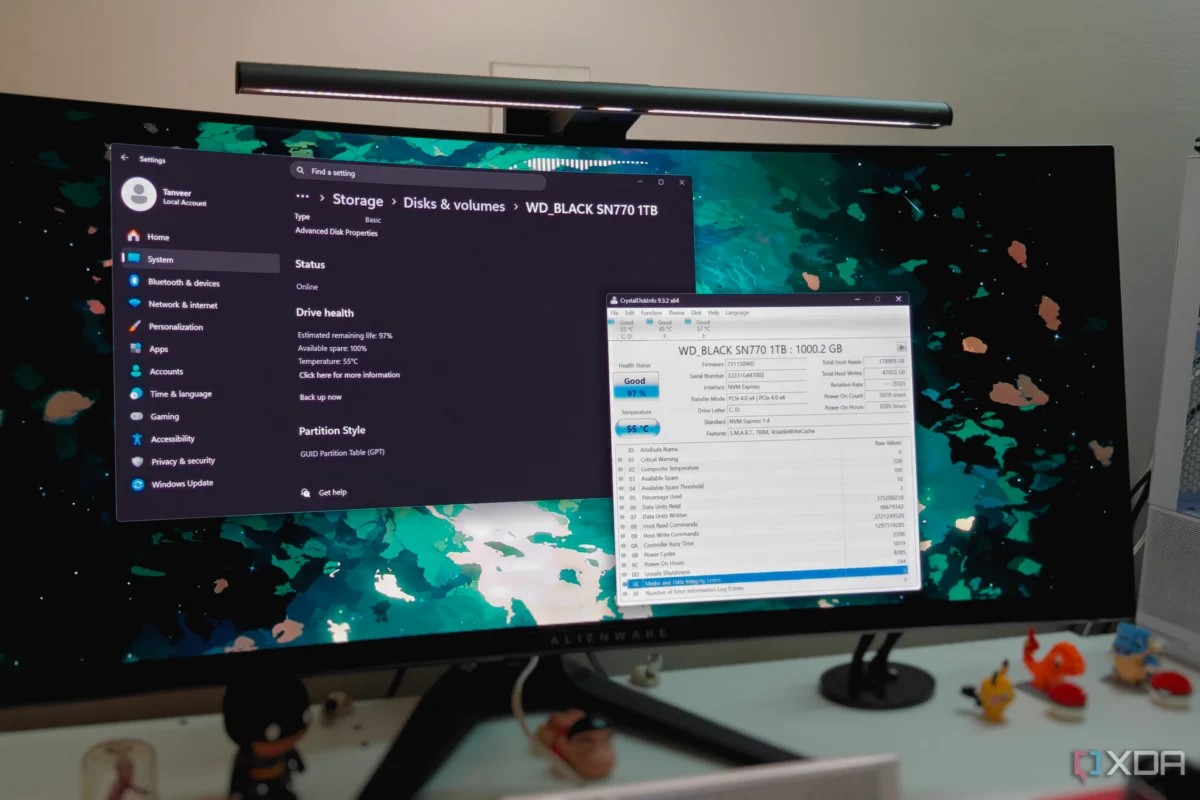
For over a decade, CrystalDiskInfo has served as an essential utility for PC enthusiasts, system builders, and IT professionals. By communicating directly with a drive’s Self-Monitoring, Analysis, and Reporting Technology (S.M.A.R.T.) attributes, the free tool instantly translates complex drive data into a single, straightforward dashboard. Checking your solid-state drive’s (SSD) health percentage, tracking operating temperatures, and diagnosing hardware longevity has traditionally started with downloading and installing this lightweight software.
However, as operating systems have evolved, so too have their native diagnostic capabilities. For the average computer user, modern versions of Microsoft Windows feature built-in storage management tools that can render third-party applications redundant. Understanding when Windows is more than enough—and when you truly need to dig deeper with advanced diagnostic software—can save you time, streamline your software setup, and help you safeguard your critical data.
Main Facts: Decoding Drive Health and S.M.A.R.T. Data
To understand how storage monitoring works, it is important to look at the underlying technology. Every modern storage medium—whether it is a traditional spinning Hard Disk Drive (HDD) or a lightning-fast NVMe/SATA Solid State Drive (SSD)—includes a dedicated, reserved area of flash memory or storage platters designed explicitly to store S.M.A.R.T. telemetry data.
This information is persistent. It survives across system reboots, complete power cycles, and even physical migrations of the drive to an entirely different host machine. The operating system or auxiliary software queries this persistent data block to display core metrics to the user. S.M.A.R.T. data remains the gold standard for monitoring a drive’s remaining operational lifespan and diagnosing underlying hardware anomalies.
What Windows Can Tell You Natively
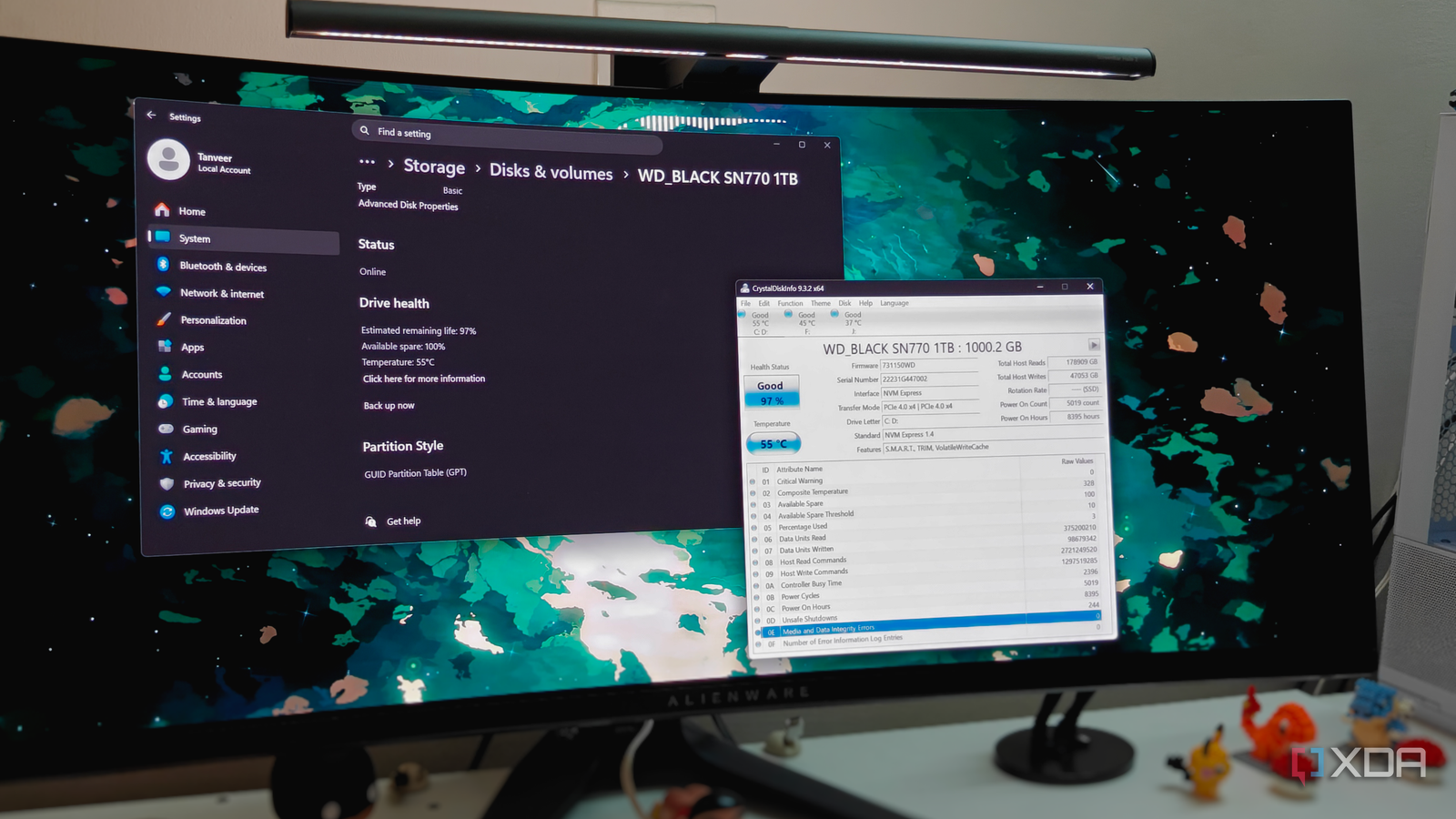
Despite the popularity of third-party monitoring utilities, Windows features an accessible, built-in mechanism to check key drive metrics without installing any external software. Users can view crucial telemetry—including estimated remaining life, available spare capacity, and thermal readings—directly within the operating system.
To access these built-in metrics in modern Windows environments, follow these steps:
- Open the Settings app (
Win + I). - Navigate to System > Storage.
- Click on Disks & volumes.
- Select the specific drive you wish to evaluate and click Properties.
Within this properties pane, users are presented with three critical metrics:
- Estimated Remaining Life: Often referred to as "SSD health," this metric indicates the percentage of the drive’s estimated lifespan that has been consumed. It is a calculated prediction based on NAND flash wear, though it does not serve as an absolute guarantee of failure timing.
- Available Spare: This tracks the reserve NAND blocks allocated by the manufacturer. As active blocks wear out and fail, the drive automatically switches over to these reserve blocks. A healthy drive typically displays 95% to 100% available spare capacity.
- Temperature: Real-time thermal telemetry tracking the immediate operating temperature of the storage controller and flash modules.
For the vast majority of mainstream users, office workers, and casual gamers, this native Windows storage properties page provides all the necessary data to maintain a general awareness of hardware longevity.
Chronology: The Evolution of SSD Monitoring and Reliability
The way consumers monitor storage health has shifted dramatically over the past fifteen years, mirroring the transition from mechanical hard drives to high-density solid-state storage.
The Mechanical Era (Pre-2010s)
In the era of traditional HDDs, drive failure was frequently mechanical—spindle motors seized, read-write heads crashed, or bearings wore out. S.M.A.R.T. attributes were developed to predict these mechanical failures by tracking parameters like spin-up time, seek error rates, and mechanical shock events. Utilities like CrystalDiskInfo (first released in 2008) became vital because early versions of Windows offered virtually no native S.M.A.R.T. data visualization aside from a basic "OK" or "Bad" status warning via generic disk management drivers.
The Solid-State Revolution (2010–2020)
As SSDs replaced HDDs in mainstream consumer PCs, failure modes changed entirely. Solid-state drives lack moving parts. Instead, they degrade through finite write cycles on NAND flash memory cells, quantified as Terabytes Written (TBW). During this decade, operating systems slowly began to acknowledge SSD-specific wear metrics, but third-party tools remained dominant due to their granular reporting of wear-leveling counts and proprietary vendor-specific attributes.
The Modern Operating System Era (2020–Present)
Today, operating systems like Windows have closed the feature gap by embedding robust hardware telemetry directly into default storage settings. At the same time, the hardware market has seen wild fluctuations. By late 2025 and into 2026, component pricing volatility—driven by shifting global demand, manufacturing constraints, and AI infrastructure build-outs—has driven up the cost of high-speed NVMe drives significantly. Consequently, monitoring existing hardware effectively has become far more economically critical than simply replacing a drive at the first sign of wear.
Supporting Data: Why "100% Health" Can Be Deceptive
While Windows provides a convenient look at your drive’s remaining life, power users and system administrators know that a "100% Health" rating can occasionally provide a false sense of security.
The Limits of TBW Metrics
An SSD displaying 100% health simply means that you have utilized a very small fraction of its rated TBW capacity. However, NAND flash wear is only one potential pathway to storage failure.
SSDs are complex computing devices containing integrated controllers, onboard DRAM caches, firmware, and power-management integrated circuits (PMICs). An unexpected power surge, a severe thermal event, or an unstable firmware update can cause catastrophic drive failure years before you ever come close to exhausting your drive’s endurance rating.
The Power of CrystalDiskInfo for Advanced Diagnostics
When a system exhibits intermittent storage hiccups, random Blue Screens of Death (BSODs), or unexplainable file corruption, basic health percentages are useless. This is where tools like CrystalDiskInfo remain indispensable.
CrystalDiskInfo exposes deeper, specialized S.M.A.R.T. attributes that Windows hides from its default user interface:
- Media and Data Integrity Errors: This metric logs instances where the SSD’s internal Error-Correcting Code (ECC) engine failed to successfully recover a read or write operation. A non-zero number here is a blazing red flag indicating physically damaged or degraded memory cells.
- Critical Warnings: A consolidated indicator aggregating multiple internal failure parameters, such as thermal throttling events, controller errors, or read-only mode transitions.
If your system is running smoothly, Windows storage settings are sufficient. But if you are actively troubleshooting system instability, CrystalDiskInfo provides the granularity required to diagnose the root cause.

Official Responses and Industry Guidance
Storage manufacturers—including industry leaders such as Samsung, Western Digital, Crucial, and Kingston—have long advocated for proactive drive monitoring through their own proprietary software suites (e.g., Samsung Magician, Western Digital Dashboard). However, independent hardware analysts and systems engineers consistently point out that proprietary manufacturer tools often require background resource overhead.
Industry Best Practices for Drive Maintenance
- Regular Verification: Manufacturers recommend checking drive telemetry at least once every six months, or immediately following any severe system power outage or thermal event.
- Firmware Updates: Keeping your SSD firmware updated is widely cited by engineers as the single most effective way to prevent premature drive failures caused by logical bugs or controller miscommunications.
- Redundancy Over Reliance: No monitoring tool—whether native or third-party—can prevent sudden, catastrophic component failure. Industry standard guidance dictates adherence to the 3-2-1 backup rule (3 copies of data, across 2 different media types, with 1 copy stored off-site).
Implications: What to Do When Your SSD Begins to Fail
Spotting a non-zero entry under Media and Data Integrity Errors or Critical Warnings in CrystalDiskInfo means you must act immediately. When an SSD begins to fail, hardware degradation accelerates rapidly.
Step 1: Software Remediation and Data Extraction
Before throwing away hardware, run basic diagnostic and repair commands. Launch an elevated Command Prompt and execute the built-in Windows utility via chkdsk /f /r to isolate and mark bad sectors.
Simultaneously, prioritize backing up your critical data. Move your irreplaceable files, documents, and system images to an external hard drive, cloud storage, or a secondary internal drive immediately.
Step 2: Navigating the Replacement Market
If your drive requires replacement, be prepared for shifting market realities. The cost of high-performance NVMe solid-state drives has climbed significantly compared to previous years. Consumers must make strategic choices when purchasing storage:
- Consider SATA Alternatives: For standard office tasks, media consumption, and casual gaming, high-capacity SATA SSDs remain remarkably affordable, perfectly adequate, and significantly cheaper per gigabyte than top-tier NVMe drives.
- Avoid Overspending on Gen5: If you are purchasing an NVMe drive, skipping bleeding-edge PCIe Gen5 drives—which often require aggressive, noisy active cooling solutions—and opting for an affordable, reliable PCIe Gen4 drive provides the best price-to-performance ratio.
- Capacity Sweet Spots: While 1TB drives are entry-level, the cost-per-gigabyte heavily favors 2TB models, making them the preferred sweet spot for modern gaming libraries and heavy application usage. (For instance, high-value drives like the Crucial P310 2280 Gen 4 M.2 frequently see promotional discounts hovering around the $250–$270 range).
Conclusion
Ultimately, your SSD’s overall health status involves far more variables than a single percentage displayed on a screen. That percentage is merely a high-level estimate of write endurance. Because the vast majority of consumers will never exhaust their drive’s write limits within the operational lifespan of the PC, Windows’ native monitoring tools are more than adequate for daily peace of mind.
However, when storage errors, system stuttering, or unexpected crashes strike your PC, turning to advanced diagnostic utilities like CrystalDiskInfo remains the definitive method to uncover hidden hardware faults and protect your valuable data before disaster strikes.