






In the modern digital ecosystem, your Google account is far more than a simple email inbox. It serves as the master key to your digital identity, acting as a gateway to your professional documents, private photographs, historical search data, location history, and sensitive communications. For many, a compromise of this single account would be catastrophic, leading to identity theft, financial loss, and the permanent erasure of irreplaceable memories.
Yet, despite the critical nature of these accounts, many users rely on outdated, singular passwords set years ago. As cybersecurity threats evolve, so must your defensive posture. Whether you are a private individual or a professional, implementing a multi-layered security strategy is no longer optional—it is a necessity. This comprehensive guide outlines the critical steps to lock down your Google account, ensuring that your digital footprint remains under your exclusive control.
The Anatomy of Account Vulnerability: Main Facts
The primary weakness in most security setups is the reliance on a single, static credential: the password. Cybercriminals employ sophisticated phishing, credential stuffing, and social engineering tactics to bypass these traditional defenses. Once an attacker gains access to your Google account, they possess the keys to your entire digital kingdom.
Security professionals emphasize that "security through obscurity" is a myth. Relying on a password you created in 2017—even if you believe it is complex—is a liability. The current landscape requires a proactive, "Zero Trust" approach where you assume that your credentials could be compromised and implement secondary barriers to prevent unauthorized entry.

Chronology of Security: A Step-by-Step Reinforcement
Securing your account is a manageable task, requiring roughly 15 to 20 minutes of focused effort. Follow this sequence to maximize your protection.
Phase 1: The Front Door
1. Password Audit and Modernization
Start by questioning the integrity of your current password. Is it shared with other services? Does it contain personal identifiers? Is it shorter than 12 characters? If the answer is yes, you must change it immediately. Utilize a dedicated password manager—such as Google’s native Password Manager or reputable third-party alternatives—to generate and store unique, high-entropy passwords for every account you own.
2. Implementing Robust Two-Factor Authentication (2FA)
A password is only the first line of defense. By enabling 2-Step Verification, you force an attacker to provide a secondary form of proof that only you possess. Avoid SMS-based codes, which are susceptible to "SIM swapping" attacks. Instead, utilize app-based prompts or physical hardware security keys. These methods provide a cryptographic handshake that is significantly more difficult to intercept than a text message.
3. Verification Data Integrity
Ensure your recovery email and phone number are current. Google frequently relies on these to verify your identity during suspicious login attempts. If your linked recovery account is defunct, you have effectively locked yourself out of your own fail-safes.

Phase 2: Advanced Identity Recovery
4. The Selfie-Centric Failsafe
As of late 2026, Google has introduced sophisticated biometric verification for non-corporate accounts. By recording a short, multi-directional video of yourself, you create a "biological signature" that can be used to recover your account if all other authentication methods fail. This provides a human-centric layer that is exceptionally difficult for remote hackers to forge.
5. Designating Recovery Contacts
In a "worst-case scenario," you can now authorize a trusted friend or family member as a Recovery Contact. If you lose access to your primary devices, your designated contact can use a specialized authentication code system—which keeps your private data shielded from them—to verify your identity and help restore your account access.
Supporting Data: Third-Party Permissions and Hardware
The "hidden" danger to your Google account often comes from the connections you have authorized in the past.
The Ecosystem Audit
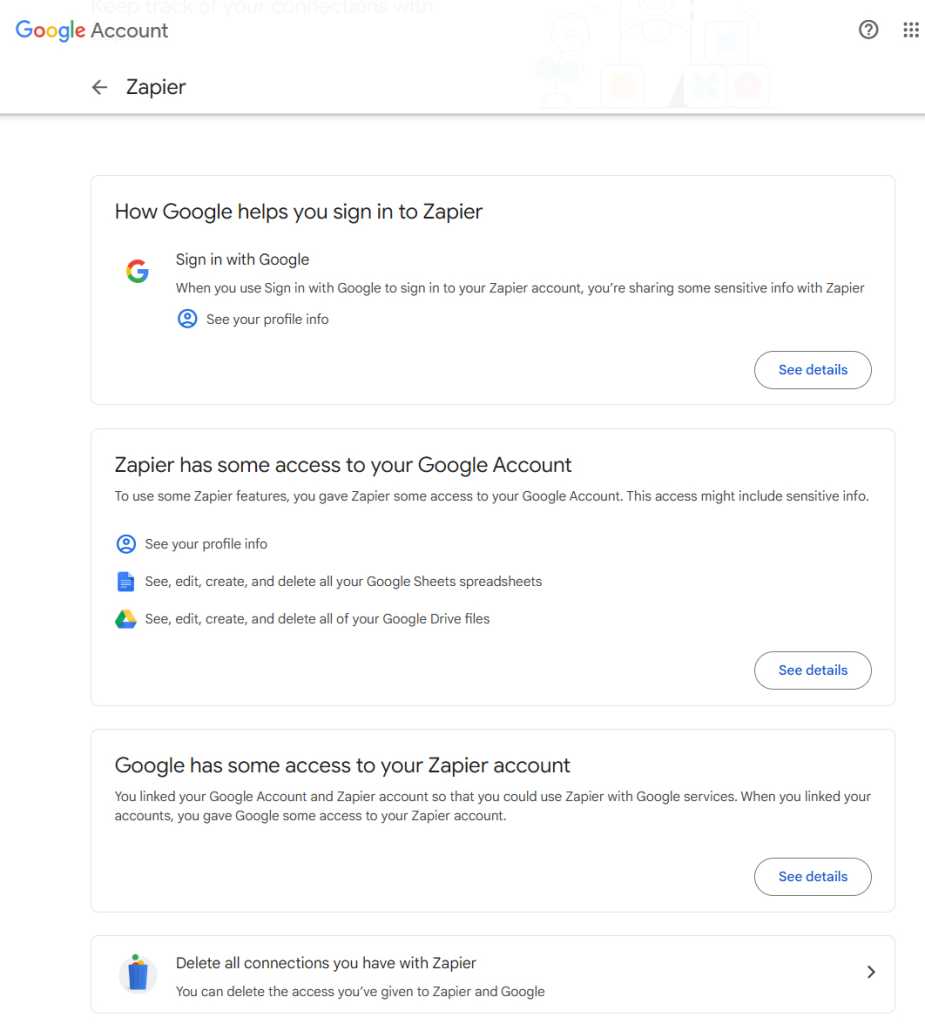
6. Pruning Third-Party Connections
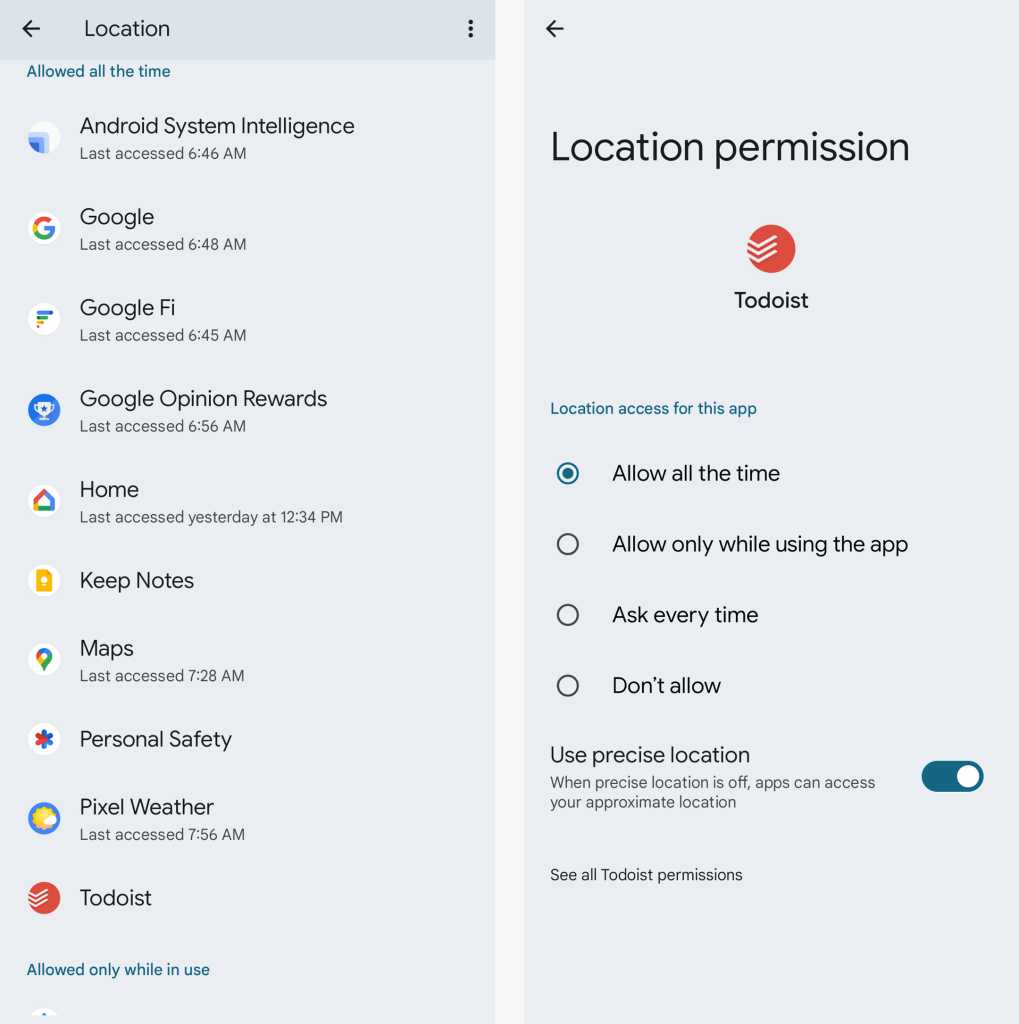
Over the years, you have likely granted "Read/Write" access to dozens of third-party applications. Each of these connections represents a potential vulnerability. Visit your Google security dashboard to review these permissions. If an application is no longer in use, revoke its access immediately.
7. Device Sanitization
Review your active device list. It is common to find legacy laptops, old tablets, or work phones still tethered to your account. Removing these devices ensures that even if a physical device is lost or stolen, it cannot be used as a backdoor into your cloud data.
8. Browser and System Permissions
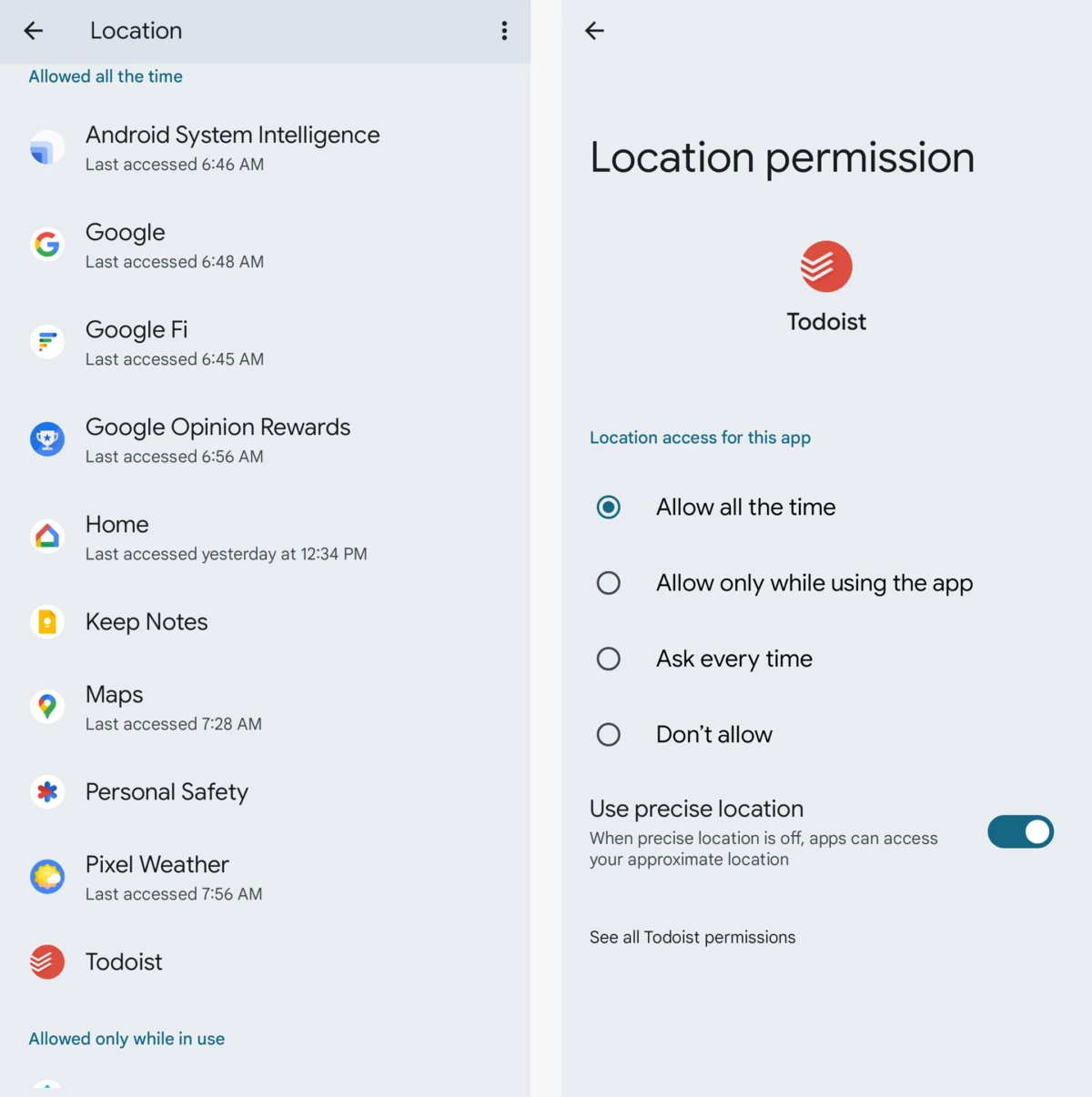
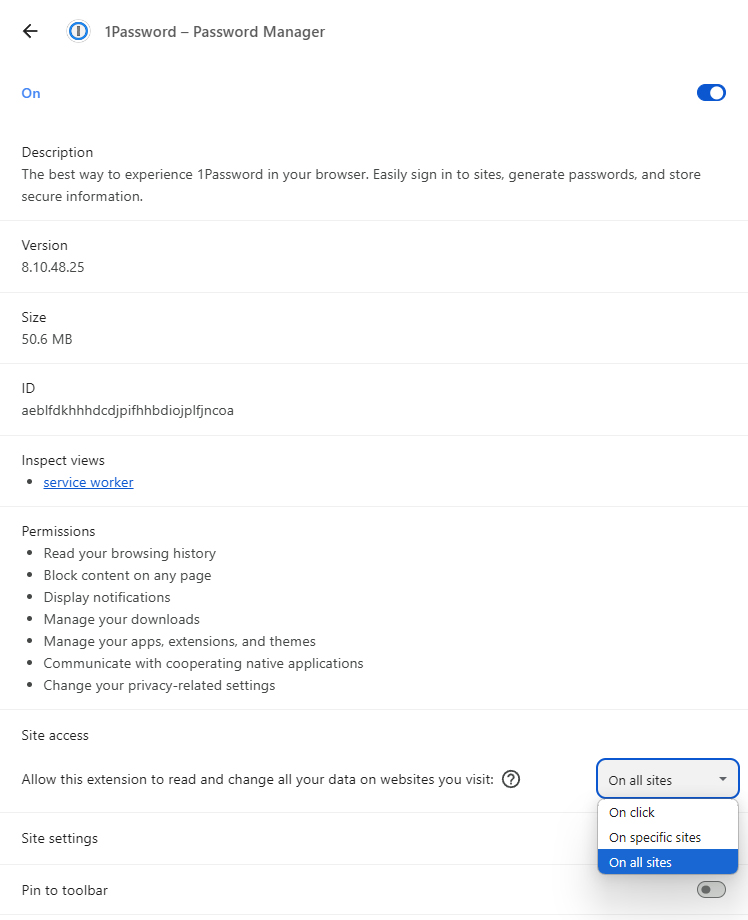
Your desktop browser is a prime target for malicious extensions. Extensions that request "access to all sites" can potentially monitor your activity across your entire Google suite. Audit your Chrome or Edge extensions, restricting their scope to specific sites whenever possible. If an extension does not require broad permissions to function, it should not have them.
Official Responses and Corporate Strategy
For users operating within a Google Workspace environment, the security landscape differs slightly. Organizations often have administrative controls that allow for account recovery or forensic auditing. However, these benefits come with the trade-off of corporate oversight.
Google’s official stance on account security has moved toward "passkeys"—a technology that replaces passwords with cryptographic local signatures. This represents the future of authentication: moving away from what you know (a password) toward what you have (your device).
For those at high risk—journalists, activists, or high-profile individuals—Google provides the Advanced Protection Program (APP). APP enforces the most stringent security settings available, requiring a physical security key for every login and severely restricting the types of third-party apps that can connect to your data. While this creates some friction, it is the gold standard for preventing targeted account takeovers.
Implications for Digital Estate Planning
Beyond active security, there is the question of digital legacy.
The Virtual Will: Inactive Account Manager
Ignoring the reality of eventual inactivity is a mistake. Through Google’s Inactive Account Manager, you can dictate exactly what happens to your data if you are unable to access it for an extended period. You can choose to notify specific contacts and grant them access to specific folders, such as your Photos or Drive.
Failure to set this up means your data remains in a state of digital purgatory, often becoming inaccessible to family members who might need it for legal or sentimental reasons. By defining your preferences now, you provide a clear roadmap for your loved ones, ensuring that your digital footprint is handled according to your wishes.
Conclusion: The Path Forward
Security is not a destination; it is a habit. The steps outlined in this guide—from the initial password audit to the advanced configuration of the Inactive Account Manager—form a comprehensive defense against the vast majority of digital threats.
The digital world is increasingly volatile, and the convenience of a "single sign-in" is balanced by the gravity of the potential loss. By taking ownership of your security settings today, you are not just protecting a list of files or emails; you are safeguarding your identity, your history, and your future.
Set a recurring calendar reminder to perform this audit annually. Technology changes, and as the mechanisms for hacking improve, Google’s defensive tools will evolve alongside them. Stay informed, stay vigilant, and ensure that your digital fortress remains impenetrable.
This report was originally published in February 2020 and has been extensively updated in October 2026 to reflect the latest security protocols and biometric verification standards.