







SAN FRANCISCO — Google Chrome has long held a controversial reputation as a resource-heavy browser. For years, the conversation surrounding Chrome’s performance footprint centered primarily on volatile random-access memory (RAM) consumption, processor (CPU) spikes, and battery drain on portable devices. However, as the tech industry pivots aggressively toward artificial intelligence, a new hidden resource cost has emerged: local storage.
Underneath the hood of modern Chrome installations lies a quiet, automated process that can siphon off several gigabytes of a user’s local hard drive space. The culprit is not a cache overflow or a collection of forgotten browsing data, but rather an on-device generative artificial intelligence model known as Gemini Nano.
While local AI processing offers distinct advantages in user privacy and response latency, it forces users to pay a tangible tax in physical storage. For owners of modern systems with expansive solid-state drives (SSDs), the footprint may go entirely unnoticed. But for users working on constrained 256GB laptops or budget devices, the background download of multi-gigabyte AI model files can trigger unexpected low-disk-space warnings.
Main Facts: The Anatomy of weights.bin
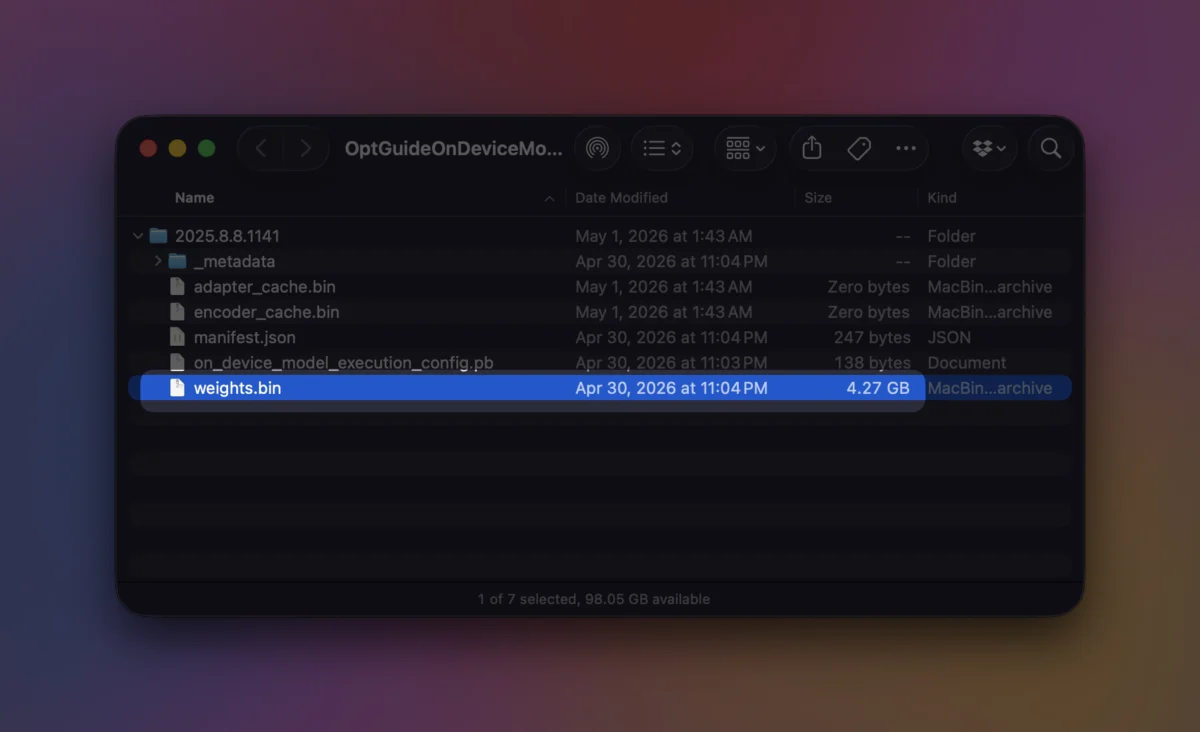
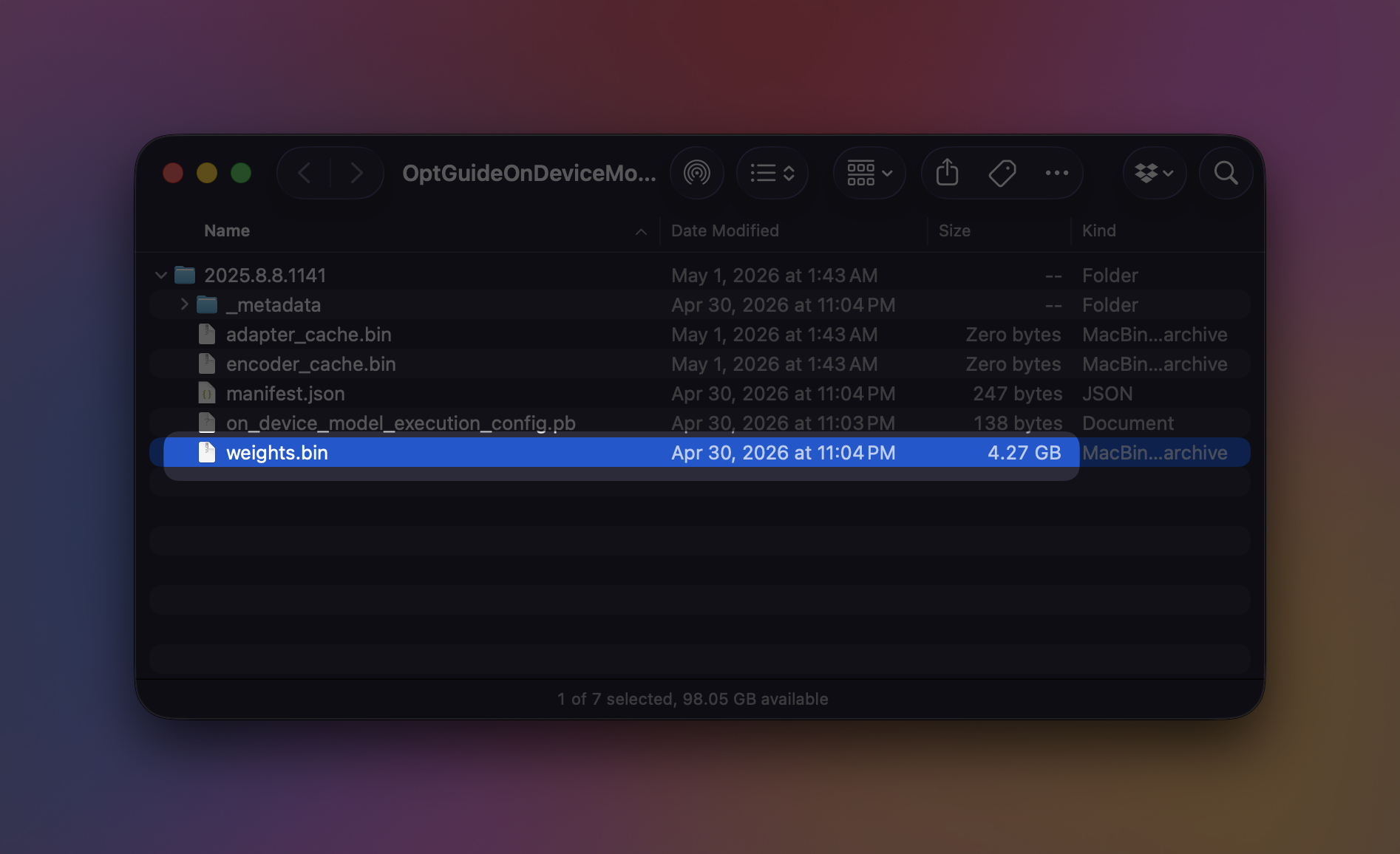
At the center of this storage phenomenon is a single, unassuming file: weights.bin. Buried deep within Chrome’s browser data directory inside a folder designated OptGuideOnDeviceModel, this file acts as the neural weight repository for Gemini Nano, Google’s lightweight on-device AI model tailored specifically for desktop and laptop environments.
Unlike cloud-based artificial intelligence tools—such as standard web versions of ChatGPT or Gemini—which offload complex computations to remote data centers, on-device AI executes tasks locally on the user’s hardware. To achieve this, Chrome must download the necessary neural network parameters directly to the user’s computer.
These model files are responsible for powering a suite of native browser features designed to streamline the user experience, including:
- Writing Assistance: Real-time text generation and refinement within web input fields.
- Scam and Threat Warnings: Localized heuristic analysis to flag malicious websites or phishing attempts.
- Smart Tab Organization: Automated grouping of open browser tabs based on contextual content.
- Page Summaries: Instant extraction and condensation of lengthy online articles.
- Smart Autofill and Suggestion Tools: Predictive form-filling and contextual navigation aids.
Because these features run locally to protect user data and ensure instant execution without requiring round-trip server requests, Chrome must house the foundational architecture of the model on the local drive. Depending on the current version of the browser and updates pushed by Google, the size of this storage footprint can fluctuate significantly, frequently sitting comfortably in the multi-gigabyte range.
Chronology: The Evolution of Chrome’s On-Device AI
To understand how browser storage became a battleground for artificial intelligence, it is necessary to examine the rapid trajectory of Google’s integration strategies over recent years.
- The Era of Pure Cloud Processing: For over a decade, Google Chrome operated as a relatively lightweight client application. Advanced features, including translation and predictive search, relied heavily on cloud infrastructure. Local storage was primarily reserved for user profiles, extensions, caches, and local databases (IndexedDB/SQLite).
- The Rise of Gemini and Edge AI: Following the generative AI boom initiated by Large Language Models (LLMs), tech giants raced to embed intelligence directly into client-side software. Google introduced Gemini as its flagship AI ecosystem, scaling the architecture from massive cloud-based models down to efficient, resource-conscious variants like Gemini Nano designed for mobile devices and desktop clients.
- Integration into Chromium and Chrome Stable: Google began embedding foundational AI APIs into the Chromium open-source project. Developers gained access to local model capabilities via experimental flags, which eventually transitioned into consumer-facing features rolled out automatically in stable builds of Google Chrome.
- Automated Background Downloads: To ensure seamless user experiences—where features like writing assistance and summarization work instantly without lag—Chrome was programmed to autonomously download the necessary
weights.binfiles in the background whenever system compatibility criteria were met. - The Present Discovery Phase: As users and system administrators grapple with shrinking storage capacities on high-end laptops, technical communities have begun systematically auditing browser data directories, bringing the massive footprint of
OptGuideOnDeviceModelinto the public spotlight.
Supporting Data: Hardware Requirements and Directory Paths
Google’s developer documentation and official support channels outline strict parameters regarding how and where Gemini Nano operates on consumer hardware.
System Specifications and Prerequisites
Chrome does not deploy its on-device AI models to every machine indiscriminately. The browser evaluates system capabilities before initiating background downloads. Officially supported environments include:
- Operating Systems: Windows 10 and Windows 11, macOS 13 (Ventura) and later, supported Linux distributions, and Chromebook Plus devices.
- Storage Thresholds: Google specifies that a Chrome profile volume must maintain a minimum of 22GB of free space for the on-device AI APIs to function properly.
- Automatic Purging: In an effort to prevent system instability, Google’s architecture includes fallback logic. If a user’s system storage drops below the required threshold after the model has already been downloaded, Chrome is designed to purge the model automatically, downloading it again only when storage conditions normalize.
Locating the Model Files
For technical users, developers, and storage-conscious administrators wishing to verify whether Gemini Nano is present on a system, the model files can be located manually using specific directory paths, or monitored via internal browser pages.
Internal Chrome Diagnostics
Users can instantly review the status, version, and health of local AI models by navigating to the following internal URL within Chrome:
chrome://on-device-internalsThis diagnostic interface provides real-time readouts of whether the model is loaded, its exact version string, and its current memory and storage impact.
Manual File System Paths
For those who prefer auditing raw disk usage through operating system file explorers, the model files reside in the following directories (where <username> represents the active OS user account and <version> corresponds to the active build iteration of the AI model):
- Microsoft Windows:
C:Users<username>AppDataLocalGoogleChromeUser DataOptGuideOnDeviceModel<version>weights.bin - Apple macOS:
~/Library/Application Support/Google/Chrome/OptGuideOnDeviceModel/<version>/weights.bin
(Note: The <version> directory name changes dynamically as Google pushes updates to the underlying Gemini Nano architecture.)
Official Responses and Developer Insights
Google has consistently framed its push toward on-device artificial intelligence as a major victory for user privacy and operational efficiency. In statements released via Chrome Help documentation and developer forums, the company emphasizes that processing data locally—rather than transmitting sensitive user queries, prompts, and personal text inputs to remote cloud servers—significantly reduces privacy vectors.
Furthermore, Google’s developer documentation highlights that the APIs empowering Gemini Nano are built to give web developers access to high-performance machine learning primitives directly within the browser ecosystem. Through tools like Chrome DevTools AI assistance, developers can test how local models interact with web applications without incurring cloud API costs or latency penalties.
However, the automated nature of the background downloads has drawn mild scrutiny from consumer advocates and power users. Because Chrome downloads these multi-gigabyte weight files without an explicit, highly visible opt-in prompt during standard installation, many users remain completely unaware that their browser is acting as a host for a local neural network.
Google’s official stance remains that these features enhance the core utility of the browser, and that users who object to the storage footprint are provided with straightforward configuration pathways to disable the feature and purge the files entirely.
Implications: Privacy, Storage Economics, and User Choice
The realization that web browsers are now localized AI data centers carries broad implications for software design, hardware economics, and user autonomy.
1. The Shifting Definition of Browser Bloat
Historically, "browser bloat" referred to excessive RAM consumption caused by open tabs or memory leaks. As web browsers evolve into operating systems within operating systems, local storage is becoming the new battleground. When a web browser routinely claims 2GB to 5GB of permanent SSD space for optional AI features, it blurs the line between lightweight application clients and heavy system utilities.
2. Privacy vs. Storage Trade-Offs
The architectural choice to process AI locally is fundamentally driven by privacy. Sending every page summary, writing prompt, and form-autofill query to a centralized cloud server introduces immense telemetry and data-retention concerns. By keeping computations on-device, Google shields user data from transit vulnerabilities. However, forcing every user to bear the storage cost—even those who have zero interest in AI writing assistants—creates a philosophical design friction.
3. Impact on Budget Hardware
While enterprise workstations and high-end gaming laptops equipped with 2TB or 4TB NVMe drives can easily absorb a few gigabytes of AI model files, the economic reality is vastly different for users of budget hardware. Chromebooks and entry-level Windows laptops frequently ship with limited storage capacities capped at 64GB or 128GB. On these machines, a multi-gigabyte browser model file represents a substantial percentage of available system capacity.
4. Managing and Reclaiming Your Storage
For users looking to reclaim their hard drive space, simply navigating to the file system and deleting weights.bin manually is an ineffective strategy. Because Chrome continuously monitors feature flags and system health, an active AI setting will prompt the browser to re-download the model file automatically upon the next launch or update cycle.
Instead, users must disable the underlying feature set directly through Chrome’s settings interface:
- Open Google Chrome and navigate to settings via the main menu or by typing
chrome://settingsin the address bar. - Locate the AI features or Performance configuration panels.
- Find the toggle labeled On-device AI (or equivalent generative AI preference switches) and switch it to the Off position.
- Restart the browser.
(Note: The visibility of this toggle can vary. If the setting is missing, it may be due to unsupported hardware, an outdated browser version, or an enterprise policy managed by a corporate or educational institution.)
Once disabled, Chrome will gracefully purge the local generative AI models from the system directory, releasing the trapped storage back to the operating system while allowing the core web-browsing engine to continue functioning normally.
Conclusion
As artificial intelligence continues its aggressive integration into consumer software, the hidden costs of convenience are coming to light. Google Chrome’s utilization of Gemini Nano is a powerful demonstration of the future of client-side computing—offering speed, offline capability, and enhanced privacy through local processing. Yet, it also serves as a sharp reminder that intelligence has a physical mass, measured not just in compute cycles, but in gigabytes on a hard drive. For Chrome users, auditing chrome://on-device-internals and managing local AI settings is quickly becoming an essential routine of modern digital housekeeping.