







Published: September 11, 2026
Author: Hamlin Rozario (Adapted and Expanded)
Main Facts
With modern AAA video games frequently exceeding 150GB per installation, solid-state drive (SSD) storage has become one of the most heavily contested commodities in a gamer’s PC. Facing high market prices for secondary storage upgrades, PC users are increasingly turning to software-based compression solutions to maximize their existing hardware.
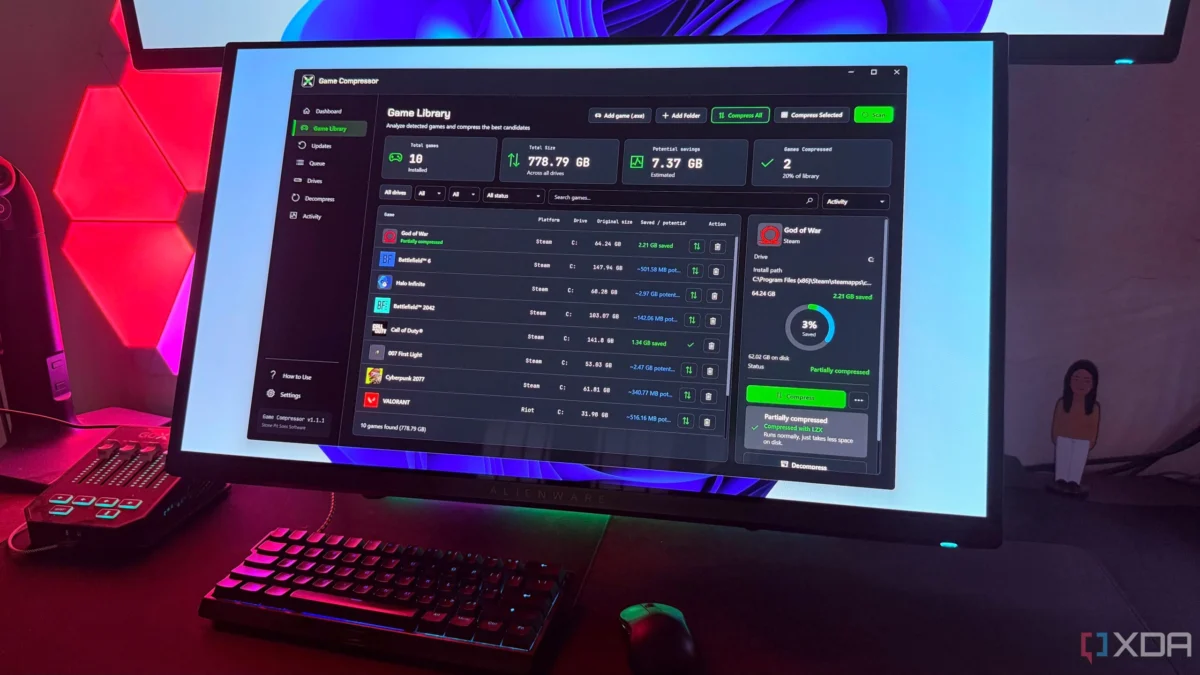
Recently, a $6 third-party utility purchased on Steam, known as Game Compressor, made headlines among budget-conscious gamers by successfully reclaiming hundreds of gigabytes of disk space without introducing noticeable performance drops or stuttering. However, a deeper technical investigation reveals that tools like Game Compressor are often little more than graphical user interface (GUI) wrappers. Beneath the surface, they rely entirely on compact.exe—a powerful, native command-line utility built directly into the Microsoft Windows operating system since the Windows 10 era.
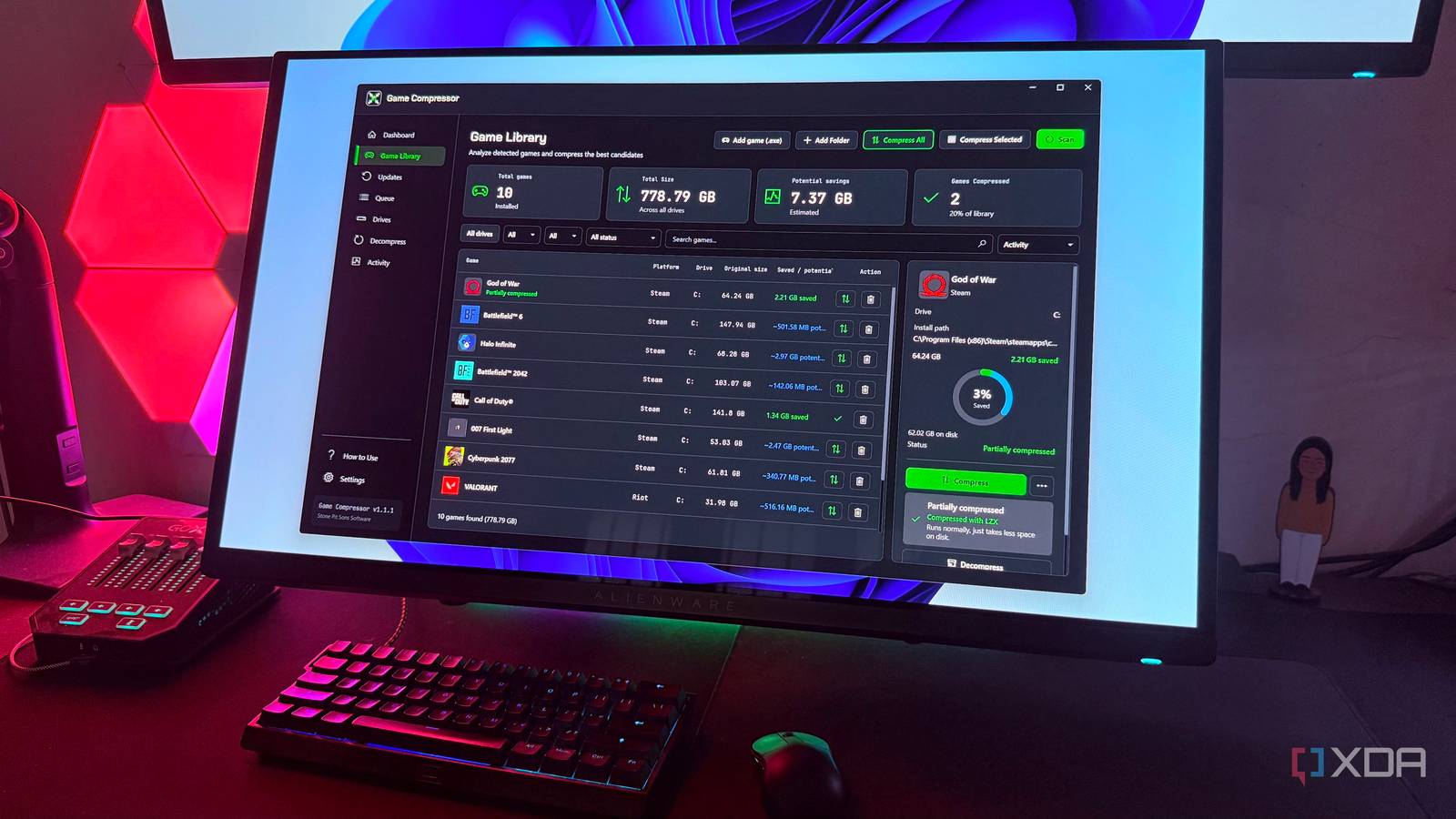
While third-party applications charge nominal fees for convenience and automation, Windows natively supports the high-efficiency LZX compression algorithm out of the box. Users equipped with modern multi-core processors can leverage compact.exe to compress their game libraries manually via the Command Prompt, PowerShell, or Windows Terminal, achieving the exact same space-saving results entirely for free.
Chronology of Events
- The Search for Storage Solutions: Faced with skyrocketing prices for secondary NVMe and SATA solid-state drives, users began seeking alternative methods to delay hardware upgrades.
- The Discovery of Third-Party Software: A tech journalist exploring Steam stumbled upon Game Compressor, a paid $6 utility designed to automatically scan and compress local gaming libraries.
- Reclaiming Gigabytes: Upon running the tool, the utility successfully freed up hundreds of gigabytes of storage space across a standard PC setup containing games from Steam, Epic Games, and EA platforms.
- Uncovering the Native Functionality: While researching the underlying LZX compression algorithm to evaluate its long-term impact on gaming hardware and input latency, the user discovered that Windows features an identical built-in utility:
compact.exe. - Comparative Analysis: Testing both the $6 paid application and the native command-line tool revealed identical space-saving metrics and negligible performance degradation, prompting a reassessment of whether paid wrappers are truly necessary for everyday consumers.
Supporting Data and Technical Mechanics
Understanding LZX Compression in Windows
Originally utilized extensively in cabinet files (.cab) and Windows system image deployments, the LZX algorithm was later adapted into the file system architecture of Windows 10 and 11. Unlike traditional ZIP or RAR archives—which require a user to extract files into temporary storage before running an application—file-system-level compression allows the operating system to read and decompress compressed blocks on the fly.
When a game asset is requested by the CPU, Windows decompresses the relevant blocks into memory dynamically. Because modern multi-core processors possess substantial single-core and multi-threaded throughput, this decompression overhead is virtually imperceptible during normal gameplay and loading sequences.

Using compact.exe: A Step-by-Step Breakdown
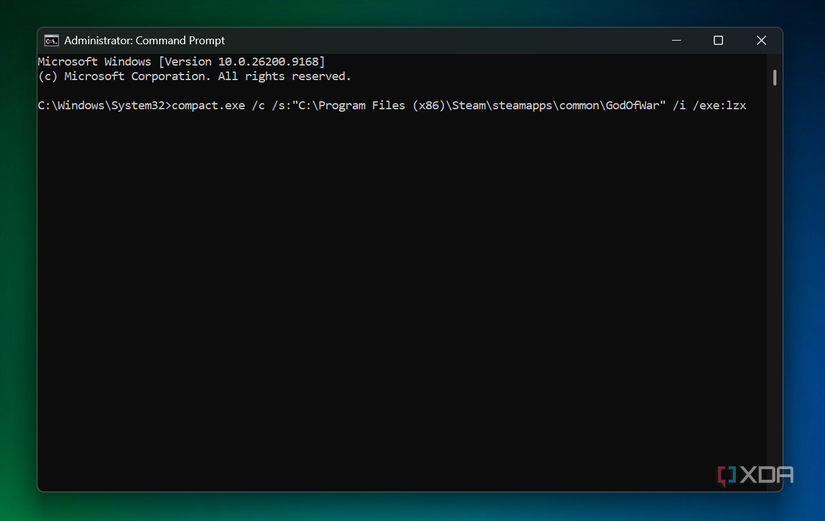
For users willing to bypass paid third-party software, Windows’ native tool can be accessed via the Command Prompt or Windows Terminal (run with administrator privileges).
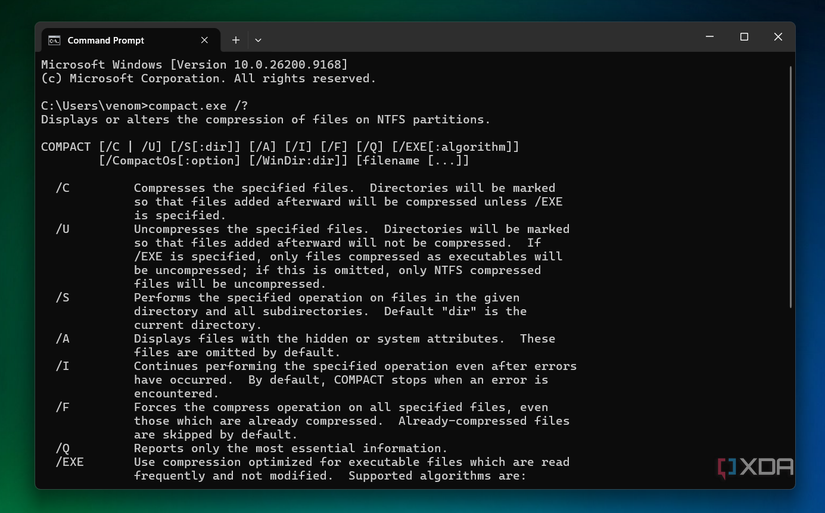
- Accessing the Manual: Typing
compact.exe /?into the command line reveals a comprehensive directory of available switches, parameters, and syntax options. - Executing Compression: To compress a specific directory—such as a large title installed via Steam—users can execute a targeted command:
compact.exe /c /s:"C:Program Files (x86)SteamsteamappscommonYourGameFolder" /i /exe:lzx/c: Indicates that the operation should compress the specified files./s: Instructs the utility to scan and include all internal subdirectories./i: Ignores persistent errors, ensuring the compression script continues uninterrupted across large file trees./exe:lzx: Enforces the high-ratio LZX compression algorithm, matching the core functionality of commercial utilities.
Flexibility and Management
Using compact.exe does not lock the user into a static file state. Management commands allow for simple reversal or modification:
- Decompression: Replacing
/cwith/u(compact.exe /u /s:...) safely restores files to their uncompressed state. - Algorithm Switching: Users looking for faster compression speeds at the cost of lesser space-saving ratios can substitute
/exe:lzxwith/exe:xpress16k.
Critical Caveats: DirectStorage and Game Updates
Despite the efficiency of LZX compression, both native implementation and third-party tools require careful handling regarding modern game architecture:
- The DirectStorage Warning: Modern games utilizing Microsoft’s DirectStorage API—which allows graphics cards to stream asset data directly from the SSD, bypassing traditional CPU bottlenecks—should never be compressed. DirectStorage relies on proprietary asset-decompression pathways optimized specifically for uncompressed or natively packaged GPU data. Compressing these directories can introduce severe stuttering, streaming failures, and frame-rate drops.
- Game Updates and Patches: When a game receives a significant content patch or update, newly written files are typically stored uncompressed. While third-party tools often feature dedicated update tabs to automate re-compression, native users can simply re-run their original
compact.execommand string to re-apply compression to the modified directory.
Official Responses and Industry Implications
While Microsoft has not issued a dedicated press release regarding the recent surge in popularity for compact.exe among gamers, technical documentation for the Windows file system has long highlighted the feature’s utility for resource-constrained environments.
Third-party developers of utilities like Game Compressor and open-source alternatives like CompactGUI argue that their products do not sell new technology, but rather user experience and convenience. For the average consumer, navigating command-line switches, manually mapping file paths, and managing patch cycles can be intimidating.
Is the $6 Price Tag Justified?
The debate highlights a classic software dichotomy:
- The Free Argument: Purists and power users maintain that paying for a graphical interface to run a native operating system command is unnecessary. Tools like
compact.exe(or free open-source wrappers like CompactGUI) achieve identical technical performance without requiring financial transactions. - The Convenience Argument: For busy consumers, a $6 utility that automatically detects all installed games across Steam, Epic Games, and EA launchers, intelligently filters out DirectStorage-incompatible titles, and handles bulk operations with a single click represents a minor, easily justifiable expense—especially when compared to the cost of a new 2TB NVMe SSD or cosmetic microtransactions.
Ultimately, users are encouraged to test the waters with Windows’ native compact.exe first. By evaluating whether the performance and space savings meet their expectations on a trial directory, gamers can make an informed decision on whether the polished interface of a paid utility is worth the small investment.