






There is a unique, fleeting sense of satisfaction that comes with unboxing a new computer. The pristine screen, the absence of bloated background processes, and the sheer speed of a clean operating system installation offer a "new car smell" equivalent for tech enthusiasts. However, this bliss is often short-lived. As users migrate their workflows to new hardware, they frequently run into unexpected compatibility hurdles—software bugs that feel like ghosts in the machine.
One of the most frustrating experiences for modern web users is attempting to access premium streaming content, only to be met with the cryptic, exclusionary message: "This video format is not supported." For many, this error occurs specifically on platforms like YouTube TV when transitioning to a new MacBook or a fresh browser installation. This article explores the root causes of this digital roadblock, the role of Content Decryption Modules (CDMs) like Widevine, and the steps required to restore your viewing experience.
Main Facts: Decoding the Error
The "This video format is not supported" error is rarely a reflection of an actual file corruption or a true incompatibility with the hardware. Instead, it is almost exclusively a Digital Rights Management (DRM) handshake failure.
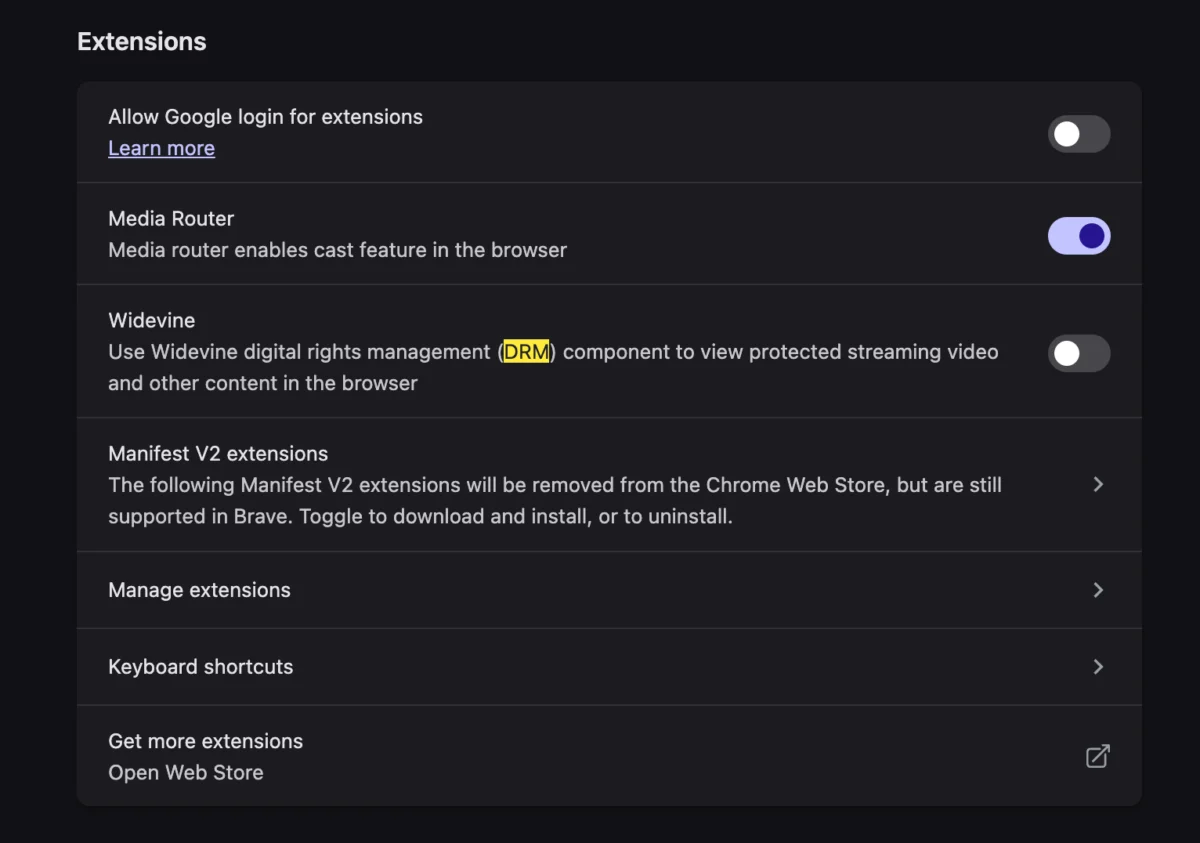
When you stream content from services like YouTube TV, Netflix, or Hulu, the video data is encrypted to prevent piracy. To decrypt this content in real-time, your browser utilizes a Content Decryption Module (CDM). The most ubiquitous of these is Google’s Widevine. If your browser is not explicitly permitted to use Widevine, or if the module is disabled, the browser cannot "unlock" the video stream. Consequently, the player defaults to an error message, falsely signaling that the video format is unsupported rather than stating that the authentication mechanism is missing.

This is a stark departure from the "good old days" of the internet, where users were required to manually install third-party codecs—such as DivX, Xvid, or QuickTime plugins—to view specific video formats. Today, the process is theoretically automated, yet it remains a frequent point of failure during initial system setup.
Chronology of the Issue
The evolution of browser-based media consumption has followed a specific trajectory:
- The Plugin Era (Pre-2015): Users relied heavily on Adobe Flash, Microsoft Silverlight, or NPAPI-based plugins. These were notoriously insecure and required constant manual updates.
- The HTML5 Transition (2015–2017): Browsers moved away from plugins toward the HTML5
<video>tag. To satisfy content owners, the W3C introduced Encrypted Media Extensions (EME). - The CDM Standardization (2017–Present): Widevine, FairPlay, and PlayReady became the industry standards. These are now bundled directly into browsers like Chrome, Brave, Vivaldi, and Edge.
- The Modern "New Setup" Problem: In 2024 and 2025, security-conscious users or those employing specialized browser configurations often find that these CDMs are disabled by default or blocked by privacy-enhancing extensions. This creates the "new computer" conflict described by users today.
The Role of Widevine: Why It Matters
Widevine is a proprietary DRM technology owned by Google. It operates in tiers (L1, L2, and L3), which determine the level of security and quality (resolution) allowed on a specific device.
When a user encounters the "format not supported" error, it is typically because the browser’s "Widevine Content Decryption Module" component has been toggled off or failed to download during the initial browser installation.

Why is this happening on new hardware?
- Privacy-First Browsers: Browsers that prioritize extreme privacy often disable Widevine by default because it is a tracking-capable component.
- Sync Issues: When importing settings from an old computer to a new one, synchronization protocols may occasionally fail to verify the integrity of local components like CDMs.
- OS Permissions: On macOS, specific "Full Disk Access" or "System Extension" permissions may prevent the browser from executing the background process required to initialize the Widevine module.
Solving the Error: A Step-by-Step Guide
If you are currently facing this issue, you do not need to reinstall your operating system or contact your ISP. The solution lies within your browser’s internal settings.
1. Enable Widevine in Chrome/Brave/Edge
Most Chromium-based browsers have a dedicated settings page for components.
- Navigate to Components: In the address bar, type
chrome://components(orbrave://components/edge://components). - Locate Widevine: Scroll through the list until you find "Widevine Content Decryption Module."
- Check Status: If the version is listed as "0.0.0.0," click the "Check for update" button. This forces the browser to download the required CDM files.
- Restart: Once the version number populates, restart the browser.
2. Verify Privacy Extensions
If you utilize extensions like "Privacy Badger," "uBlock Origin," or specialized "Hardened" privacy configurations, these may be stripping the DRM headers from the request.
- Disable and Test: Temporarily disable your ad-blockers and privacy extensions on YouTube TV to see if the video stream initializes.
- Whitelist: If the video works, add YouTube TV to your extension’s whitelist.
3. Check System-Level DRM Support
On macOS, ensure that your browser has the necessary permissions. Go to System Settings > Privacy & Security. Ensure that your browser is not being restricted by "App Management" or "Input Monitoring" settings that might interfere with the background DRM processes.

Implications of the DRM Ecosystem
The prevalence of these errors highlights a significant tension in modern computing: the balance between user privacy and content protection.
The Security-Accessibility Paradox
While DRM is often criticized for being "anti-user," it is the primary reason why high-definition 4K content is available on the web today. Studios will not release their intellectual property to a platform where it can be easily recorded or ripped. However, the reliance on Widevine creates a "single point of failure." If Google’s servers, your browser’s update mechanism, or your OS security settings don’t align, you are effectively locked out of the content you pay for.
The Impact on Open-Source Software
The necessity of Widevine is a major barrier for truly open-source browsers. Browsers like Firefox have made concessions to include Widevine for user convenience, but it remains a controversial inclusion. For power users who prefer non-proprietary software, this means that watching mainstream television services is often impossible without sacrificing their digital principles.
Official Responses and Industry Outlook
While Google and other browser vendors rarely comment on specific "support" tickets for this error, the official stance from the Chromium Project is that Widevine is a "necessary component for media interoperability."

Content providers like YouTube TV maintain that the error is a result of "browser-side incompatibility." Their official support documentation suggests:
- Keeping the browser updated to the latest stable version.
- Ensuring that hardware acceleration is enabled in the browser settings, as some DRM modules require a secure path to the GPU.
- Clearing cache and cookies, which may hold corrupted DRM tokens from a previous session or a different device.
Conclusion: A Future of Seamless Streaming?
The transition to a new computer should be a time of excitement, not troubleshooting. The "This video format is not supported" error is a reminder of the complex web of licensing, encryption, and proprietary modules that power the modern web.
While the solution—enabling Widevine—is relatively straightforward, the underlying friction remains. As streaming platforms continue to implement more rigorous anti-piracy measures, the burden of managing these DRM components will likely fall even further onto the user. For now, checking your browser’s component status remains the most effective way to reclaim your viewing experience. By understanding that this error is a matter of authentication rather than true format incompatibility, users can bypass the frustration and return to their favorite shows with minimal delay.
The era of manual codec installation may be behind us, but in its place, we have entered the era of the "DRM Handshake." Understanding how to navigate it is now an essential skill for every modern digital citizen.