






It happens to everyone at some point: you are mid-scroll, enjoying a viral trend or a perfectly timed transition, and suddenly, the screen freezes. The video halts, the dreaded spinning loading icon appears, or the application abruptly force-closes, dumping you back onto your home screen. In an era where TikTok serves as both a primary source of entertainment and a critical information hub, these technical interruptions are more than just a nuisance—they are a disruption of the modern digital experience.
When TikTok stops working, the lack of a specific, helpful error message often leaves users feeling stranded. Is it your internet? Is it your phone? Or is the entire platform experiencing a global meltdown? Understanding the source of the issue is the first step toward a resolution. This guide serves as a comprehensive diagnostic framework to help you navigate these technical hurdles on both Android and iOS devices, ensuring you spend less time troubleshooting and more time watching.
The Anatomy of a TikTok Outage: Identifying the Problem
Before you start toggling settings or reinstalling software, it is vital to categorize the nature of your problem. Not all "broken" TikTok experiences are the same, and attempting the wrong fix can result in wasted time and unnecessary frustration.
The Two Primary Buckets of Failure
- The "Buffering" Experience: If the app opens and you can see your profile or settings, but videos refuse to load, remain stuck on a static frame, or display an infinite spinner, you are likely dealing with a network-related bottleneck or a corrupted cache file. The application is functional, but the data stream is compromised.
- The "Fatal" Experience: If the app crashes immediately upon launch, displays a persistent black screen, or shuts down repeatedly during use, you are facing a deeper systemic issue. This is rarely a network problem. It is usually indicative of a corrupted local installation, a major version incompatibility, outdated software, or a device running out of local storage space.
Why Categorization Matters
Applying a "one-size-fits-all" approach to tech support is inefficient. By identifying whether you have a connectivity issue or a software integrity issue, you can jump straight to the relevant solutions, effectively cutting your downtime by as much as 80%.
Phase I: The First Line of Defense – Server-Side Checks
The most common mistake users make is assuming the problem lies within their own hardware. Before you delete your app or reset your network settings, you must determine if the fault lies with ByteDance, the parent company of TikTok.
Monitoring Global Outages
If TikTok’s servers are experiencing a widespread outage, no amount of tweaking your phone’s settings will resolve the issue. We recommend using third-party services like Downdetector. This platform aggregates real-time user reports to identify spikes in service disruptions.
How to verify:
- Navigate to the Downdetector website or mobile app.
- Search for "TikTok" in the search bar.
- Observe the "User reports" graph. If there is a sharp, vertical spike in reports, you are not alone; the service is likely down for millions of others.
The "Wait and See" Protocol
If an outage is confirmed, the only viable solution is patience. Server-side failures are typically resolved by the provider’s engineering teams within a few hours. During this period, we advise monitoring the official TikTok Support account on X (formerly Twitter). Major platforms utilize these channels to provide real-time updates and transparency regarding ongoing maintenance or unexpected downtime.

Phase II: Step-by-Step Troubleshooting for Individual Users
If the servers are confirmed to be operational, the issue is almost certainly local. Proceed through these steps in order, testing the app after each one to see if functionality has been restored.
1. Network Connectivity Audits
A weak Wi-Fi signal or a congested cellular network is the leading cause of video buffering.
- Toggle Wi-Fi: Turn off your Wi-Fi and switch to cellular data (or vice versa) to see if the video stream resumes.
- Restart the Router: Sometimes the bottleneck is not the phone, but the local gateway. Power-cycling your home router can clear persistent connection errors.
2. The VPN Variable
Virtual Private Networks (VPNs) are excellent for privacy, but they often wreak havoc on location-based services like TikTok. Because TikTok relies on regional geo-detection to serve content and ensure compliance with local regulations, a VPN can cause the app to hang or block content delivery entirely. Disable your VPN completely before attempting to launch the app again.
3. Forced Application Termination
When an app becomes "stuck," it is often because a background process has entered a deadlock state.
- iOS: Swipe up from the bottom of the screen to enter the App Switcher, find TikTok, and swipe it upward to force close it.
- Android: Open your recent apps list and swipe the TikTok window away, or navigate to Settings > Apps > TikTok > Force Stop.
4. Clearing the In-App Cache
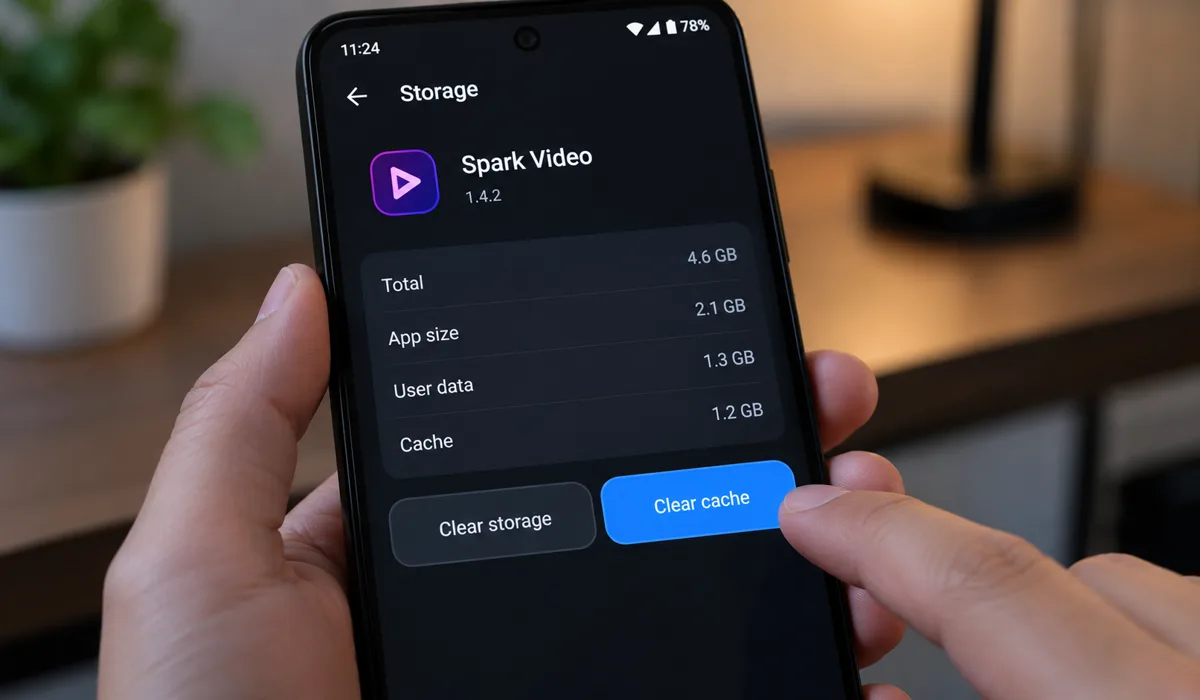
TikTok stores a vast amount of temporary data to ensure smooth scrolling. Over time, these files can become corrupted. Crucially, you should use the in-app cache cleaner rather than the phone’s general storage settings.
- Go to your Profile, tap the three-line menu (top right), navigate to Settings and Privacy, and look for Free up space. Clear the cache from this menu. This clears the specific files that are most likely to cause playback errors.
5. Version Synchronization
Running an outdated version of an app can lead to "legacy bugs" that were already resolved in subsequent patches. Visit the Apple App Store or Google Play Store to ensure your app is running the latest version. If an "Update" button is visible, tap it immediately.
6. Authentication Refresh
Sometimes, your account session token becomes "stale" or corrupted, preventing the app from verifying your identity.
- Action: Log out of your account, restart the device, and log back in. This process forces the app to request a fresh authentication token from TikTok’s servers, effectively resetting your session.
7. The Power Cycle
It sounds like a cliché, but restarting your device remains the most effective way to clear temporary memory leaks and background processes that may be interfering with the app’s performance. A full restart provides a "clean slate" for your device’s operating system.

Phase III: Advanced Diagnostics for Persistent Failures
If you have completed the basic steps and the app remains broken, it is time to move into more advanced territory.
Date and Time Calibration
This is a frequently overlooked issue. TikTok’s security protocols rely heavily on SSL/TLS certificates that verify your device’s connection. If your phone’s system clock is out of sync with the network time, these security handshakes will fail, leading to errors that mimic server-side crashes. Ensure your phone is set to "Set Automatically" in your Date & Time settings.
Storage Optimization
TikTok requires significant local storage space to buffer videos and manage temporary files. If your phone is at capacity, the app may crash as it attempts to write data to a full disk. Audit your storage in your phone’s settings and clear out unused apps, large videos, or old photos to create a "breathing room" of at least 2–3 GB.
Permission Verification
If the app crashes specifically when you attempt to record, use the camera, or access the microphone, you may have revoked necessary permissions. Navigate to your phone’s App Permissions and ensure TikTok has explicit access to your Camera, Microphone, and Storage.
The "Last Resort" Reinstall
If all else fails, a clean install is the final logical step.
- Uninstall the app entirely.
- Restart your phone (to clear remaining registry fragments).
- Re-download the app from the official App Store or Play Store.
This process replaces any corrupted binaries that may have been introduced during previous updates.
Summary of Diagnostic Path
| Symptom | Primary Suspect | Recommended First Steps |
|---|---|---|
| Videos won’t load | Network/VPN | Toggle Wi-Fi, Disable VPN |
| App crashes on launch | Corrupt Install | Force Close, Clear Cache |
| Infinite Spinner | Server/Network | Check Downdetector, Reset Modem |
| Feature errors (Camera/Mic) | Permissions | Check App Permissions |
| Login/Auth errors | Token/System Time | Logout/Login, Fix Date/Time |
Implications of Platform Stability
The volatility of app performance highlights a significant reality of our digital age: we are reliant on centralized platforms that operate on complex, interconnected systems. When TikTok—a platform with over a billion active users—experiences downtime, it doesn’t just affect individual leisure; it disrupts content creators’ livelihoods, marketing campaigns, and real-time social discourse.
The prevalence of these issues has led to a rise in "digital literacy" among users, who are becoming increasingly adept at troubleshooting. However, it also underscores the necessity for platforms to provide better, more granular error reporting. As we continue to integrate these applications into our daily routines, the ability to diagnose and resolve these minor technical frictions remains an essential skill for the modern user. If you find that the problem persists even after performing all these steps, remain patient—the complexity of the global infrastructure supporting TikTok means that sometimes, the only thing left to do is wait for the engineers to finish their work.