







Introduction and Main Facts
The promise of modern external storage is simple: external drives should perform almost as fast as internal components. When pairing high-end hardware—such as an ASUS TUF Gaming X870-Plus WiFi motherboard and a Satechi USB4 NVMe SSD Pro enclosure loaded with a 2TB WD Black SN850X—users reasonably expect to saturate the limits of high-speed protocols.
However, tech journalist and enthusiast Shivansh Raj Srivastava recently discovered a maddening performance wall. Rather than achieving the blistering speeds promised by 40Gbps USB4 connections, his data transfers crawled along at roughly 1,013 MB/s—a performance ceiling characteristic of standard USB 3.2 Gen 2 links.
After weeks of misdiagnosing the issue, swapping out cables, and testing every rear-panel port, the actual culprit was revealed: a disabled PCIe Tunneling setting deep within the motherboard’s UEFI/BIOS interface. Because PCIe tunneling had been inadvertently turned off months prior to fix unrelated hardware warnings, the system stripped away the USB4 port’s advanced capabilities, forcing it to fall back to legacy communication channels. Crucially, Windows provided no warnings, pop-ups, or error logs to indicate that the port was running in a constrained state.
Chronology of the Troubleshooting Process
The investigation into the sub-par performance followed a frustrating, trial-and-error trajectory typical of advanced PC troubleshooting.
Phase 1: The Initial Disappointment
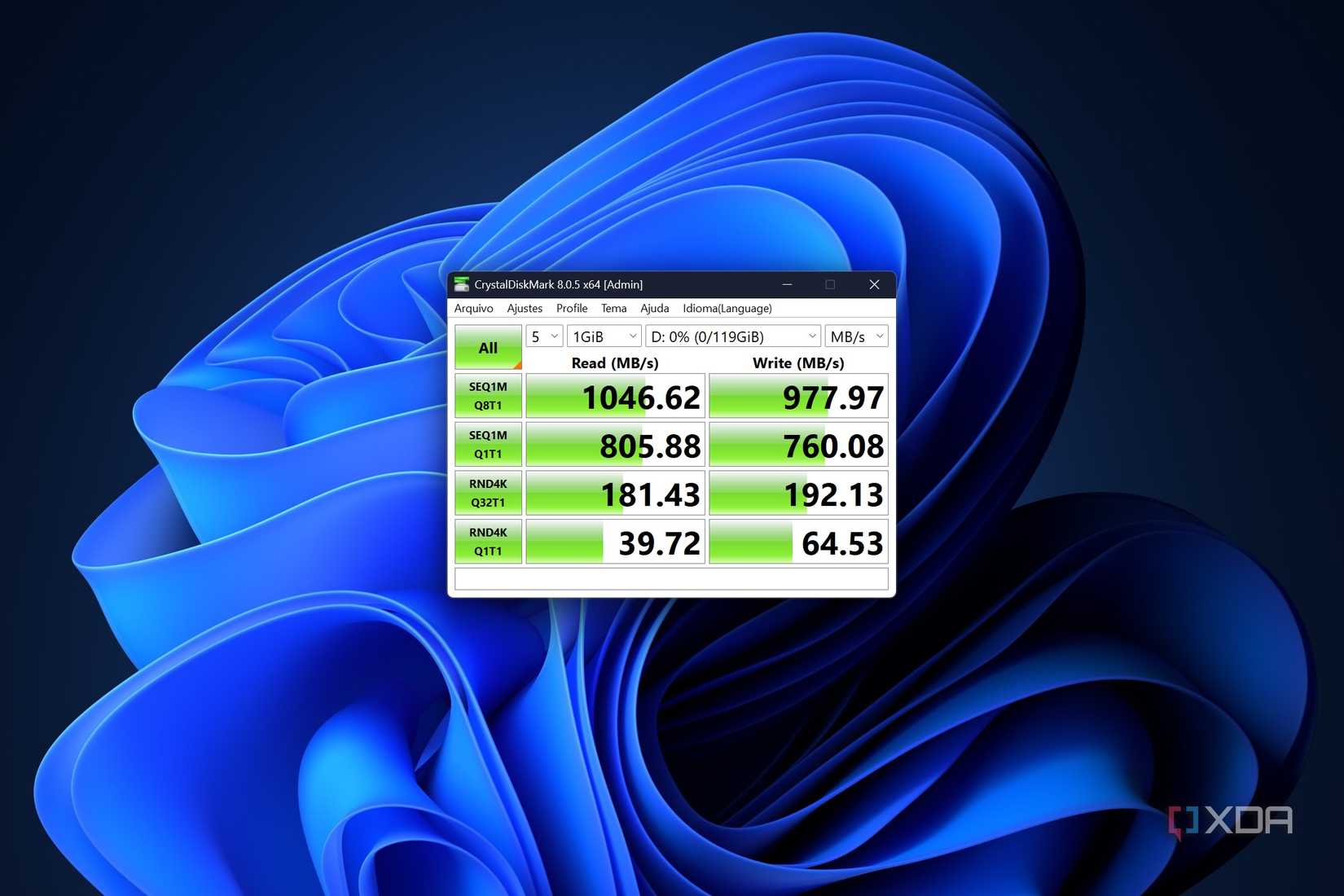
The issue first surfaced when attempting to transfer large blocks of data. Moving a 48GB folder of RAW photography files took 57 seconds—far too long for an NVMe-based setup. Synthetic benchmarks via CrystalDiskMark confirmed the bottleneck, yielding sequential read speeds of 1,013 MB/s and write speeds of 978 MB/s.
Phase 2: Chasing Red Herrings (Cables and Ports)
Assuming the bottleneck was physical hardware, the troubleshooting process targeted components sequentially:
- The Stock Cable: The short cable bundled with the Satechi enclosure was blamed first. A certified 40Gbps replacement cable was purchased for $19, but yielded identical performance figures.
- The USB-C Ports: The enclosure was moved from the primary motherboard port to the secondary USB4 port on the ASUS X870-Plus board. The transfer speeds remained stubbornly fixed at USB 3 levels.
- Other Rear Panel Ports: Every available USB-C and USB-A port on the back of the motherboard was tested, with no variation in throughput.
Phase 3: Uncovering the Clue in Device Manager
The breakthrough arrived when closely inspecting Windows Device Manager. Under the Disk drives category, the WD Black SN850X was listed with the identifier SCSI Disk Device and routed through a USB Attached SCSI (UAS) protocol controller.
This naming convention is typical of ordinary, lower-speed USB flash drives. A properly functioning USB4 NVMe enclosure should bypass this translation layer, exposing the drive directly as an NVMe storage device identical to an internal PCIe drive.
Phase 4: Connecting the Dots to a Past BIOS Change
Reflecting on system maintenance performed months prior, the root cause came to light. A pair of yellow warning icons had briefly appeared next to the "PCIe Express Downstream Switch Port" entries in Device Manager. At the time, disabling PCIe tunneling in the BIOS made those warnings disappear.
Although a subsequent BIOS update resolved the underlying PCIe instability, the tunneling setting was never re-enabled. Because Windows inherently trusts the hardware configuration provided by the motherboard, it quietly routed the high-speed data streams through standard USB protocols without alerting the user.

Supporting Data and Performance Metrics
The performance disparity between a disabled PCIe tunnel and a properly configured USB4 connection is stark. Testing conducted with CrystalDiskMark and real-world file transfers highlighted the exact performance penalty exacted by the misconfiguration.
| Performance Metric | PCIe Tunneling: OFF (USB 3 Mode) | PCIe Tunneling: ON (USB4 Mode) | Performance Improvement |
|---|---|---|---|
| CrystalDiskMark Sequential Read | 1,013 MB/s | 3,618 MB/s | ~357% faster |
| CrystalDiskMark Sequential Write | 978 MB/s | 3,274 MB/s | ~335% faster |
| 48GB RAW Photo Folder Copy | 57 seconds | 19 seconds | ~66% reduction in transfer time |
Understanding the Numbers
While the corrected read speed of 3,618 MB/s and write speed of 3,274 MB/s represent a massive leap forward, they fall just short of the theoretical 4.8 GB/s (40Gbps) ceiling of the physical standard.
According to hardware documentation from ASUS and controller manufacturer ASMedia, the internal PCIe tunnel within the ASMedia controller tops out slightly below the raw link speed. Furthermore, real-world data transfers naturally dip when handling complex directory structures packed with thousands of small files rather than single, massive monolithic files.
Official Guidelines and Verification Methods
Both Microsoft and motherboard manufacturers provide native tools within Windows to help users verify whether their high-speed peripherals are operating at maximum capacity.
Checking via Windows Settings
For PCs running compatible hardware, Windows includes a dedicated settings menu for monitoring high-speed connection topologies:
- Open the Windows Settings app.
- Navigate to Bluetooth & devices > USB > USB4 Hubs and Devices.
- Review the hierarchical tree of connected USB4 devices to confirm supported features and active link states.
Note: Microsoft notes that this specific settings page relies on its native USB4 connection manager and may not appear on all third-party hardware implementations.
Re-enabling PCIe Tunneling in the BIOS
For users experiencing similar limitations on modern AMD AM5 motherboards (such as ASUS, MSI, Gigabyte, or ASRock platforms), restoring full performance requires a quick trip to the system firmware:
- Restart the PC and tap the designated key (typically
DelorF2) to enter the BIOS/UEFI setup. - Navigate to the Advanced or AMD CBS configuration tabs.
- Locate the USB4 or PCIe Tunneling over USB4 setting.
- Toggle the parameter from Disabled to Enabled.
- Save changes and reboot into Windows.
(Intel-based motherboards with native Thunderbolt implementations often house a similar toggle under security or peripheral settings, frequently labeled as "PCIE Tunneling over USB4" or "Thunderbolt Security").
Implications: Performance vs. Security Trade-offs
While leaving PCIe tunneling enabled is essential for unlocking the full potential of external NVMe enclosures, it introduces architectural considerations regarding system security.
The Direct Memory Access (DMA) Risk
Enabling PCIe tunneling allows external devices to utilize Direct Memory Access (DMA). This mechanism enables connected hardware to read and write directly to system memory (RAM) without needing intervention from the CPU, which is what allows for ultra-low latency and blazing-fast data throughput.
However, this feature also widens the system’s attack surface. If an unauthorized individual gains physical access to an unattended PC, a malicious device plugged into a USB4 port could theoretically interact directly with system memory.
Mitigations and Best Practices
- Kernel DMA Protection: Modern Windows installations incorporate security layers like Kernel DMA Protection, which can be verified by typing
msinfo32into the Start menu and checking the "Kernel DMA Protection" status. This feature helps fence off unauthorized new devices until the user logs into the system. - Use-Case Scenarios: For desktop systems kept in secure environments, leaving PCIe tunneling permanently enabled carries negligible risk. Conversely, users who frequently travel or bring portable workstations to public environments or LAN parties may weigh the security benefits of temporarily disabling tunneling against the inconvenience of reduced peripheral speeds.
Conclusion
Before spending money on certified 40Gbps replacement cables or prematurely condemning expensive external enclosures, users experiencing sluggish transfer speeds should consult Device Manager and verify their UEFI settings. Ensuring that PCIe tunneling is active transforms a sluggish, bottlenecked connection into a high-performance storage solution that truly rivals internal drives.