





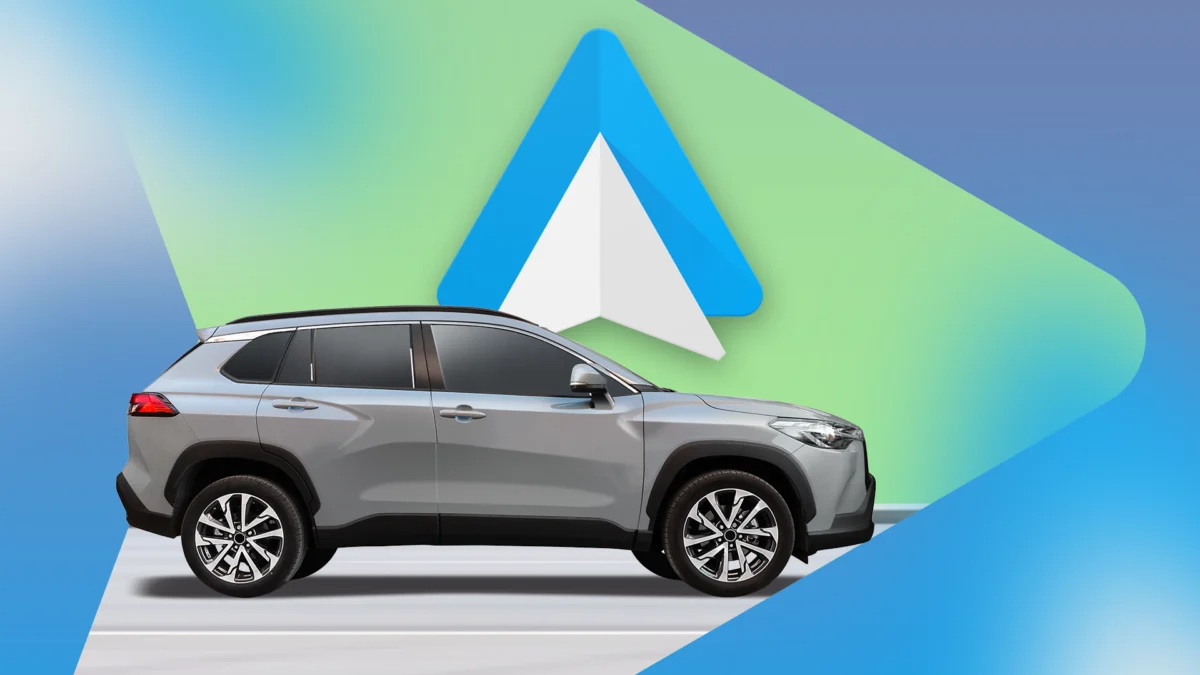
For millions of drivers, Android Auto has become an indispensable companion, transforming the infotainment screens of modern vehicles into extensions of their smartphones. Whether it is real-time traffic updates via Google Maps, seamless integration with Spotify, or the convenience of hands-free communication, the platform is a marvel of mobile-to-vehicle synchronization. However, the user experience is not always seamless. Many users frequently encounter persistent issues ranging from unstable wireless connectivity and restrictive app limitations to subpar visual fidelity on high-resolution displays.
While the standard Android Auto settings menu offers basic personalization, it leaves a significant portion of the platform’s functionality under lock and key. Tucked away behind a simple, manual activation process lies the Android Auto Developer Settings—a robust suite of tools designed for debugging and optimization. For the power user, these settings represent the difference between a frustrating commute and a perfectly calibrated driving experience.
The Hidden Gateway: Accessing Developer Settings
The primary reason most drivers never interact with these advanced controls is that they are not intended for the average consumer. Google intentionally obscures these options to prevent accidental misconfiguration that could lead to system instability or safety hazards. However, the process to unlock them is straightforward and entirely reversible, requiring no root access or third-party software.
Step-by-Step Activation
To gain access to these hidden features, follow these steps:
- Navigate to Settings: Open your phone’s system settings and search for "Android Auto" or navigate to Connected devices > Connection preferences > Android Auto.
- Locate the Version Info: Scroll to the very bottom of the Android Auto settings page until you see the "Version" field.
- The Developer Trigger: Tap the "Version" field repeatedly—usually about ten times. You will receive a prompt asking if you would like to enable developer settings. Confirm this choice.
- Accessing the Menu: Once enabled, tap the three-dot overflow menu in the top-right corner of the screen and select "Developer settings."
Once inside, you are presented with a technical menu that governs everything from data logging to resolution scaling. While many of these toggles are strictly for diagnostic purposes, three specific areas hold transformative potential for the end-user.
Mastering Wireless Connectivity: The Toggle That Changes Everything
Wireless Android Auto was marketed as the ultimate convenience feature: step into your vehicle, and your phone automatically projects its interface without the need for a cable. In practice, however, the experience is highly dependent on the vehicle’s head unit and the signal environment.

The Problem with Wireless Instability
Wireless Android Auto operates over a combination of Bluetooth and Wi-Fi Direct. If your vehicle’s infotainment system struggles to maintain a stable Wi-Fi handshake, you may experience intermittent disconnects, stuttering audio, or dropped navigation instructions. Furthermore, wireless projection is a battery-intensive process. By simultaneously utilizing GPS, Bluetooth, Wi-Fi, and the phone’s processor to drive the car’s display, your device can experience significant thermal throttling and battery drain during long-distance drives.
The Developer Solution
By accessing the "Wireless" toggle within the developer menu, you gain manual control over this behavior. If you find that your wireless connection is unreliable, you can effectively force your phone to prioritize wired connections. Disabling wireless projection through this menu ensures that the phone does not attempt to initiate a wireless session, forcing you to use a USB cable.
This change provides two major benefits:
- Reliability: Wired connections are inherently more stable, eliminating interference from outside signals.
- Power Management: Plugging into the car’s USB port provides power, offsetting the battery drain that would otherwise be incurred by the high-demand wireless projection protocols.
Expanding Horizons: Enabling Unknown Sources
Google enforces a strict vetting process for apps available on Android Auto to ensure that interfaces remain distraction-free and safe for the road. While this maintains a high standard of quality and safety, it also prevents users from utilizing niche, open-source, or region-specific applications that have not yet undergone Google’s certification process.
The "Unknown Sources" Toggle
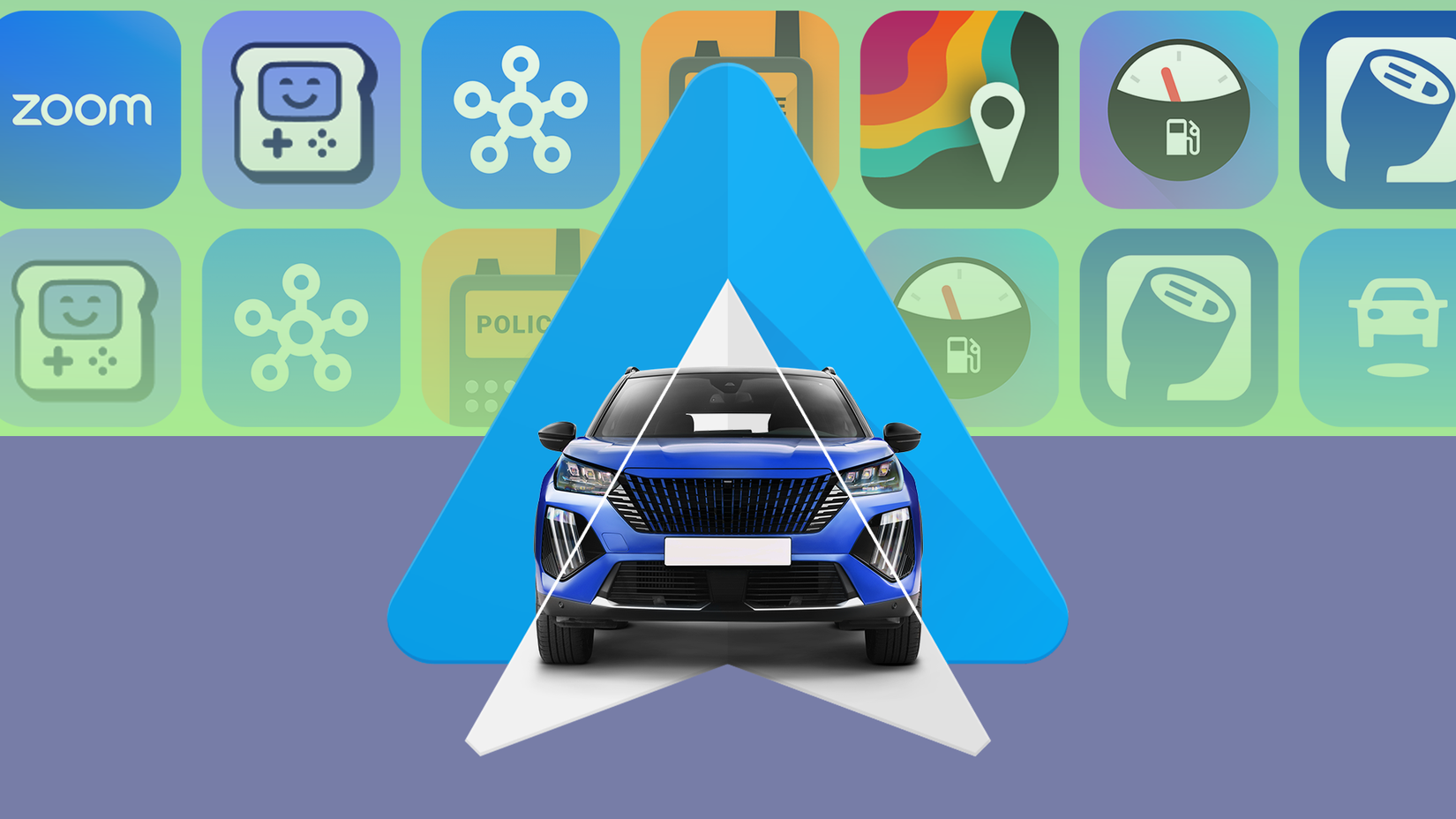
By enabling the "Unknown Sources" option in the developer menu, you effectively tell Android Auto to ignore the default "Google-only" filter. Once this is checked, any app installed on your phone that supports the Android Auto framework—such as certain third-party media players, specialized navigation tools, or open-source projects like NewPipe—will appear in your app launcher.
Strategic Customization
After enabling this toggle, navigate to the "Customize launcher" section within the main Android Auto settings. You will notice that previously hidden applications now appear in the list, ready to be added to your car’s dashboard. This functionality is a game-changer for enthusiasts who want a more personalized driving environment. However, users must exercise caution: apps not optimized for the car interface can be inherently distracting, and users should only enable apps they are confident are safe to use while driving.

Visual Fidelity: Optimizing Video Resolution
Not all infotainment screens are created equal. Modern luxury vehicles may sport ultra-wide or high-definition panels, while older or budget-conscious models might utilize lower-resolution displays. Android Auto’s default behavior is to attempt a "best-fit" resolution, which often leads to the system choosing a safe, conservative setting to ensure universal compatibility.
The Impact of Resolution Scaling
On high-resolution displays, a conservative default setting can lead to blurred text, pixelated icons, and map graphics that lack sharpness. Conversely, forcing a high resolution on a low-end head unit can result in a distorted interface or UI elements that are improperly scaled.
Manual Resolution Adjustment
The "Video resolution" setting in the developer menu allows you to override these defaults. By testing different resolution targets (such as 720p or 1080p), users can potentially sharpen the interface on their specific display. While this is a trial-and-error process, the visual improvement on a crisp display is often significant, providing a much more premium look and feel to the infotainment experience.
Chronology of Android Auto Development
The evolution of Android Auto from a proprietary, restricted platform to its current state has been marked by a constant push-and-pull between user demand for flexibility and Google’s mandate for road safety.
- 2015: Android Auto launches, requiring a wired connection for all users.
- 2018: Google begins rolling out Wireless Android Auto to select Google Pixel and Nexus devices.
- 2020: Android Auto becomes a standard feature in Android 11, moving away from a standalone app to a system-integrated service.
- 2023–2025: A period of significant refinement, with "Coolwalk" and subsequent UI updates focusing on multi-window support and better integration with larger, non-standard screen aspect ratios.
Throughout this timeline, the developer menu has remained a constant, serving as a sandbox for Google’s internal testing and a lifeline for users struggling with specific hardware incompatibilities.
Implications for the Future of In-Car Tech
The existence of these developer settings raises broader questions about the future of in-car operating systems. As cars become more like "computers on wheels," the desire for user-level customization will only increase. Currently, Google maintains a "walled garden" approach to Android Auto, prioritizing safety above all else. However, the popularity of these developer tweaks suggests that a significant segment of the user base is ready for a more modular approach to their car’s software.
The Safety Debate
Critics argue that allowing "Unknown Sources" or modifying video resolutions could distract drivers or cause system crashes. Proponents, however, argue that these settings allow users to fix bugs that Google has been slow to address, such as the persistent connectivity issues plaguing certain vehicle models.
Moving Forward
As Android Automotive OS (the native operating system for cars) gains traction, the line between phone-based projection (Android Auto) and car-based software will continue to blur. For now, the developer menu remains the most powerful tool in the driver’s arsenal for reclaiming control over their digital driving experience.
By taking the time to understand these settings, users can overcome the limitations of their vehicle’s factory software, transforming a standard infotainment system into a personalized, highly functional tool that works exactly the way they need it to. Whether it is solving a frustrating connection drop or finally getting a favorite app onto the big screen, these hidden toggles prove that with a little bit of curiosity, you can drive on your own terms.