




In the modern landscape of digital media production, DaVinci Resolve has firmly established itself as an industry-standard post-production powerhouse. Originally renowned globally for its elite color grading toolset, the software has evolved into an all-in-one ecosystem encompassing advanced editing, visual effects via Fusion, and professional audio mixing through Fairlight.
Whether cutting rapid-form content for social media channels or shaping narrative-driven cinematic projects, editors require absolute precision to ensure their stories flow seamlessly. One of the most fundamental yet frequently misunderstood mechanics within this ecosystem is the process of adding and inserting video clips into an active timeline. While the action appears deceptively simple on the surface, executing it cleanly without throwing an entire sequence out of sync demands a thorough understanding of the software’s underlying logic.
This comprehensive guide explores the structural methods, advanced toolsets, and professional strategies required to master clip insertion in DaVinci Resolve, ensuring your edits remain clean, intentional, and perfectly synchronized.

The Main Facts: Understanding Timeline Dynamics
At its core, video editing is an exercise in pacing and spatial management. When an editor drops a new piece of media into an existing sequence, two primary outcomes can occur: the timeline can expand to accommodate the new asset, or the incoming asset can overwrite what is already there.
Failing to distinguish between these operations often leads to catastrophic errors in professional workflows—ranging from accidental overwriting of crucial B-roll to devastating audio-visual drift. Professional editing suites like DaVinci Resolve are engineered with sophisticated asset-handling logic designed to prevent these mistakes, provided the editor understands how to interface with the timeline correctly.
Fundamentally, adding clips involves choosing between two distinct methodologies:
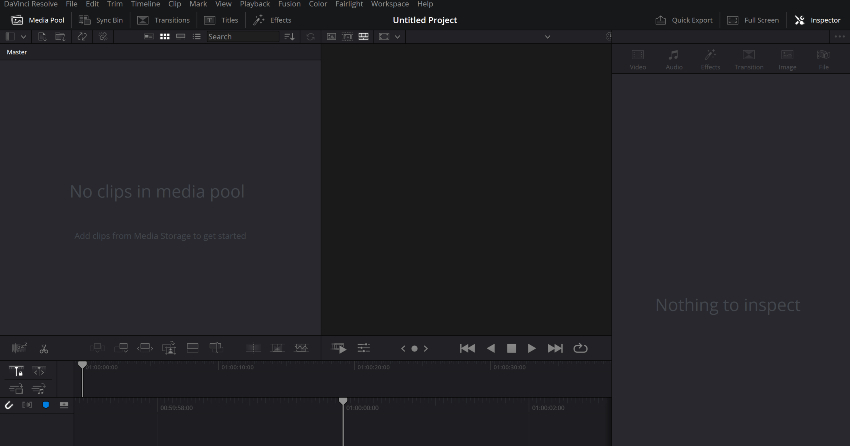
- Insert Edits: Pushing existing downstream media forward to make room for new content.
- Overwrite Edits: Replacing existing footage directly without altering the overall duration or timing of the surrounding sequence.
Mastering these core mechanics eliminates guesswork, transforming editing from a trial-and-error process into a streamlined, highly efficient workflow.
Chronology of an Insert Edit: Step-by-Step Execution
To fully grasp how DaVinci Resolve handles structural changes, editors must follow a deliberate, chronological sequence of operations. Skipping steps or relying purely on intuitive drag-and-drop actions without preparation frequently results in messy timelines.
Step 1: Precise Playhead Positioning
The journey begins at the playhead—the vertical line that dictates your exact current position within the timeline. To insert a clip between two existing segments, you must click precisely along the timeline track where the split should occur.
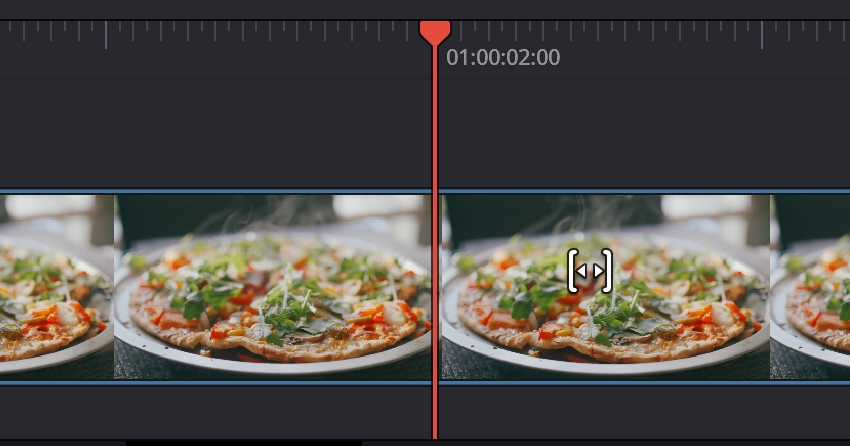
Precision at this stage is paramount. If you are working with tightly packed dialogue tracks or aggressive musical beats, a playhead misaligned by even a few frames will disrupt rhythm and throw audio cues out of alignment. Utilizing timeline zooming (via keyboard shortcuts Ctrl + and Ctrl - on Windows, or Cmd + and Cmd - on Mac) allows editors to view individual frames, guaranteeing pinpoint accuracy.
Step 2: Utilizing the Right-Click Menu
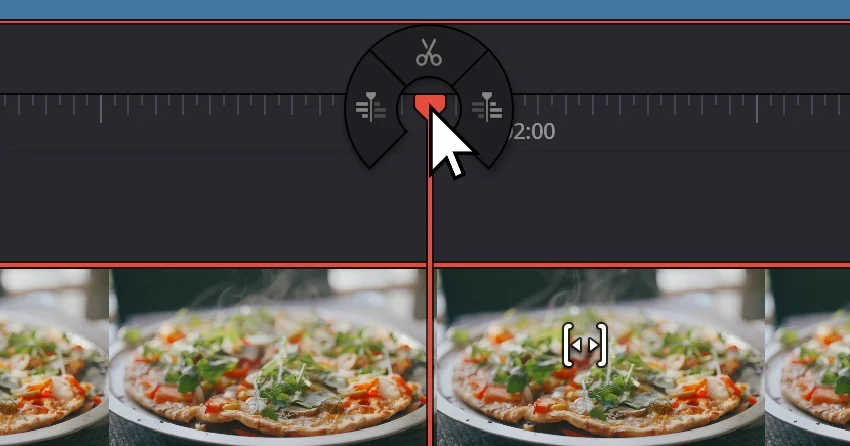
Once the playhead rests at your targeted juncture, right-clicking directly on the timeline or accessing the contextual menu reveals the suite of available edit operations. Here, editors can evaluate how incoming media will interact with the surrounding blocks. While simple drag-and-drop actions are visually intuitive, the contextual menu provides a window into the exact mechanical changes the software is prepared to execute.
Step 3: Engaging the Blade Tool (When Necessary)
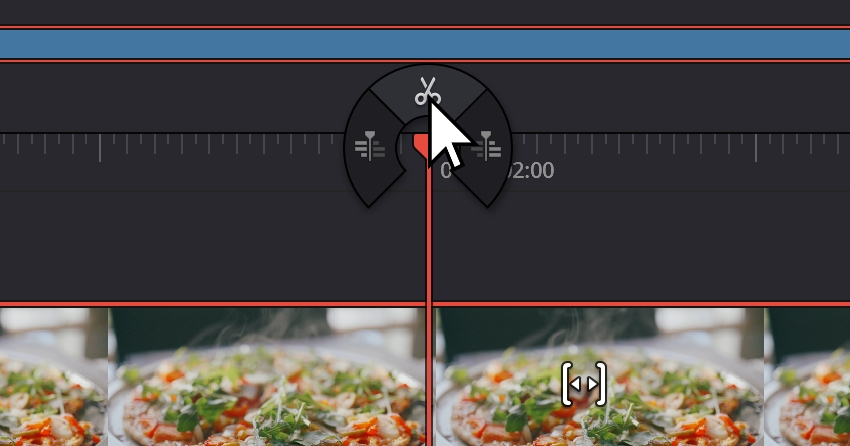
For manual structural adjustments, editors frequently engage the Blade Tool (commonly represented by the scissor icon, activated via the Ctrl + B or Cmd + B shortcut). This tool allows you to slice existing clips at the playhead boundary.
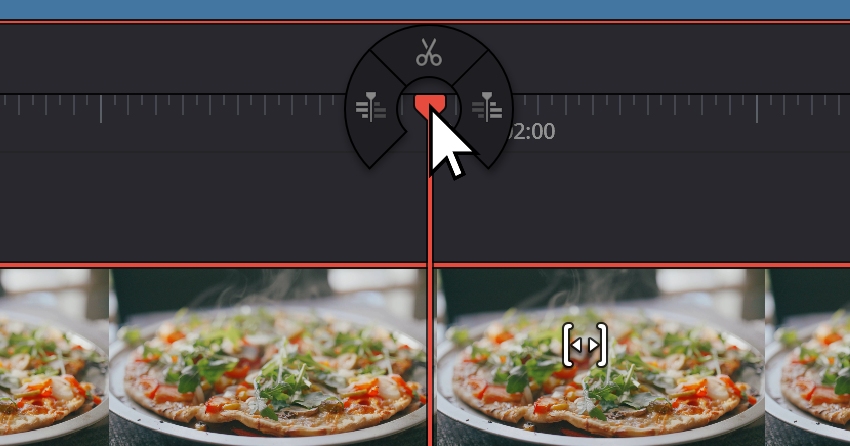
- Professional Warning: Always remember to switch back to the standard Selection Tool (arrow icon) immediately after cutting. Remaining in Blade mode introduces the constant hazard of accidental micro-cuts, forcing editors to hunt down invisible errors later in the post-production cycle.
Step 4: Sourcing and Trimming Your Asset
Before dragging a file onto the timeline, disciplined editors utilize the Media Pool and the Source Viewer. Double-clicking a clip opens it in the Source Viewer, allowing you to review the raw footage rather than dropping raw, unoptimized files blindly into your sequence.
- Setting In and Out Points: By marking an In point (
I) and an Out point (O) within the Source Viewer, you ensure that only the exact frames required for the scene are transferred to the timeline. This eliminates the need for tedious timeline-trimming cleanup later on.
Step 5: Drag-and-Drop and Visual Cues
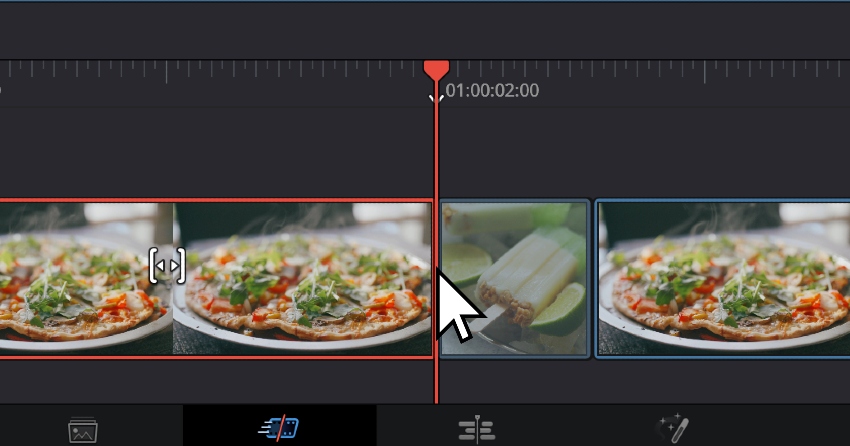
With your source material prepared, dragging the clip toward the timeline initiates Resolve’s intelligent preview system. As you hover the cursor over the edit line, you will notice the clip on the right side of the playhead physically slide out of the way.
This visual cue is DaVinci Resolve’s way of communicating that an insert edit has been successfully recognized. It signifies that the software has calculated the exact duration of your incoming media and temporarily shifted all downstream elements forward to accommodate it, leaving zero gaps and preserving total synchronization.
Supporting Data: Advanced Tools for Specialized Scenarios
Beyond basic drag-and-drop techniques, DaVinci Resolve offers specialized, high-level tools engineered for complex, multi-track, and long-form post-production environments.
Tool 1: Smart Insert (F9)
The Smart Insert feature automatically places a new clip at the current playhead position while pushing all downstream clips forward. Unlike manual drag-and-drop operations, Smart Insert can be executed instantly via the F9 keyboard shortcut. It respects track targeting hierarchies, ensuring that video and audio elements populate precisely on the designated tracks without bleeding into unrelated layers.
Tool 2: Append
The Append function is the ultimate tool for rapid assembly rough cuts. When selected, Append instantly adds a clip—or an entire batch of selected clips—to the very end of the active timeline.
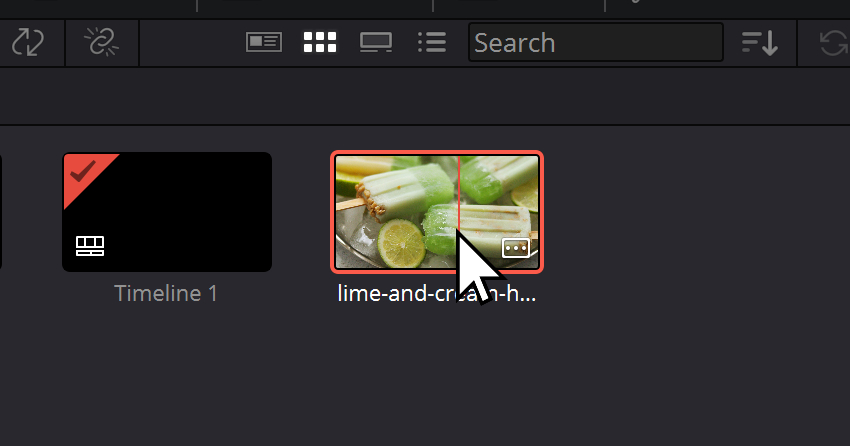
- Ideal Use Cases: Building a chronological string-out of raw interview footage, stacking daily rushes, or sequentially laying down music tracks without disrupting a painstakingly edited middle section. Append treats your timeline as a canvas that continuously moves forward.
Tool 3: Ripple Overwrite (Shift + F10)
There are moments in editing when you need to replace an existing sequence segment with a new clip of an entirely different length. The Ripple Overwrite tool (Shift + F10) performs this task effortlessly.
- The Mechanics: If your replacement clip is longer than the original segment, the timeline automatically ripples outward to make space. If the replacement is shorter, the timeline contracts. This eliminates the cumbersome process of manually sliding subsequent clips to close gaps or make room.
Tool 4: Source Overwrite (F11)
Conversely, Source Overwrite (F11) swaps out timeline footage between designated In and Out points without altering the overall duration or timing of the surrounding timeline.
- Why It Matters: Nothing moves. There is no domino effect, no shifting of downstream assets, and zero risk of breaking audio-visual synchronization. It is the gold standard for locked-timing projects, such as music videos where audio tracks must remain anchored to a master track while visual takes are swapped out.
Official Responses and Expert Best Practices
Professional video editors and post-production supervisors emphasize that mastering DaVinci Resolve’s clip insertion tools is less about memorizing button locations and more about adopting an intentional mindset. Industry standards highlight three critical operational habits:
- Strict Track Targeting Verification: Before executing any insert or overwrite edit, professionals always double-check their track targeting indicators on the left side of the timeline. Failing to target the correct video or audio tracks routinely results in overwriting existing dialogue or scattering B-roll across unauthorized layers.
- Leveraging Snapping Behavior: Keeping the snapping tool active (the magnet icon on the toolbar) creates a natural "magnetic pull" along the playhead and clip boundaries. This ensures that edits snap into exact frame alignment, preventing the introduction of single-frame black gaps.
- Embracing Non-Destructive Experimentation: Because DaVinci Resolve features robust multi-level undo functionality (
Ctrl + ZorCmd + Z), editors are encouraged to experiment freely with advanced insertion tools. If an experimental Ripple Overwrite disrupts sequence pacing, a simple keystroke instantly reverses the action without penalty.
Implications for Modern Post-Production Workflows
The efficiency gained by mastering advanced clip insertion techniques extends far beyond individual convenience; it fundamentally alters studio productivity and project turnaround times. In commercial production environments, where tight deadlines are the norm, spending hours manually cleaning up misaligned timelines or hunting down audio drift translates directly to wasted financial resources.
By transitioning from basic, trial-and-error editing habits to intentional, keyboard-shortcut-driven operations (such as Smart Insert, Append, and Source Overwrite), editors reduce mechanical friction. This allows creative energy to remain focused entirely on story pacing, emotional resonance, and visual aesthetics.
Furthermore, integrating structured asset management systems—such as utilizing pre-built DaVinci Resolve templates from platforms like Envato for intros, lower thirds, and transitions—complements these timeline skills. When technical mechanics become second nature, the editor ceases to fight the software and instead begins to direct it, achieving professional-grade storytelling precision with every project.