




The intersection of artificial intelligence and content management systems reached a significant milestone with the widespread adoption of AI connectors. For web administrators and developers, the ability to seamlessly link an AI assistant directly to a live publishing environment unlocks unprecedented automation capabilities. A Claude connector acts as a secure, saved bridge between Anthropic’s Claude and an external app or service. Once established, Claude can retrieve real-time data from that service and execute authorized actions on your behalf.
While enterprise-level hosted platforms offer streamlined integration pathways, self-hosted administrators often require a deeper, more hands-on route. This comprehensive guide details the mechanics of Claude connectors, explores the core architectures required for self-hosted WordPress environments, and provides a step-by-step walkthrough using the Model Context Protocol (MCP).

What is a Claude Connector?
Understanding the ecosystem of AI integrations requires looking at how different interfaces handle external servers. Connectors generally fall into three distinct categories, each tailored to specific deployment needs:
- Directory Connectors: These are pre-approved integrations chosen directly from the official Connectors Directory. Each directory entry features a dedicated landing page detailing its specific use cases, read-and-write capabilities, and overall availability across plans.
- Custom Connectors: Built for flexibility, custom connectors allow users to integrate any remote MCP (Model Context Protocol) server simply by supplying its public URL. MCP serves as the open standard enabling secure communication between AI models and local or remote data sources.
- Desktop Extensions: Exclusive to Claude Desktop, these extensions run the underlying server directly on the user’s local machine for offline or localized development work.
Platform Availability and Permissions
Custom connectors function natively across claude.ai, Cowork, and Claude Desktop, supporting every user tier from Free to Enterprise. However, minor tier-specific constraints apply—for instance, Free accounts are typically restricted to a single custom connector.
Administrative governance varies by account structure. On Team plans, only Owners and Primary Owners possess the permissions to add a connector via Organization settings ➔ Connectors. On Enterprise accounts, designated members holding custom roles with organizational library management privileges can also establish connections. Individual OAuth sign-ins are managed by navigating to Customize ➔ Connectors (often labeled as Custom) and authenticating with personal credentials.
The Reachability Rule: Network Architecture and Security
A common point of friction during setup involves understanding how network requests travel between Anthropic’s cloud infrastructure and a local or private server.
When a user configures a custom connector, Claude initiates connections from Anthropic’s cloud servers rather than the local device. This behavior applies universally across claude.ai, Claude Desktop, Cowork, and official mobile applications. Consequently, the target server must be publicly accessible over the internet via Anthropic’s designated IP ranges. Sites operating behind local firewalls, virtual private networks (VPNs), or private local networks will fail to connect natively, even if they load instantly in a local web browser. Administrators working with private staging environments must whitelist Anthropic’s IP blocks or implement tunneling protocols like MCP tunnels.
Furthermore, self-hosted WordPress environments running OAuth endpoints impose strict security protocols. By default, OAuth metadata endpoints reject plain HTTP traffic originating from non-local addresses, responding with a standard 403 Forbidden error accompanied by the message: "OAuth metadata endpoints require HTTPS."

| Connection Method | Connection Origin Point | Can it Reach Localhost or Private Sites? |
|---|---|---|
| Custom Connector (claude.ai, Desktop, Cowork) | Anthropic Cloud Infrastructure | No (Localhost unsupported; private sites require firewall allowlists or MCP tunnels). |
Claude Code (claude mcp add) |
Local Workstation | Yes (Directly supports local environments, such as http://localhost:8094). |
Worked Example: Integrating WordPress as a Custom Connector
To illustrate how these components interact in a real-world scenario, we examine a local WordPress installation acting as a remote MCP server via the free Easy MCP AI plugin. Developed by Themeisle, this open-source plugin executes native PHP within WordPress without relying on an external hosted relay.
Step-by-Step Implementation
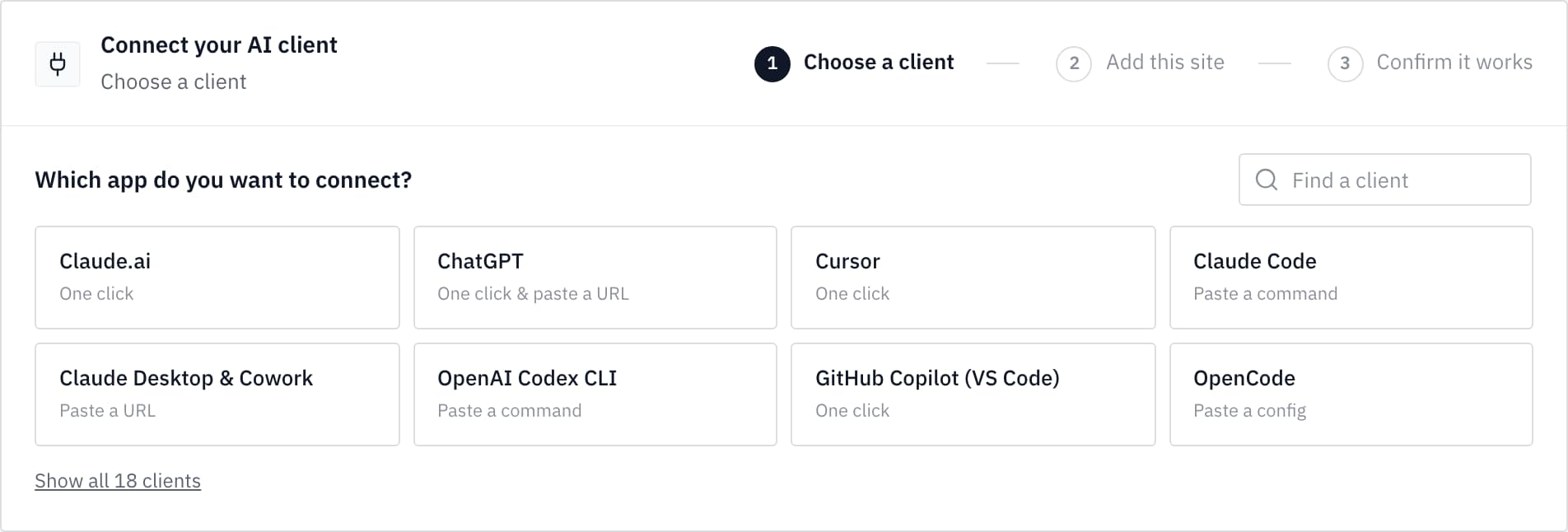
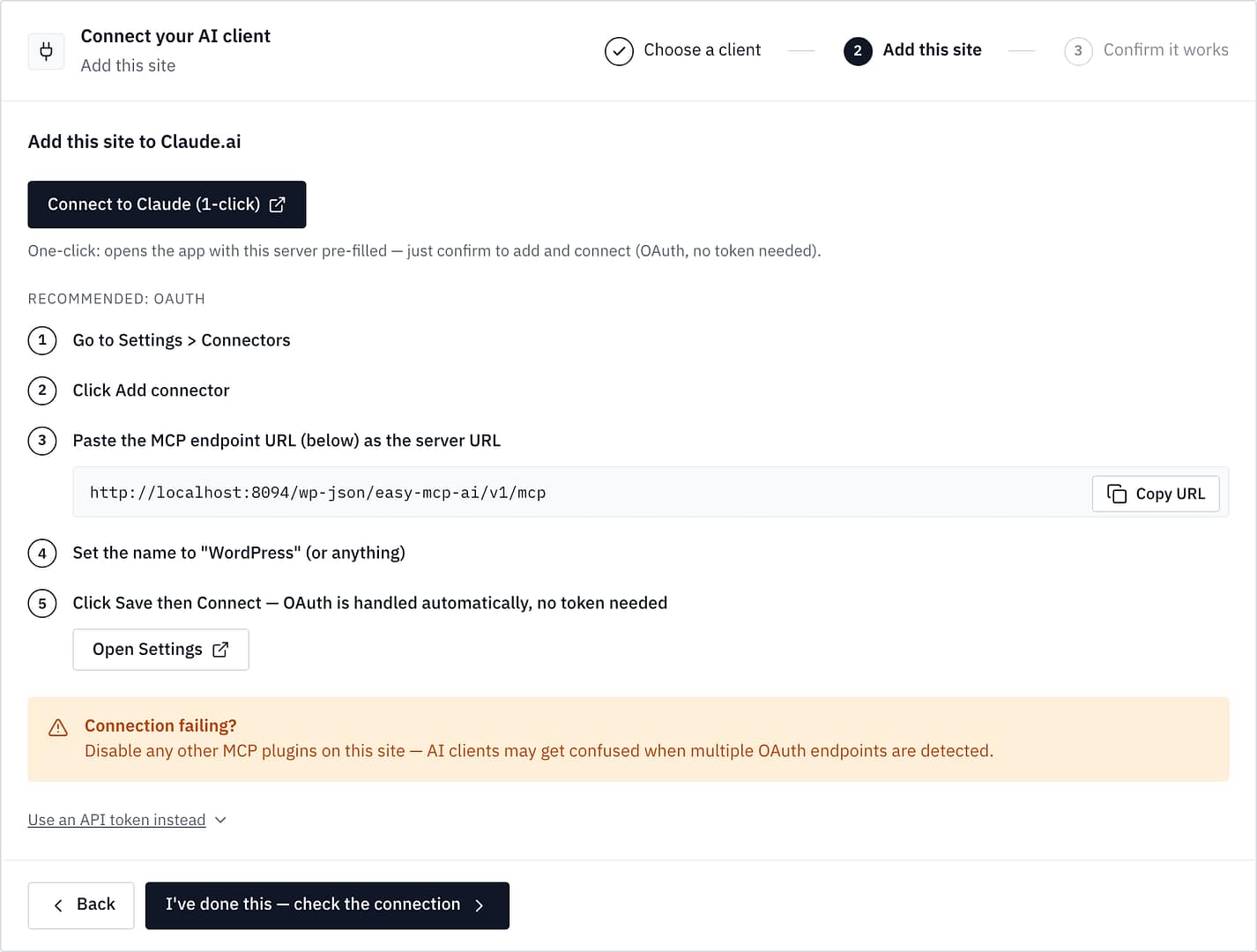
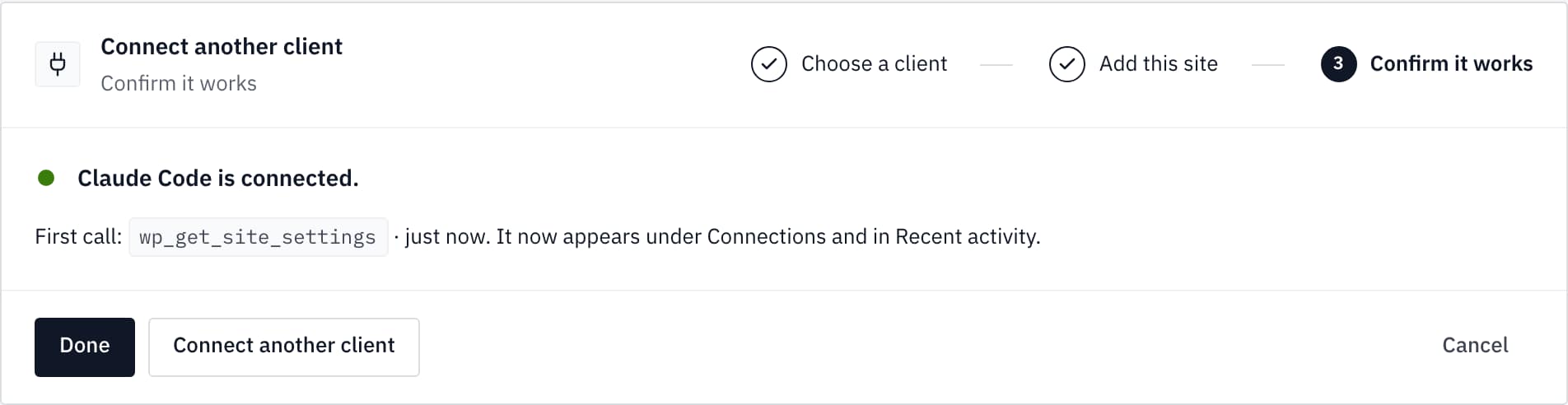
- Plugin Installation: Install and activate the Easy MCP AI plugin directly from the official WordPress plugin repository. Upon activation, users land on a centralized dashboard featuring a guided three-step setup card: Choose a client, Add this site, and Confirm it works.
- Establishing the Client Link: Selecting Claude.ai prompts a one-click connection button that automatically redirects to Claude’s connector settings page, populating the site’s unique title and MCP endpoint URL (
https://your-site/wp-json/easy-mcp-ai/v1/mcp). - OAuth Authorization: The authentication handshake occurs through an approval screen hosted directly on the WordPress site. The prompt explicitly defines the scope of access, ensuring the AI operates strictly within the boundaries of the authenticated WordPress user account. Administrators can select from three permission tiers:
- Read-Only: The AI can view site content, settings, and user lists without creating, altering, or deleting data.
- Full Access: Grants comprehensive read-write capabilities.
- Custom: Granular configuration of specific tool approvals.
- Validating the Connection: Using the plugin’s diagnostic check prompt (e.g., instructing the AI to query site settings using the
wp_get_site_settingstool without making modifications), administrators can confirm successful communication. A verified response displays the correct site title and endpoint URL.
Technical Execution: Managing Posts and Audit Trails
Beyond simple data retrieval, a fully connected WordPress site allows Claude to execute complex editorial workflows. For instance, instructing Claude Code to analyze published content, match its stylistic tone, and draft upcoming promotional text demonstrates practical AI-assisted content management.
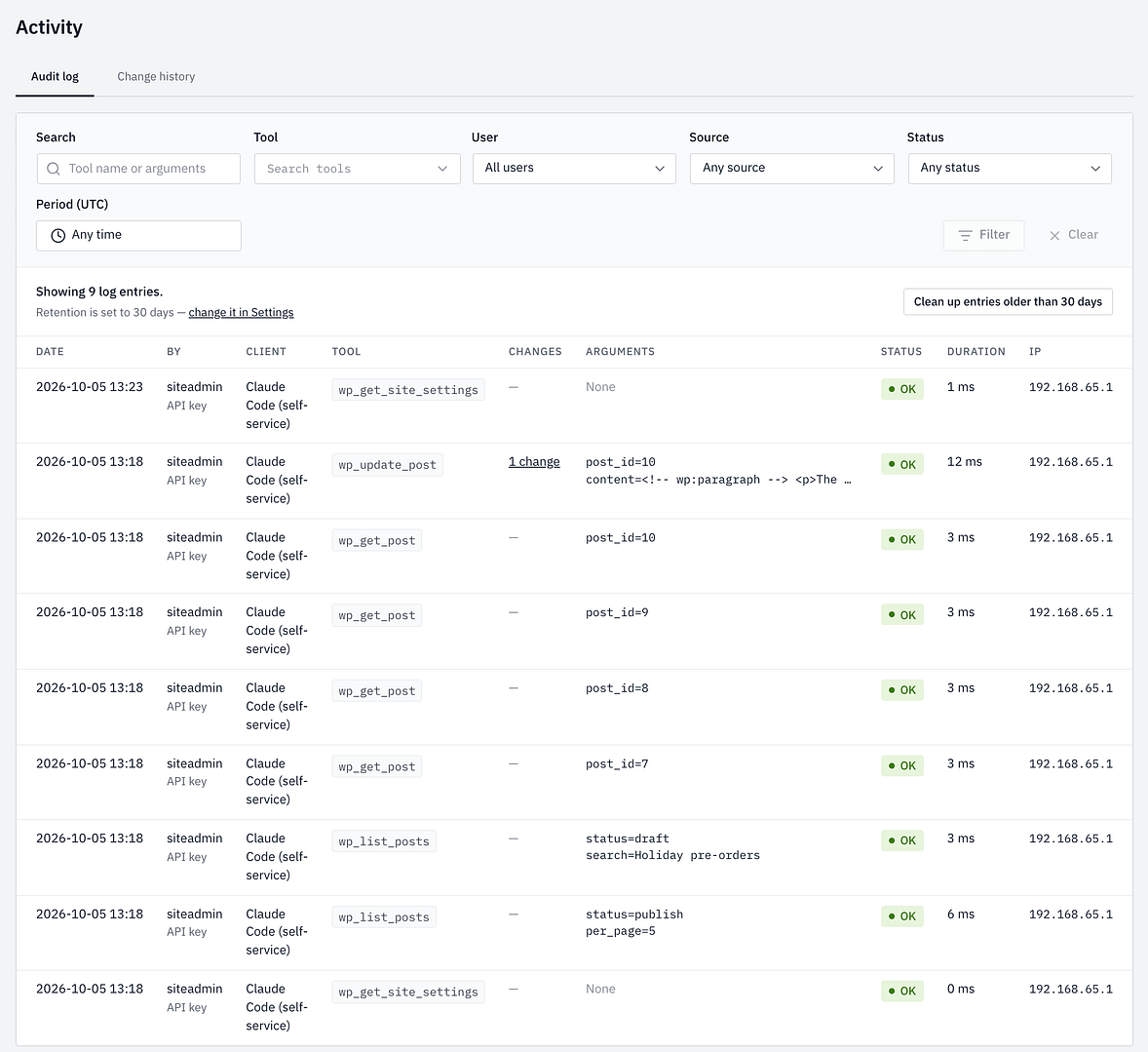
Upon receiving the prompt, the AI issues a wp_update_post call through a secure API token. The system successfully retains the post’s draft status while integrating tone-matching elements and placeholders.
Security and Audit Logging
To maintain strict oversight over AI-driven modifications, robust logging mechanisms are essential. The Easy MCP AI plugin includes an automated Audit Log feature (retained by default for 30 days) that records every individual MCP tool call, categorizing them by status (e.g., OK).

Additionally, a built-in Change History tracker captures before-and-after snapshots of any content modified via MCP. This allows administrators to review precise alterations and roll back edits if necessary. For high-security environments, administrators can configure opt-in safety gates that require manual approval before executing destructive actions such as post deletions.
Best Practices for Maintaining Secure AI Connections
Deploying AI connectors introduces powerful automation capabilities, but it also necessitates rigorous security hygiene. Anthropic and WordPress security experts recommend the following guidelines:
- Verify Source Trust: Only connect Claude to servers and applications managed by trusted entities.
- Audit Permissions Regularly: Review requested OAuth permissions thoroughly during the initial handshake. Avoid granting broad write access unless actively required.
- Mitigate Prompt Injection Risks: Malicious actors may embed hidden instructions within public-facing content designed to trick AI assistants into executing unintended administrative actions. Monitor tool approval prompts closely.
- Control Automated Research Runs: Because research tasks can invoke connector tools automatically without iterative human prompts, administrators should temporarily disable write-capable tools prior to running deep research queries.
- Maintain Audit Trails: Keep audit logging active to ensure complete transparency regarding automated tool executions.
Troubleshooting Common Configuration Failures
When establishing or managing custom connectors, administrators frequently encounter specific hurdles:
- Immutable Authentication Settings: Once a custom connector is saved, its core authentication parameters cannot be edited directly. To modify credentials or endpoints, users must delete the connector entirely from the configuration panel (
Customize ➔ Connectorsor organizational settings) and recreate it. - HTTPS Mismatch Errors: Failure to use a valid SSL certificate on self-hosted instances will cause OAuth metadata discovery to fail. Ensure public-facing environments enforce strict HTTPS configurations.
- Network Timeouts: If Anthropic’s cloud IPs are blocked by server-level security plugins (such as Wordfence or Cloudflare WAF rules), connection requests will time out. Whitelisting the required IP ranges resolves this bottleneck.
Conclusion
The integration of self-hosted WordPress environments with advanced AI assistants like Claude via custom MCP connectors represents a major leap forward in site management efficiency. By carefully managing network reachability, enforcing read-only permissions during initial setups, and maintaining strict audit logs, administrators can harness the full power of generative AI while preserving the security and integrity of their web platforms.