







The digital landscape is shifting, and for web professionals, speed is no longer just an advantage—it is a requirement. With the introduction of Divi 5, Elegant Themes has fundamentally altered the paradigm of visual site building. By integrating a sophisticated Command Center and dynamic Workspaces, the platform allows creators to transcend the traditional "point-and-click" interface. This evolution represents a transition toward a keyboard-centric workflow that reduces cognitive load and accelerates the production of complex, responsive layouts.
Main Facts: The New Architecture of Speed
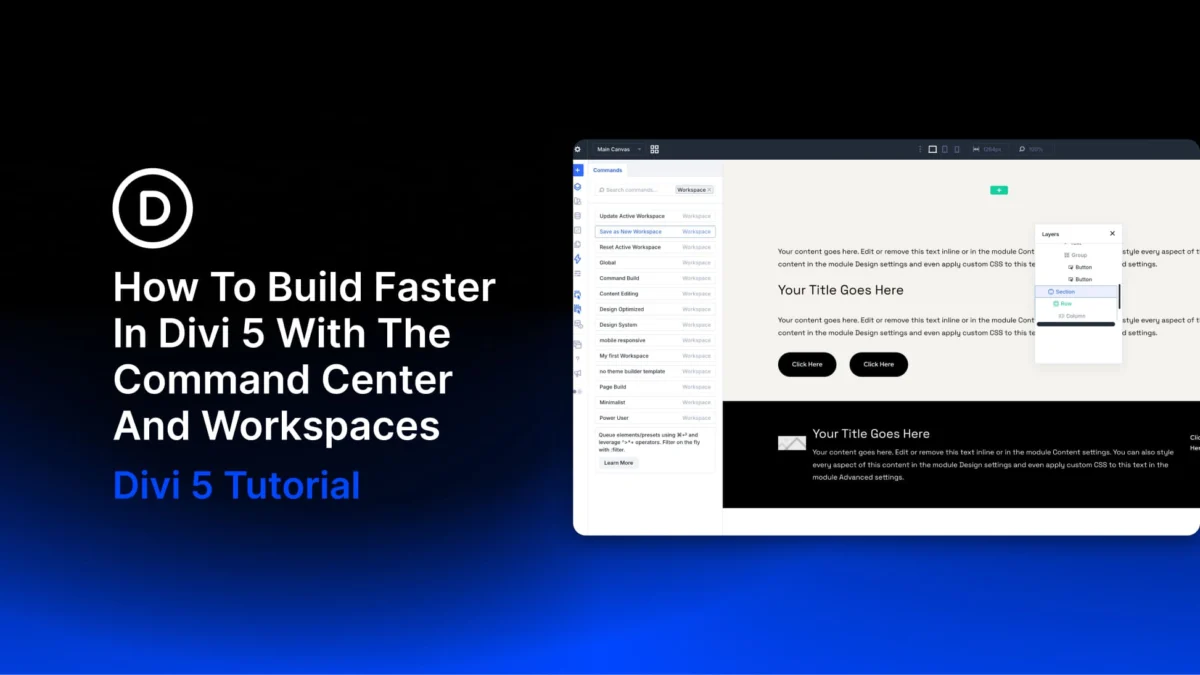
At the heart of the Divi 5 ecosystem are two primary innovations: the Command Center and Workspaces. The Command Center acts as a centralized brain for the Visual Builder. By invoking it via Cmd+K (Mac) or Ctrl+K (Windows), users can execute complex operations—such as module insertion, preset application, and settings navigation—without ever traversing through nested menus.
Complementing this, Workspaces provide a persistent, intelligent environment for the builder interface. A Workspace acts as a "snapshot" of your panel arrangements, encompassing everything from the docking positions of your settings modals to the visibility of the Layers panel. By combining these, Divi 5 enables a fluid state of design where the environment adapts to the task, rather than the user struggling to adapt to a static interface.
Chronology of a High-Efficiency Build
To understand the power of this integration, we must look at the standard lifecycle of building a high-impact hero section. This process has been streamlined into a three-act structure: preparation, structural assembly, and refined styling.
Phase 1: Configuring the "Command Build" Workspace
The first step in any professional workflow is environment optimization. By opening a blank page and docking the settings panel to a sidebar, you create a baseline for efficiency. Within Workspace Settings, setting the Settings Modal Default Position to a consistent side-panel orientation ensures that your canvas remains uncluttered.
Integrating the Layers panel is the next critical milestone. By executing the layers command within the Command Center, you anchor the tree-view of your page structure. This allows for rapid navigation of nested elements—a necessity when managing complex hero sections. Once configured, saving this as a "Command Build" Workspace ensures that this specific, high-utility environment is available for every subsequent page project.
Phase 2: Structural Assembly via Command Queuing
The true power of the Command Center lies in its queueing capability. Using the Cmd/Ctrl+Enter shortcut, designers can stack operations, effectively "programming" the layout in a single pass.
For a standard hero section, the hierarchy typically includes a row, a heading, supporting text, and a button group. Using the > operator, a user can nest elements instantly. For example, typing row > heading allows the builder to interpret the relationship immediately. When adding multiple elements, such as two buttons, the *2 multiplier command eliminates repetitive manual additions. If a designer realizes an element was omitted, the ^ prefix allows for the surgical insertion of elements—such as an "eyebrow" text line—above existing modules without disrupting the flow.
Phase 3: The Transition to "Command Style"
Once the structure is solidified, the designer’s needs shift from assembly to refinement. This is where the second Workspace, "Command Style," comes into play. By closing the Layers panel and expanding the settings modal, the user creates a "focused" environment.
Switching between these phases is as simple as triggering the Command Center and selecting the desired Workspace. Within "Command Style," the focus shifts to layout properties. Using the layout command, a user can instantly access the Flexbox controls, setting the button container to a row orientation without hunting through tabbed interfaces.
Supporting Data: Efficiency Metrics and Workflow Optimization
The efficacy of this new workflow is rooted in the elimination of "micro-friction." In traditional builders, every module addition requires an average of four clicks: opening the module picker, scrolling, selecting, and closing the modal. In Divi 5, this is reduced to a single keyboard sequence.
Furthermore, the implementation of Presets acts as a force multiplier. By assigning commands to specific design systems (e.g., Primary Button), designers can apply global styles to any element instantly. The ability to use the + operator within a command string—such as button + Primary Button—means that the module is not only added but fully styled the moment it touches the canvas.
Official Perspectives: The Philosophy of "Design Flow"
According to the development team at Elegant Themes, the intent behind Divi 5 was to bridge the gap between "Visual Editing" and "Code-Like Speed." By treating the builder interface as a dynamic environment that responds to keyboard input, they are catering to the professional user who spends hours in the interface daily.
The introduction of the :settings, :preset, and :view category filters demonstrates a commitment to deep-level navigation. These filters allow the user to limit the scope of the Command Center’s search results, ensuring that the interface remains responsive even as the project grows in complexity and the number of saved assets increases.
Implications for the Future of Web Development
The implications of this shift are profound. As the web becomes increasingly saturated with complex design requirements, the time spent "managing the tool" has historically been a bottleneck. Divi 5’s approach suggests that the future of web design is not just about having powerful features, but about the velocity at which those features can be deployed.
1. Scaling Production
Agencies that adopt these Workspaces can standardize their production environments across an entire team. By sharing pre-configured Workspaces, firms ensure that every developer is operating within an identical, optimized interface, thereby reducing training time and increasing output quality.
2. Cognitive Load Reduction
By offloading the "navigation" aspect of the builder to the Command Center, designers can maintain their creative focus. The "Command Style" and "Command Build" dichotomy prevents the user from being overwhelmed by the total breadth of the builder’s features, surfacing only what is necessary for the current phase of development.
3. The Shift to "Keyboard-First" Design
Perhaps most importantly, this evolution validates the "keyboard-first" approach. While the mouse remains essential for visual adjustments like color selection or spacing, the keyboard becomes the primary driver for structural and systematic changes. This reduces the physical strain of long-form editing and allows for a more ergonomic professional practice.
Conclusion: Mastering the Command
The integration of the Divi 5 Command Center and Workspaces is more than just a software update; it is a fundamental shift in how professionals interact with their digital canvas. By mastering these tools—saving specialized workspaces, leveraging the power of command queues, and strictly utilizing presets—designers can achieve a level of fluidity that was previously impossible.
As you move forward, remember that the goal is not to memorize every possible command, but to build a library of habits. Start by identifying the three actions you perform most frequently, assign them to your Workspaces, and let the Command Center handle the rest. In the competitive arena of modern web development, the ability to build, iterate, and refine with this level of speed is the ultimate professional advantage.