






By Tech Desk | Updated October 1, 2026
For millions of Windows 11 users, the ritual is painfully familiar. You press the power button on your high-end gaming rig or productivity workstation, settle into your chair, and wait. And wait. Despite packing modern multi-core processors, blistering NVMe solid-state drives, and plenty of RAM, your desktop still crawls sluggishly to life.
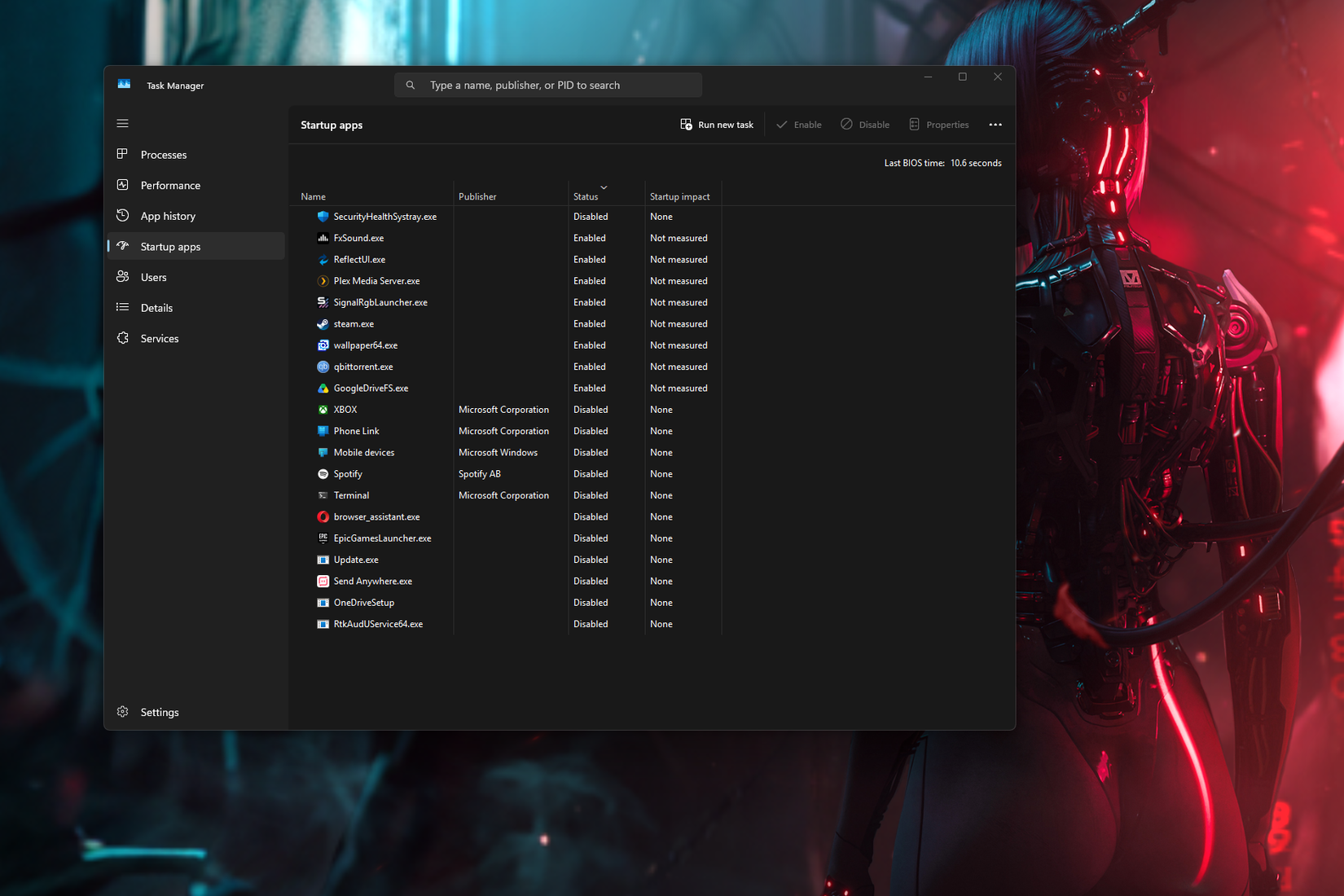
Naturally, your first instinct is to turn to the Task Manager. You click over to the "Startup apps" tab, disable a handful of obvious culprits like Spotify, Discord, or Steam, and sigh with relief, assuming you have successfully trimmed the fat.
Unfortunately, you’ve only scratched the surface.
Task Manager has long been designed for simplicity rather than exhaustive thoroughness. While it captures the most common offenders, it leaves a vast, hidden web of background processes, orphaned registry keys, and abandoned scheduled tasks completely untouched. To genuinely reclaim your boot times and purge unwanted system bloat, you need to dig deeper into the Windows architecture. Enter Autoruns—a free, advanced utility from Microsoft’s own Sysinternals toolkit that exposes everything Task Manager deliberately hides.
1. Main Facts: The Illusion of Control in Windows 11 Startup Management
The core issue facing Windows 11 users is the steady accumulation of digital detritus. Over the last several years, Microsoft’s ongoing push to integrate cloud services, AI tools, and telemetry packages has naturally inflated the operating system’s footprint. Combined with third-party software applications that silently install background updaters, helper services, and shell extensions, a PC’s startup sequence quickly becomes congested.
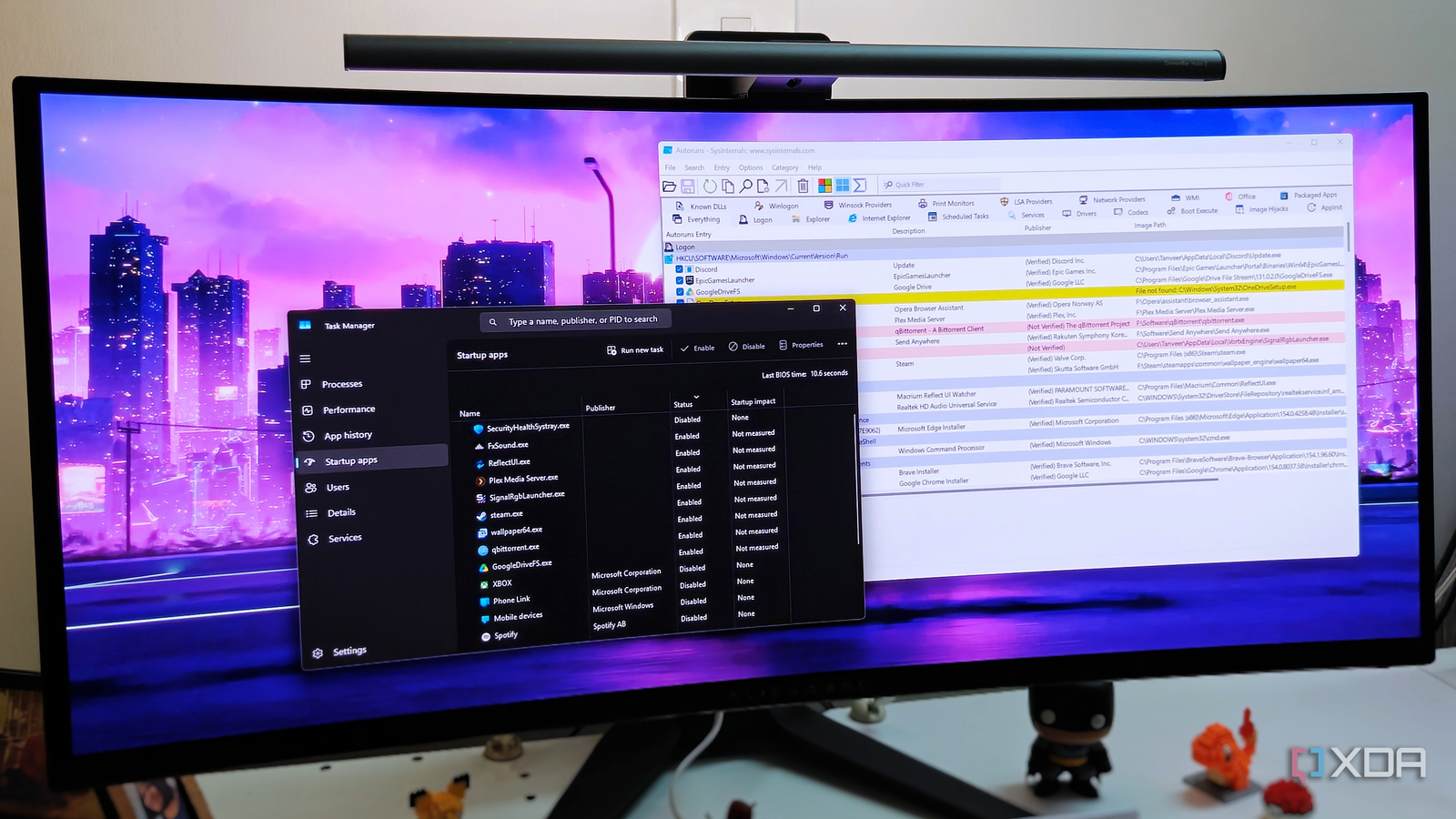
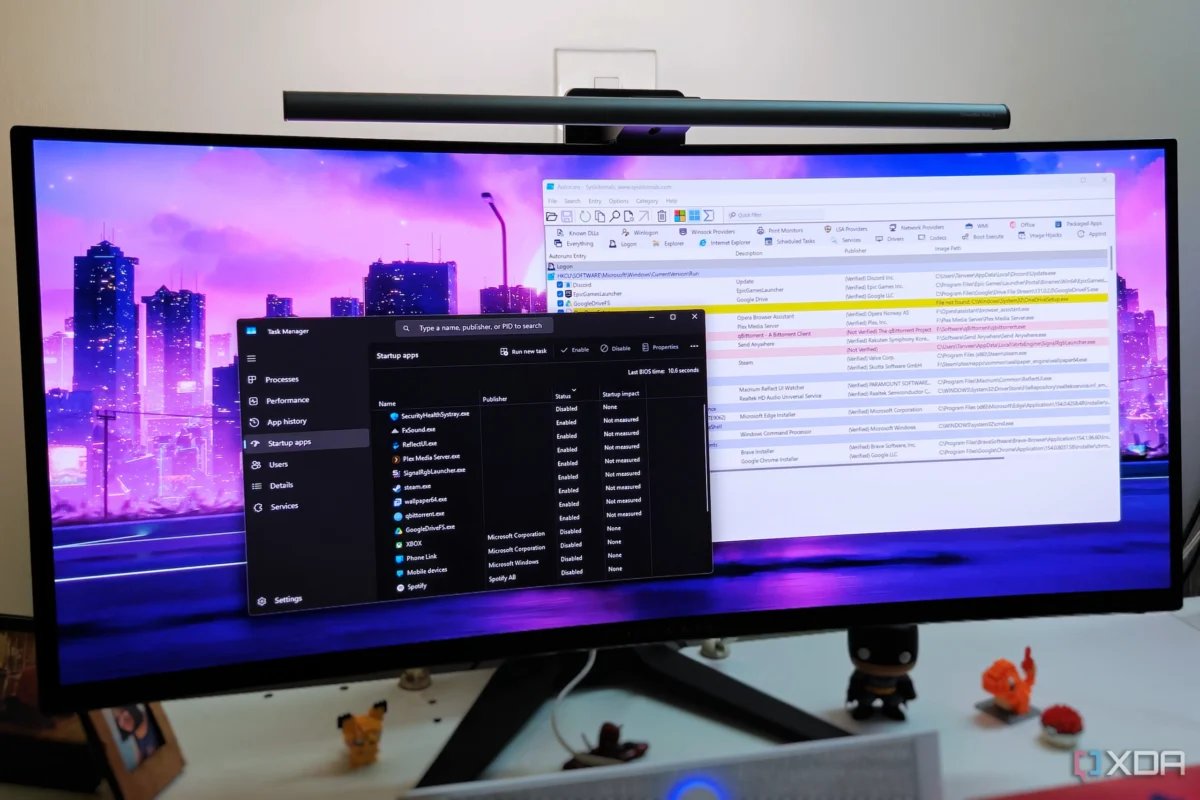
When users check the Task Manager’s Startup apps tab, they are shown a curated, highly filtered list. This interface scans only:
- The personal user Startup folder.
- The common Startup folder (shared across all users on the machine).
- A narrow selection of standard Windows registry keys.
However, modern Windows applications can launch themselves using a wide variety of alternate mechanisms. These include deep-level registry keys, the Windows Task Scheduler, background Windows Services, Explorer shell extensions, and AppInit DLLs.
Because Task Manager hides these mechanisms to avoid overwhelming everyday users with complex technical data, millions of PC owners operate under the false assumption that their startup routine is clean. In reality, background ghosts from uninstalled software, aggressive updaters, and forgotten utilities continue to drain system resources from the moment the machine boots up.
2. Chronology: The Evolution of Windows Startup Control and Bloat
To understand why modern PC boot optimization has become so complex, it helps to look at how Windows management tools have evolved alongside operating system bloat.
- The Early Days (Windows XP / 7): Users relied heavily on the
msconfig(System Configuration) utility. While slightly more powerful than what came before, it was still limited and lacked granular control over individual driver loads and shell integrations. - The Task Manager Revolution (Windows 8 / 10): Microsoft introduced the modernized Task Manager with a dedicated "Startup" tab. This user-friendly interface finally allowed average consumers to disable annoying startup apps with a single click, replacing manual registry editing. However, it fundamentally prioritized an approachable user experience over deep system transparency.
- The Rise of Sysinternals (Present Day): Originally developed by independent developers Mark Russinovich and Bryce Cogswell, the Sysinternals tool suite was acquired by Microsoft. Among its crown jewels is Autoruns, a utility that predates Windows 11 by many years but has become increasingly indispensable as operating systems grow more complex and heavy with background services.
As Microsoft continues to prioritize seamless cloud ecosystems (such as OneDrive, Copilot integration, and continuous telemetry), tools like Autoruns have transitioned from niche options for IT administrators into essential power-user utilities for everyday PC optimization.
3. Supporting Data: What Autoruns Uncovers That Task Manager Misses
When you download and launch Autoruns from the official Microsoft Learn repository, the sheer volume of data can be intimidating. The utility is divided into a master "Everything" tab alongside specialized tabs for Logon, Scheduled Tasks, Explorer, Services, Drivers, and Known DLLs.

Data gathered from deep system audits using Autoruns consistently reveals widespread hidden startup persistence:
- Orphaned Registry Entries: Software that was uninstalled months prior often leaves behind registry pointers that continuously look for missing executable files, causing silent background errors during boot.
- Ghost Scheduled Tasks: Programs frequently use the Windows Task Scheduler to check for updates or run telemetry sweeps. When the main software is deleted, the scheduled task frequently remains behind, triggering a fruitless execution attempt every time Windows starts.
- Leftover Cloud Footprints: Even after users explicitly uninstall or disable cloud integration tools like OneDrive, secondary hooks, setup remnants, and notification managers often persist deep within the logon registry keys.
- Unverified Third-Party Hooks: Many custom RGB lighting controllers, peripheral utility suites, and media software install background helper processes that bypass standard startup filters entirely.
4. Official Guidelines: How to Use Autoruns Safely
Because Autoruns reveals every single hook, driver, and service running on your machine, using it carelessly can destabilize your operating system. Microsoft specifically designs the tool for advanced administrators, meaning users must exercise caution.
Fortunately, built-in safety filters make it safe for intermediate users if proper protocols are followed:
Step 1: Filter Out Microsoft and Windows Entries
Before touching anything, navigate to the Options menu at the top of the Autoruns interface and ensure that both Hide Windows Entries and Hide Microsoft Entries are checked. This simple toggle instantly filters out critical system files, drastically reducing the risk of accidentally disabling essential operating system functions.
Step 2: Hunt for "File Not Found" Anomalies
Once Microsoft processes are hidden, examine the remaining entries (primarily unsigned or third-party software). Look closely for items highlighted in yellow, which denote "File not found" errors. These entries point to file paths or executables that no longer exist on your hard drive. They are entirely safe to delete and represent dead weight slowing down your registry lookups.
Step 3: Evaluate Unverified Software
Items highlighted in pink indicate software that lacks a verified digital signature. While not inherently malicious, these often include leftover updaters or background utilities from previous software installations. Review these items on a case-by-case basis (such as identifying remnants of an old hardware dashboard or an uninstalled cloud utility) before deciding to disable or delete them.
5. Implications: Reclaiming System Performance and the Future of PC Maintenance
The reliance on superficial optimization tools like Task Manager highlights a broader tension in modern computing: the trade-off between user-friendly design and deep system transparency.
As operating systems become more bloated with automated features, AI assistants, and background telemetry, the barrier to true system optimization rises. For average consumers, this results in hardware that feels slower and ages faster than it should, often prompting premature hardware upgrades when the bottleneck is actually software congestion.
Mastering advanced tools like Autoruns shifts the power dynamic back to the user. By moving past the sanitized view provided by Task Manager, PC owners can permanently eliminate hidden bloat, drastically slash boot times, and ensure their hardware operates at peak efficiency. Ultimately, Autoruns proves that while Windows 11 may come packed with hidden baggage, a methodical, five-minute cleanup can restore your computer to the lean, responsive machine it was meant to be.