








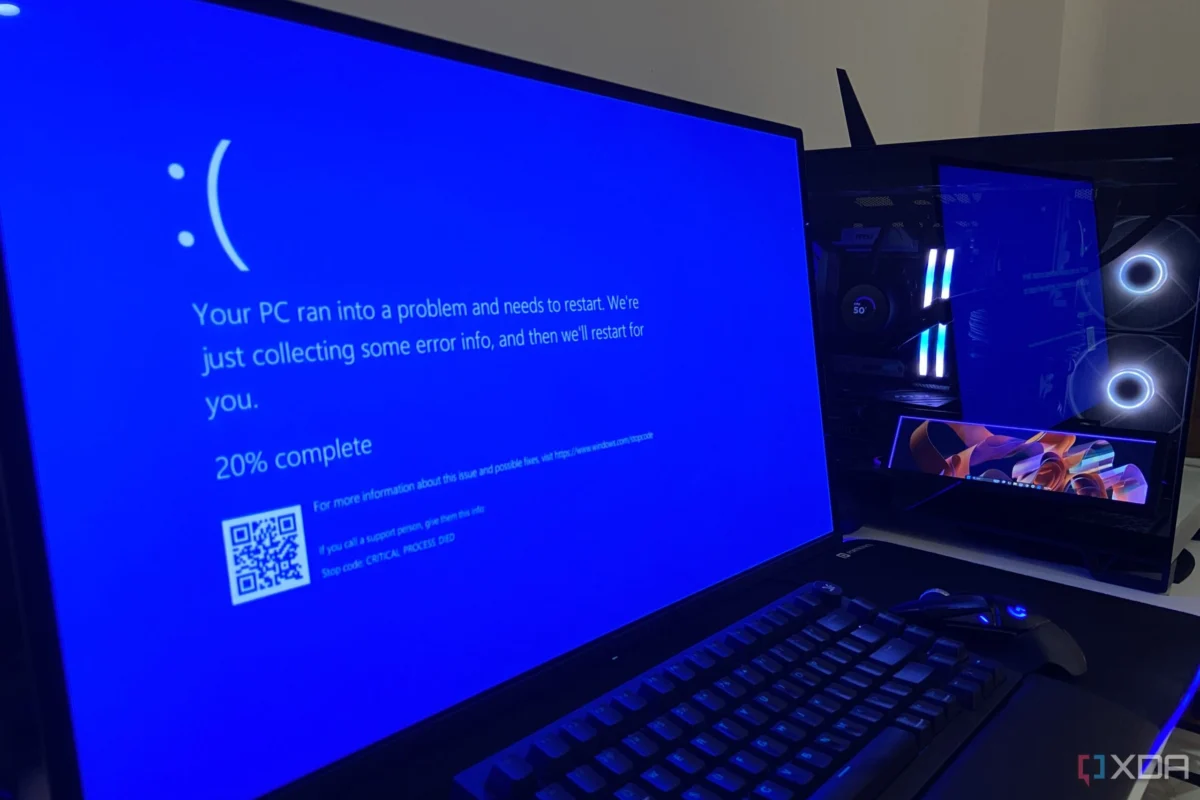
For nearly every long-term PC user, the thought of wiping Windows 11 and starting from scratch has crossed their mind at least once. When an operating system throws complex, seemingly obscure problems your way, the nuclear option—a total format and reinstallation—often feels like the only viable path forward.
However, modern workflows rarely accommodate the hours lost to endless rabbit holes of Reddit threads, Microsoft Learn forums, and outdated support blogs. Reinstalling an entire operating system brings its own exhausting cascade of configuration headaches: painstakingly restoring application preferences, hunting down legacy drivers, and re-establishing personalized workflows. In many cases, starting over from zero consumes far more time than simply utilizing Windows’ own native recovery utilities.
The secret lies not in avoiding problems entirely, but in knowing which built-in tools exist and how to deploy them effectively. Here are four native Windows 11 utilities that can rescue your system—and your schedule—before you resort to a complete OS wipe.
1. Fix Problems Using Windows Update: The In-Place Repair
A Reinstall That Leaves All Your Files and Settings Exactly Where They Were
It sounds counterintuitive to start a recovery guide with a feature that technically reinstalls the operating system. Yet, the Fix problems using Windows Update option is designed to refresh core system components while meticulously preserving your personal files, installed applications, and hardware configurations.

Chronology and Access
Introduced to streamline minor-to-moderate system file corruptions without forcing a disruptive setup process, this tool can be accessed directly from a functional desktop.
- Via Settings: Navigate to Settings > System > Recovery, locate Fix problems using Windows Update, and select the Reinstall now option.
- The Mechanism: When your system boots, but vital system components are damaged or updates persistently fail, this utility downloads a localized repair copy of the last successfully installed operational update. It bypasses the need to hunt down an external ISO file or flash a bootable USB drive, completing the repair in a fraction of the time.
Supporting Data and Use Case
When system file checker (sfc /scannow) commands and DISM health restorations hit a wall, an in-place upgrade via Windows Update bridges the gap between light troubleshooting and a full clean install. It targets system binaries directly while leaving your user profiles untouched.
2. Uninstall Updates: Your Patch Tuesday Safety Net
Reversing the Damage When an Update Goes Wrong
Some software instabilities come with an obvious, smoking gun. When a PC behaves erratically, displays graphical artifacting, or drops performance overnight following an evening shutdown, the latest system patch is almost always the prime suspect.
Chronology and Context
Microsoft’s continuous release cadence for Windows 11—spanning features updates (such as versions 24H2 and 25H2) and monthly cumulative security rollouts—has occasionally introduced collateral damage. For instance, high-profile patches like the KB5074109 security update left certain hardware configurations unable to boot cleanly, requiring immediate mitigation from the recovery environment.

Actionable Steps
If your PC can still reach the desktop:
- Open Settings > Windows Update > Update history.
- Scroll down and select Uninstall updates.
- Choose the offending patch from the chronological list and click Remove.
If your operating system experiences a complete boot failure due to a bad patch, you can still execute this remedy from the Windows Recovery Environment (winRE):
- Navigate to Troubleshoot > Advanced options > Uninstall updates to excise the troublesome package before it damages your workflow further.
3. Point-in-Time Restore: The 72-Hour System Undo Button
Rewinding Your Environment After Accidental Misconfigurations
If you have uninstalled the latest cumulative update and your system issue stubbornly persists, the root cause is frequently user error—an inadvertent setting change, a poorly coded third-party utility, or a conflicted driver installation.
Chronology and Architecture
Reaching general availability, Point-in-time restore functions as a localized time machine for your primary system drive.

- The Function: On unmanaged PCs utilizing a Windows volume of 200GB or larger, the operating system automatically captures snapshots of the entire system drive roughly every 24 hours, retaining them for up to 72 hours.
- The Trade-off: Unlike non-destructive repair methods, Point-in-time restore does impact your files—and intentionally so. To reverse self-inflicted system instability, the utility rewinds the drive state, meaning apps, files, and configurations introduced after the target snapshot will be purged. However, data synchronized to cloud repositories like OneDrive remains safely isolated.
Access Protocol
You can access this feature directly through the recovery environment’s troubleshooting menu, making it an indispensable safety net for power users and tech enthusiasts who frequently tinker with system parameters.
4. Quick Machine Recovery: Automated Cloud-Assisted Healing
When the Fix Must Come from Microsoft
Not every operating system failure originates on your local machine. Occasionally, a widespread faulty driver package or an errant security update impacts thousands of machines simultaneously. In these scenarios, individual troubleshooting steps fall short, and the resolution must be driven centrally by Microsoft.
Official Responses and Integration
Recognizing the industry-wide demand for remote resilience, Microsoft developed Quick Machine Recovery to replace older, slower startup repair protocols.
- How It Works: After detecting consecutive failed boot attempts, Windows 11 automatically routes the user into the recovery environment. It then establishes a connection to the internet via Ethernet or Wi-Fi, queries Windows Update servers for an official patch or remediation script, downloads the fix, applies it, and reboots the machine automatically.
- Availability: Enabled by default on non-managed Windows 11 Home and Pro hardware, users can also verify or toggle this setting via Settings > System > Recovery > Quick machine recovery. For immediate action, administrators can manually trigger the protocol within the recovery environment by heading to Troubleshoot > Advanced options > Quick machine recovery.
Implications for Modern PC Users
Operating system volatility remains an inevitable reality of modern computing. As Microsoft continues to expand and iterate on Windows 11 features, the likelihood of encountering unexpected software conflicts, bad patches, or corrupted drivers persists.

Relying exclusively on the traditional "wipe and reinstall" workflow is an inefficient relic of the past. By integrating Windows Update in-place repairs, targeted update uninstalls, Point-in-time restores, and Quick Machine Recovery into your technical toolkit, you can bypass the tedious cycle of web forums and clean installations. Mastering these native utilities transforms frustrating system emergencies into minor, easily managed speed bumps on the road to productivity.