




For millions of users worldwide, Gmail is the digital equivalent of a junk drawer. We install it, sign in, and accept the default configuration as an immutable law of the interface. We adapt our workflows to the software, rather than forcing the software to adapt to us. However, years of reliance on these "out-of-the-box" settings often lead to digital fatigue, missed communication, and a perpetual feeling of being overwhelmed by an unorganized inbox.
As someone who spends their professional life analyzing productivity, automation, and the Google ecosystem, I have spent significant time evaluating why so many users feel like they are losing the battle against their email. The answer is simple: Gmail’s most powerful, behavior-altering options are not just hidden—they are intentionally tucked away behind menus that the average user never visits after the initial setup.
By tweaking a few critical settings, you can transform Gmail from a source of daily anxiety into a streamlined, high-efficiency dashboard.

The Illusion of Default Convenience: A Chronological Look at Gmail’s Evolution
Since its public launch in 2004, Gmail has evolved from a simple email service into a complex productivity suite. Over the last two decades, Google has introduced various features designed to "help" users: Conversation View, category tabs, and smart replies. While these features were groundbreaking at the time, the modern influx of digital noise has rendered many of these defaults counter-productive.
In the early 2010s, Google introduced the "Inbox Tabs" system, which automatically sorted incoming mail into categories like "Promotions," "Social," and "Updates." At the time, this was lauded as a breakthrough in spam management. However, in the 2020s, the landscape of digital communication has shifted. Automated notifications, newsletters, and critical account alerts have blurred the lines between "junk" and "essential."
The chronological shift in how we interact with these tools—moving from desktop-first to mobile-first and now to a multi-platform environment—has exposed the flaws in a "one-size-fits-all" approach. Users are no longer just checking email; they are managing a high-velocity stream of data, and the default settings have failed to keep pace.

1. Ending the Conversation View Confusion
The "Conversation View" is perhaps the most divisive feature in the Gmail ecosystem. Enabled by default, it bundles replies into a single, expanding thread. For those managing long-term projects, this might seem helpful. However, for the average professional, it is a frequent source of missed information.
Why It Fails
When multiple replies are buried inside a single thread, the subject line remains static, and the visual weight of the email does not change. If you have already scanned a thread, you are prone to ignoring new, critical replies that appear at the bottom of the stack. You might think you have cleared your inbox, only to realize hours later that a crucial response was hidden in a thread you "read" earlier that morning.
The Fix
Disabling Conversation View forces every email to appear as an individual message. While this increases the number of items in your inbox, it provides an undeniable boost to clarity. You can no longer ignore a message, and each new email stands on its own merit.
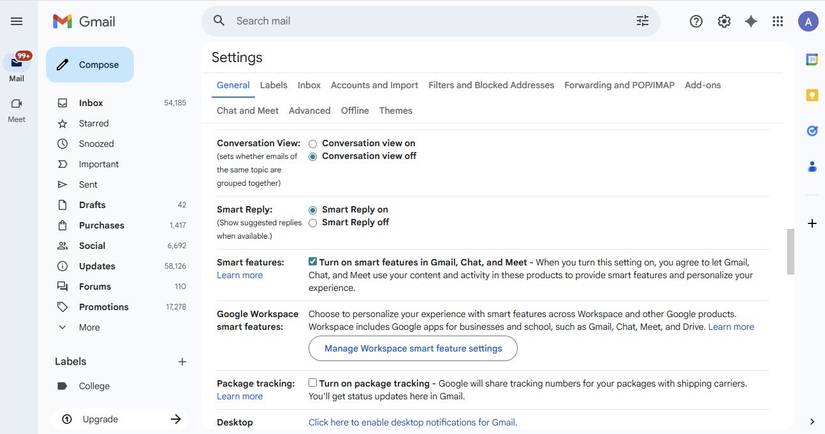
- Desktop: Navigate to Settings (Gear Icon) > See all settings > General > Conversation View > Conversation view off. Click Save Changes.
- Mobile: Tap the Menu Icon > Settings > General settings > Uncheck Conversation view.
2. Implementing the Reading Pane for Efficiency
For years, the standard user workflow has been: Open email, read it, hit "back," return to the list, repeat. This "app-hopping" behavior is not only slow but cognitively taxing. It forces your brain to constantly reorient itself between the list view and the content view.
Supporting Data on Workflow Optimization
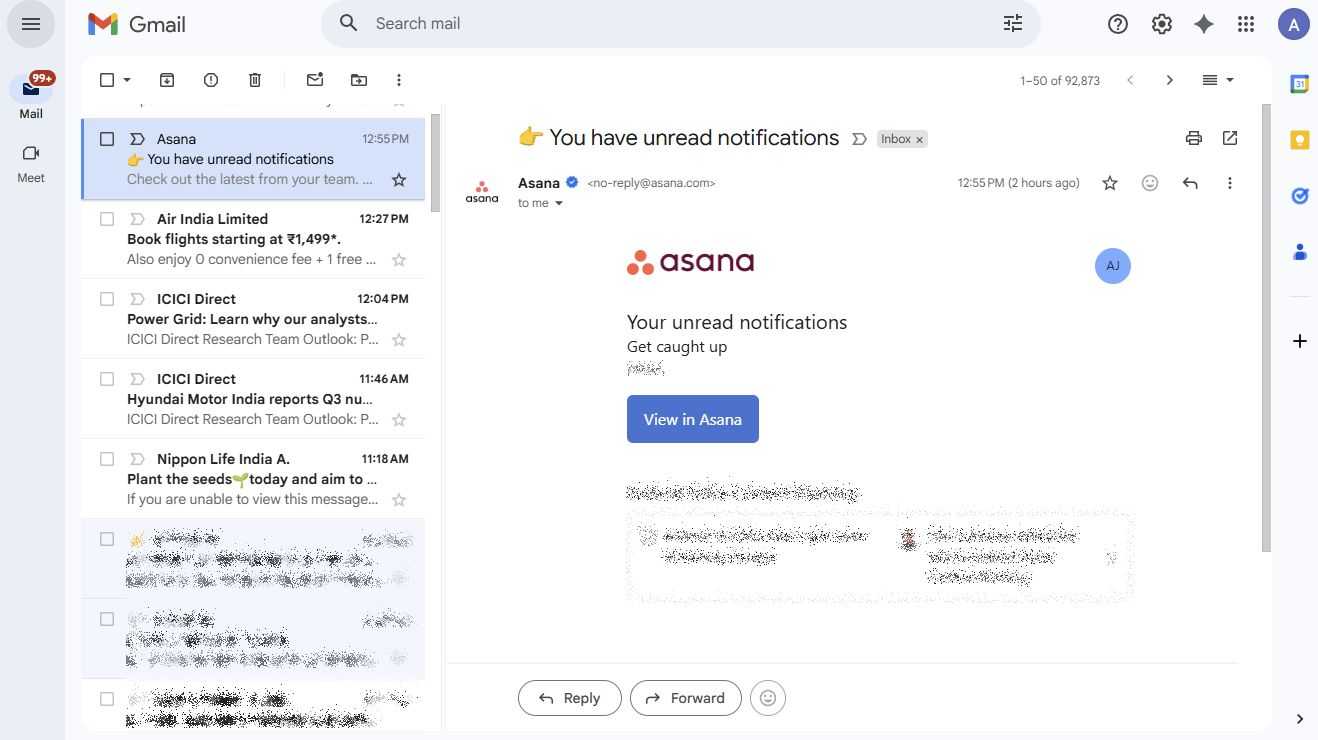
Studies in interface design consistently show that reducing the number of "clicks to view" increases user retention and reduces the time spent on repetitive tasks. By enabling the "Reading Pane," you turn Gmail into a dashboard, similar to Outlook or professional CRM interfaces. This allows you to scan the list on one side while viewing the content on the other, enabling rapid triage of your inbox.
How to Configure
In the Settings menu, navigate to the Inbox tab. Scroll down to the Reading pane section and select Enable reading pane. You can choose to place this to the right of your inbox or below it. Once enabled, you can process dozens of emails in the time it previously took to process a handful.
3. The Danger of Category Tabs
While category tabs (Primary, Promotions, Updates) were designed to filter noise, they have evolved into "black holes" for important information.
Implications of Automated Sorting
Google’s machine learning algorithms are sophisticated, but they are not perfect. Important transaction receipts, security alerts, or direct communication from stakeholders often get misclassified into "Promotions" or "Updates." Because these tabs are secondary to the "Primary" inbox, they are often left unchecked for days.
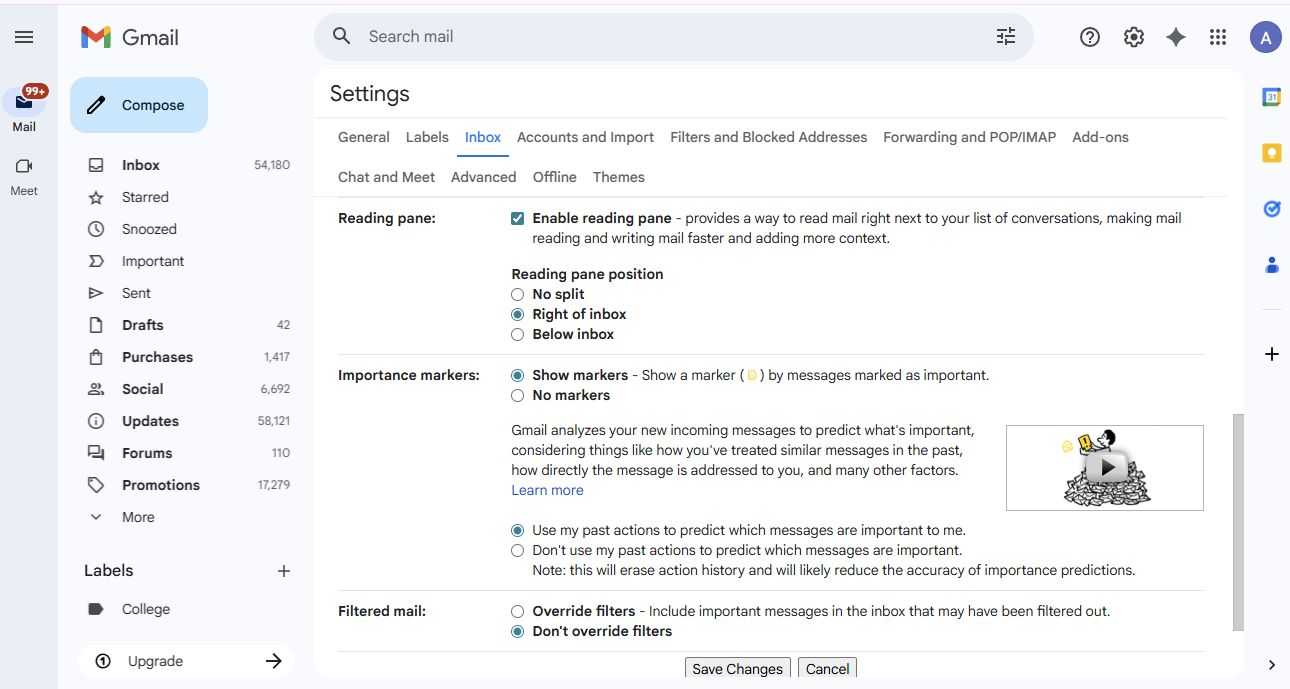
By disabling these tabs, you force all communication into a single, chronological timeline. This removes the "out of sight, out of mind" trap. If you desire organization, move away from Google’s automated categories and toward Filters and Labels. This allows you to create your own rules—such as automatically tagging emails from a specific domain—which are far more reliable than Google’s black-box algorithms.
4. Expanding the "Undo Send" Window
We have all experienced the "post-send regret." Whether it is a typo in a client email or a missing attachment, the split-second after hitting send is often filled with panic. Gmail’s default "Undo Send" window is a meager five seconds—hardly enough time for the brain to register that a mistake has been made.
Official Responses and Technical Reality
It is important to note that "Undo Send" is not a magical recall feature. It is a technical delay. When you hit "Send," Google holds the email in an outgoing queue for a set amount of time before transmitting it to the server. By extending this window to the maximum of 30 seconds, you provide yourself with a vital safety net.
- Desktop: Navigate to Settings > General > Undo Send. Select 30 seconds from the dropdown menu.
This simple change acts as an insurance policy for your professional reputation.
Moving Beyond Autopilot
The goal of these adjustments is not to create a new "productivity system" that requires hours of maintenance. Rather, the goal is to stop using Gmail on autopilot.
Many of our frustrations with digital tools stem from defaults that were established over a decade ago when the internet was a quieter place. Today, the volume of email requires a more proactive approach. By taking the time to audit your settings annually, you can ensure that your email client is serving your needs rather than dictating your workflow.
Summary of Recommended Changes:
- Disable Conversation View: For total clarity and to ensure no response is ever buried.
- Enable the Reading Pane: To reduce "click fatigue" and improve triage speed.
- Collapse Category Tabs: To keep all important communication in one visible stream.
- Maximize Undo Send: To provide a 30-second buffer against human error.
The digital workspace is a reflection of how we manage our attention. By reclaiming the settings that define our primary communication hub, we take the first step toward a more intentional, less cluttered professional life. You don’t need a complex app to manage your email; you just need to ensure the app you already have is configured for your actual, real-world workflow.