







In the modern digital landscape, millisecond delays can spell the difference between a thriving online business and a ghost town. Over the past six months, web performance optimization has transitioned from a backend technical chore into a critical front-line strategy for site owners and bloggers. While search engine optimization (SEO) benefits are frequently cited, the primary driver for accelerating website speed is simpler and more profound: user experience.
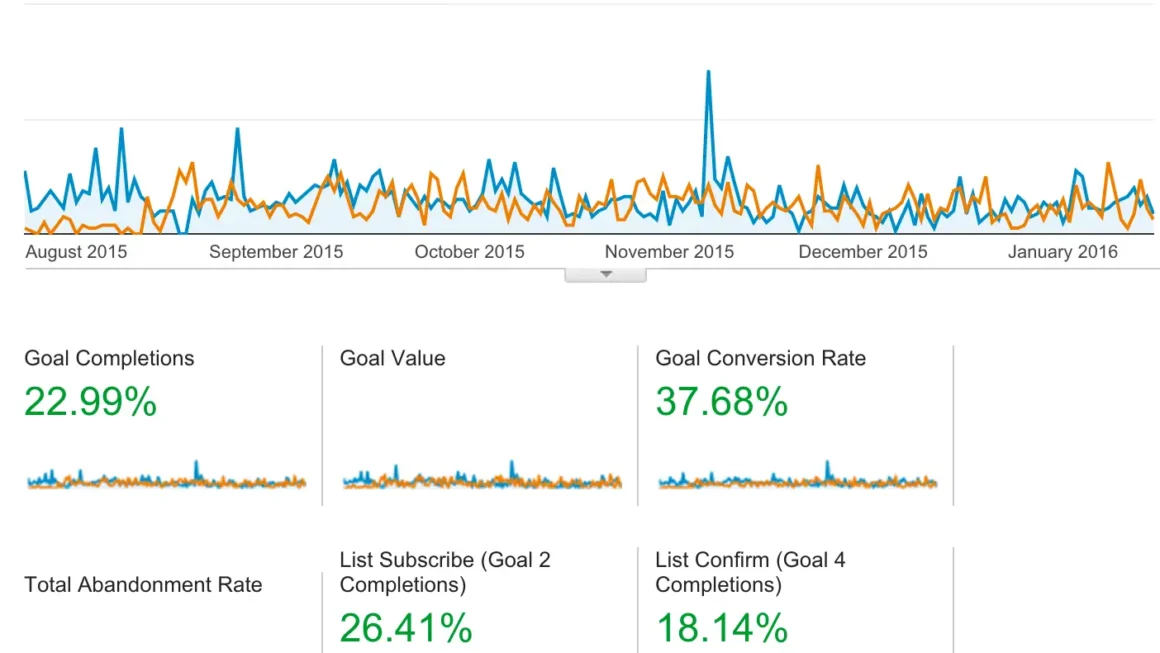
Better user experience directly correlates with higher conversion rates—whether those conversions are direct sales, valuable leads, or newsletter subscriptions. Regardless of your business model, every fraction of a second shaved off your load time acts as a direct catalyst for your bottom line.
The Main Facts: Why Web Performance is a Business Imperative
Website speed is no longer just a vanity metric for developers; it is a foundational pillar of digital commerce. As internet users grow increasingly accustomed to instantaneous loading times across mobile and desktop devices, patience for sluggish pages has evaporated.
While server experts and developers rely on advanced infrastructure configurations, everyday WordPress users often assume they are powerless without a technical support team. However, a series of actionable, non-technical steps can radically improve site performance. Utilizing caching plugins (such as W3 Total Cache) and Content Delivery Networks (like MaxCDN) are standard industry baselines. Beyond these foundational tools, several straightforward adjustments can significantly trim down unnecessary milliseconds, even for those with minimal coding experience.
Essential Assessment Tools
To diagnose performance issues effectively, site owners rely on diagnostic tools:
- GTmetrix: Exceptional for identifying granular performance bottlenecks, script bloat, and server response times.
- Pingdom: Provides clear waterfalls of file loads, helping isolate slow-loading assets.
- Google PageSpeed Insights: While its improvement recommendations can occasionally be vague, it serves as the definitive benchmark for how Google evaluates mobile user experience. Achieving a strong mobile score remains vital for maintaining algorithmic favor.
Chronology and Context: The Evolution of Web Bloat
Over the past decade, content management systems like WordPress have democratized publishing, allowing millions to launch websites without writing a single line of code. However, this accessibility introduced unintended consequences: code bloat.
As WordPress evolved to incorporate modern features—such as native emojis, automated post revisions, embedded content handlers, and dynamic script versioning—it began silently injecting background scripts into every page load. Furthermore, the proliferation of third-party plugins and heavyweight ad networks compounded the problem. A site built in 2010 that loaded in under two seconds could easily bloat to a 10-second load time by 2016 simply by updating software without auditing underlying scripts and database integrity.
Recognizing this trend, performance-conscious site administrators began systematically auditing their environments. By tracing the historical addition of features like post revisions (introduced to prevent data loss) and emoji support (added in WordPress 4.2), developers mapped how these seemingly minor features accumulated into severe performance penalties.
Supporting Data: The High Cost of Unchecked Bloat
Real-world diagnostics reveal startling examples of how minor oversights accumulate into catastrophic slowdowns.
Consider the case of a mid-sized blog analyzed during a recent performance audit. The site was suffering from an agonizing 20-second load time, generating a staggering 405 separate HTTP requests upon rendering a single page.
- The Culprit: A poorly optimized advertising network (The Blogger Network) was dynamically calling a massive volume of external scripts.
- The Impact: Removing that single ad network dropped the site’s load time from over 20 seconds down to 7 seconds.
- The Request Reduction: Total HTTP requests plummeted from 405 down to 175—meaning that one network alone was responsible for 230 requests and adding more than 13 seconds of delay.
On a smaller scale, database bloat presents an equally insidious threat. Every time a WordPress author clicks "Save Draft," the system archives a complete historical copy of the post. Writing a single long-form article while frequently saving can easily generate over 100 revisions. Multiply that figure by hundreds or thousands of posts across an established site, and the database becomes choked with dead weight, dragging down query execution speeds.
Step-by-Step Optimization: Actionable Fixes for WordPress
Before executing any modifications involving core files such as wp-config.php or functions.php, webmasters must create a complete backup. If an error occurs, restoring normal operations is as simple as uploading the original file via FTP or a host file manager.
1. Minimize and Control Post Revisions
To purge historical database bloat, site owners can utilize specialized utilities such as the Better Delete Revision plugin.
- Install the plugin, navigate to Settings > Better Delete Revision, check the revision posts, and execute the deletion.
- Follow up by selecting Optimize Your Database to reclaim storage space.
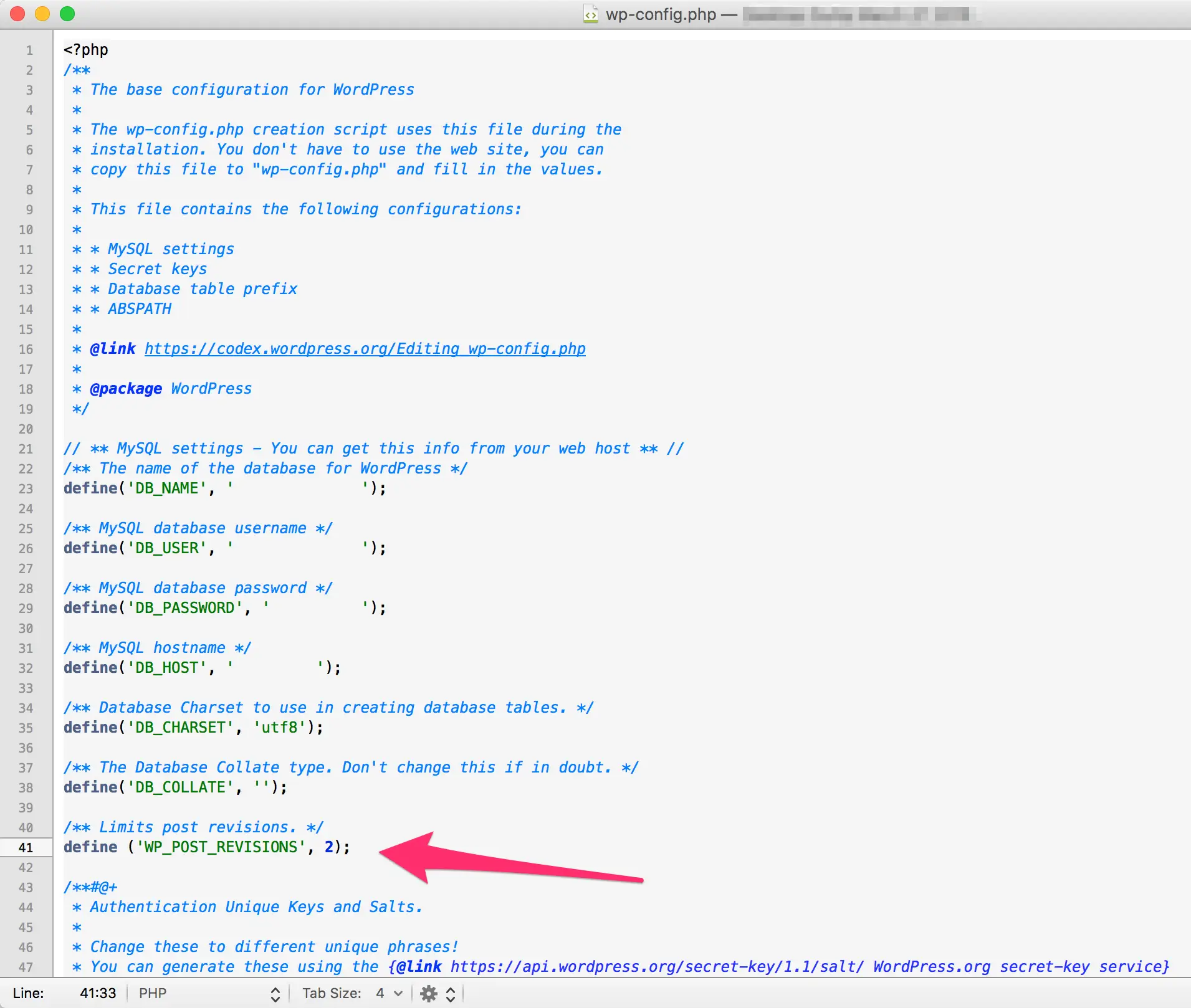
To prevent future database bloat, limit or disable revisions entirely by editing the wp-config.php file. Place the configuration line directly beneath the define('DB_COLLATE', ''); line (placing it at the very end of the file will cause it to fail):
/** Disable post revisions entirely */
define('WP_POST_REVISIONS', false);

/** Alternatively, limit revisions to a specific number (e.g., 2) */
define('WP_POST_REVISIONS', 2);
2. Rigorous Image Optimization
Images frequently constitute the heaviest payload on any webpage. Beyond employing a CDN, site owners must losslessly compress all media assets prior to upload. Furthermore, developers must explicitly assign width and height attributes to HTML image tags. Omitting these dimensions forces browsers to guess image sizing dynamically, triggering unnecessary layout recalculations that degrade initial render times.
3. Strip Unused CSS Styling
While minifying CSS files is standard practice, theme packages often contain excessive styling for features the site owner never utilizes—such as alternative color schemes, unused portfolio layouts, or inactive comment sections. Stripping out extraneous CSS rules manually from the stylesheet significantly shrinks the file size delivered to visitors. (Note: Always retain a backup of the original stylesheet).
4. Remove Query Strings from Static Resources
Performance audits frequently flag static resources containing query strings (such as ?ver=x.x.x) tied to plugin and theme stylesheets. These query strings prevent efficient caching by proxy servers and browser caches.
To strip query strings cleanly via code rather than adding another plugin, insert the following snippet into your theme’s functions.php file:
//* Remove query strings from static resources
function _remove_script_version( $src )
    $parts = explode( '?ver', $src );
        return $parts[0];

add_filter( 'script_loader_src', '_remove_script_version', 15, 1 );
add_filter( 'style_loader_src', '_remove_script_version', 15, 1 );
5. Disable Native Emojis and Unused Scripts
Unless a site actively relies on native WordPress emoji rendering, the platform silently injects supporting JavaScript and CSS into the site header. This code can be cleanly removed via the functions.php file:
//* Remove WP emoji code
remove_action( 'wp_head', 'print_emoji_detection_script', 7 );
remove_action( 'wp_print_styles', 'print_emoji_styles' );
Similarly, sites with comments disabled should deregister the unnecessary comment-reply.min.js script, and sites that do not utilize native WordPress embeds can strip the wp-embed script to keep headers lean and fast.
6. Audit and Minimize Plugins
Plugins are not inherently harmful, but poorly coded plugins or an excess of inactive utilities can cripple site performance.
- Delete, Don’t Just Deactivate: If a plugin is no longer in active use, deactivate and completely delete it to prevent residual file calls.
- Profiling Performance: Utilize diagnostic tools like the P3 (Plugin Performance Profiler) to scan and identify which individual plugins consume the most server resources, allowing site administrators to swap sluggish tools for lightweight alternatives.
Implications: The Future of High-Performance Publishing
The systematic pursuit of site speed carries profound implications for digital publishers and e-commerce operators alike. As search engine algorithms increasingly factor Core Web Vitals and user-centric performance metrics into their ranking architectures, slow-loading websites will find themselves systematically marginalized in search results.
More importantly, consumer expectations are absolute. In an ecosystem where users abandon slow pages within seconds, technical optimization is no longer optional maintenance—it is a core business strategy. By embracing minimalist coding practices, auditing third-party scripts, and ruthlessly trimming database and asset bloat, site owners can reclaim control over their digital presence, ensuring a faster, more profitable experience for every visitor.