Unlocking Hidden WordPress Performance: How the wp_options Table Impacts Your Site Speed
Your WordPress site feels sluggish, yet you have already checked off the standard optimization checklist. You have installed a caching plugin, compressed your images, minified your CSS and JavaScript, and perhaps even upgraded to a faster hosting tier. Still, your pages take a frustrating beat too long to start rendering.
In many cases, the culprit is hiding in a place most speed-tuning guides overlook: the wp_options table in your MySQL database.
As sites age, plugins come and go, and updates accumulate, this critical settings table can quietly balloon into a massive performance bottleneck. Understanding how WordPress handles its internal settings—specifically through a mechanism known as "autoloading"—is essential for maintaining a high-performance website.
Main Facts: The Anatomy of Autoloaded Options
To understand why database bloat occurs, one must first examine how WordPress boots up. On a typical HTTP request, WordPress loads every single "autoloaded" option from the database into server memory as one batch. This process uses the persistent object cache when available, or queries the wp_options table directly on a cache miss.
By design, this is an efficient architecture. Fetching a batch of configuration values in a single query is significantly faster than executing dozens of separate queries for site titles, active plugins, timezones, and theme configurations.
However, this feature comes with a structural flaw: when you uninstall a plugin, its settings rows are frequently left behind in the database, still flagged to autoload. Consequently, WordPress continues to haul this digital dead weight into memory on every single page load, backend administration screen, and background AJAX call.
The Evolution of the Options API
Recognizing these performance hurdles, the WordPress core development team introduced significant changes in WordPress 6.6 via the Options API. Historically, the option_name, option_value, and autoload columns operated on a binary rule: yes or no.
Modern versions of WordPress have expanded the autoload column to support dynamic states:
on / off
auto / auto-on / auto-off
These granular values allow WordPress to decide dynamically whether an option truly deserves preloading. Furthermore, modern releases incorporate critical safety guardrails:
Size Limits: Options larger than 150,000 bytes are no longer autoloaded by default, preventing monolithic data payloads from choking server memory.
Site Health Warnings: The built-in Site Health tool (Tools > Site Health) now triggers a critical performance warning if your total autoloaded data exceeds 800 KB.
Chronology: How Database Bloat Accumulates Over Time
The accumulation of dead weight in the wp_options table does not happen overnight. It is a cumulative process that mirrors the lifecycle of a typical WordPress installation:
Phase 1: Launch and Optimization. A fresh WordPress installation begins lean. The default autoloaded data footprint is typically under 70 KB, spread across roughly 130 core options. Page generation is snappy, and queries execute instantly.
Phase 2: Experimentation and Plugin Churn. Over the first and second years, site administrators test dozens of plugins—e-commerce tools, contact forms, SEO suites, and layout builders. Each plugin registers its own settings within wp_options, often defaulting their autoload status to yes (on).
Phase 3: The Uninstallation Gap. When plugins are deleted via the WordPress dashboard, poorly coded extensions fail to execute cleanup routines (register_uninstall_hook). Their configuration settings, cached transients, and temporary logs remain orphaned in the database.
Phase 4: Silent Bloat and Performance Degradation. Over years of operation, these orphaned rows, combined with expired transient caches and serialized arrays, push the autoloaded total well past the critical 800 KB threshold. Server Time to First Byte (TTFB) increases, and administrative screens become sluggish.
Supporting Data: Auditing Your Autoloaded Footprint
If you suspect database bloat is dragging down your site, you must measure your actual autoloaded data footprint. This can be accomplished safely using read-only SQL queries via phpMyAdmin or your hosting control panel’s database management tool.
Step 1: Check Total Autoloaded Size
Navigate to your database in phpMyAdmin, select the SQL tab, and execute the following read-only query:
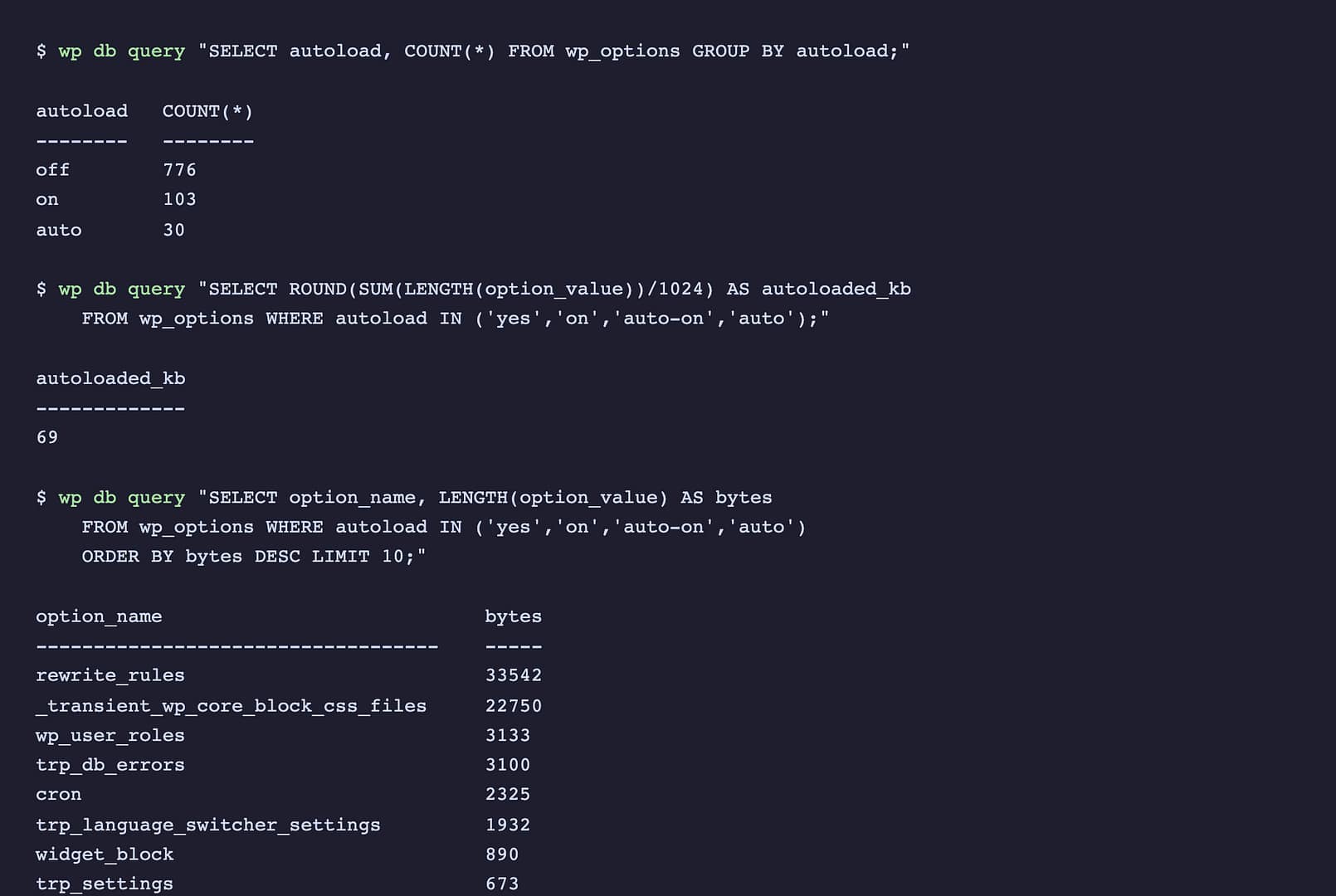
SELECT ROUND(SUM(LENGTH(option_value)) / 1024) AS autoloaded_kb
FROM wp_options
WHERE autoload IN ('yes', 'on', 'auto-on', 'auto');
If your installation uses a custom database prefix (configured in wp-config.php), remember to substitute wp_options with your specific table name (e.g., abc123_options).
Evaluating the Result: If your returned value is below 200 KB, your database is relatively lean, and database optimization will yield marginal gains. If your total approaches or exceeds 800 KB, you are running into the danger zone flagged by WordPress Site Health.
Step 2: Identify the Biggest Offenders
To pinpoint exactly which options are consuming the most memory, run this query to list the top ten largest autoloaded records:
option_name, LENGTH(option_value) AS bytes
FROM wp_options
WHERE autoload IN ('yes', 'on', 'auto-on', 'auto')
ORDER BY bytes DESC
LIMIT 10;
When reviewing the output, examine the option_name prefixes. Core WordPress entries like rewrite_rules are normal and necessary. However, if you spot serialized arrays, expired transients, or settings from plugins you uninstalled years ago, you have found your targets.
⚠️ WARNING: Always create a full database backup before running any UPDATE or DELETE statements on wp_options. A single erroneous query can white-screen your site or lock you out of the administrative dashboard.
Official Responses and Developer Guidance
The WordPress core performance team has repeatedly emphasized that database hygiene is critical for scalable deployments. In official developer documentation regarding the Options API changes, core contributors noted that historical default behaviors forced unnecessary data into memory on lightweight requests.
To mitigate this without requiring manual SQL interventions, the official WordPress Performance Team released the Performance Lab plugin. This tool enhances the native Site Health screen by providing a visual interface for reviewing and modifying autoloaded options directly from the WordPress dashboard, democratizing database maintenance for non-technical users.
Furthermore, managed WordPress hosts increasingly monitor database performance metrics at the server level, occasionally throttling sites that generate excessive query loads due to unoptimized options tables.
Implications: What Kind of Speedup Can You Expect?
Database optimization is not a silver bullet, but its impact depends heavily on your site’s current state.
Where You Will See Improvements
Backend Performance: WordPress administration screens cannot be cached by traditional page-caching plugins. A leaner autoloaded footprint directly accelerates dashboard loading times, post editing, and plugin management.
Non-Cached Requests: For logged-in users, e-commerce checkouts, and dynamic API endpoints where page caching is bypassed, reducing the autoload size speeds up database query execution time.
Server Resource Utilization: Lower memory consumption per request allows your web server to handle concurrent traffic spikes more efficiently.
What This Optimization Won’t Fix
It is vital to maintain realistic expectations. Cleaning up your wp_options table will not fix front-end bottlenecks such as render-blocking JavaScript, unoptimized high-resolution images, sluggish web hosting infrastructure, or poorly coded active themes. Database hygiene should be treated as part of a holistic web performance strategy—best paired with frontend optimizations and reliable object caching.
By auditing your autoloaded data, purging orphaned plugin remnants, and safely flipping non-essential options to off, you can restore your WordPress site to the snappy, efficient machine it was designed to be.