







In the fast-paced world of digital marketing, waiting hours for a site-wide crawl to finish before identifying why a single page is underperforming is a luxury few professionals can afford. Whether you are managing a product page that has mysteriously slipped in search rankings, analyzing a competitor’s top-performing post, or troubleshooting a client’s landing page that refuses to convert, the ability to diagnose issues in real-time is an essential skill.
You don’t need a massive, resource-heavy site crawl to start your investigation. With the right tools, you can conduct a comprehensive triage and diagnosis of any webpage in three minutes or less. The key to this agility is SEOquake, a free Chrome extension that allows you to audit technical signals, on-page SEO, link strategy, and core metrics without ever leaving the page you are analyzing.
What Is SEOquake?
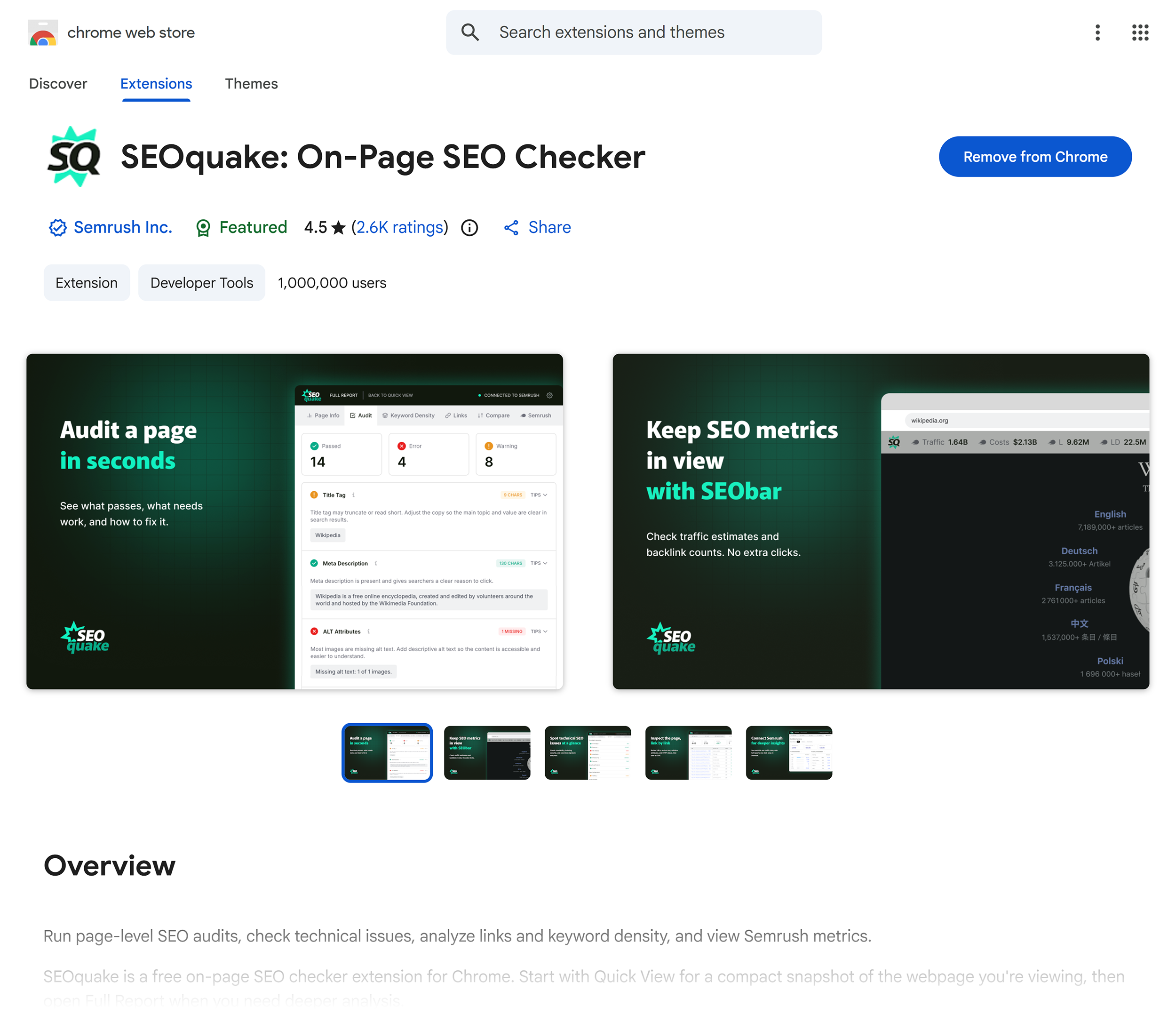
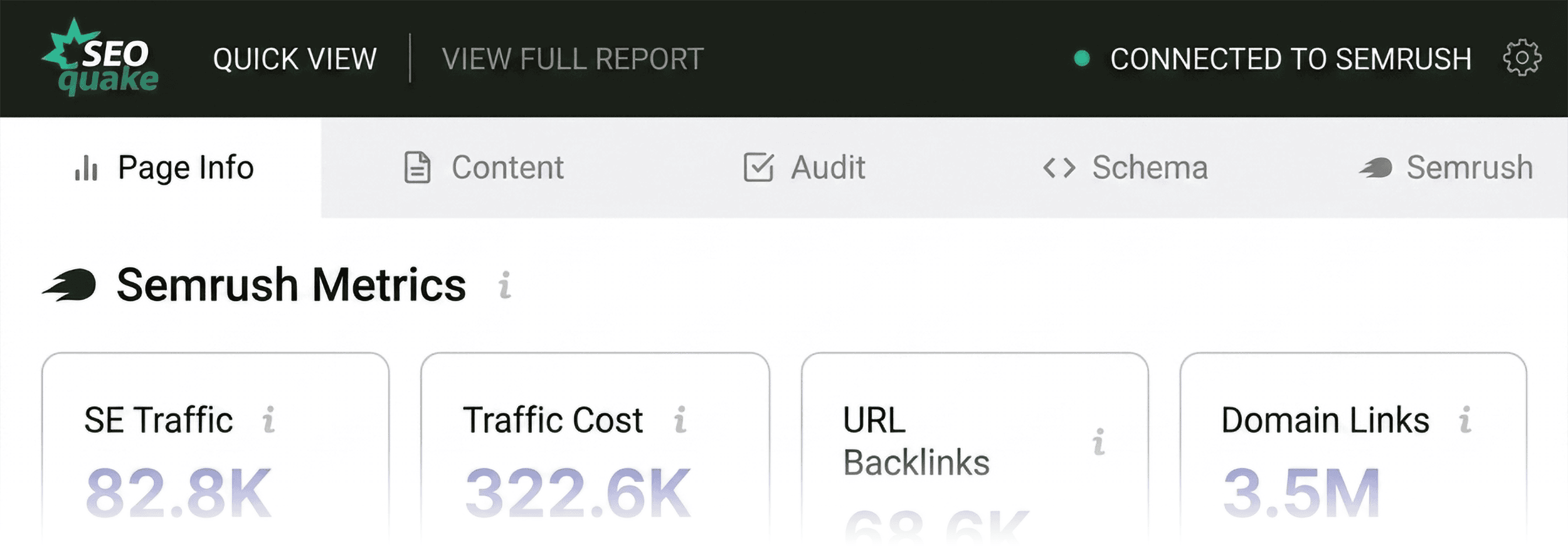
Developed by Semrush, SEOquake is a powerhouse extension designed to act as a browser-based SEO diagnostic tool. By installing the extension and clicking the icon on any webpage, you gain immediate access to an X-ray view of the site’s SEO health.
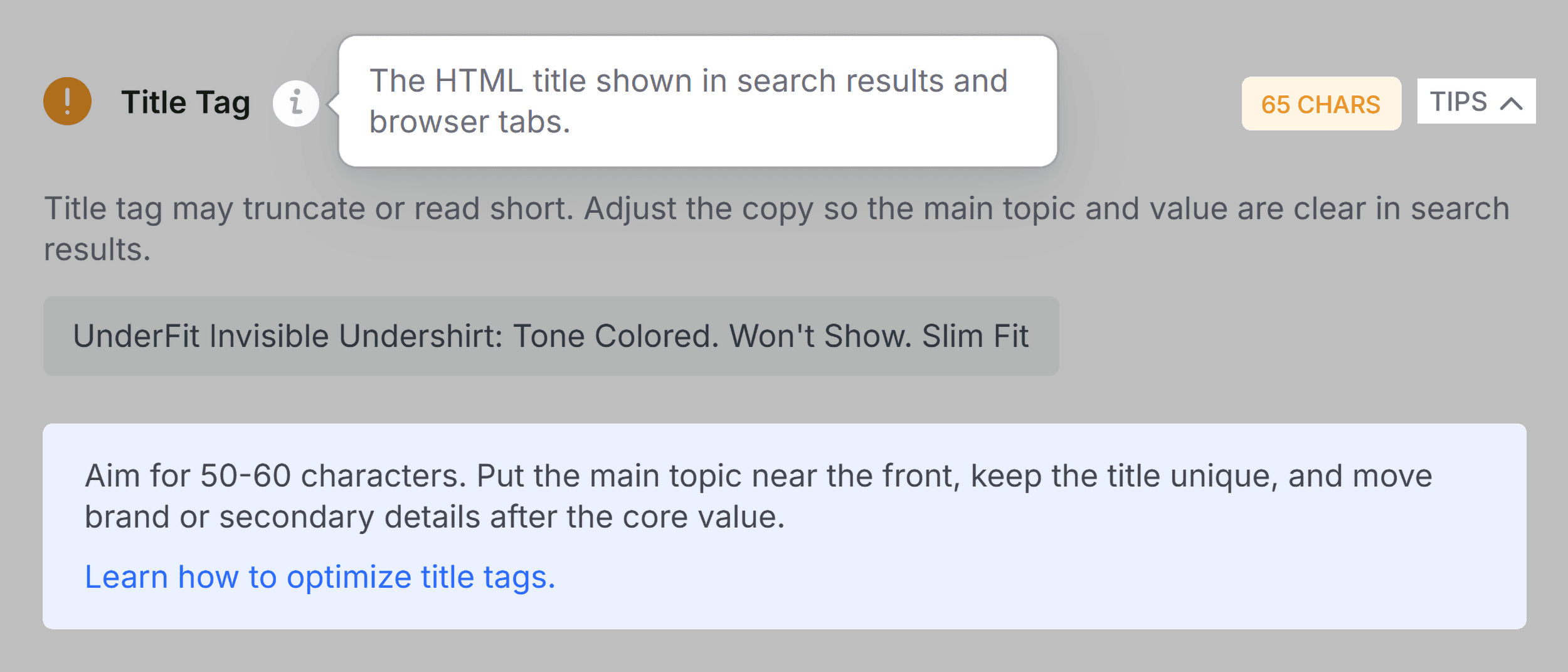
The tool provides two primary ways to audit: the "Quick View" pop-up for immediate, top-level insights and the "Full Report" for a granular, deep-dive analysis. A hallmark of the SEOquake interface is its color-coded feedback system:
- Green: Indicates that the element meets standard best practices.
- Orange: Serves as a warning, suggesting that while the element isn’t necessarily "broken," it may require a judgment call based on your specific SEO strategy.
- Red: Highlights critical issues that demand immediate attention.
By utilizing these color cues, you can streamline your workflow, focusing your limited time on the most urgent problems.
Triage: The First 60 Seconds of Your Audit
The "Triage" phase is your first minute of the three-minute audit. Your goal here is simple: answer the question, "Is there anything obviously wrong with this page?"
The Quick View Pop-Up
The Quick View interface consists of five distinct tabs: Page Info, Audit, Content, Links, and Social. To maintain your three-minute pace, prioritize the Page Info, Audit, and Content tabs, spending approximately 20 seconds on each.
1. Starting with Page Info
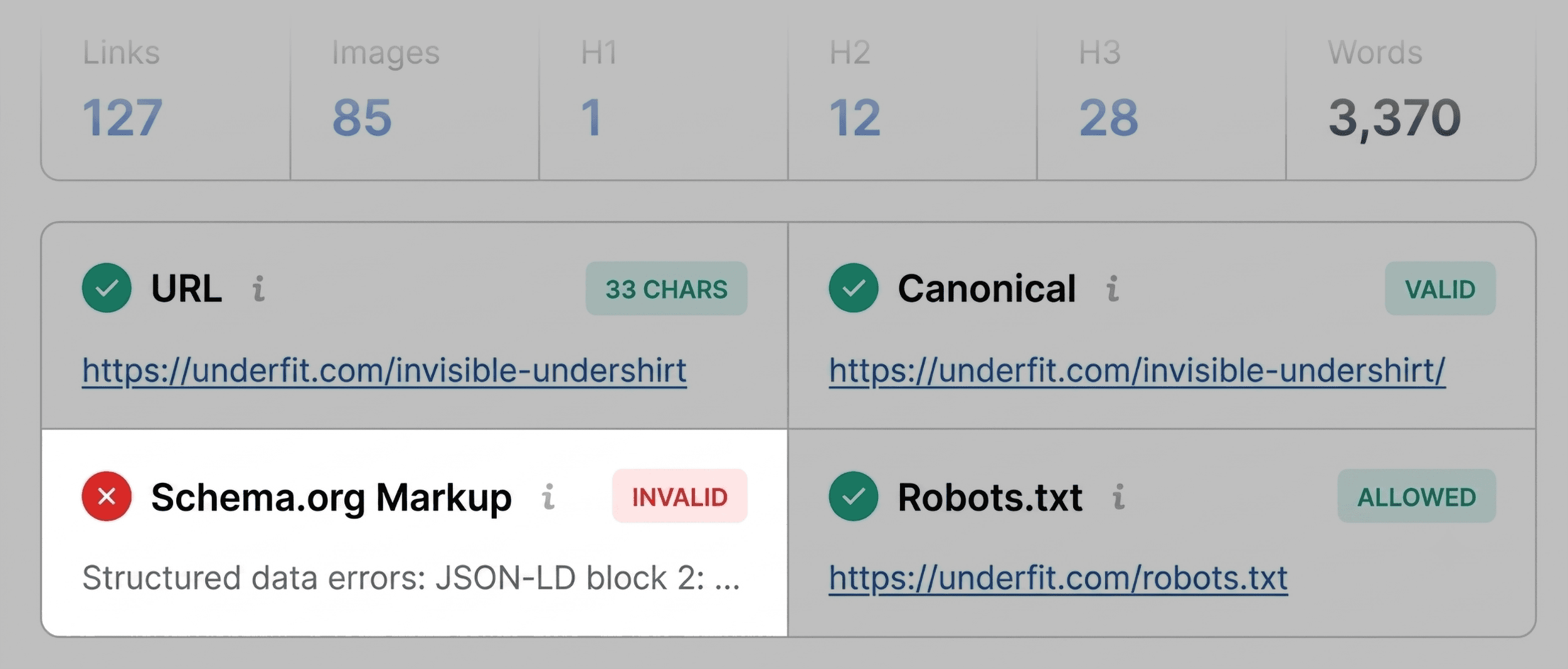
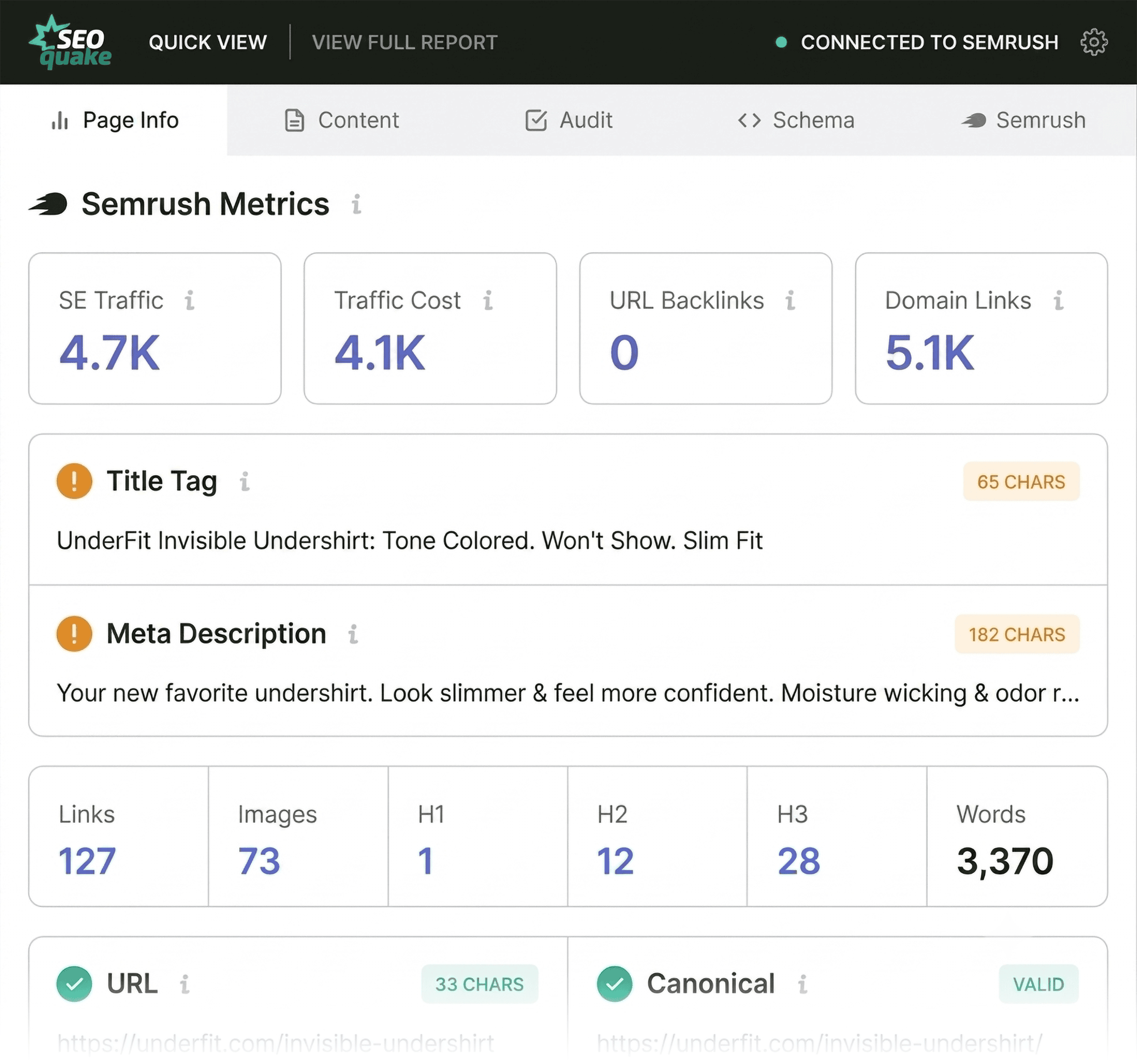
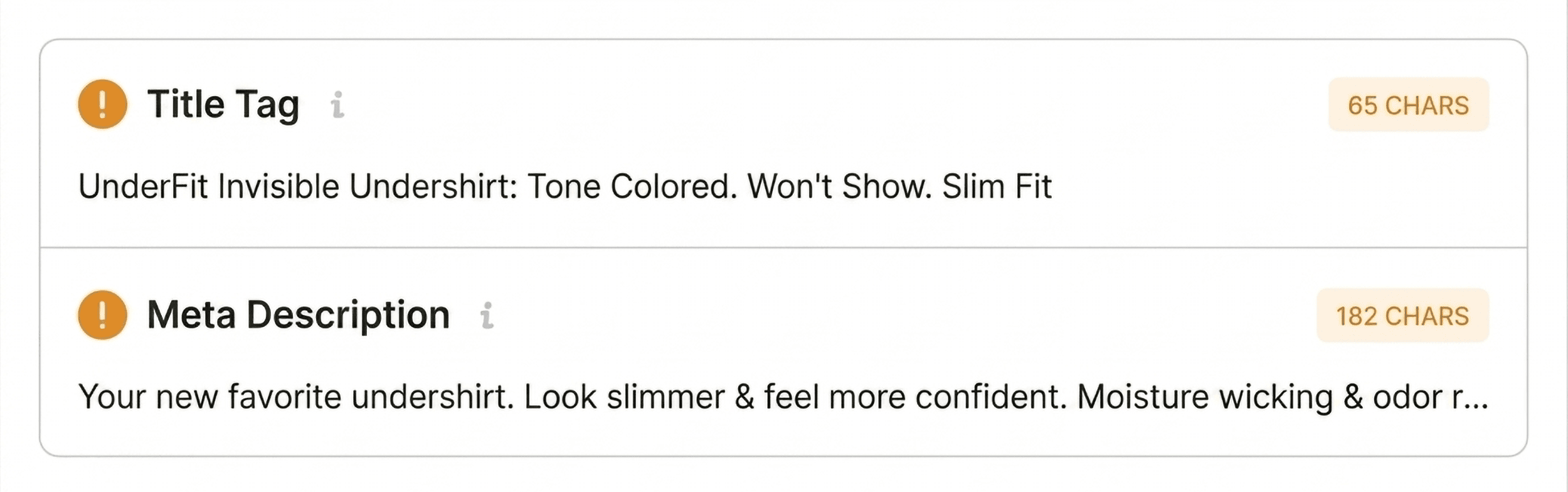
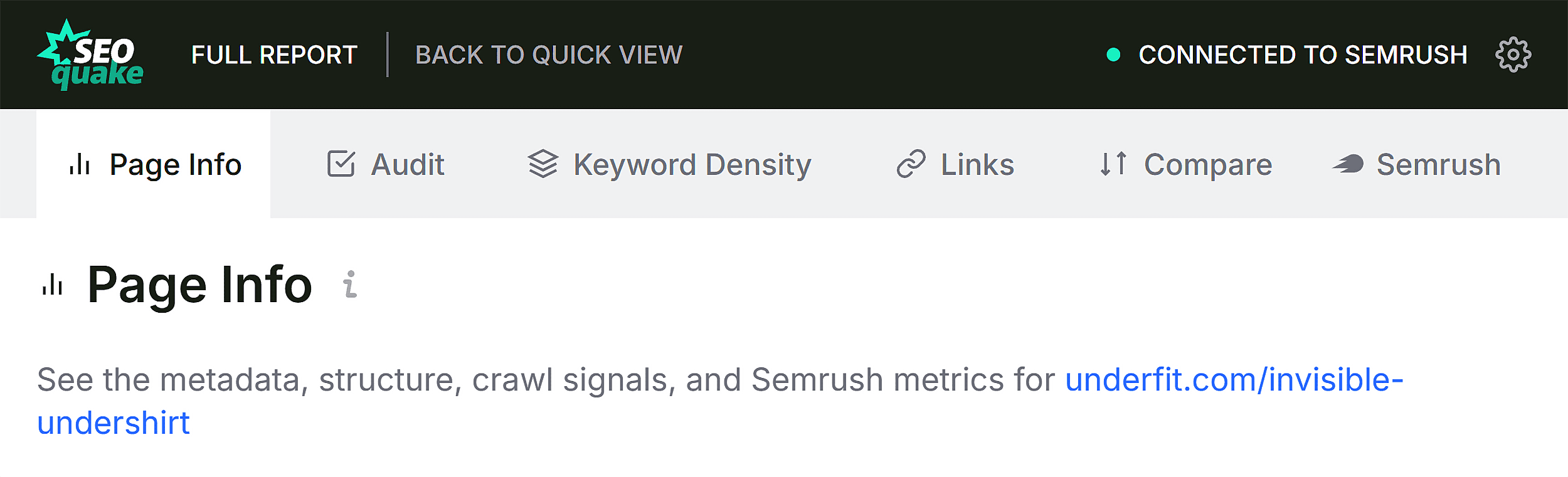
The Page Info tab provides a bird’s-eye view of your core SEO elements. When assessing a page, I look for five critical items:
- Title Tag: Does it include the primary keyword and remain within optimal character counts?
- Meta Description: Is it compelling enough to drive clicks and does it accurately describe the page?
- URL Structure: Is it clean, readable, and free of unnecessary parameters?
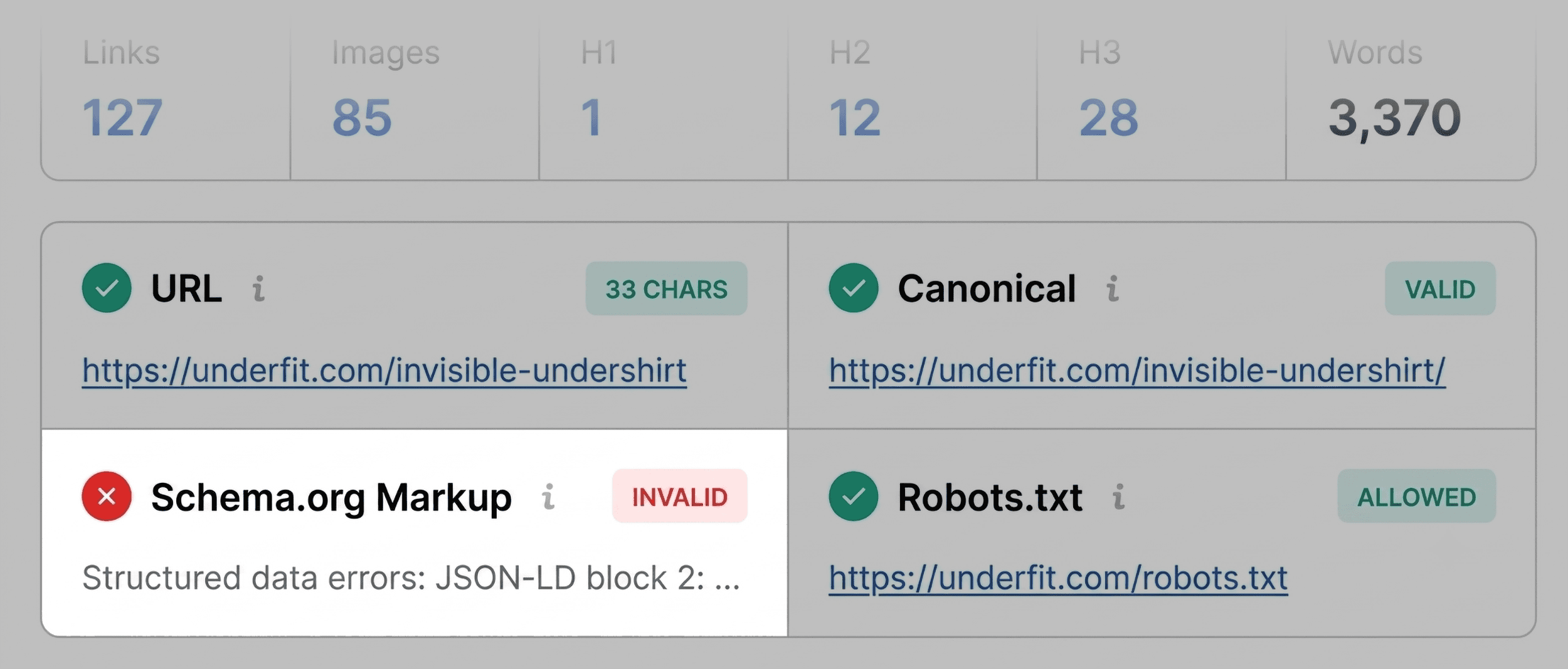
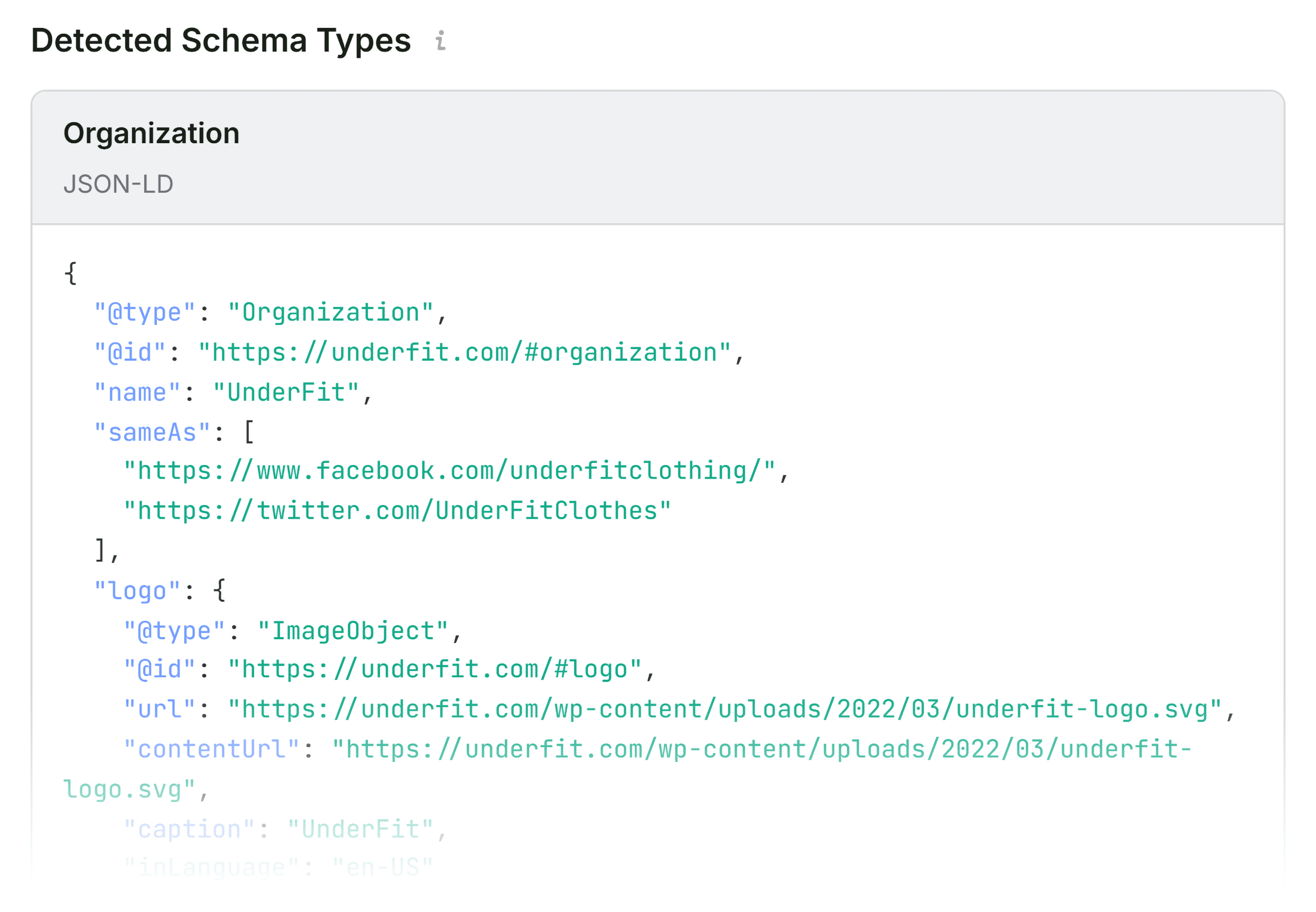
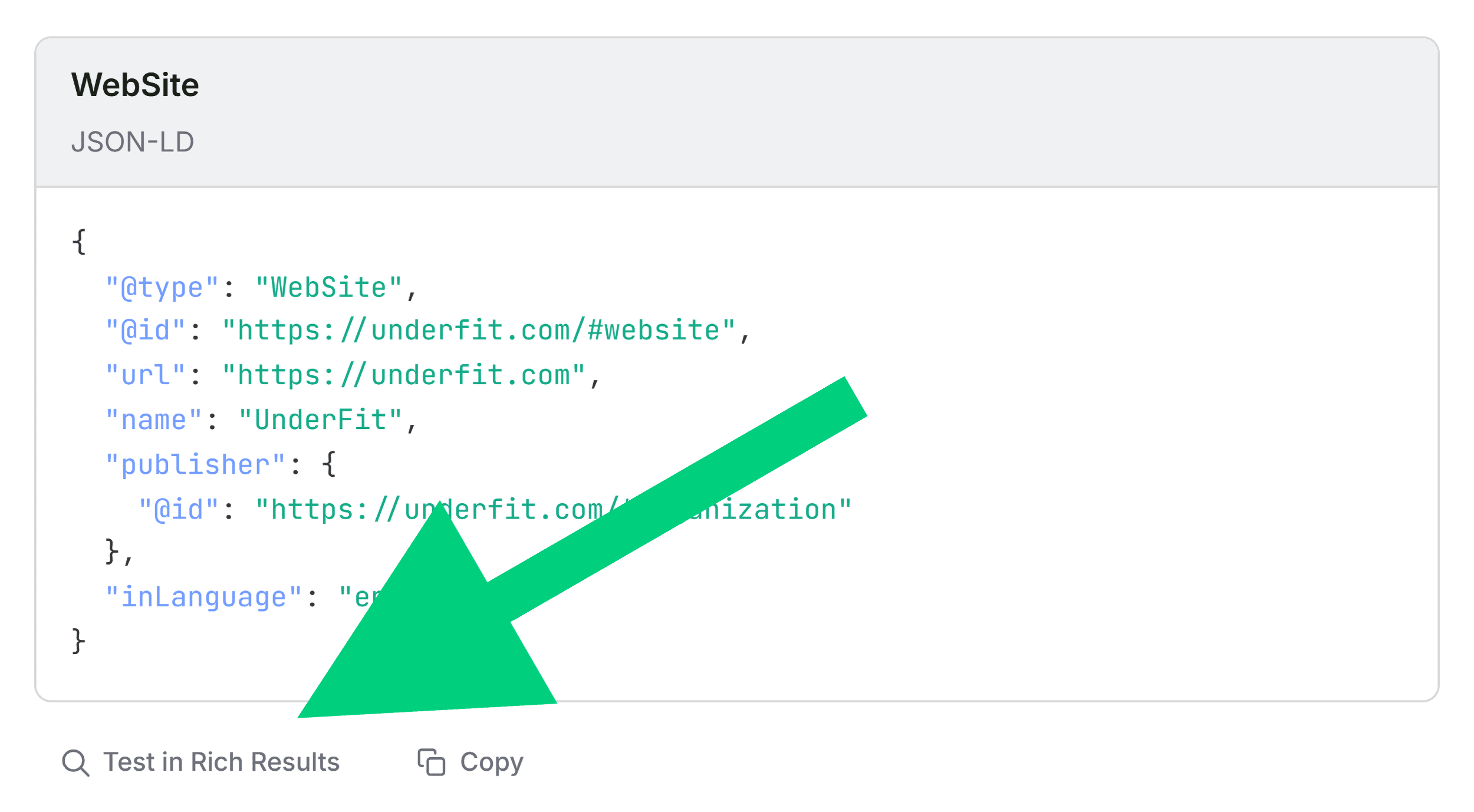
- Schema Markup: Is structured data present and valid?
- Canonical Tags: Does the page point to itself or the correct master version?
If you spot a red flag—such as an invalid JSON-LD schema error—it is an immediate priority. For a product page, invalid schema can prevent your site from appearing in rich results, stripping you of critical visual real estate like pricing, availability, and star ratings.

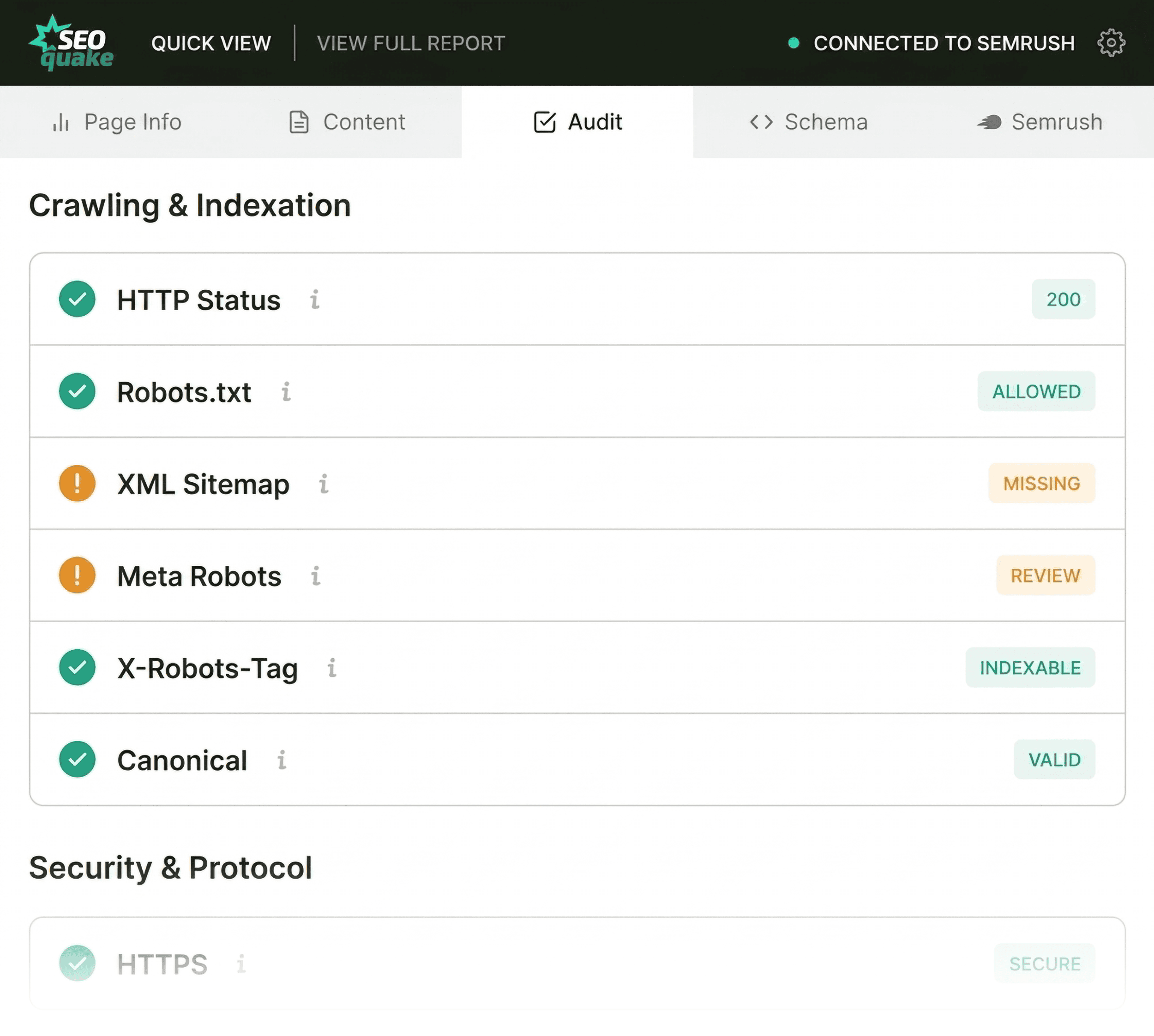
2. Scanning the Audit Tab for Technical Barriers
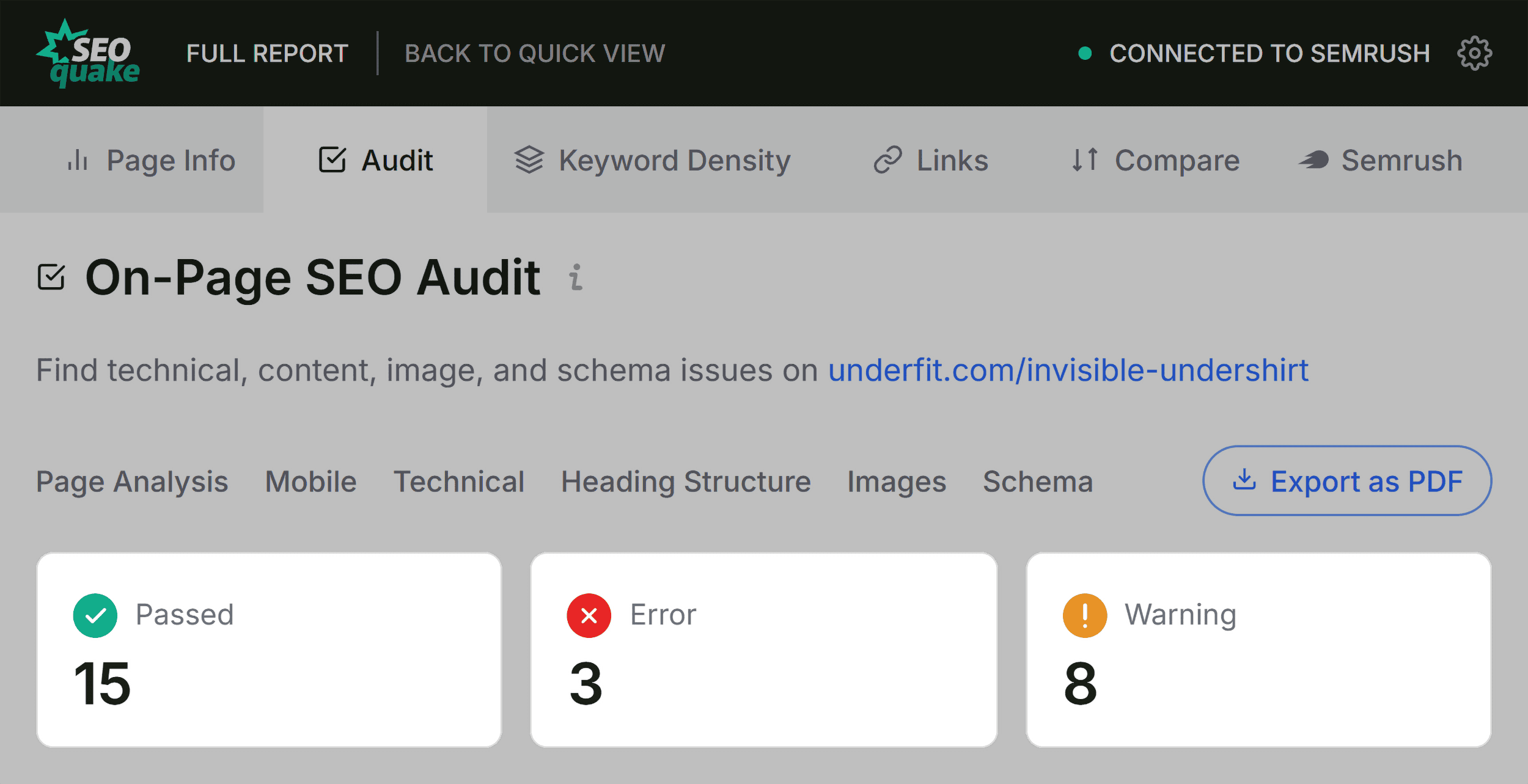
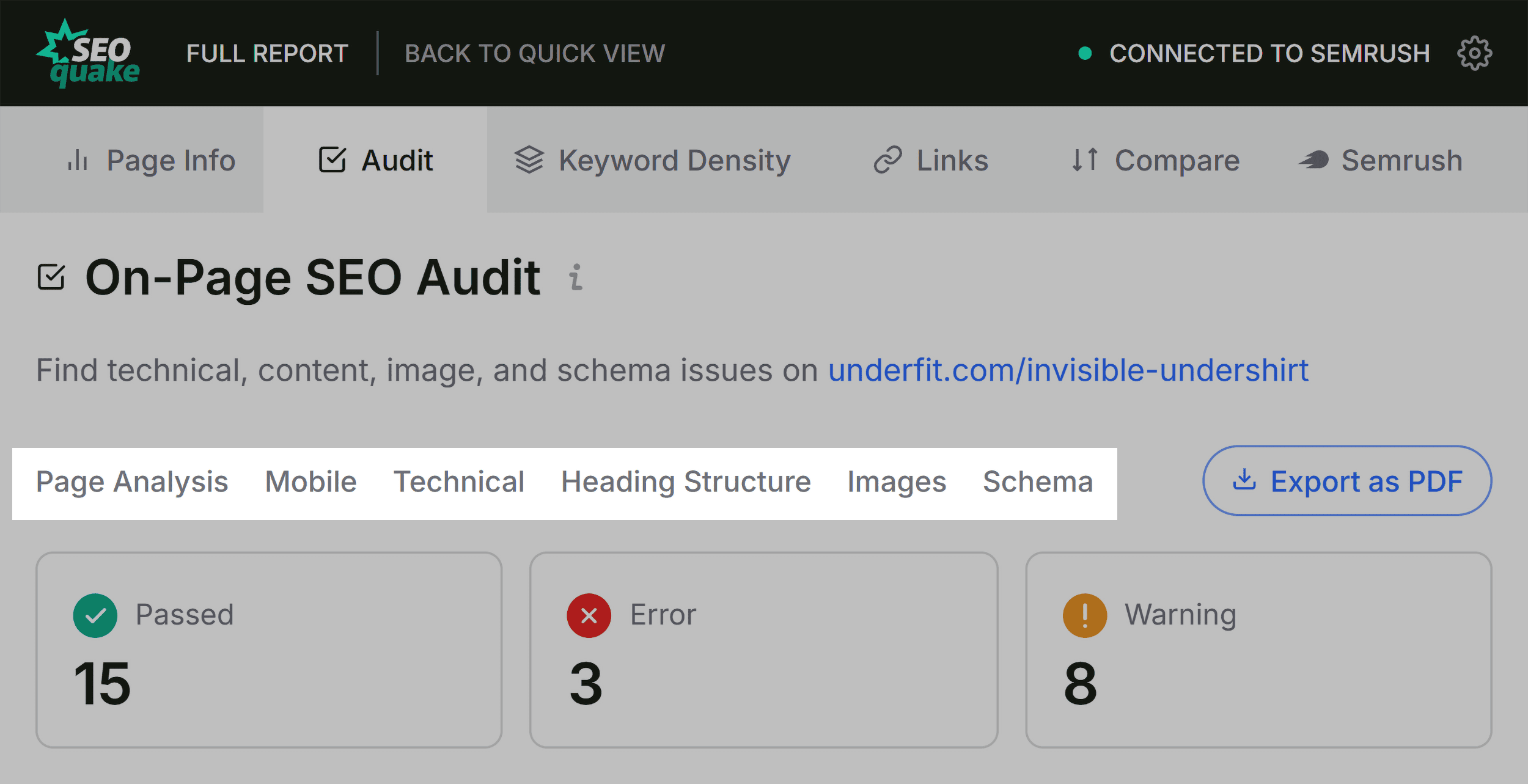
Once the basic metadata is verified, move to the Audit tab. This section checks for technical SEO essentials such as crawlability, indexation status, meta robots tags, and mobile-friendliness. While green is the goal, do not ignore the orange warnings. For example, missing hreflang tags on a global site might be an "orange" flag that, in reality, represents a significant barrier to international traffic growth.
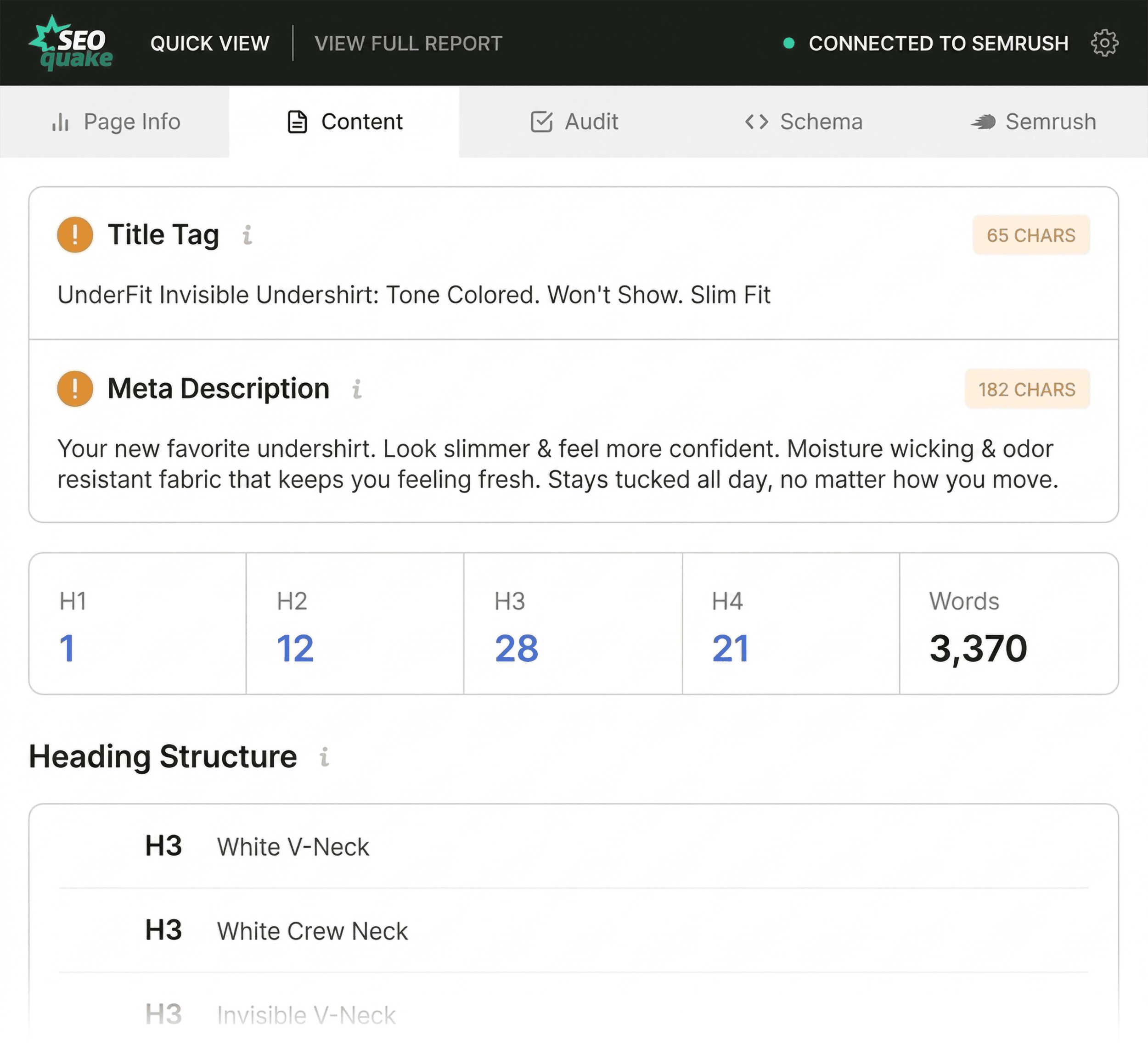
3. Reviewing Content Structure
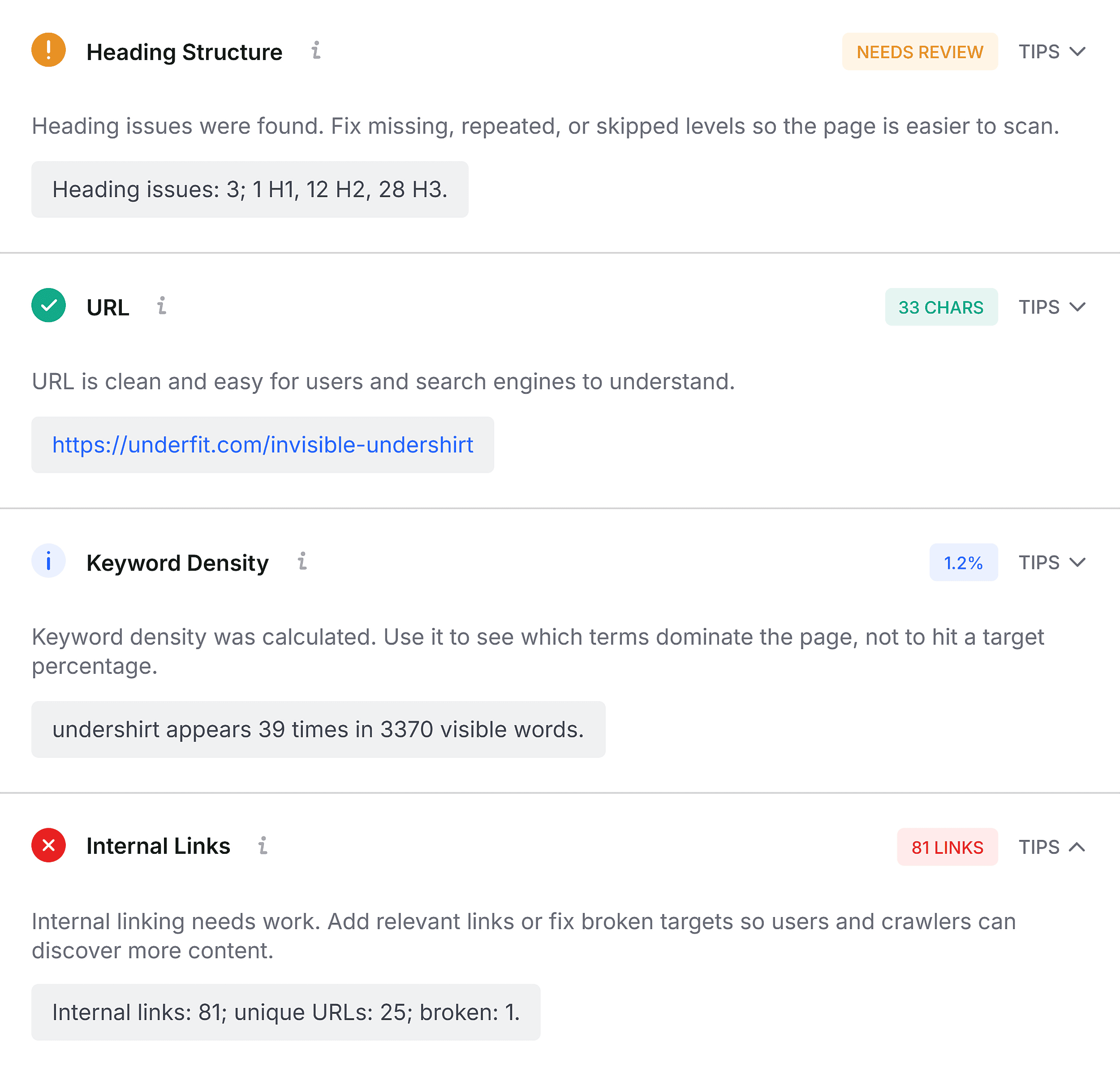
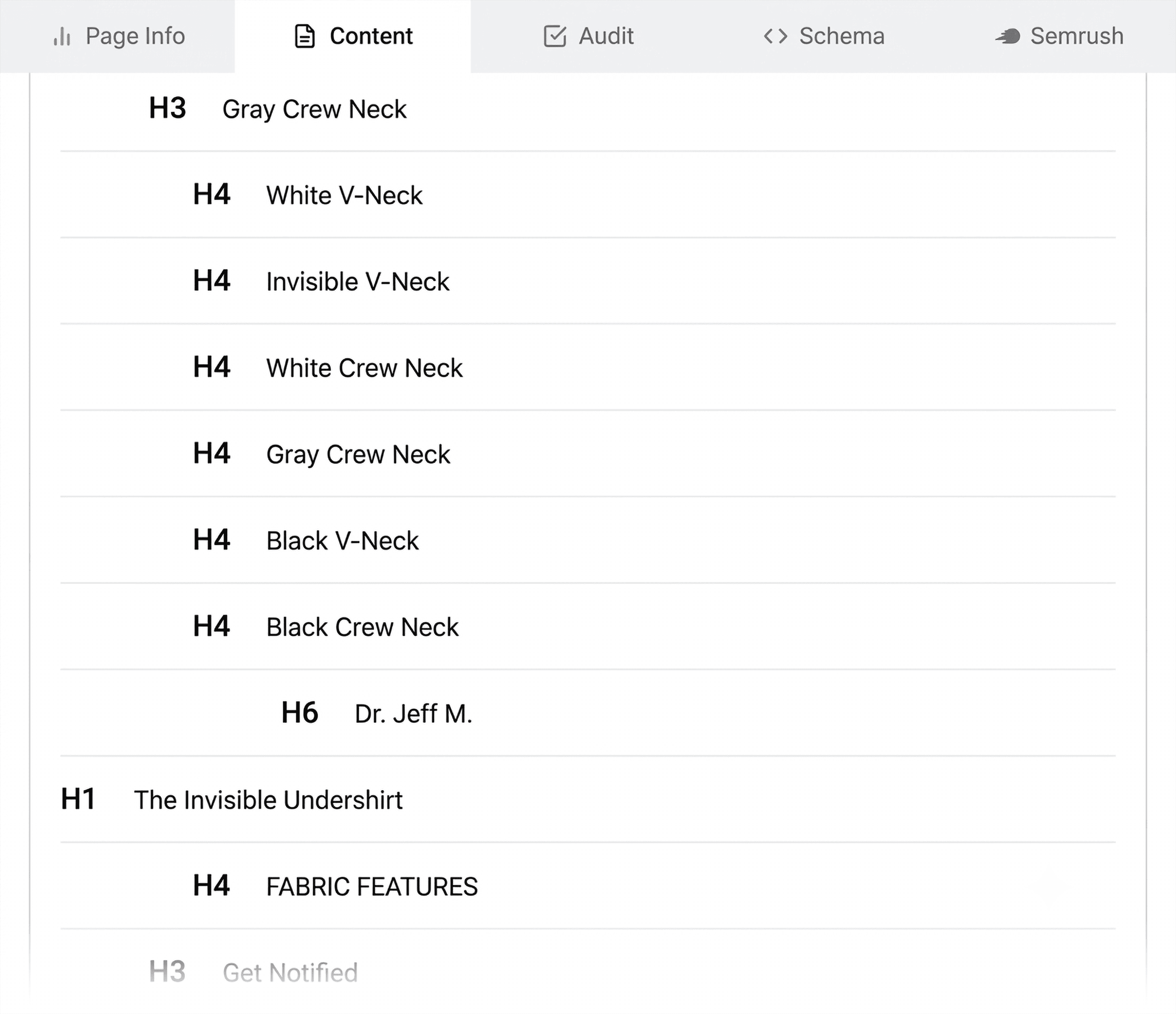
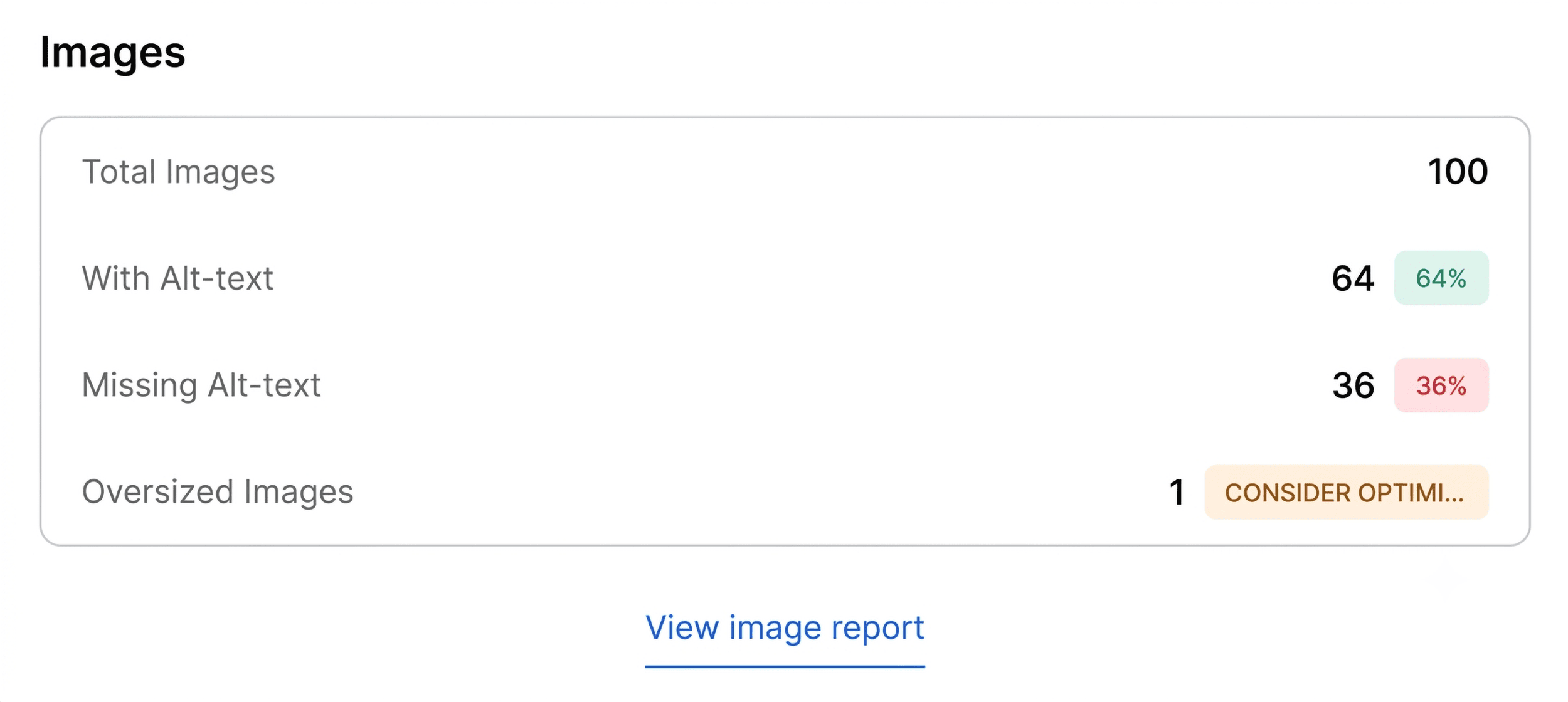
The Content tab reveals the page’s hierarchy. Clear structure is vital for both human users and AI-driven search engines that need to parse information accurately. Check for proper H1-H6 nesting. If your H1 appears at the bottom of the page or your headings jump from H1 to H4, you have a structural issue that hinders search engine interpretation. Additionally, this tab will flag images missing alt text—a double loss for both accessibility and image SEO.
Diagnosis: The Full Report (Minutes 2-3)
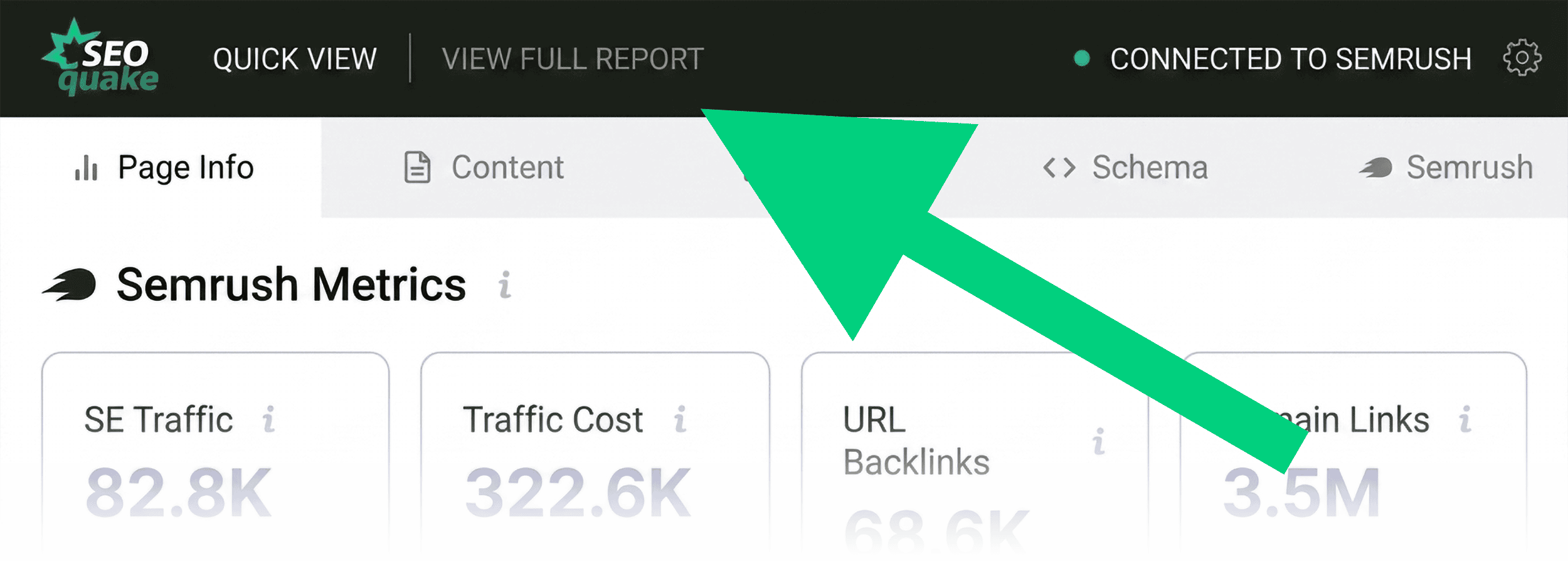
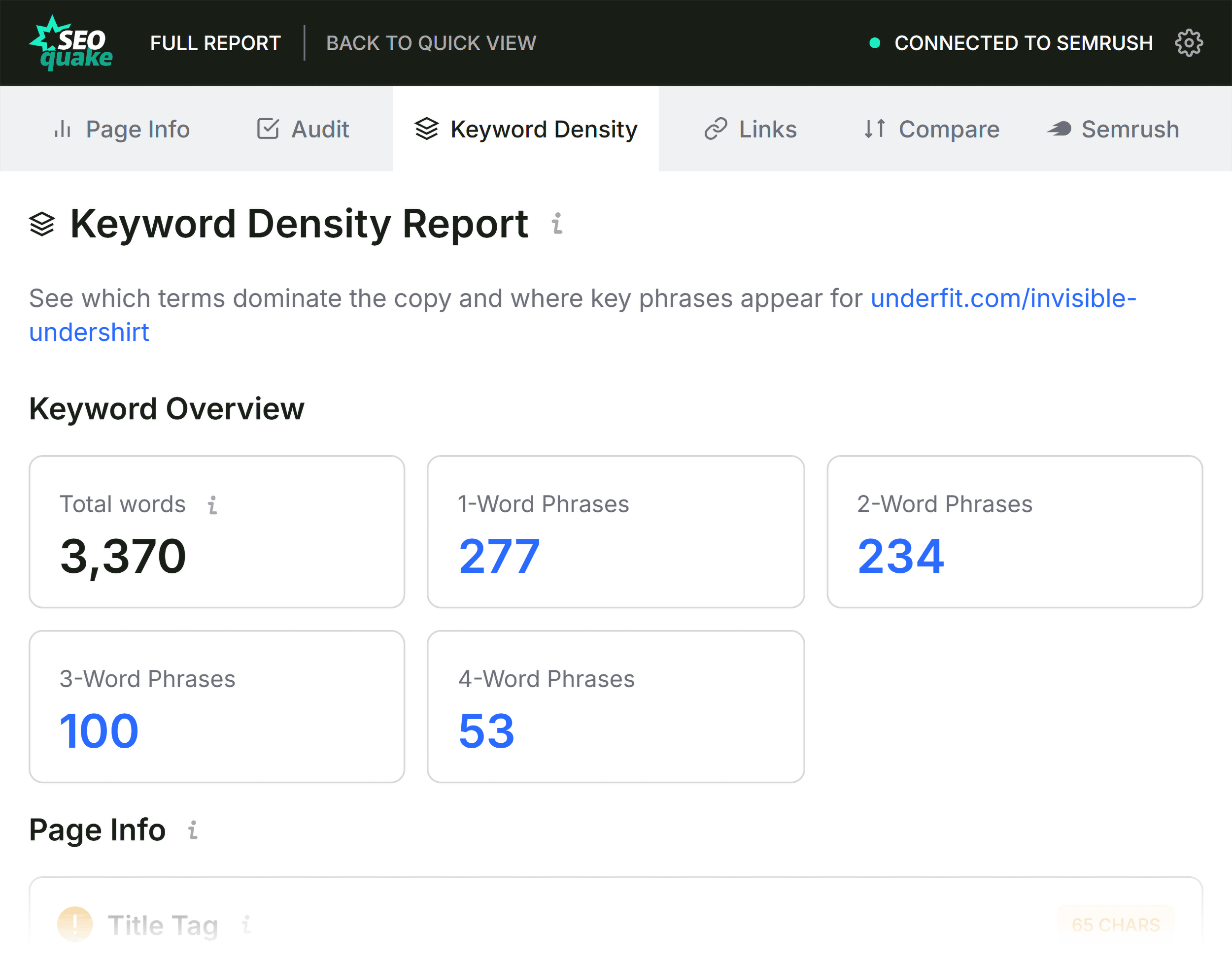
Once you have identified your red and orange flags, it is time to move from triage to diagnosis. Clicking "View Full Report" opens a deeper interface with six panels: Summary, Diagnosis, Page Info, Internal Links, External Links, and Density.
Digging Deeper into Technical Issues
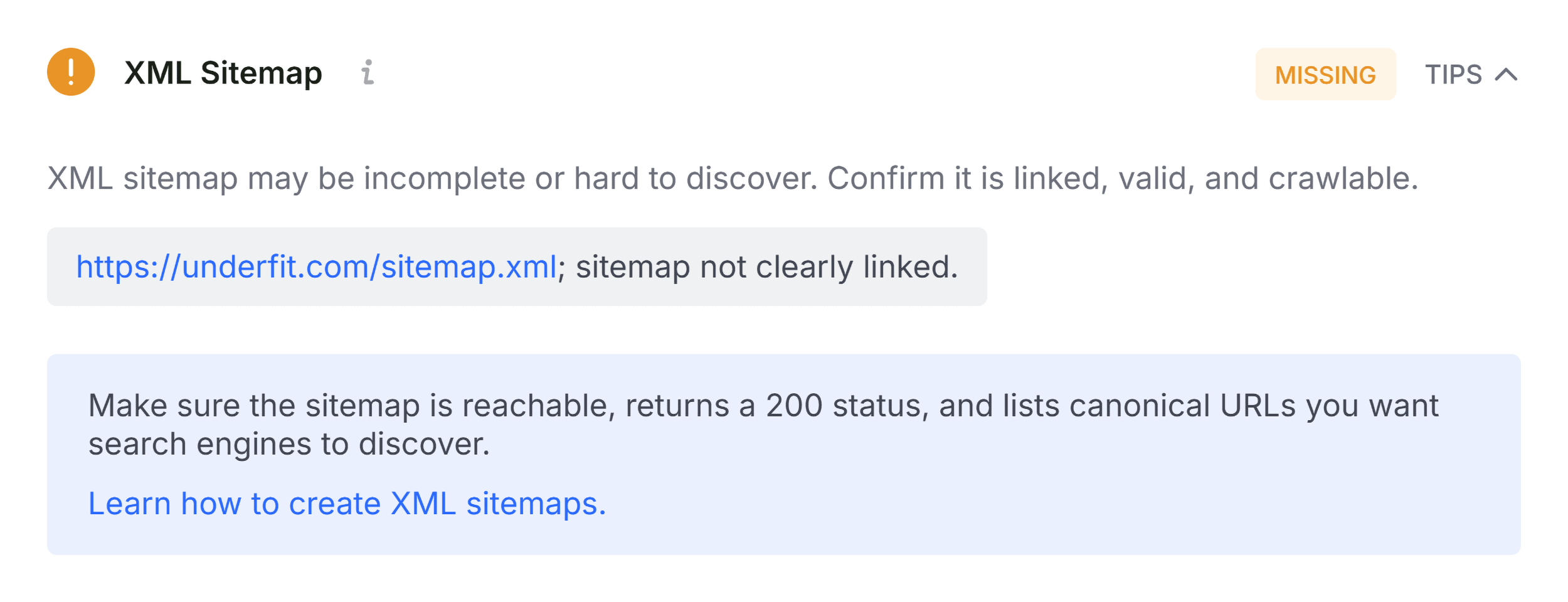
In the Audit panel of the Full Report, you can jump directly to the flagged sections rather than scrolling through every data point. If the triage identified an issue with your XML sitemap, the Full Report will confirm its status. For example, if a sitemap is detected but not clearly linked or is formatted incorrectly, you will see a detailed error report here.
When you encounter a red flag in the Schema section, the "Test in Rich Results" button is your best friend. It bridges the gap between SEOquake and Google Search Console, allowing you to run a real-time validation test that explains exactly why the structured data is failing.
Keyword Density and Topic Coverage
If a page is technically sound but still failing to rank, the Keyword Density panel provides insight into content relevance. Use the "Keyword Cloud" to see if your most prominent terms align with your target intent. While "keyword stuffing" is a relic of the past, seeing the wrong keywords appearing most frequently suggests your content may be misaligned with user search intent.
Note that some "odd" phrases often appear because the tool is scraping buttons, image labels, and JavaScript widgets. Always distinguish between the main copy and these minor technical elements.
Analyzing Link Health
Broken links are silent killers of user experience and crawl budget. The Links panel allows you to export a CSV of every link on the page, categorizing them by status code (e.g., 200 OK, 404 Not Found). Finding broken external links is a standard maintenance task, but finding broken internal links should be treated as a critical repair item, as it indicates a broken pathway for search engine crawlers.
Implications: When to Fix vs. When to Crawl
The final step of your three-minute audit is determining the scope of your solution.
- The Page-Level Fix: If the issue is a missing title tag, a broken image, or a specific heading hierarchy problem, you can resolve this immediately at the page level.
- The Site-Wide Issue: If the issue is a structural error in your XML sitemap or a template-level JSON-LD error, you are likely looking at a site-wide problem that cannot be fixed by editing a single page.
This is where the Semrush panel becomes indispensable. By checking domain-level metrics, you can determine if a drop in performance is isolated to your page or if the entire domain is suffering from a broader authority or crawlability issue.
Conclusion
The power of the SEOquake workflow lies in its speed and focus. By spending 60 seconds on triage and two minutes on deep-dive diagnosis, you eliminate the guesswork that often plagues SEO projects. You leave the session not with a vague sense of "needing to do more SEO," but with a concrete list of actionable items.
For those ready to move beyond single-page diagnostics, a full site crawl remains the gold standard. Utilizing a 14-day free trial of Semrush’s Site Audit can provide the massive, comprehensive data set required to fix underlying architecture issues that a manual check might miss.
Pro Tip: Always document your findings. A three-minute audit is only as effective as the list it generates. Keep your "fix list" updated and prioritize based on the severity markers provided by the tool. With consistent use, this process will transform from a chore into a seamless part of your daily SEO management routine.