



Introduction: The Anatomy of a Professional Frame
In the fast-paced world of digital media production, visual consistency separates amateur projects from broadcast-ready masterpieces. Whether editing a cinematic YouTube documentary, a high-octane commercial spot, or a fast-moving vertical social media clip for Instagram Reels and TikTok, the mechanics of image scaling remain fundamental.
Yet, many editors stumble on the basics: unsightly black bars framing the edges, awkward floating compositions, or blurry, pixelated artifacts caused by improper scaling. Mastering how to resize an image in Adobe Premiere Pro is not merely a technical checkbox; it is a core creative skill that dictates the intentionality of every single frame in your sequence.
This comprehensive guide explores the step-by-step mechanics of changing image sizes within Premiere Pro. We will break down manual control via the Effect Controls panel, examine rapid alignment workflows using the Properties panel, troubleshoot common pitfalls like aspect ratio mismatches, and review expert strategies to maintain crystal-clear image fidelity across diverse display formats.
Chronology of the Editing Workspace: From Import to Export
To understand how Premiere Pro handles still imagery, it helps to follow a chronological workflow. Every successful video edit progresses through specific, structured phases: asset ingestion, spatial placement, parameter adjustment, quality validation, and final export.
Phase 1: Asset Ingestion and Timeline Placement
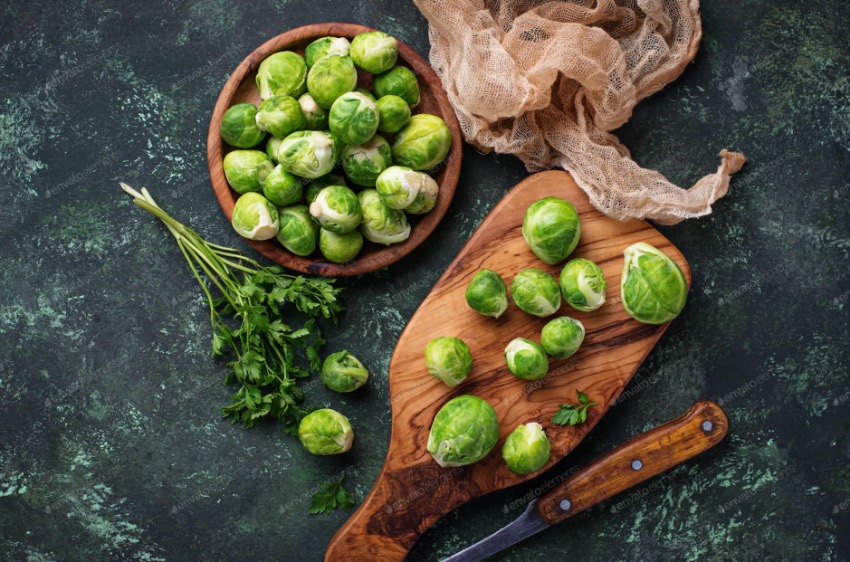
Every editing session begins by bringing assets into the project ecosystem. When working with high-resolution stills—such as professional stock assets from providers like Envato Elements—the physical dimensions of the image file rarely match the exact resolution of your timeline sequence.
- Importing the File: Locate your image asset on your local drive and bring it into your Premiere Pro project.
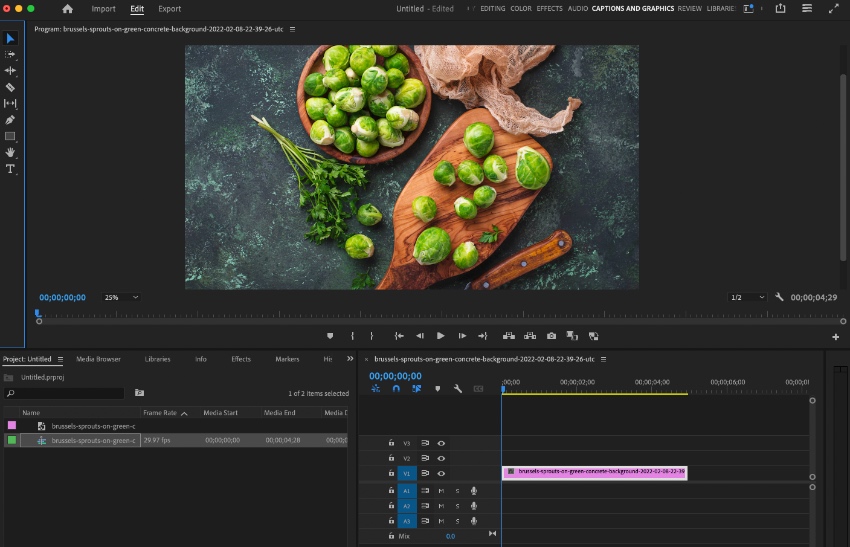
- Populating the Sequence: Click and drag the file from your Project panel directly onto the Timeline. Drop the still image onto a video track (typically Video 2 or Video 1, depending on your layering needs).
- Sequence Matching: Once on the timeline, the image behaves like a standard video clip, persisting for a default duration that you can trim or extend as required.
Phase 2: Interrogating the Canvas and Launching Effect Controls
Upon dropping the image into your sequence, you will immediately notice one of three conditions in the Program Monitor:
- Perfect Fit: The image dimensions match your sequence aspect ratio (though this is a rare occurrence).
- Undersizing (Black Bars): The image is too small, leaving empty letterbox or pillarbox space around the edges.
- Oversizing (Aggressive Cropping): High-resolution still files (such as 4K or 6K digital camera outputs) often extend far beyond the borders of a standard 1080p sequence, cropping out vital compositional elements.
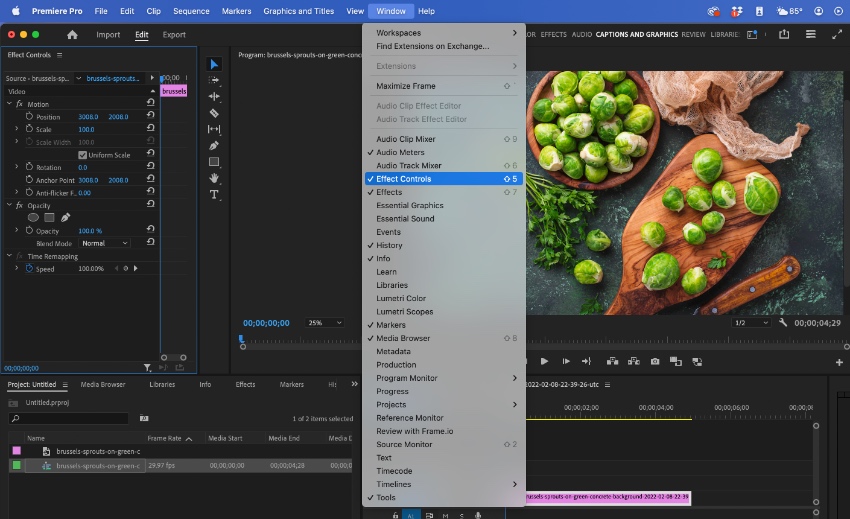
To take corrective action, navigate to the Effect Controls panel, typically docked on the left side of your interface next to the Source Monitor. If this panel appears blank, click directly on your image clip in the Timeline to activate its parameter list.
Phase 3: Executing Precise Scale and Position Adjustments
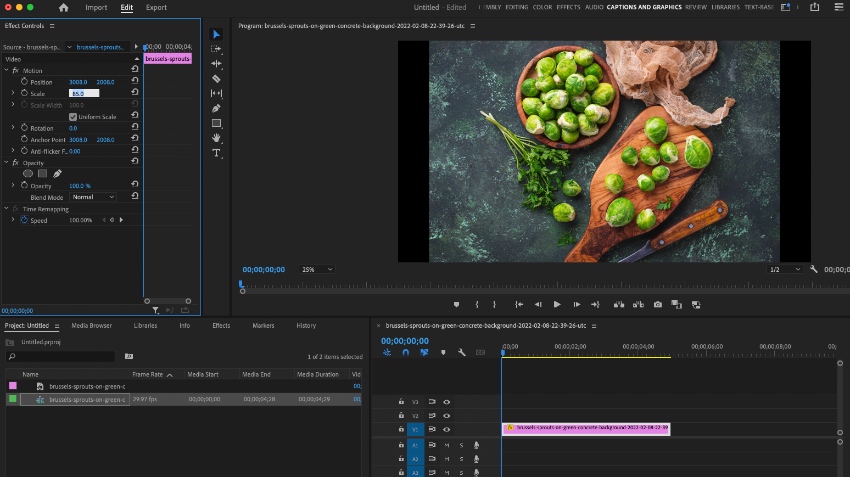
Within the Effect Controls panel, locate the Motion dropdown category. Here, you will find transform properties including Position, Scale, Rotation, and Anchor Point.
- The Scale Parameter: By default, imported images sit at a 100% Scale value. Clicking inside the numeric value box allows you to type in custom percentages. Values exceeding 100% zoom the image inward from its anchor point, while values beneath 100% shrink the asset down.
- Refining Composition: If scaling reveals unwanted background space or cuts off your primary subject, double-click the clip directly inside the Program Monitor. This activates bounding boxes and allows you to click and drag the image freely to re-center your focal point.
Phase 4: Final Quality Assurance and Playback Verification
Never export a project without a thorough playback check. Render your timeline workspace (pressing Enter or navigating to Sequence > Render Effects In To Out) and play the clip from start to finish. This ensures that subtle scaling adjustments, keyframed zooms, or positional shifts execute smoothly without stuttering, unexpected artifacting, or edge bleeding.
Supporting Data: Understanding Resolution, Aspect Ratios, and Scaling Math
To prevent pixelation and maintain pristine visual clarity, editors must understand the mathematical relationship between source media resolution and timeline sequence settings.
Resolution Match Guidelines
Scaling images up beyond their native resolution forces Premiere Pro to invent pixel data, stretching existing pixels and introducing softness or blocky pixelation. To maintain absolute sharpness:
- For 1080p Timelines (1920×1080): Source images should ideally measure at least 1920×1080 pixels (or greater).
- For 4K Timelines (3840×2160): Source images must scale up significantly unless they originate from high-resolution photography archives (such as 4K or 8K stock libraries).
Aspect Ratio Conflicts: Fit vs. Fill
When mixing horizontal assets (16:9) with vertical sequences (9:16) or square formats (1:1), Premiere Pro preserves original proportions by default. Editors must choose between two primary alignment strategies:
- Fit: Scales the image so that the entire asset is visible within the frame. Ideal when every pixel of the graphic contains critical information, though it often results in black pillarbars or letterbars.
- Fill: Scales and crops the image to completely saturate the frame boundaries. Ideal for immersive backgrounds, dynamic B-roll, or vertical social media optimization where empty space must be avoided at all costs.
Official Guidelines and Expert Workflows
Professional video editors rely on standardized panel shortcuts and automation principles to accelerate complex assembly phases.
Utilizing the Properties Panel for Rapid Alignment
Beyond the granular manual inputs found in the Effect Controls panel, modern versions of Premiere Pro feature streamlined shortcuts inside the Properties panel. Under the Transform rollout, editors can execute single-click Fit and Fill commands. This bypasses manual calculation, instantly forcing rogue aspect ratios to conform to target sequence parameters.
Batch Resizing via Attribute Pasting
When editing a sequence containing dozens of still photographs (such as a slideshow, real estate walk-through, or documentary archive reel), adjusting every single clip individually is inefficient. Professionals utilize attribute duplication:

- Adjust the Scale and Position on your primary master image clip.
- Copy the clip (
Cmd + Con Mac /Ctrl + Con Windows). - Select all remaining target image clips across your timeline.
- Navigate to Edit > Paste Attributes (
Cmd + Option + V/Ctrl + Alt + V). - Check the Motion parameter box in the dialogue menu and click OK. Premiere Pro instantly applies identical spatial transformations across all selected assets.
Implications for Modern Cross-Platform Content Creation
The modern media landscape demands unprecedented adaptability. In the era of multi-platform distribution, content creators cannot rely on a single, uniform aspect ratio. A video asset conceived today must simultaneously satisfy widescreen cinematic platforms (YouTube, traditional broadcast), vertical mobile feeds (Instagram Reels, TikTok, YouTube Shorts), and square formats for feed-based advertising.
Knowing how to precisely scale, re-frame, and animate image assets empowers editors to pivot swiftly between these differing presentation standards without sacrificing production value. Furthermore, leveraging high-end creative libraries—such as Envato Elements’ vast repositories of stock photography, motion graphics, and transition presets—allows creators to scale both their visual assets and their creative ambitions simultaneously.
Frequently Asked Questions (FAQs)
How do I resize an image without losing quality in Premiere Pro?
To preserve image quality, always use source files that match or exceed your sequence resolution (e.g., 1920×1080 minimum for 1080p timelines; 3840×2160 for 4K). Avoid scaling files significantly beyond 100%, as enlarging small graphics stretches the pixel grid and produces visible softness.
Why does my image look blurry or pixelated after scaling up?
Blurriness occurs when an image’s native resolution is lower than your sequence resolution. When you scale an image past 100%, Premiere Pro stretches existing pixels rather than generating new detail. Always preview your work at 100% playback resolution in the Program Monitor to verify true sharpness before exporting.
Why are black bars appearing after I import my image?
Black bars appear when the aspect ratio of your image does not match the aspect ratio of your sequence. For instance, placing a vertical 9:16 photograph into a horizontal 16:9 sequence creates empty side pillars. Resolve this by adjusting the Scale parameter, or by applying the Fit and Fill transformation tools in the Properties panel.
What is the difference between "Scale to Frame Size" and "Set to Frame Size"?
- Scale to Frame Size resamples the image resolution down to match the sequence dimensions upon import, saving system RAM but potentially reducing image detail if you attempt to zoom in later.
- Set to Frame Size adjusts the Motion Scale parameter while retaining the original pixel dimensions of the source file, making it the safer, more flexible choice for modern high-resolution workflows.
Can I animate an image resize in Premiere Pro?
Yes. You can create smooth zooming effects by toggling the stopwatch icon next to the Scale property in the Effect Controls panel to activate keyframes. By setting an initial scale value at the start of a clip and modifying the scale further down the timeline, you introduce dynamic motion that elevates static visuals.