




In the modern era of mobile computing, the smartphone home screen has become the digital equivalent of a cluttered desk. As users accumulate hundreds of applications, the desire for a minimalist, distraction-free environment has shifted from a niche aesthetic preference to a functional necessity. For users of Samsung’s flagship Galaxy series—including the latest S25+—the solution often lies in an underutilized, highly customizable feature embedded deep within the One UI ecosystem: the Edge Panel.
For those who struggle with "app creep" and the resulting visual noise on their home screens, the Edge Panel offers a sophisticated, hidden layer of utility. By migrating core functionality to a swipe-accessible side menu, users can reclaim their home screen real estate, fostering a cleaner, more efficient interaction with their devices.
Main Facts: The Anatomy of the Edge Panel
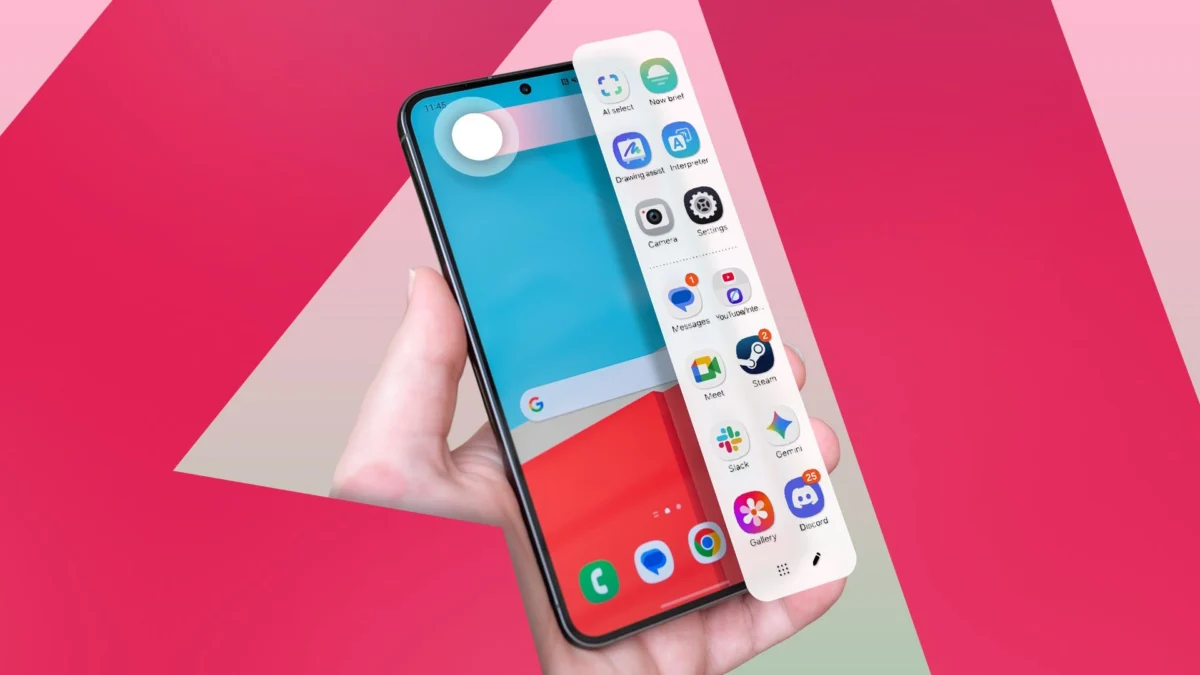
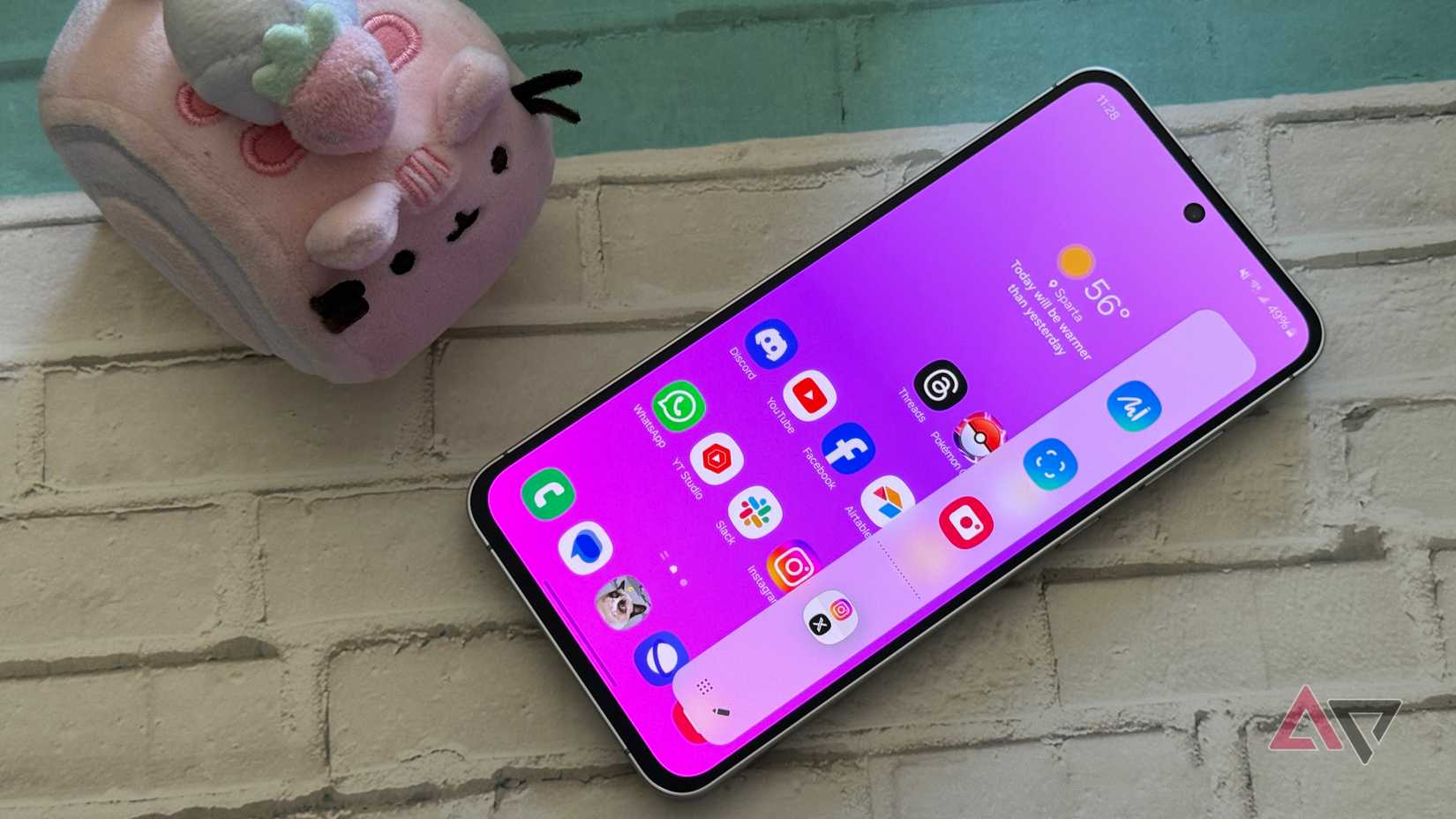
The Edge Panel is a persistent, translucent "handle" located on the side of the display. When swiped, it reveals a secondary interface that acts as a dedicated dock for applications, tools, and shortcuts. Unlike the standard home screen, which is static and space-intensive, the Edge Panel is overlay-based, meaning it remains accessible regardless of which application is currently active.
Key Capabilities
- Persistent Navigation: Access frequently used apps without returning to the home screen.
- Integrated Toolset: Quick access to essential utilities like compasses, rulers, and flashlights.
- Split-Screen Automation: The ability to save complex multitasking pairs for one-tap access.
- Customizable Real Estate: Support for folders and multi-column layouts, especially when augmented by modules like Good Lock.
For power users, the Edge Panel is not merely a shortcut menu; it is a vital component of Samsung’s multitasking philosophy. By offloading secondary apps to the Edge, users can maintain a "clean" home screen while ensuring that critical tools remain only a gesture away.
Chronology of Evolution: From Curved Displays to UI Staple
The concept of the Edge Panel originated during the era of the Galaxy Note Edge and the Galaxy S6 Edge. Initially, the feature was designed to capitalize on the unique hardware of curved-screen devices, providing notifications and stock tickers along the display’s curvature.

Over the past decade, however, the feature has evolved significantly. As display technology standardized and curved screens became less of a focal point for hardware differentiation, Samsung pivoted the Edge Panel to serve as a software-driven productivity tool.
- 2014–2016: Introduction of "Edge Screen" features, primarily hardware-focused.
- 2017–2020: The integration of "Edge Panels" into the broader One UI design language, allowing for third-party plug-ins and expanded app lists.
- 2021–Present: Refinement of the user interface, deeper integration with Galaxy AI, and the expansion of customization options via the Good Lock suite, allowing for a more granular, high-density layout.
Supporting Data: Why Minimalism Matters
The psychological impact of digital clutter is well-documented in the field of Human-Computer Interaction (HCI). Studies suggest that excessive app density on mobile devices leads to increased cognitive load and longer "time-to-task" metrics—the duration it takes for a user to locate and launch the desired application.
By moving apps to an Edge Panel, users effectively categorize their digital life. Primary apps remain on the home screen for immediate access, while "utility" apps—those used once or twice a day—are delegated to the Edge.
Performance and Efficiency Metrics:
- Reduced Home Screen Latency: By limiting the number of widgets and icons on the home screen, the device launcher (One UI Home) can allocate more resources to performance, resulting in smoother animations.
- Contextual Awareness: Users can access the flashlight or a ruler from the Edge Panel while inside a demanding game or a professional application, bypassing the need to close the current session.
- Multitasking Efficiency: The ability to save "App Pairs" reduces the time spent setting up split-screen views by approximately 60% compared to manually dragging windows into position.
Official Guidelines: How to Configure Your Edge Panel
Configuring the Edge Panel is a straightforward process, yet it is often bypassed by users who view it as a default, "set-and-forget" feature.
Enabling the Feature
To initiate the setup, navigate to Settings > Display > Edge panels. Once toggled on, a thin handle will appear on the right side of the screen. Users can customize the position, transparency, and size of this handle to ensure it does not interfere with touch gestures in other applications.

Deep Customization
Once enabled, the true power of the panel lies in the "Pencil" (edit) icon.
- App Selection: You are not limited to a single row. By dragging and dropping, you can create a dense grid of up to 16 apps or more.
- Folder Integration: Much like the home screen, you can drop one icon onto another to create a folder within the panel, exponentially increasing the number of apps accessible via a single swipe.
- Split-Screen Pairs: This is perhaps the most powerful feature. Open two apps in split-screen mode, tap the separator, and save the configuration to your Edge Panel. This allows for instant launching of paired workflows (e.g., Email and Calendar) with a single tap.
Implications for the Future of One UI
The reliance on Edge Panels speaks to a broader trend in smartphone design: the "Hidden Interface." As screens grow larger and devices become more powerful, the traditional grid of icons is increasingly seen as an inefficient way to navigate complex operating systems.
The Role of Good Lock
For those who feel the default Edge Panel is insufficient, Samsung’s Good Lock suite serves as an essential laboratory. Through the Home Up module, users can manipulate the layout of their system to an extreme degree. While some users fear that these modules might break with new Android version updates, the ecosystem has shown remarkable resilience, with Samsung engineers prioritizing the stability of these power-user tools.
The AI Shift
As Galaxy AI continues to permeate the One UI experience, we are seeing the integration of "Smart" Edge Panels. These panels can now suggest applications based on the time of day or the user’s location. The implication is clear: the future of mobile navigation is not about finding an app, but having the app find you exactly when you need it.
Conclusion: A Philosophy of Digital Wellness
Adopting the Edge Panel is more than just a configuration change; it is a commitment to a more organized digital life. By offloading the clutter, you provide yourself with a cleaner, more focused, and significantly more productive interface.
Whether you are a casual user looking to hide your rarely used icons or a power user attempting to craft the ultimate multitasking machine, the Edge Panel remains one of the most compelling reasons to choose the Samsung Galaxy experience. It is a testament to the fact that sometimes, the best way to improve your user experience is not to add more power, but to better organize the tools you already have at your fingertips.
As we look toward the future of One UI, the Edge Panel stands as a reminder that with the right customization, your phone can be a tool that serves your specific habits, rather than a device that dictates your workflow. Take the time to refine your setup today; your home screen, and your mental clarity, will thank you.