






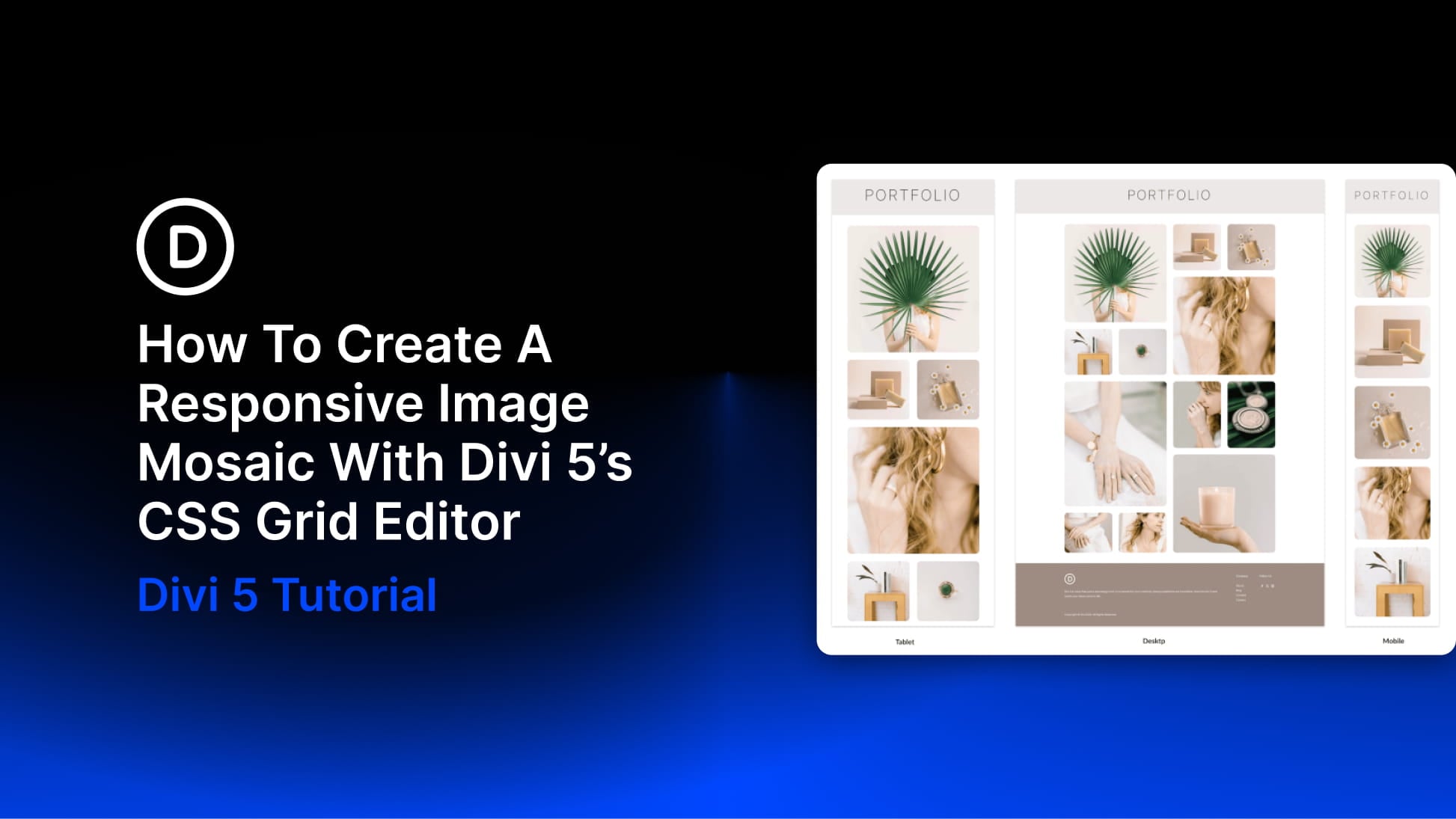
In the evolving landscape of web design, the ability to display visual content in a compelling, non-linear format has become a hallmark of professional digital portfolios and editorial platforms. An image mosaic—an intricate arrangement where photographs of varying sizes are unified within a single, cohesive grid—serves as a sophisticated solution for capturing user attention. By strategically employing larger "feature" tiles alongside smaller, supportive imagery, designers can guide the viewer’s eye through a curated narrative.
With the advent of Divi 5’s CSS Grid Editor, the complexity traditionally associated with manual grid coding has been distilled into an intuitive, visual experience. This guide explores the mechanics of building a responsive, twelve-image mosaic that maintains its structural integrity from high-resolution desktop monitors down to the narrowest smartphone screens.
The Core Mechanics of Responsive Mosaics
At its heart, a successful image mosaic relies on the intelligent use of "spans." A single tile may stretch across multiple columns, multiple rows, or both, breaking the monotony of a standard, uniform gallery. However, the true challenge of web design lies in maintaining these artistic arrangements across varying screen widths.
When a display narrows, a tile spanning two columns may find itself incompatible with a reduced grid structure. Without responsive intervention, these tiles can trigger horizontal overflow, unwanted grid tracks, or unsightly gaps. The objective of responsive design in this context is to audit placement rules at every major breakpoint—Desktop, Tablet, and Phone—ensuring that the visual rhythm remains intact while the layout adapts to the hardware constraints of the user.
Chronology: Building the Twelve-Image Grid
The process of constructing a responsive mosaic requires a methodical approach, transitioning from the foundational structure to the nuanced styling of individual elements.
Step 1: Establishing the Foundation
The journey begins by adding a new Row to your section and configuring it with twelve columns. While this might seem excessive, these twelve child columns serve as the placeholders for your photographs. Within the Row settings, navigate to the Design > Layout panel and set the Layout Style to Grid.
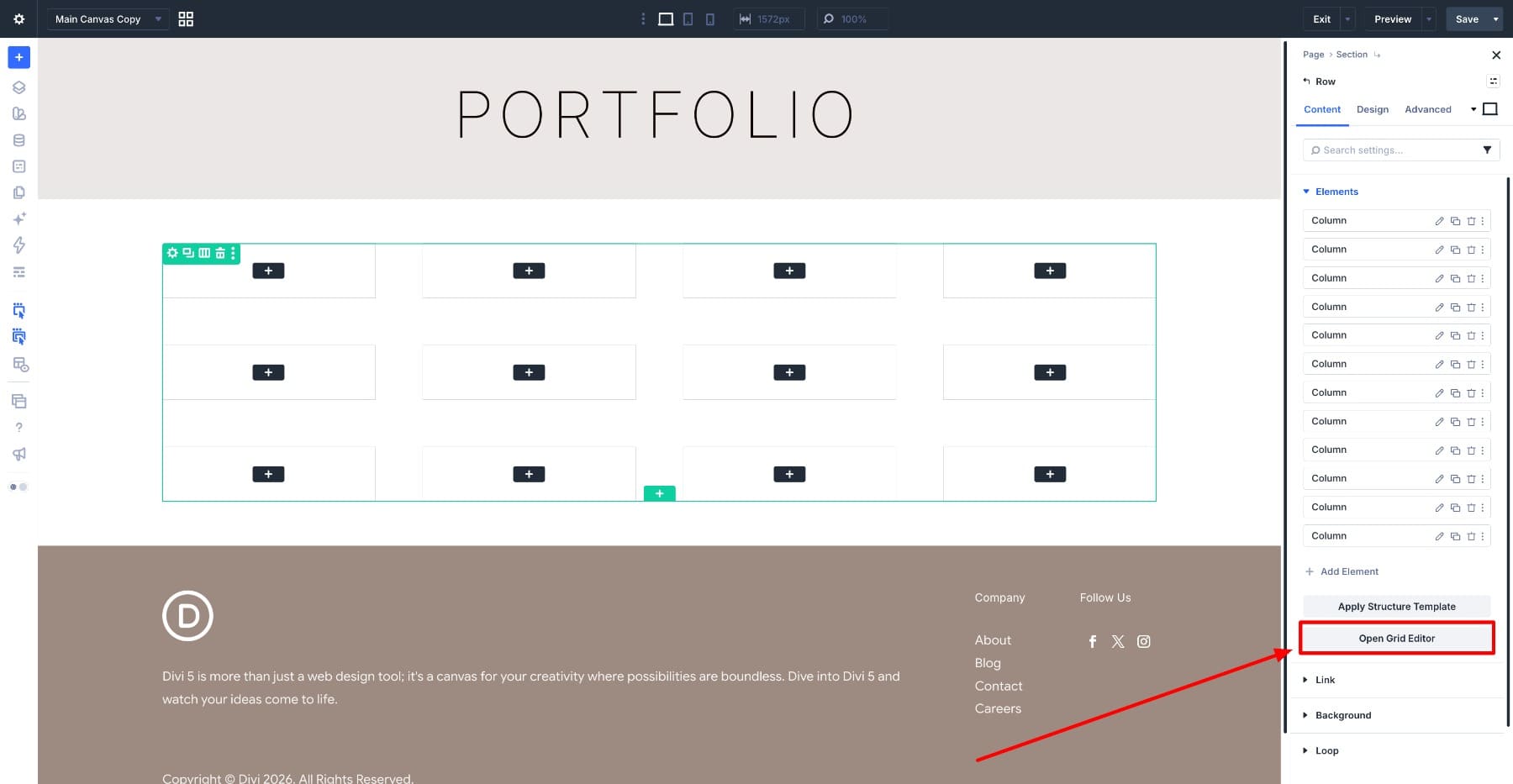
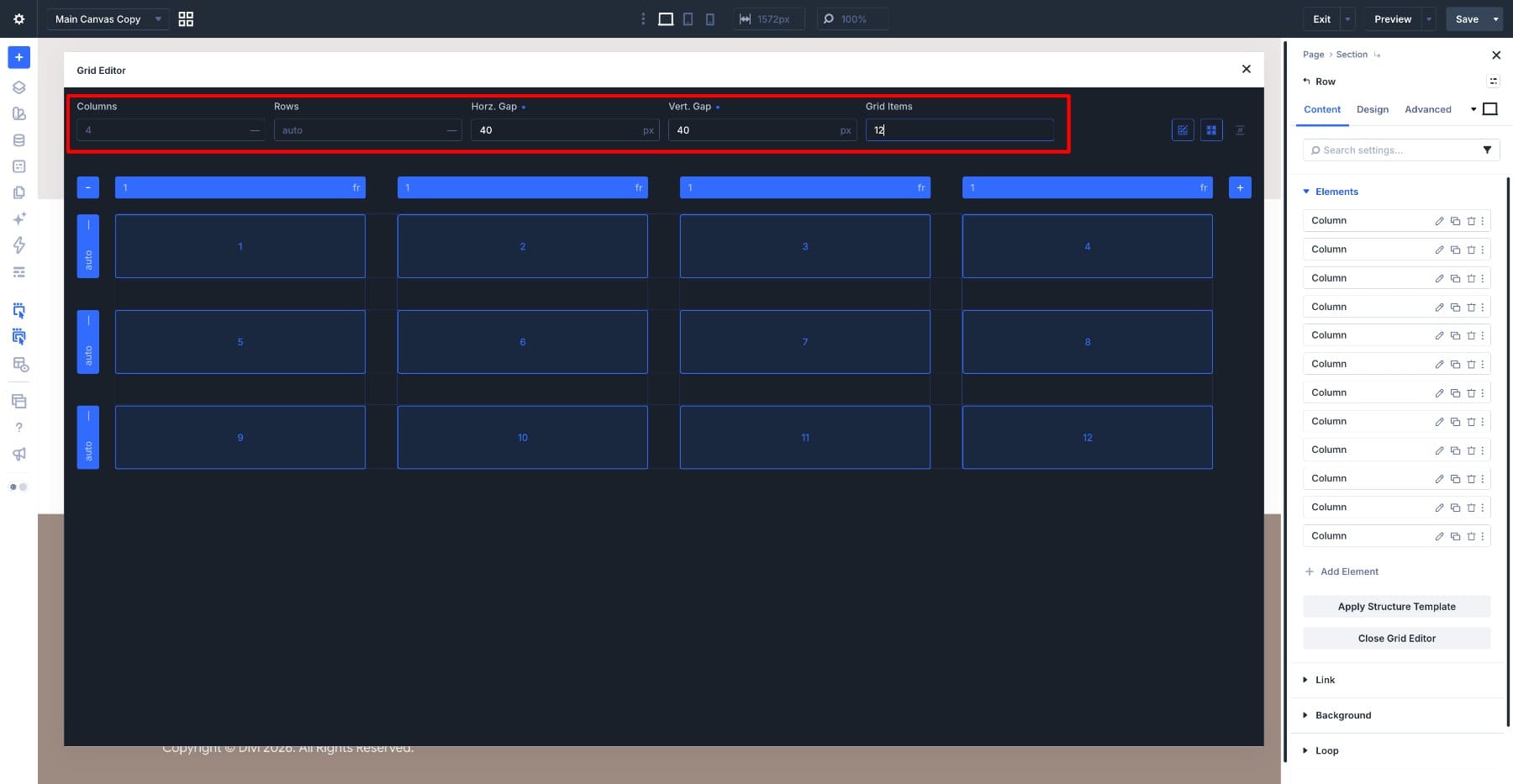
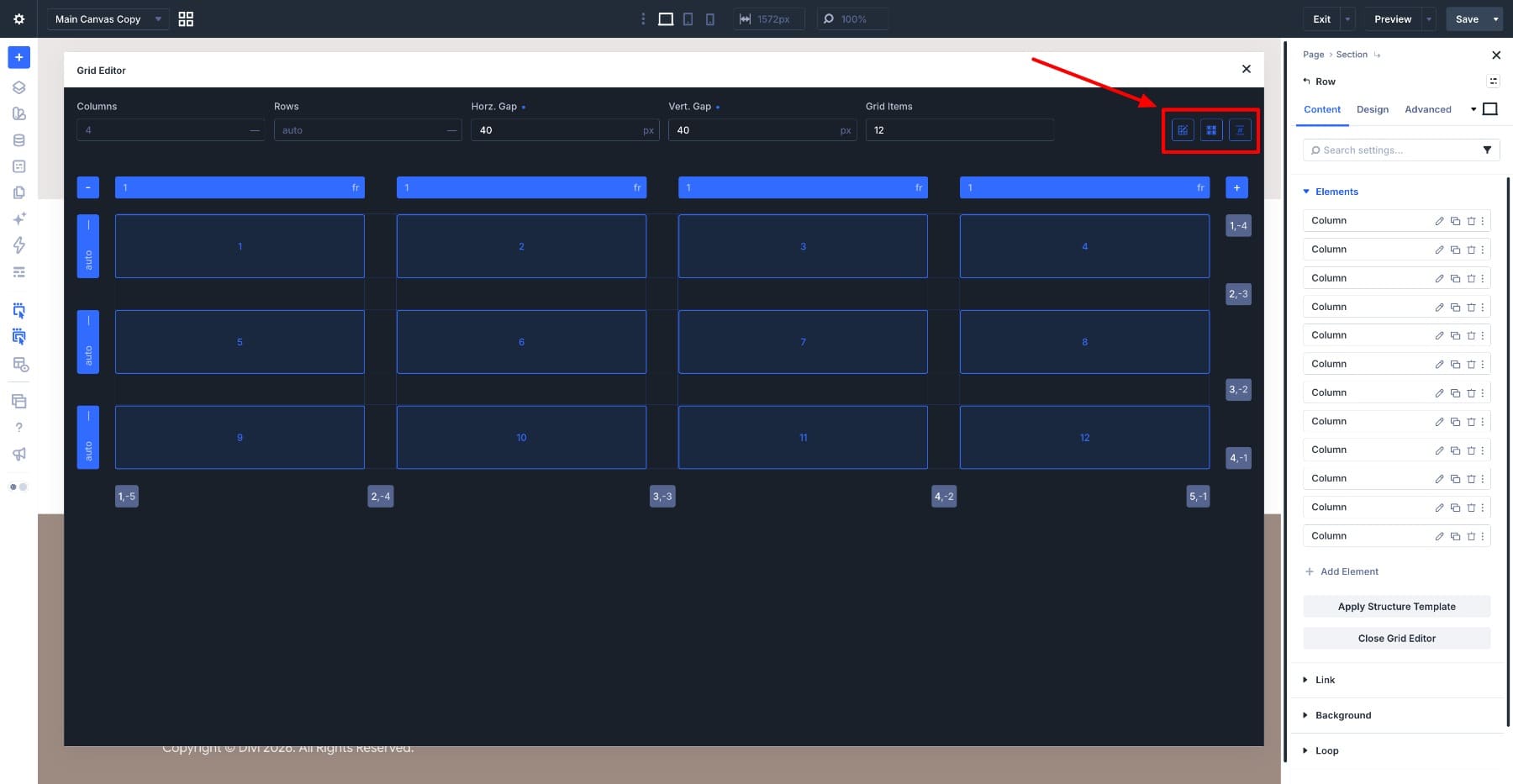
Once active, the Open Grid Editor button becomes available. This floating interface is the command center for your design. By setting the Columns to 4 and keeping the rows on "auto," you create a flexible container. Applying a 40px horizontal and vertical gap establishes the breathing room between your images. Enabling "Show Grid Lines" and "Show Track IDs" provides the visual clarity necessary to precisely place your tiles.
Step 2: Sculpting Feature Tiles
With the grid prepared, you begin the process of defining the visual hierarchy. By selecting item 1 and using the corner handles, you can expand it to cover two columns and two rows. This creates your first "feature" tile. As you repeat this process for items 4, 7, and 10, you create a staggered, alternating pattern. This manual manipulation is recorded by the Grid Editor as "Grid Offset Rules," which are anchored to the row container, ensuring that your layout remains responsive rather than static.
Step 3: Styling and Content Integration
Once the structure is set, the individual Image Modules must be populated. To ensure consistency, you should not style each module individually. Instead, focus your efforts on one module:
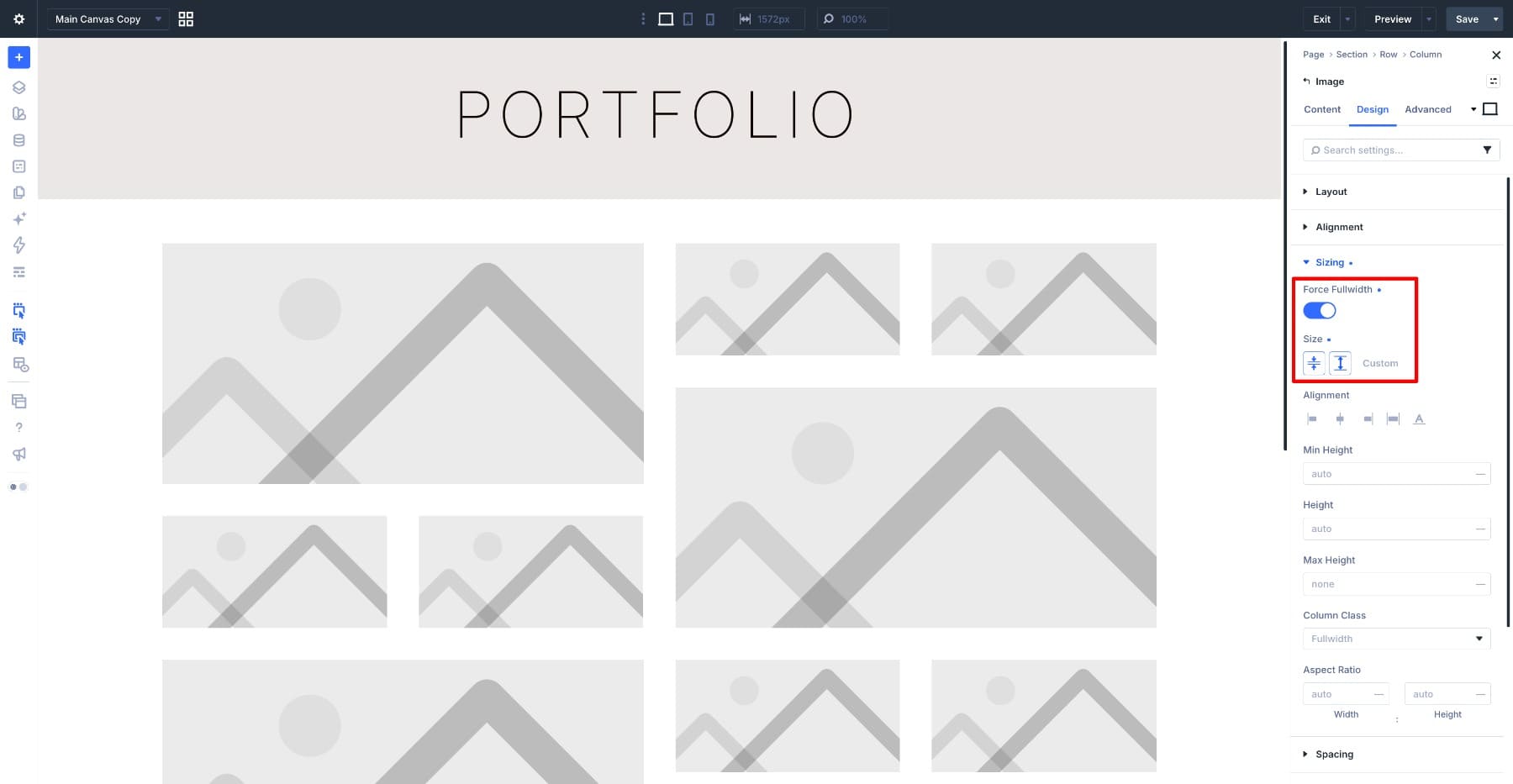
- Sizing: Enable "Force Fullwidth" to ensure the image fills its designated tile.
- Aspect Ratio: Set the width and height to 1 for a perfect square frame.
- Framing: Utilize "Object Fit: Cover" to ensure the photograph fills the frame without distortion, using "Object Position" to fine-tune the focal point of the image.
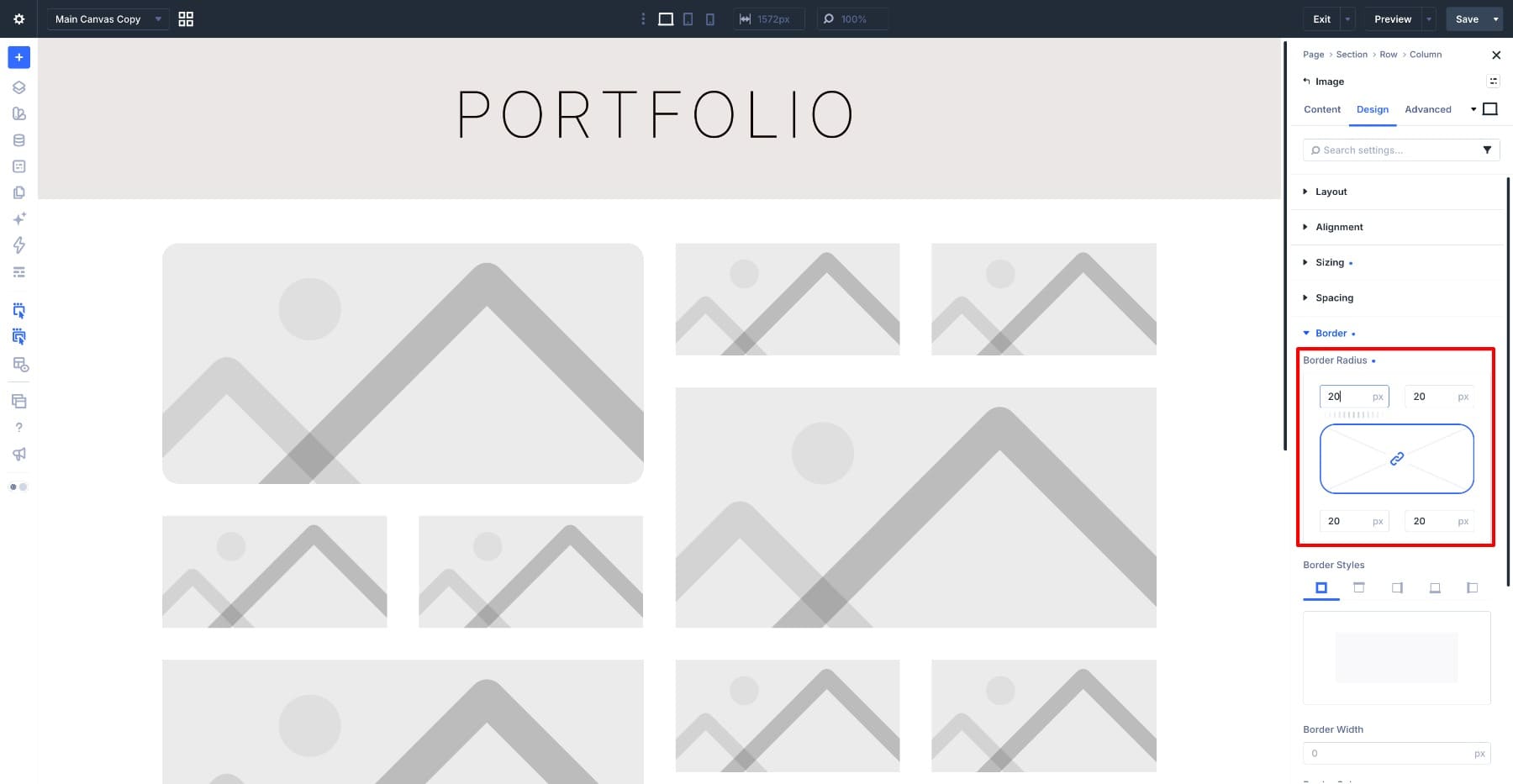
- Consistency: Apply a 20px border radius for a modern, softened aesthetic.
By creating an "Element Preset" named "Mosaic Image," you can propagate these settings to every other module in the row with a simple right-click and "Extend Attributes." This ensures that any future global design changes can be implemented in seconds.
Supporting Data: Breakpoint Adaptations
The transition from desktop to smaller devices is where the Grid Editor truly shines.
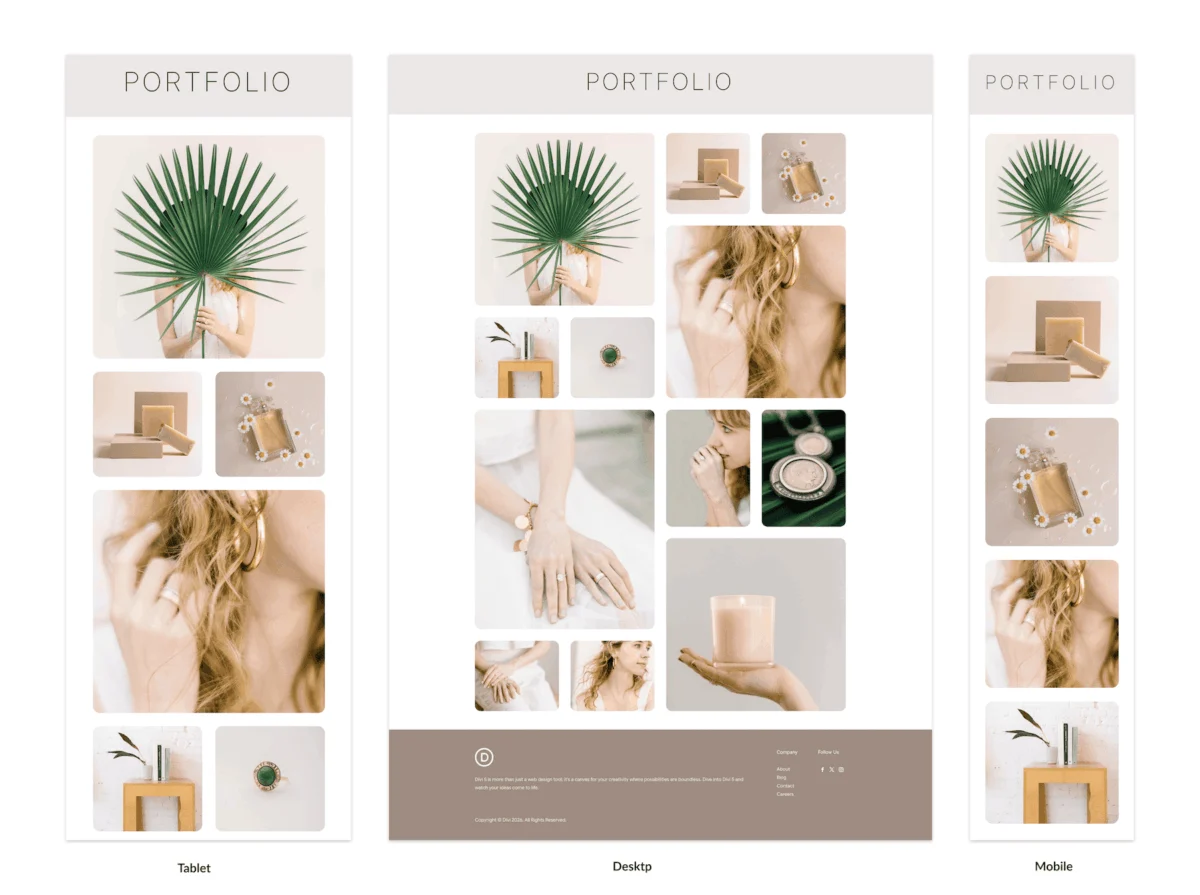
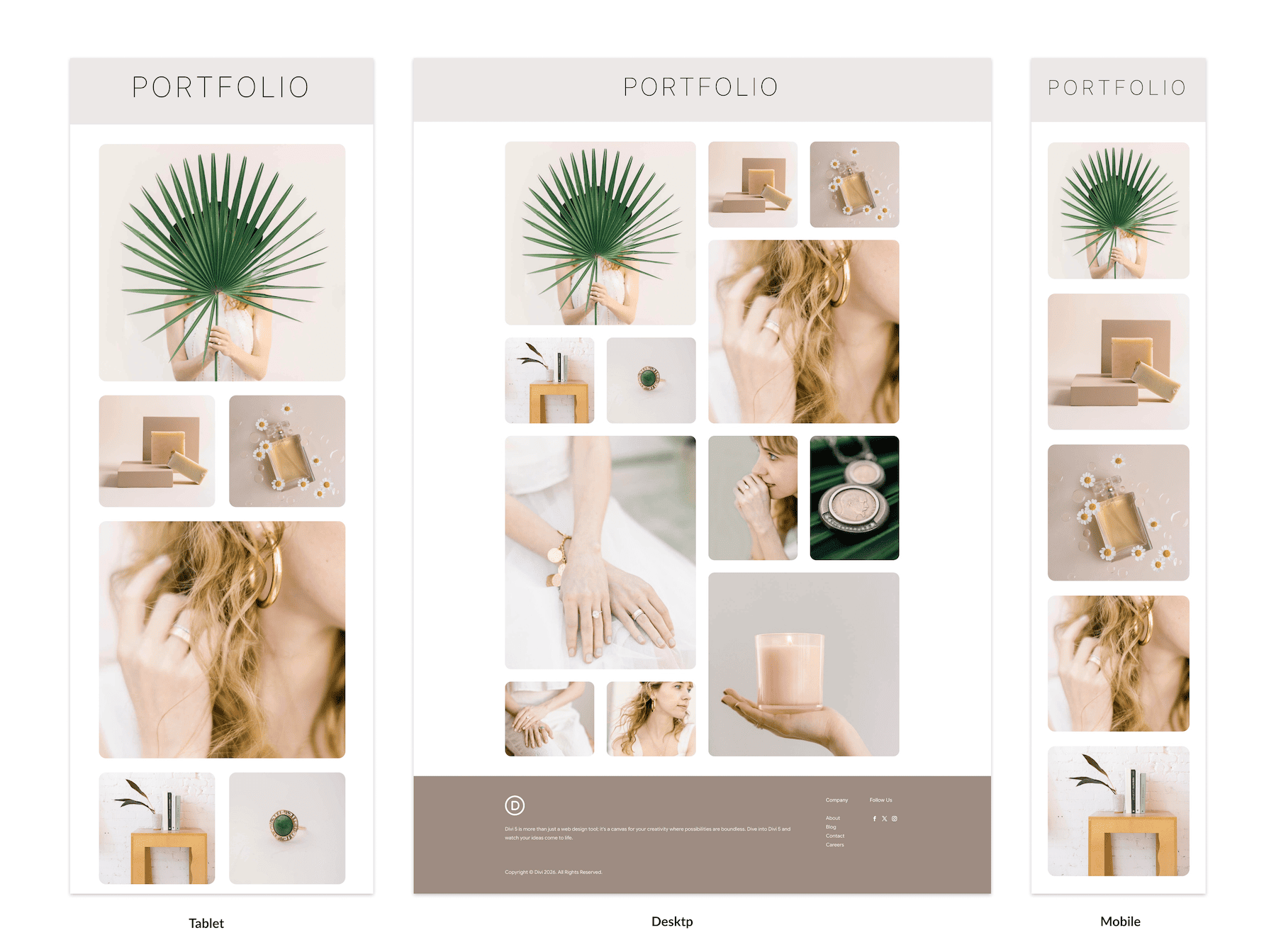
- Desktop (4 Columns): The baseline layout utilizes a four-column grid, allowing for the maximum complexity of the staggered mosaic.
- Tablet (2 Columns): As the screen width decreases, the layout shifts to a two-column configuration. Here, the feature tiles are adjusted to span the full width of the grid, while the smaller images are reorganized into pairs. The gaps are reduced to 20px to maintain visual density.
- Phone (1 Column): On mobile devices, the mosaic simplifies into a single-column vertical sequence. By resizing each feature tile to a single-column span and removing redundant row placements, the integrity of the image order is preserved, providing an optimal mobile experience.
Official Guidance: Best Practices for Grid Management
According to the development team behind Divi 5, the key to a bug-free grid is the careful management of inherited rules. When switching between breakpoints, it is common for developers to forget that an item might retain its "desktop-only" positioning.
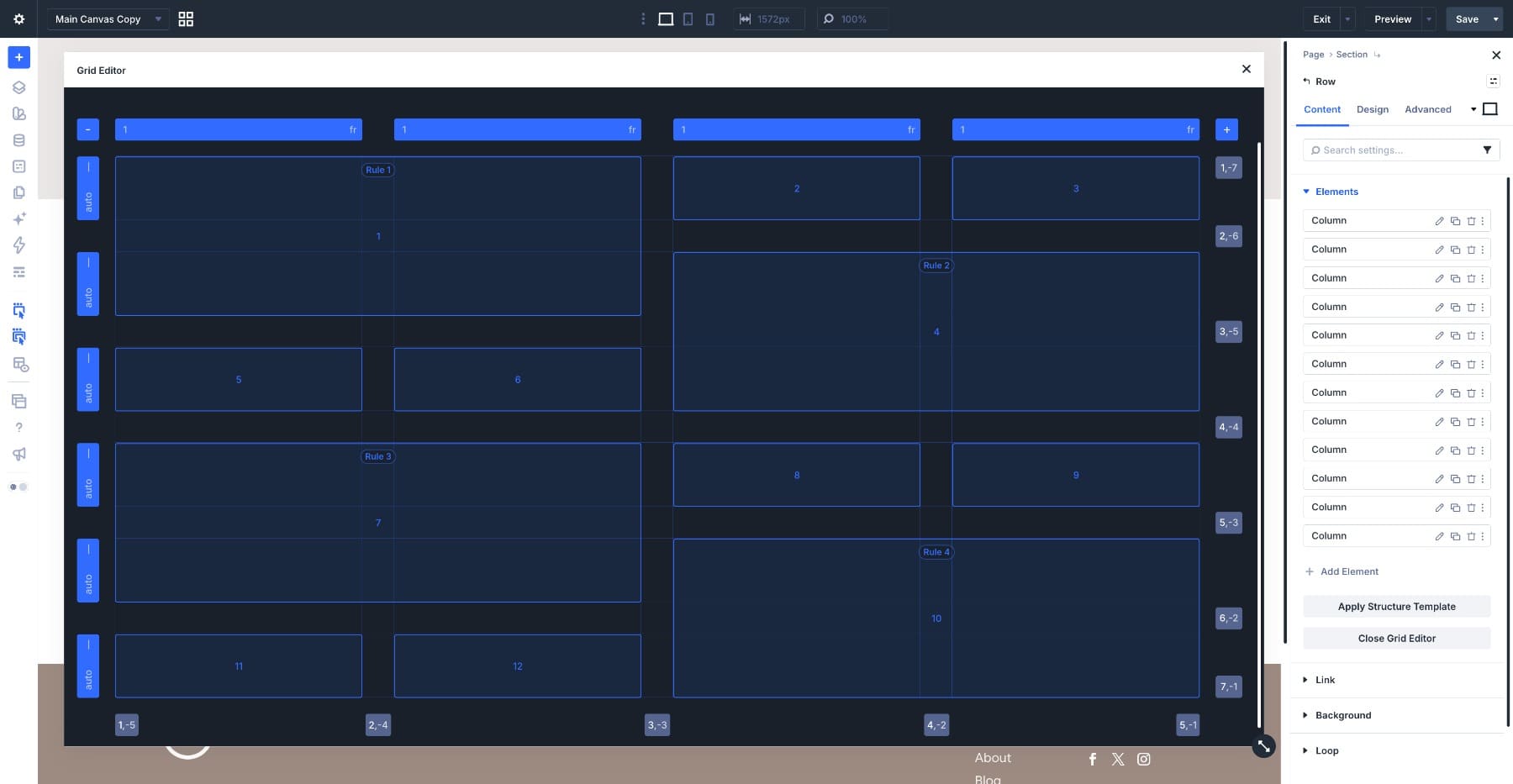
"The Grid Editor is designed to show you exactly where an item sits in the track system," notes the documentation. "If you see an item jumping outside your intended column bounds, it is almost always due to an inherited column-start or row-end value that hasn’t been overridden for that specific device."
Designers are encouraged to:
- Always verify the ‘Rule’ tags: Ensure each tile is following the intended placement rule for the current device.
- Prioritize ‘Object Position’: Since mobile screens crop images differently than desktop, re-centering the subject in the Image Module settings for each breakpoint is essential for professional quality.
- Audit for Overflow: Before publishing, drag the browser window to resize the viewport slowly. If a horizontal scrollbar appears, there is a grid item exceeding the defined tracks.
Implications: The Future of Modular Design
The implications of this workflow are significant for both agencies and independent creators. By separating the structure (the Row) from the content (the Image Modules), the design becomes inherently modular. If a client requests a change to the imagery of a portfolio, the designer can swap the images without ever needing to touch the layout rules.
Furthermore, this method democratizes high-end web design. Previously, creating such a complex, responsive layout would have required custom CSS classes, media queries, and extensive browser testing. Now, the visual interface serves as an abstraction layer that handles the underlying CSS Grid syntax automatically.
This "build once, adapt often" philosophy allows for a much faster production cycle. Whether you are building an editorial layout for a fashion blog, a high-impact product showcase, or a personal photography portfolio, the ability to control the spatial relationship of content across devices is a massive competitive advantage.
In conclusion, the modern responsive mosaic is no longer a puzzle of trial and error. Through the systematic use of the Divi 5 Grid Editor, you can ensure that your visual stories remain as impactful on a pocket-sized screen as they are on a desktop workstation. By adhering to the principles of consistent styling via presets and proactive breakpoint management, you create a robust, reusable foundation for all your future digital projects.