






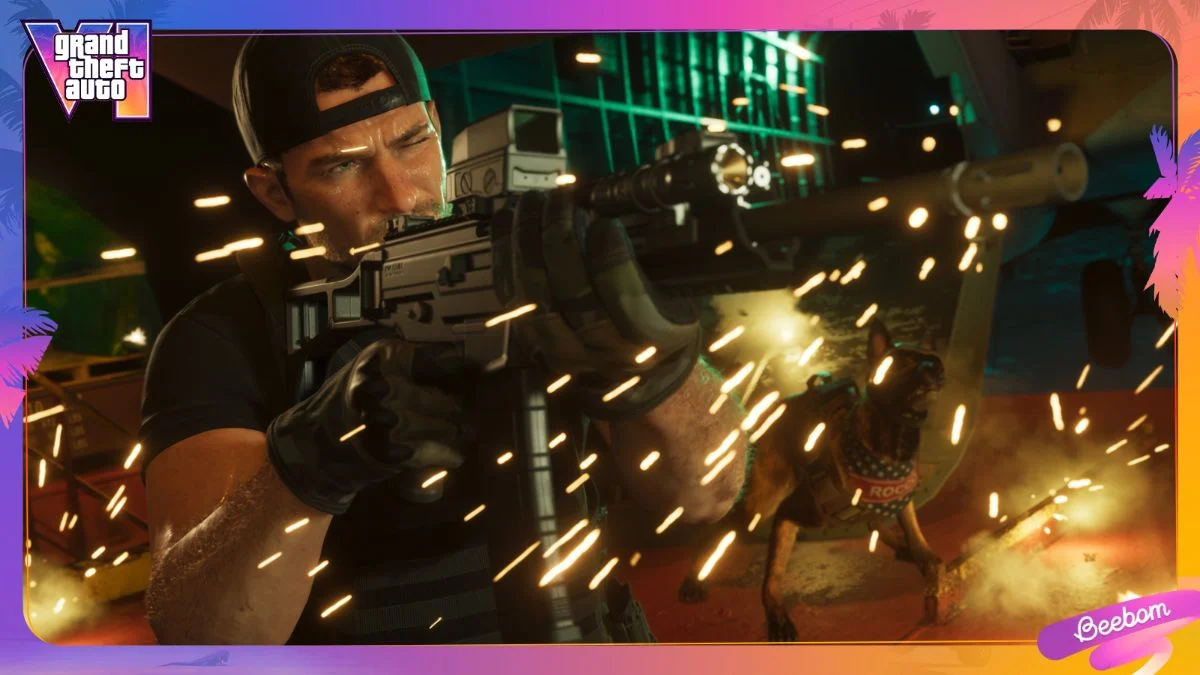
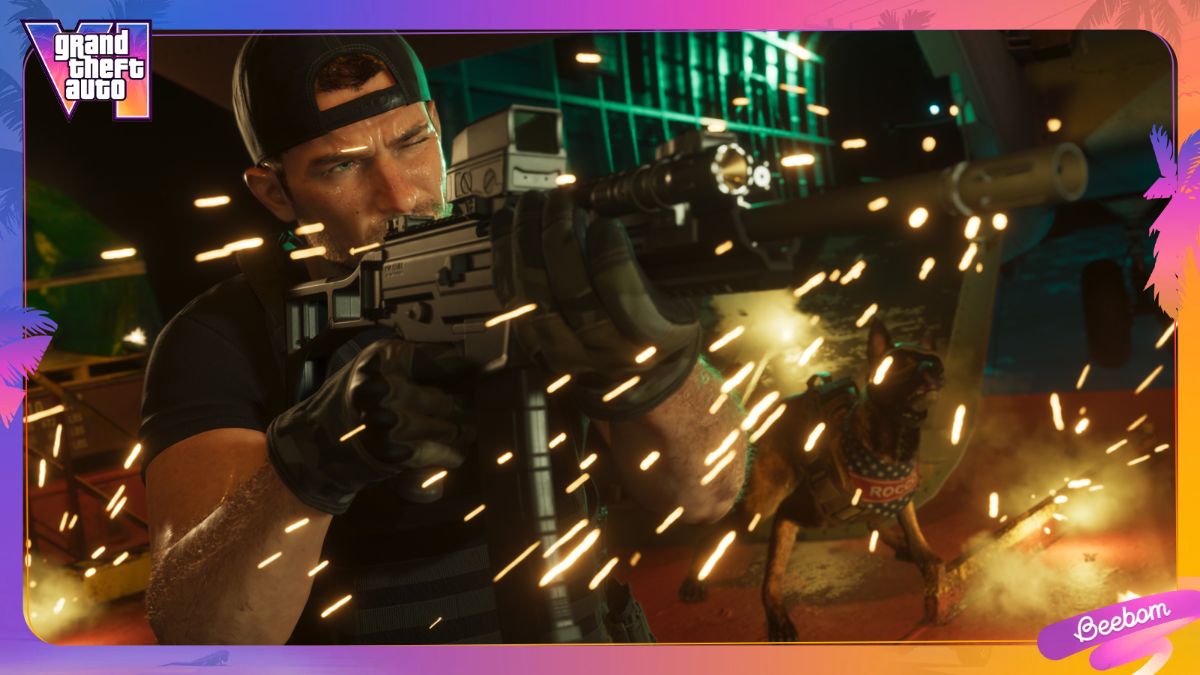
With Grand Theft Auto VI now available globally, millions of players are diving headfirst into the neon-soaked, sprawling expanse of modern-day Vice City. Rockstar Games’ latest open-world masterpiece represents a monumental leap forward in technical ambition, pushing contemporary hardware to its absolute limits. However, this unprecedented fidelity comes with a heavy computational cost.
While the console versions of the game run at a locked base frame rate, players navigating the dense urban environments and sweeping Everglades-inspired outskirts may encounter stuttering, frame drops, or input latency. To help you achieve the best possible balance between visual crispness and frame rate stability, we have compiled the definitive optimization guide for GTA 6 graphics settings on PlayStation 5 and Xbox Series X|S hardware.
The Technical Reality: Why GTA 6 Targets 30 FPS
Before diving into configuration tweaks, it is crucial to understand the architectural constraints underpinning GTA 6. Ahead of the game’s long-awaited release, Rockstar Games confirmed that the title officially targets a baseline 30 frames per second (FPS) on current-generation consoles.
Rather than compromising the game’s groundbreaking simulation systems, Rockstar elected to prioritize monumental world density, complex non-player character (NPC) artificial intelligence routines, advanced ray-traced global illumination, and high-fidelity environmental destruction. Consequently, there is no dedicated "Performance Mode" available in the console versions of GTA 6.
The Hardware Ceiling
Hopes that mid-generation hardware refreshes might unlock higher frame rates have also been tempered. Rockstar has clarified that even high-end hardware, such as the *PS5 Pro, is not powerful enough to run
GTA 6* at a native 60 FPS** while maintaining the developer’s intended graphical fidelity.
Because traditional console graphics menus lack the granular scalability found in PC titles—such as lowering shadow maps, view distance, or particle physics—changing settings will not magically double your frame rate to 60 FPS. Instead, the goal of tweaking your console display and accessibility settings is to eliminate micro-stutters, optimize display synchronization, and ensure a rock-solid, unwavering 30 FPS experience.
Optimized Settings Profiles for GTA 6
Depending on the condition of your console, its thermal performance, and your personal display capabilities, you can choose between two curated configuration profiles. These settings have been tested to minimize frame pacing issues while preserving the game’s atmospheric art direction.
Profile 1: Prioritizing Stability and Performance Consistency
If your console tends to run loud during intensive sessions, or if you are experiencing bothersome micro-stutters when driving at high speeds through densely populated urban districts, this profile is recommended. It minimizes demanding post-processing overhead while keeping the core image sharp.
| Graphics/Display Setting | Recommended Option |
|---|---|
| Resolution | Native or 1080p / 1440p |
| Enhanced PSSR Image Quality | Automatic (If supported by display/hardware) |
| VRR (Variable Refresh Rate) | Automatic |
| ALLM (Auto Low Latency Mode) | Off |
| HDR (High Dynamic Range) | Off |
| Player Status Effects Intensity | 3 |
| Hit Effects Intensity | 3 |
| Awareness Effects Intensity | 3 |
| Motion Blur Strength | 1 (Low) |
| Dismemberment | On |
| Blood and Gore Intensity | Low |
| Flashbang Effect | Bright (1) |
| Focus Trail Colorblind Mode | Off |
| Brightness Reduction | Off |
| High Contrast Shaders | Off |
Applying these tweaks reduces the processing load on your console’s GPU during chaotic firefights and crowded street scenes, ensuring that frame time spikes are kept to an absolute minimum.
Profile 2: Maximizing Visual Fidelity and Atmosphere
For players whose consoles are in optimal thermal condition (properly cleaned and well-ventilated) and who want to experience Vice City’s stunning lighting engine and material shaders at their highest potential, this profile maximizes immersion.
| Graphics/Display Setting | Recommended Option |
|---|---|
| Resolution | Native or 1440p |
| Enhanced PSSR Image Quality | Automatic (If supported) |
| VRR (Variable Refresh Rate) | Automatic |
| ALLM (Auto Low Latency Mode) | Off |
| HDR (High Dynamic Range) | On |
| Player Status Effects Intensity | 5 (Max) |
| Hit Effects Intensity | 5 (Max) |
| Awareness Effects Intensity | 5 (Max) |
| Motion Blur Strength | 1 |
| Dismemberment | On |
| Blood and Gore Intensity | Low |
| Flashbang Effect | Bright (1) |
| Focus Trail Colorblind Mode | Off |
| Brightness Reduction | On |
| High Contrast Shaders | On |
Enabling HDR and elevating visual feedback intensifiers brings out the vibrant neon glow of Vice City’s nightlife, contrasting sharply against the blinding glare of the southern sun reflecting off wet pavement.
Breaking Down Key Display and Accessibility Tweaks
Understanding why certain settings are configured a specific way can help you tailor the experience to your own home theater setup.
1. The Role of VRR (Variable Refresh Rate)
If your television or monitor supports HDMI 2.1 and Variable Refresh Rate, leaving this option set to Automatic is vital. Because GTA 6 targets a 30 FPS cap, minor dips into the high 20s during heavy physics calculations can cause noticeable judder on fixed-refresh displays. VRR dynamically matches your display’s refresh rate to the game’s output frame rate, effectively smoothing over minor performance dips without introducing input lag.
2. HDR and Brightness Management
While High Dynamic Range (HDR) makes colors pop and deepens black levels, poorly calibrated HDR can crush shadow details in dark alleys or blow out highlights during daytime sequences. If your display struggles with peak luminance, turning HDR off (as suggested in Profile 1) can yield a more consistent, predictable contrast ratio. Conversely, using the Brightness Reduction and High Contrast Shaders in Profile 2 can assist players looking for maximum clarity during high-speed pursuits.
3. Motion Blur and Particle Intensity
Rockstar’s implementation of motion blur helps mask the transition between frames at 30 FPS, making camera pans look naturally fluid rather than choppy. Setting Motion Blur Strength to 1 strikes the ideal sweet spot—retaining enough blur to smooth out motion without smearing fine texture details when you look around quickly. Similarly, managing effect intensities keeps particle smoke, explosions, and weather elements from overwhelming the GPU pipeline.
Community Impact and The Road Ahead
The launch of GTA 6 has sparked intense global discussions across gaming forums, social media channels, and technical analysis outlets regarding the state of console performance in the modern era.
While a vocal segment of the enthusiast community initially expressed disappointment over the absence of a 60 FPS mode, many players are coming to appreciate the artistic dividends paid by Rockstar’s decision. By anchoring the game at 30 FPS, the developers have delivered a simulated world of breathtaking density—featuring unprecedented pedestrian behaviors, complex traffic simulations, and hyper-realistic weather transitions that would be fundamentally impossible under a strict 60 FPS processing budget.
As players continue to explore every corner of Leonida, technical communities are closely monitoring post-launch patches. Early adopters experiencing unexpected graphical glitches, texture pop-in, or hardware-specific bugs are encouraged to check dedicated community bug trackers to see if patches or temporary workarounds are available.
Have Your Say
Are you exploring Vice City on a standard PlayStation 5, an Xbox Series X, or a high-end display with VRR enabled? Have you encountered any frustrating performance hiccups, or have these settings helped smooth out your journey through Leonida? Let us know your experiences and hardware setups in the comments below!