




Published: April 7, 2026 | Estimated Reading Time: 12 minutes
For years, the professional web development and content creation ecosystem has been plagued by a "context-switching" tax. To move a single article or landing page from conception to publication, teams have historically been forced to shuttle back and forth between the WordPress dashboard, external project management tools like Trello or Asana, design collaboration platforms like Figma, and endless, fragmented email or Slack threads. This fragmented workflow often resulted in lost feedback, misaligned expectations, and an inefficient editorial cycle.
With the recent introduction of the native Notes feature, WordPress has taken a significant step toward centralizing the editorial experience. By bringing contextual, block-level communication directly into the Gutenberg editor, WordPress is effectively eliminating the need for third-party feedback tools. This article explores the mechanics, implications, and technical implementation of this transformative feature.

The Evolution of Editorial Workflow: The Need for In-Editor Context
The primary pain point in modern web production is the loss of context. When a designer or editor leaves feedback in a Google Doc, the developer must manually translate that critique into the WordPress block structure. When a stakeholder leaves a comment on a screenshot, the specific nuances of layout, padding, and block settings are often lost in translation.
The new WordPress Notes feature addresses this by anchoring feedback to specific blocks. Whether you are reviewing a paragraph, an image gallery, or a complex custom layout, the feedback now lives exactly where the work is performed. This isn’t merely a convenience; it is a fundamental shift in how teams manage the "last mile" of content production.
Anatomy of the WordPress Notes Feature
At its core, the Notes feature functions as an integrated communication layer within the Gutenberg block editor. Unlike static comment systems, these notes are dynamic and context-aware.

How the Interface Works
When a user attaches a note to a block, it is not just a text string; it is a metadata-linked communication.
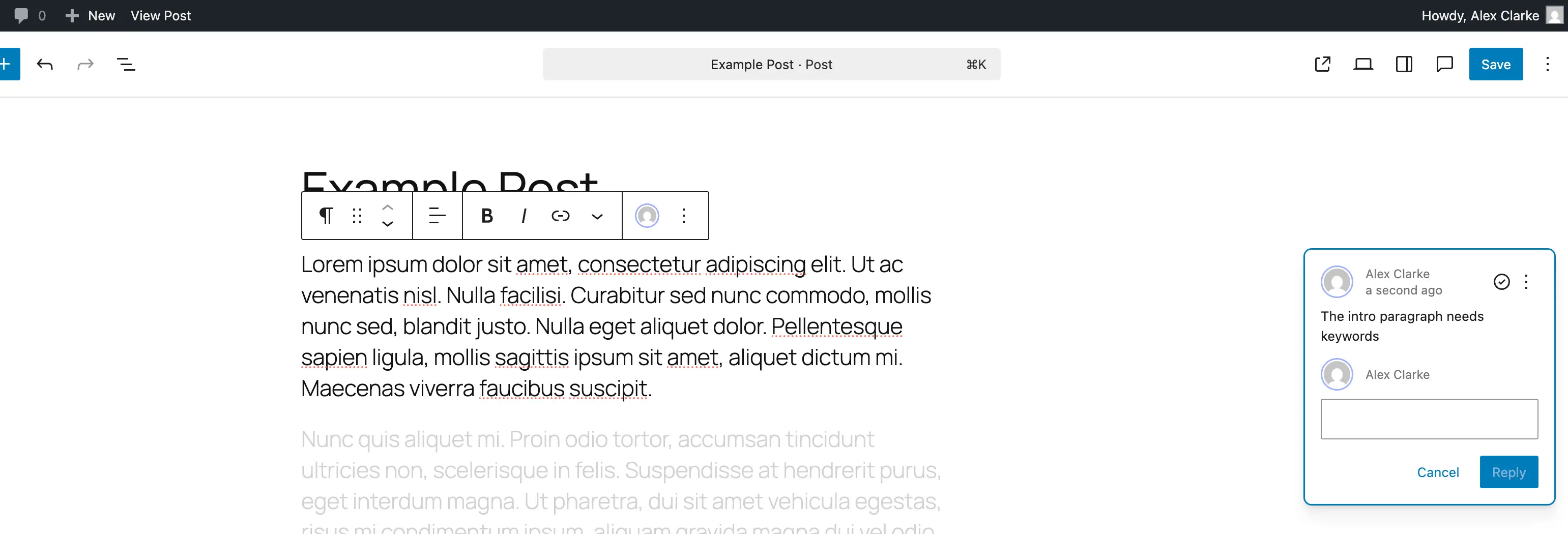
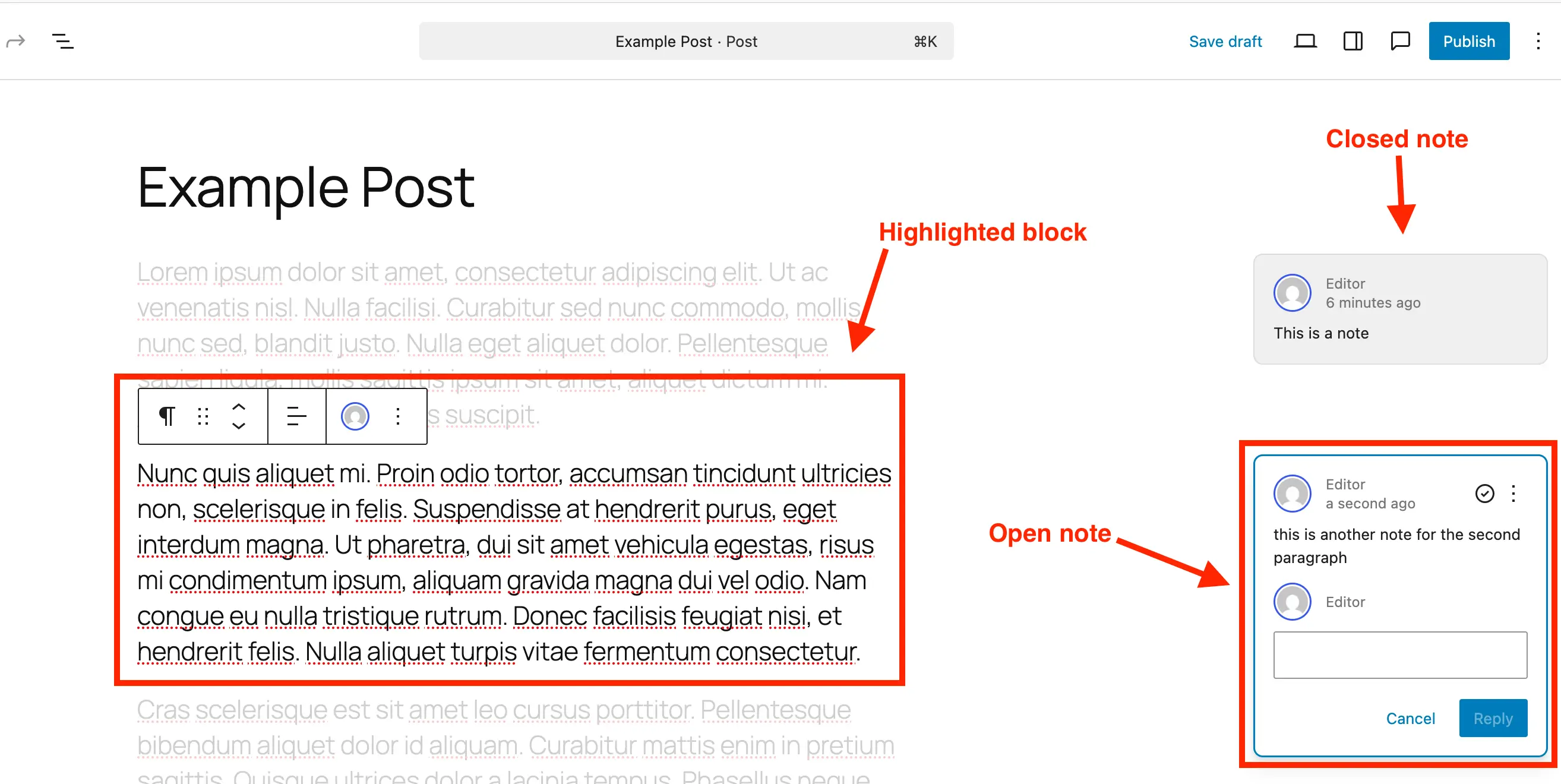
- Visual Focus: When a user selects a specific note from the sidebar, the editor automatically highlights the corresponding block while dimming the surrounding elements. This "focus mode" ensures that editors are looking exactly at the element under discussion.
- Threaded Conversations: Each note supports threaded replies, allowing for nuanced back-and-forth discussions without cluttering the main content area.
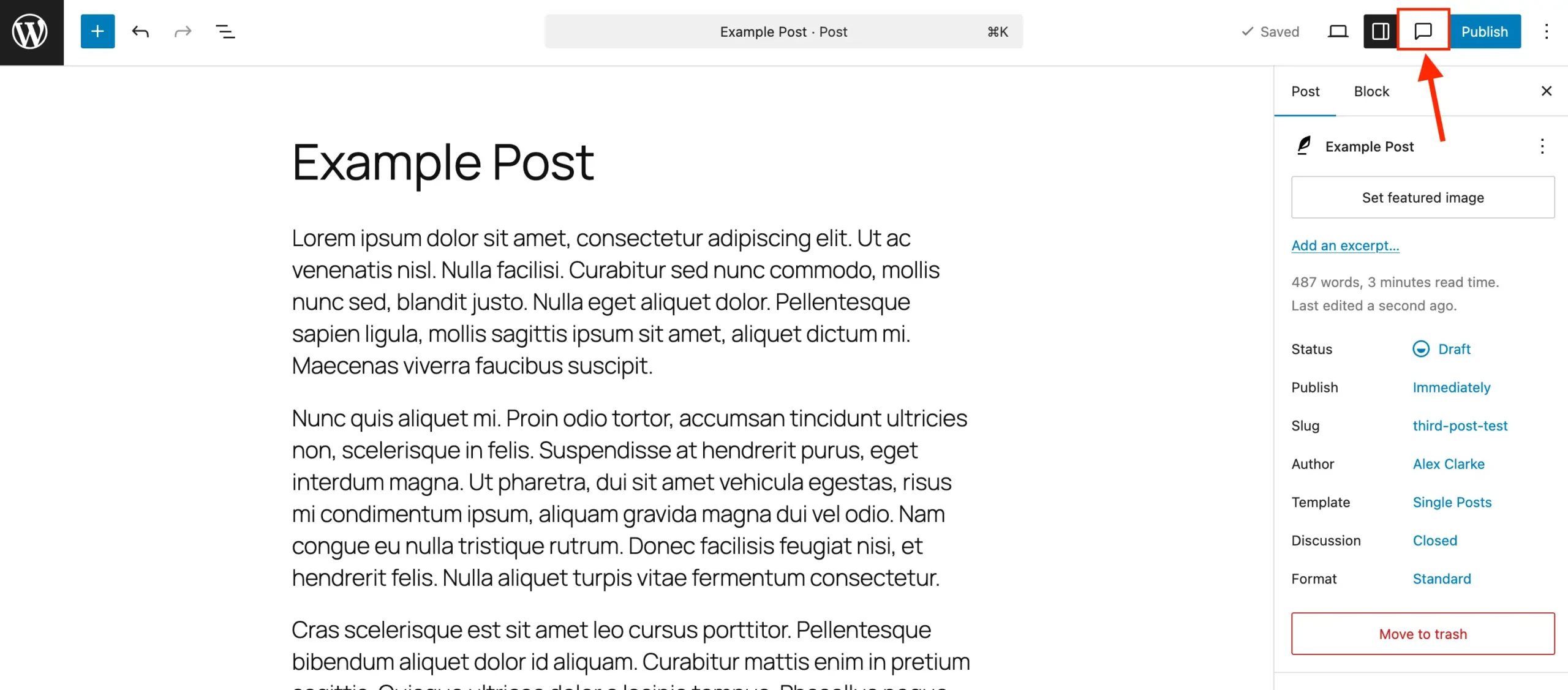
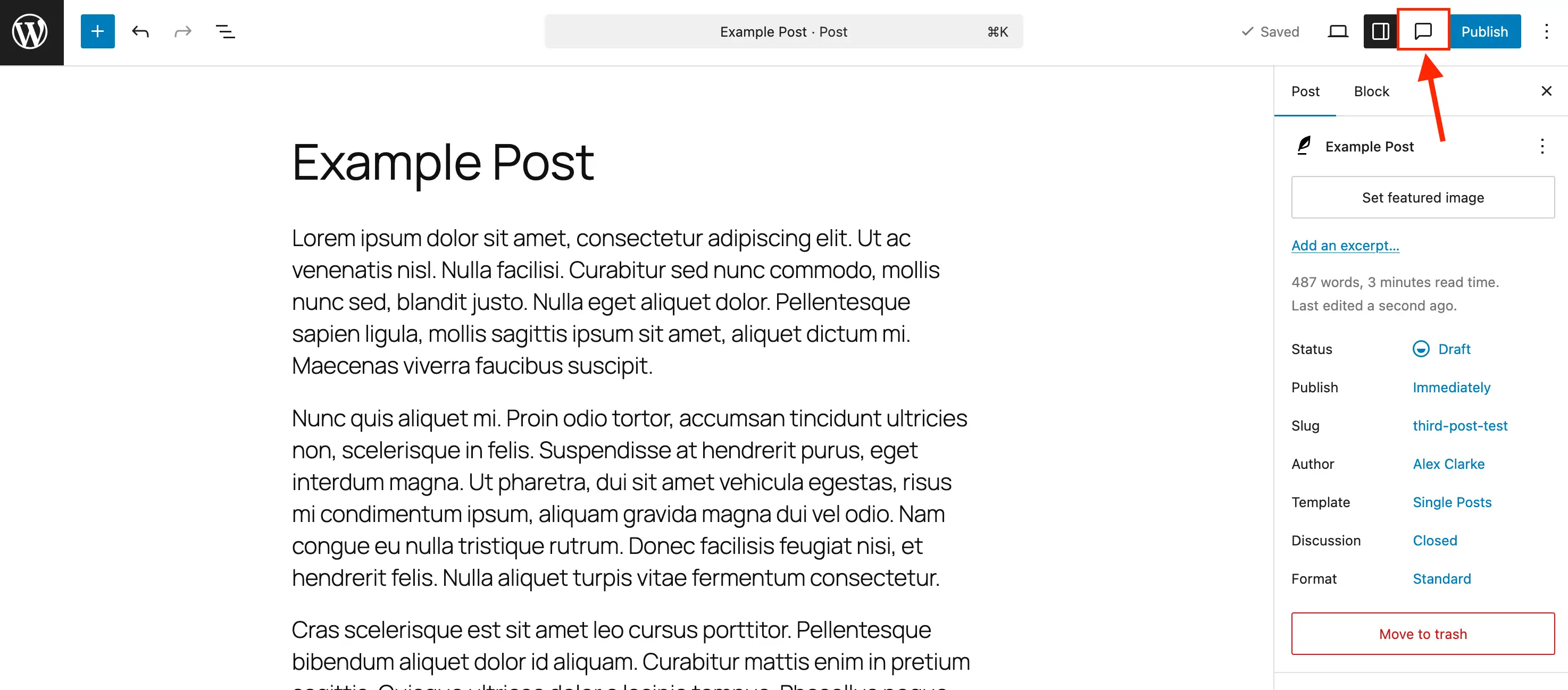
- Centralized Management: While notes are pinned to specific blocks, a global "Notes" icon in the top toolbar opens a unified panel. This allows stakeholders to see a bird’s-eye view of all pending feedback across the entire document.
Step-by-Step: Implementing Feedback in Your Workflow
For teams looking to adopt this feature, the process is designed for minimal friction.
1. Initiating the Conversation
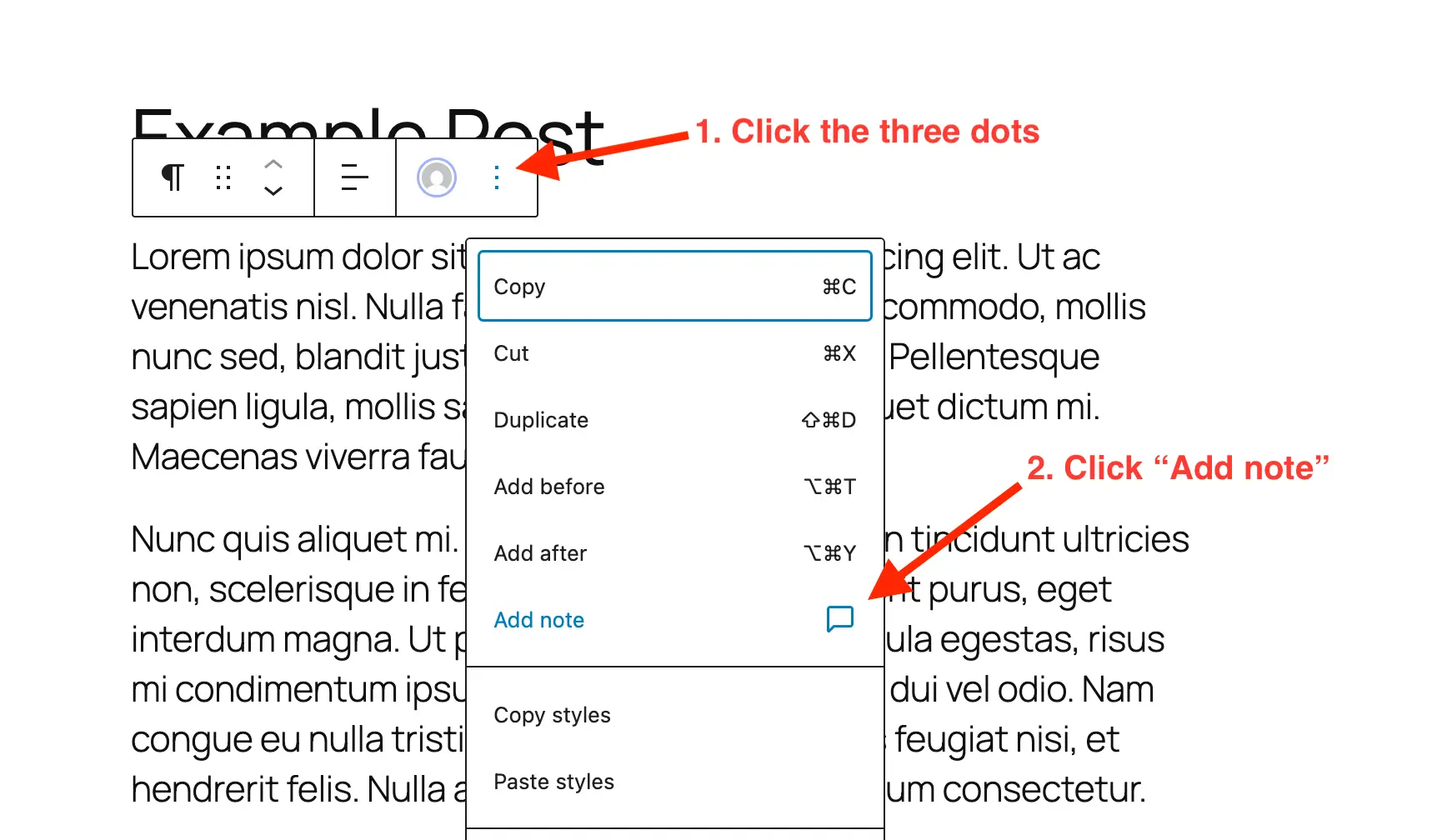
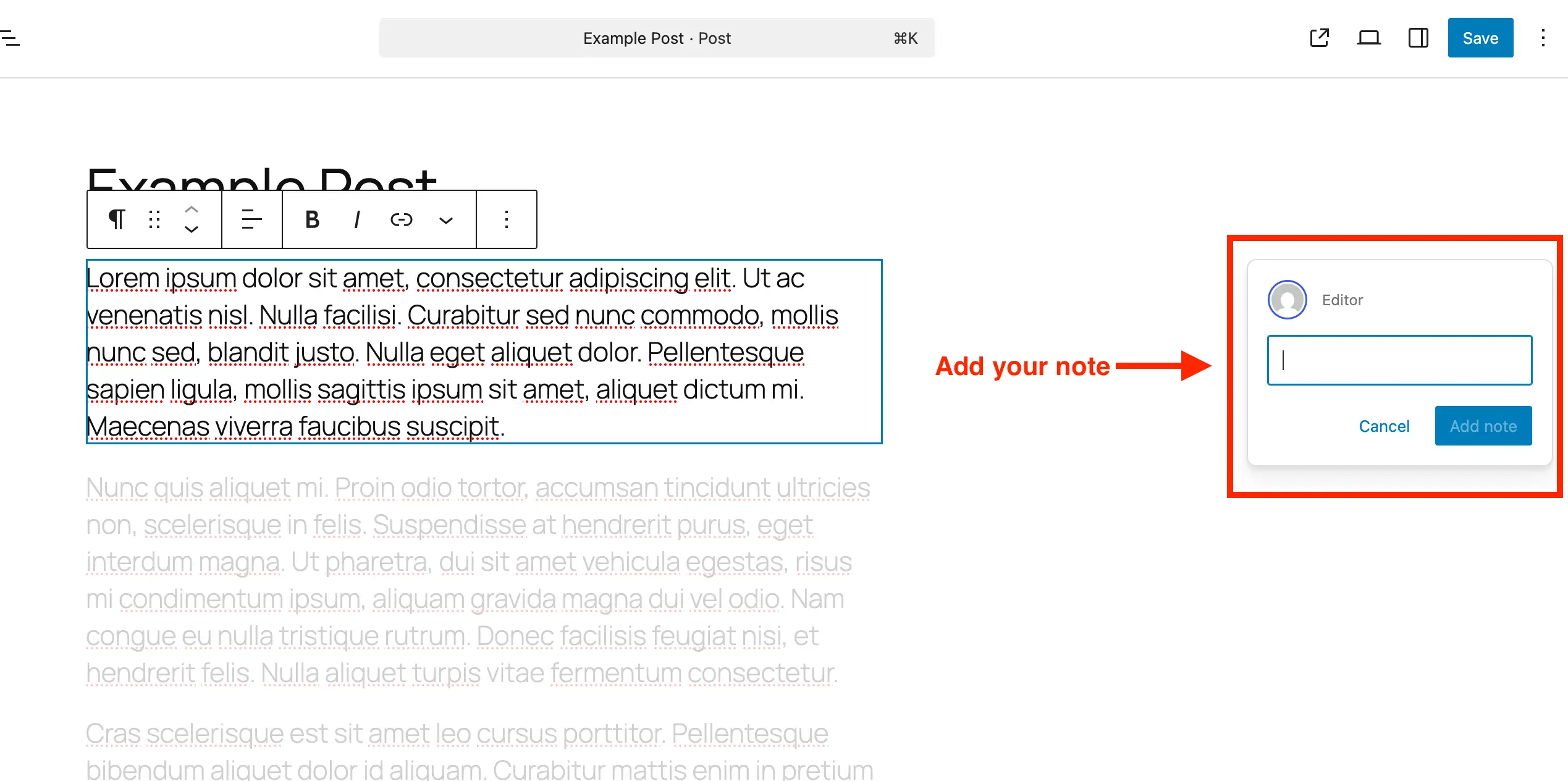
To leave feedback, navigate to the desired post or page. Select the target block, access the "three-dot" options menu, and select Add Note. The UI immediately prompts the user to input their feedback in a dedicated side panel that expands as the user types, accommodating everything from short punchy corrections to detailed design instructions.
2. Review and Resolution
The lifecycle of a note is managed through the Notes side panel.
- Replying: Responding to a note keeps the conversation tethered to the specific block, creating a clean audit trail.
- Resolution: Once a task is complete, clicking the "Resolve" (check icon) button removes the visual noise from the editor while retaining the history in the backend for future reference.
- The Cleanup Process: To keep the database lean—a critical consideration for high-traffic sites with thousands of posts—administrators should periodically delete fully resolved notes. This prevents unnecessary database bloat while maintaining a tidy editorial environment.
Technical Integration: Enabling Notes for Custom Post Types
While WordPress enables Notes by default for standard posts and pages, many enterprise-level implementations rely on Custom Post Types (CPTs). Developers can easily extend the Notes functionality to these types, ensuring consistency across a site’s architecture.
Enabling via Plugin
For users of tools like the Post Types Unlimited plugin, enabling Notes is as simple as checking a box in the "Supports" section of the CPT settings.
Manual Configuration
For developers managing their own theme or plugin code, adding support requires updating the supports argument during the register_post_type function call:
register_post_type( 'book', [
    'label' => 'Books',
    'public' => true,
    'supports' => [
        'title',
        'editor' => [ 'notes' => true ], // Enables the feature
        'author',
    ],
] );
If you need to inject this feature into an existing site, use the add_post_type_support hook within an init action to merge the feature into the existing editor configuration without overwriting other established settings.
Implications for Agencies and Enterprise Teams
The shift toward native in-editor notes has profound implications for the professional services industry.
1. Reduced Infrastructure Overhead
Agencies often pay for premium seats on external proofing platforms. By moving this workflow into WordPress, agencies can reduce their software stack, saving costs and simplifying the login process for clients. Clients no longer need to learn a new tool—they simply log into their WordPress dashboard.
2. Accelerated Feedback Cycles
The "ping-pong" effect—where an editor emails a request, the developer logs into WordPress, makes a change, and emails back—is replaced by a real-time, synchronous environment. This reduction in latency can shave hours, or even days, off the production timeline for complex web projects.
3. Improved Quality Assurance
Because feedback is anchored to specific blocks, the probability of "missed" instructions decreases significantly. Developers can be confident that the change requested for a specific image block is exactly what is intended, as the note is physically attached to that instance of the block.
Strategic Considerations: When to Use (and When to Disable)
While the feature is powerful, it is not a "one size fits all" solution for every site.
- For High-Volume Newsrooms: The ability to track corrections and edits within the editor is invaluable. It serves as a persistent record of the editorial process, which can be useful for compliance or internal accountability.
- For Simple Personal Blogs: If the site owner is the only user, the feature might feel like unnecessary clutter. In such cases, developers can disable the feature globally or by post type using a simple filter:
add_filter( 'register_post_type_args', function( $args, $post_type )
    if ( in_array( $post_type, [ 'post', 'page' ] ) )
        unset( $args['supports']['editor']['notes'] );

    return $args;
, 10, 2 );
Conclusion: A New Standard for WordPress Collaboration
The introduction of native Notes in the WordPress editor represents more than just a new UI element; it signifies a maturation of the platform as a collaborative, enterprise-grade publishing environment. By consolidating the feedback loop, WordPress has empowered teams to move faster, communicate more clearly, and maintain the integrity of their content design.
As the block editor continues to evolve, we expect these collaborative features to become the backbone of the WordPress experience. For now, teams that embrace this workflow early will find themselves with a distinct competitive advantage: a more focused, organized, and efficient publishing pipeline that keeps the work where it belongs—inside the editor.
Whether you are a freelancer managing a single client or an enterprise team handling a massive content repository, the tools to streamline your process are now literally at your fingertips. It is time to move beyond the email thread and into the future of unified content production.