








You have optimized your images, installed a robust caching plugin, minimized your CSS and JavaScript files, and perhaps even upgraded to a lightning-fast managed hosting plan. Yet, when you test your WordPress site, there remains an elusive latency—a distinct lag before the server even begins to output the first byte of HTML.
When front-end optimizations fail to yield the desired speed, the culprit is often lurking deep within the architecture of your content management system, entirely bypassed by standard performance audits. Specifically, the bottleneck is frequently found inside the wp_options table of your MySQL or MariaDB database.
For years, this critical database table has been a blind spot for site administrators. Left unchecked, it accumulates "digital debris" from uninstalled plugins, transient caches, and misconfigured extensions, quietly dragging down server response times on every single page load.
Main Facts: Decoding the wp_options Autoload Mechanism
To understand why database bloat impacts performance so severely, one must examine how WordPress handles configuration settings.
The wp_options table serves as the central repository for site settings, storing everything from your site title and active themes to plugin configurations and transient data. Each row contains an option name (option_name), its corresponding value (option_value), and an autoload flag.
By design, WordPress is engineered for efficiency out of the box. Upon receiving an HTTP request, the CMS does not query the database individually for every single setting it needs. Instead, it aggregates and loads every row marked for autoloading into memory in a single batch query. When a persistent object cache (such as Redis or Memcached) is active, this data is pulled straight from memory; otherwise, it hits the database.
While this batch-loading technique reduces the total number of database queries required to render a page, it introduces a dangerous vulnerability: orphan data. When a site owner installs, tests, and subsequently deletes a plugin, the extension’s settings rows frequently remain stranded inside wp_options, with their autoload flags permanently toggled to "yes" or its modern equivalent.
Consequently, WordPress continues to haul this dead weight into server memory on every front-end request, back-end admin navigation, and background AJAX call. Over years of operation, an active site can see its autoloaded data expand from a lean few hundred kilobytes into bloated megabytes of obsolete code.
Chronology and Evolution: Modern WordPress Updates and Database Guardrails
The issue of autoload bloat is not new, but the WordPress core team has progressively introduced structural changes to mitigate its impact on server performance.

The Pre-6.6 Era: Binary Flags and Unchecked Growth
For much of WordPress’s history, the autoload column was strictly binary: options were flagged as either yes or no. If a developer programmed a plugin to autoload massive arrays of data, WordPress complied without question. Site administrators had little visibility into the cumulative weight of these options unless they manually executed raw SQL queries or relied on third-party database optimization tools.
WordPress 6.6 and Beyond: Granular Control and Dynamic Autoloading
Recognizing the escalating scale of database bloat across the ecosystem, the release of WordPress 6.6 introduced a fundamental shift in the Options API. The autoload column was updated to support a more nuanced range of states: on, off, auto, auto-on, and auto-off. These semantic values allow WordPress to dynamically calculate whether an option genuinely requires preloading based on usage patterns, while maintaining backward compatibility with legacy yes/no declarations.
Simultaneously, core developers implemented two critical guardrails to protect sites from self-inflicted slowdowns:
- Size Thresholds: Options larger than 150,000 bytes are now automatically stripped of their autoload status, preventing massive serialized arrays from clogging the initial memory load.
- Site Health Warnings: The built-in Site Health tool (
Tools > Site Health) was updated to trigger a critical performance warning whenever a site’s total autoloaded data surpasses the 800 KB threshold.
Supporting Data: Auditing and Measuring Your Database Bloat
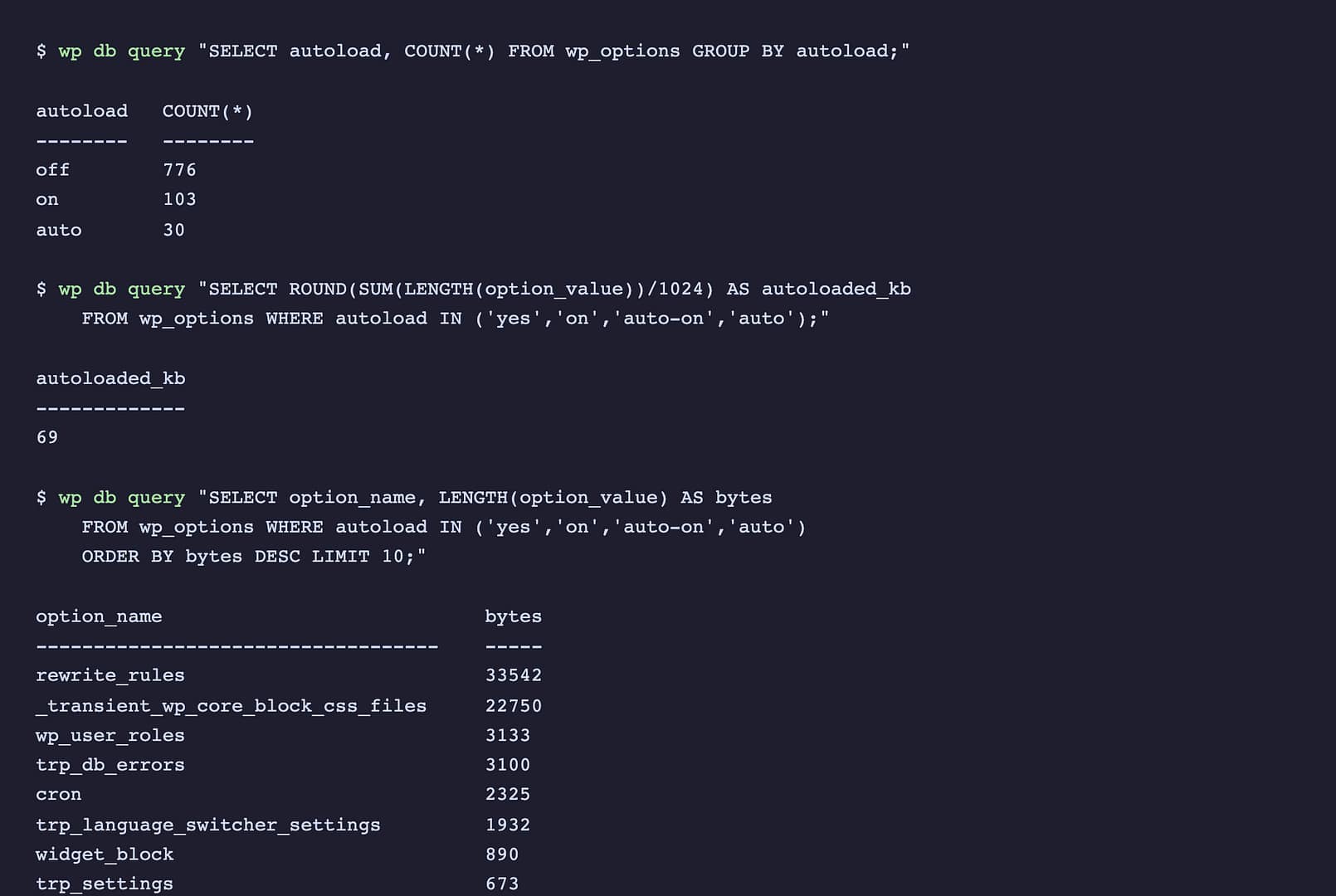
Diagnosing database bloat requires moving beyond assumptions and gathering hard metrics. Site administrators can execute two safe, read-only SQL queries via phpMyAdmin, Adminer, or a command-line interface to evaluate their database’s health.
Step 1: Calculate Total Autoloaded Size
To determine the exact footprint of the data WordPress preloads on every request, administrators can execute the following query:
SELECT ROUND(SUM(LENGTH(option_value)) / 1024) AS autoloaded_kb
FROM wp_options
WHERE autoload IN ('yes', 'on', 'auto-on', 'auto');
Note: If your WordPress installation uses a custom table prefix defined in your wp-config.php file, remember to replace wp_options with your specific table name (e.g., abc123_options).
Benchmarking Your Results:
- Under 100 KB: Exceptionally lean. Your database is in optimal condition.
- 100 KB to 500 KB: Normal for a standard business website with an average complement of active plugins.
- 500 KB to 800 KB: Approaching the danger zone. Performance degradation may be noticeable during traffic spikes.
- Over 800 KB: Critical bloat. This triggers official Site Health warnings and demands immediate intervention.
Step 2: Identify the Largest Individual Offenders
To pinpoint precisely which plugins or core features are consuming the lion’s share of your memory, run this diagnostic query:
SELECT option_name, LENGTH(option_value) AS bytes
FROM wp_options
WHERE autoload IN ('yes', 'on', 'auto-on', 'auto')
ORDER BY bytes DESC
LIMIT 10;
Review the output carefully. Option names usually contain recognizable prefixes associated with specific plugins or themes. While core elements like rewrite_rules will naturally occupy a prominent position, oversized options tied to defunct or poorly coded plugins are prime targets for optimization.
Official Responses and Remediation Strategies
When dealing with database optimization, precision is paramount. The WordPress core performance team stresses that indiscriminate data deletion can lead to catastrophic site failures.
Best Practices for Cleanup
Before executing any write operations on a database, administrators must adhere to the golden rule of database management: take a complete, verified backup.
Once a backup is secured, remediation generally takes two forms:
- Flipping Autoload Status: For active plugins that generate moderately large options which do not strictly need to be present on every page load, you can safely disable autoloading:
UPDATE wp_options SET autoload = 'no' WHERE option_name = 'target_option_name'; - Deleting Orphaned Rows: If an option belongs to a plugin that was uninstalled years ago and is verified to be dead weight, you can remove the row entirely:
DELETE FROM wp_options WHERE option_name = 'defunct_plugin_option';
Caution: Never utilize wildcard parameters (such as LIKE) within UPDATE or DELETE statements on the wp_options table. A single errant string can corrupt hundreds of vital configuration rows, instantly rendering a site inaccessible.
Implications: What Kind of Speedup Can You Honestly Expect?
Managing expectations is crucial when undertaking database hygiene.
If your autoloaded data sits at a modest 200 KB, trimming it down will yield microsecond improvements that are virtually imperceptible to human users. However, for legacy sites carrying several megabytes of accumulated plugin residue, the performance dividends are tangible and far-reaching.
Because autoloaded options are fetched on every execution lifecycle of WordPress, cleaning the wp_options table accelerates:
- Front-End Page Generation: Reducing Time to First Byte (TTFB) for visitors.
- AJAX and REST API Requests: Speeding up background scripts and dynamic UI updates.
- The WordPress Dashboard: Admin screens are heavily reliant on database queries and cannot be cached via traditional page-caching mechanisms. A leaner database makes the entire backend noticeably snappier.
Ultimately, cleaning up autoloaded options is akin to cleaning out a long-neglected storage room: satisfying, structurally necessary, and deeply beneficial for long-term maintenance. Combined with proper front-end asset management and robust caching, database hygiene ensures your WordPress site remains fast, scalable, and resilient for years to come.