







Main Facts
Dealing with Microsoft Outlook error messages such as "Outlook cannot open your data file" or facing sudden missing folders and unreadable emails usually points to a single primary culprit: a corrupted Personal Storage Table (.pst) file. Because PST files store a local copy of emails, calendar items, and attachments, file corruption can severely disrupt daily operations for corporate professionals and individual users alike.
To combat this, Microsoft bundles a built-in utility known as the Inbox Repair Tool, or SCANPST.exe, directly with standard Outlook installations. While this native utility is the default first line of defense, it is not infallible. When SCANPST.exe fails, crashes, or proves incapable of handling severe corruption, users must turn to specialized third-party solutions, such as Stellar Repair for Outlook, or leverage automated cloud-based repair alternatives.

This comprehensive technical guide outlines the exact procedures for safely backing up your data, locating and operating the ScanPST utility, deploying third-party recovery software, and implementing proactive measures to prevent future mailbox corruption.
Chronology: The Evolution of Outlook Data Management and Troubleshooting
1. The Proliferation of Local Storage in Email
Since the early iterations of desktop email clients, Microsoft Outlook has relied heavily on local data files to manage user mailboxes. While Exchange servers and cloud-based mailboxes (like Microsoft 365) have shifted reliance toward online storage, millions of users still depend on PST files for archiving, local mailbox management, and offline access.

2. The Introduction of SCANPST.exe
As PST files grew larger and more prone to corruption—often driven by unexpected application crashes, system power outages, or oversized files exceeding older architectural limits—Microsoft introduced the Inbox Repair Tool (SCANPST.exe). Designed to scan the internal structures of a PST file, detect structural anomalies, and rebuild corrupted indexes, it became the standard troubleshooting tool for IT helpdesks.
3. The Rise of Advanced Third-Party Recovery Solutions
As PST file sizes expanded (often swelling past tens of gigabytes) and corruption scenarios became more complex, the limitations of SCANPST.exe became apparent. Built-in tools frequently stalled or failed on heavily damaged files. Consequently, specialized third-party data recovery software—such as Stellar Repair for Outlook—emerged, offering robust scanning algorithms, deep file previews, and multi-format export capabilities that far outstripped native utilities.
Supporting Data: Understanding PST Corruption and Recovery Vectors
File corruption in Outlook data files typically occurs due to several common triggers:
- Abrupt Shutdowns: Force-closing Outlook while it is actively writing data to the PST file can break the file header or internal b-trees.
- Network Storage Issues: Storing PST files on network shares rather than local drives significantly increases the risk of corruption due to latency or dropped packets during read/write operations.
- File Size Limitations: Older Unicode PST formats theoretically support up to 50GB or more, but performance degrades drastically as files approach these thresholds, increasing susceptibility to logical errors.
- Faulty Add-ins: Third-party Outlook add-ins can occasionally lock data files, conflict with background synchronization, or introduce synchronization errors that corrupt mailbox architecture.
Comparative Recovery Options
| Feature / Utility | Microsoft ScanPST (SCANPST.exe) |
Stellar Repair for Outlook (Downloadable) | Stellar Free Online PST Repair |
|---|---|---|---|
| Cost | Free (Bundled with Office) | Paid (Free preview & <500MB fix) | Free (Web-based up to 500MB) |
| Reliability | Moderate (Often fails on heavy corruption) | High (Advanced scanning algorithms) | High (Cloud-based automated processing) |
| File Size Limit | None strictly enforced, but struggles with large files | Effectively unlimited | 500MB threshold for free tier |
| Export Options | Direct repair in place | PST, MSG, EML, RTF, HTML, PDF | Downloadable repaired PST |
| Privacy / Security | Runs locally on system | Runs completely offline locally | Secure web connection / automated |
Step-by-Step Technical Guide
Phase 1: Securing Your Data via Manual Backups
Before initiating any repair process—whether using Microsoft’s native tool or third-party software—it is critical to create an independent backup copy of the damaged PST file. While SCANPST.exe attempts to make an automated backup, manual duplication ensures you have a pristine, unmodified fallback.
- Locate your PST file path: Open Outlook, navigate to File > Account Settings > Account Settings, select the Data Files tab, and note the folder location of your primary PST file.
- Close Outlook entirely: Ensure no background Outlook processes are running via the Windows Task Manager.
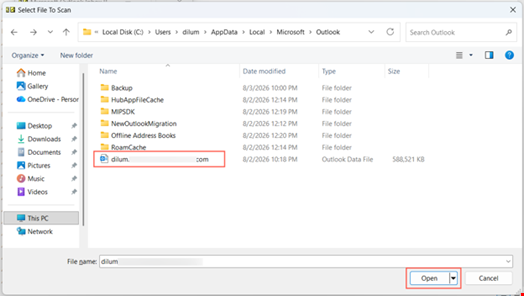
- Copy the file: Navigate to the folder directory (commonly found under
C:Users[your_username]AppDataLocalMicrosoftOutlookor within your Documents folder) and create a duplicate copy (.bakor manual copy) in a separate secure directory.
Phase 2: Locating and Running Outlook’s ScanPST Tool
Microsoft hides the Inbox Repair Tool deep within the Office installation directories. Follow these steps to execute it properly:
- Fully exit Outlook. Verify that all Outlook-related processes have terminated.
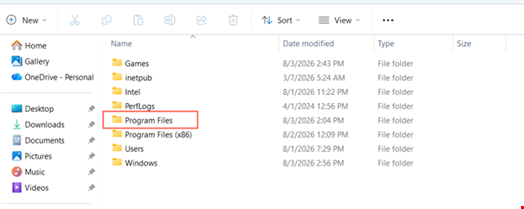
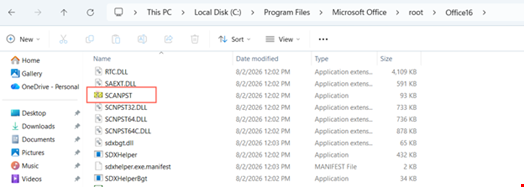
- Open File Explorer and navigate to your Microsoft Office installation directory. Typically, this is located at:
C:Program FilesMicrosoft OfficerootOffice16(Note: If you do not see Microsoft Office in Program Files, checkProgram Files (x86)). - Locate the file named
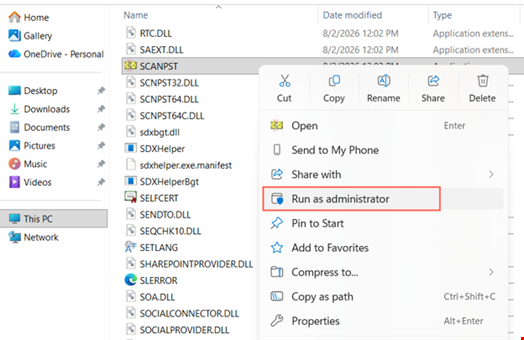
SCANPSTorSCANPST.exe. - Right-click on
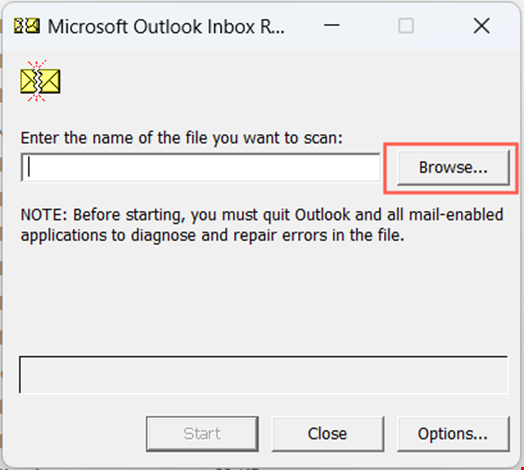
SCANPST.exeand select Run as administrator to grant the necessary file system privileges. - In the Inbox Repair Tool window, click on the Browse button to manually select your corrupted PST file from its directory.
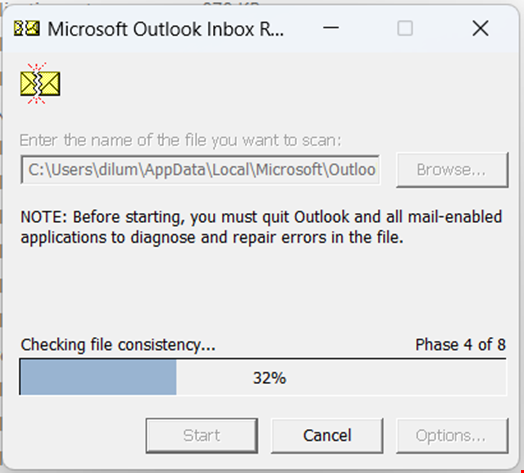
- Click Start to initiate the scanning process. The tool will cycle through multiple analysis phases checking the file structure.
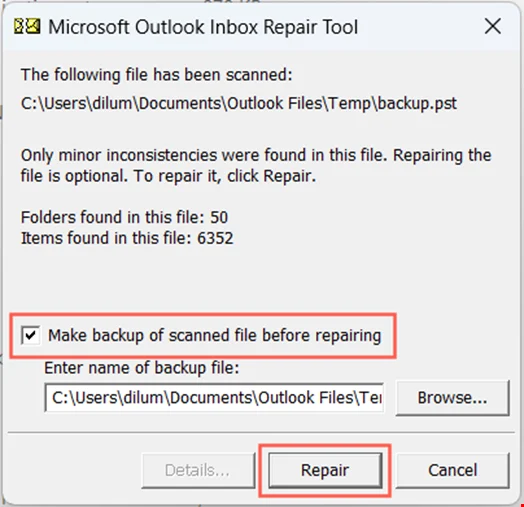
- If errors are detected, the tool will prompt you to create a backup before starting the repair. Ensure the backup option is checked, then click Repair.
- Once the repair process completes, launch Outlook using the profile associated with the repaired PST file to verify accessibility.
Phase 3: Utilizing Stellar Repair for Outlook
If SCANPST.exe crashes, freezes, or fails to detect and resolve the underlying corruption, third-party software provides a more robust alternative.
- Download and Install: Obtain Stellar Repair for Outlook from the official vendor platform and complete the local installation.
- Launch the Application: Open the tool from your desktop or Start menu. The clean home screen provides a direct prompt to select data files.
- Select the Corrupt File: Click on Select Outlook Data File. If you do not know the exact path, use the Find option to search your local hard drives automatically.
- Initiate the Scan: Once the file is selected, click the Repair button to kick off the deep-scanning algorithm. The software will parse through damaged headers, messages, calendars, and attachments.
- Preview the Contents: After the scan finishes, Stellar Repair displays an organized tree view of your mailbox. You can safely click through individual folders, read emails, and verify data integrity before saving.
- Export and Save: Click the Save Repaired File option. The software allows you to filter specific content using the left-hand navigation pane and export the recovered data into multiple formats, including PST, MSG, EML, RTF, HTML, and PDF.
- Import into Outlook: Because Stellar Repair creates a new, clean output file rather than overwriting the broken original, you must import the data back into Outlook. Open Outlook, go to File > Open & Export > Import/Export, select Import from another program or file, choose Outlook Data File (.pst), and point it to your newly recovered file.
(Note: For files under 500MB, users can also utilize Stellar’s free online web-based repair utility by navigating to their platform, creating an account, and uploading the compressed PST file over a secure connection for automated browser-based recovery).
Official Responses and Industry Best Practices
Cybersecurity and systems administration professionals emphasize that data recovery tools should always be treated as a secondary safety net rather than an operational routine.
According to Microsoft support documentation, while SCANPST.exe is engineered to fix minor discrepancies in internal database tables, it cannot rebuild structural data destroyed by severe hardware failures, major disk sector damage, or deep encryption anomalies. Consequently, enterprise IT departments enforce strict preventative guidelines:
- Size Management: Set automated mailbox archiving policies to prevent local PST files from ballooning beyond 10GB to 20GB, drastically reducing vulnerability to structural index corruption.
- Add-in Auditing: Restrict unauthorized third-party Outlook plugins that interact directly with local file write operations.
- Proper Shutdown Discipline: Educate end-users on the importance of allowing Outlook to close completely before shutting down workstations or putting laptops into hibernation mode.
Implications
The persistence of PST file corruption highlights a broader challenge in desktop-centric productivity software: the inherent vulnerability of local data storage in an increasingly cloud-first environment.
Operational Disruption
For enterprise environments relying heavily on local archives, a corrupted PST file can paralyze executive communication, delay legal discovery processes, and cause significant productivity loss. While cloud synchronization via Microsoft 365 mitigates server-side data loss, local caching mechanisms and offline .ost or archived .pst files remain perpetual points of failure.
Data Privacy Considerations
When third-party tools like Stellar Repair are deployed, organizations must weigh recovery urgency against corporate data privacy policies. Fortunately, modern enterprise-grade recovery solutions operate entirely offline on the local machine, ensuring sensitive corporate correspondence, financial records, and proprietary communications never traverse external third-party servers.
By understanding both native troubleshooting utilities and advanced third-party recovery workflows, IT administrators and individual users can successfully mitigate data loss, restore operational continuity, and secure critical communication archives against unexpected software failures.