Bridging AI and Content Management: How to Connect Claude to Self-Hosted WordPress Sites via Custom Connectors
As artificial intelligence continues to transition from a passive chat interface to an active, operational partner in digital workflows, integration capabilities have become the frontier of software development. For website administrators and developers, bridging the gap between large language models and content management systems has traditionally required complex, third-party automation tools like Zapier or custom-coded API bridges.
However, the introduction of Claude connectors—powered by the open-standard Model Context Protocol (MCP)—has fundamentally streamlined this interaction. While WordPress.com introduced native directory integrations for its hosted ecosystem in early 2026, self-hosted WordPress site owners have required a different methodology. This comprehensive guide and analysis explores how developers and site administrators can securely connect Claude to self-hosted WordPress environments using custom connectors, examining technical requirements, security protocols, and practical implementation.
1. Main Facts: Understanding Claude Connectors and MCP
To understand how artificial intelligence interacts with external platforms, one must first grasp the underlying architecture of a Claude connector. Simply put, a Claude connector is a saved bridge between Claude and an external application or web service. Once established, this connection allows Claude to actively retrieve data from that service and execute authorized actions on your behalf, operating within the boundaries of the credentials you provide.
The Three Types of Connectors
Directory Connectors: Curated integrations selected directly from Anthropic’s official Connectors Directory. Each directory listing includes a dedicated information page detailing its specific use cases, read/write capabilities, and system availability.
Custom Connectors: The do-it-yourself option. Administrators can integrate any remote MCP (Model Context Protocol) server simply by inputting its unique URL. MCP serves as the foundational open standard facilitating secure, standardized communication between AI models and local or remote data sources.
Desktop Extensions: Specialized integrations restricted exclusively to the Claude Desktop application, executing the MCP server locally on the user’s personal machine.
Platform Availability and Administrative Controls
Custom connectors are supported across the entire Claude ecosystem—including claude.ai, Cowork, and Claude Desktop—as well as across every tier of service from Free to Enterprise.
Free Accounts: Restricted to a maximum of one custom connector.
Team Plans: Connector creation is restricted exclusively to Owners and Primary Owners, managed via Organization settings > Connectors. Individual members authenticate using OAuth under Customize > Connectors.
Enterprise Plans: Designated members whose custom roles encompass library management are authorized to add organization-wide connectors alongside primary administrators.
2. Chronology: The Evolution of AI-WordPress Interoperability
The pathway toward seamless AI-to-CMS integration has evolved rapidly through several distinct phases:
Pre-2024 (Isolated Chatbots): Early interactions between LLMs and WordPress were limited to copy-and-pasting text back and forth, or relying on brittle, screen-scraping plugins with zero native context awareness.
Late 2024 to 2025 (The Rise of MCP): Anthropic introduces the Model Context Protocol (MCP), establishing an open standard designed to let AI assistants securely access local files, databases, and remote APIs without requiring custom scripts for every single application.
February 2026 (WordPress.com Integration): WordPress.com announces a native directory connector for its hosted infrastructure, granting read-only access to site content. However, this feature is restricted to paid WordPress.com plans, leaving self-hosted WordPress (WordPress.org) users seeking alternative implementation paths.
Mid-2026 (Custom Remote MCP Servers): The emergence of specialized open-source and freemium plugins—such as Themeisle’s Easy MCP AI—enables self-hosted WordPress administrators to expose secure, standards-compliant MCP endpoints directly from their PHP backend. This allows self-hosted sites to act as custom connectors across the entire Claude deployment suite.
3. Supporting Data: Technical Specifications and Reachability
Establishing a secure connection between Anthropic’s cloud architecture and a self-hosted server involves strict networking and protocol rules.
The Reachability Rule
When a user adds a custom connector on claude.ai, Claude Desktop, Cowork, or mobile apps, the connection is initiated from Anthropic’s cloud infrastructure, rather than from the user’s local device.
Consequently, the target WordPress server must be publicly reachable over the internet from Anthropic’s specific IP ranges. Sites operating behind private corporate networks, local VPNs, or aggressive firewalls will fail to connect unless administrators explicitly allowlist Anthropic’s IP addresses or utilize tunneling solutions like MCP tunnels.
Connection Methods Compared
Connection Mechanism
Origin Point of Connection
Can Connect to Localhost or Private Networks?
Custom Connector (claude.ai, Claude Desktop, Cowork)
Anthropic’s Cloud Infrastructure
No (Localhost unsupported; private sites require firewall allowlists or MCP tunnels).
Claude Code (claude mcp add)
User’s Local Computer
Yes (Directly supports local environments such as http://localhost:8094).
Furthermore, self-hosted WordPress sites utilizing modern MCP plugins face strict protocol enforcement: OAuth discovery endpoints inherently reject plain HTTP connections from non-local addresses, responding with a 403 Forbidden error and the diagnostic message: "OAuth metadata endpoints require HTTPS."
4. Step-by-Step Implementation: Connecting WordPress to Claude
To demonstrate how these concepts translate into practice, consider a worked example using a local development site (Harbor Street Bakery) running WordPress alongside the free Easy MCP AI plugin (version 2.0.1) and Claude Code (version 2.1.289).
Step 1: Installing the Plugin
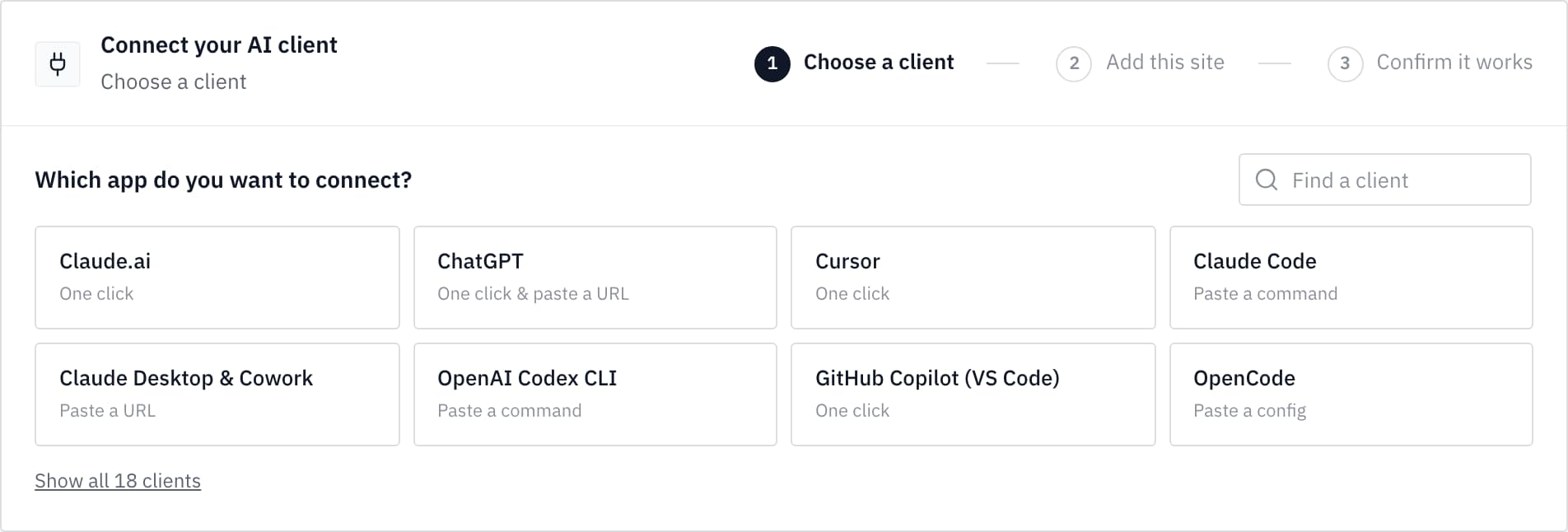
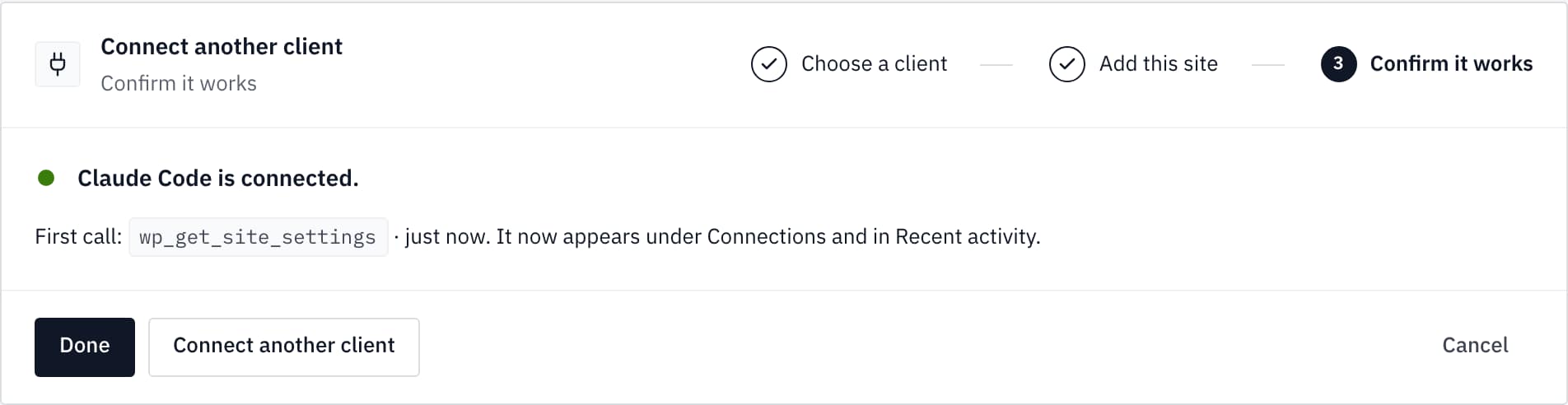
Navigate to your WordPress dashboard, install, and activate the Easy MCP AI plugin. Upon activation, you are greeted by a central dashboard featuring a three-step connection card: Choose a client, Add this site, and Confirm it works.
Step 2: Adding the Site to Claude
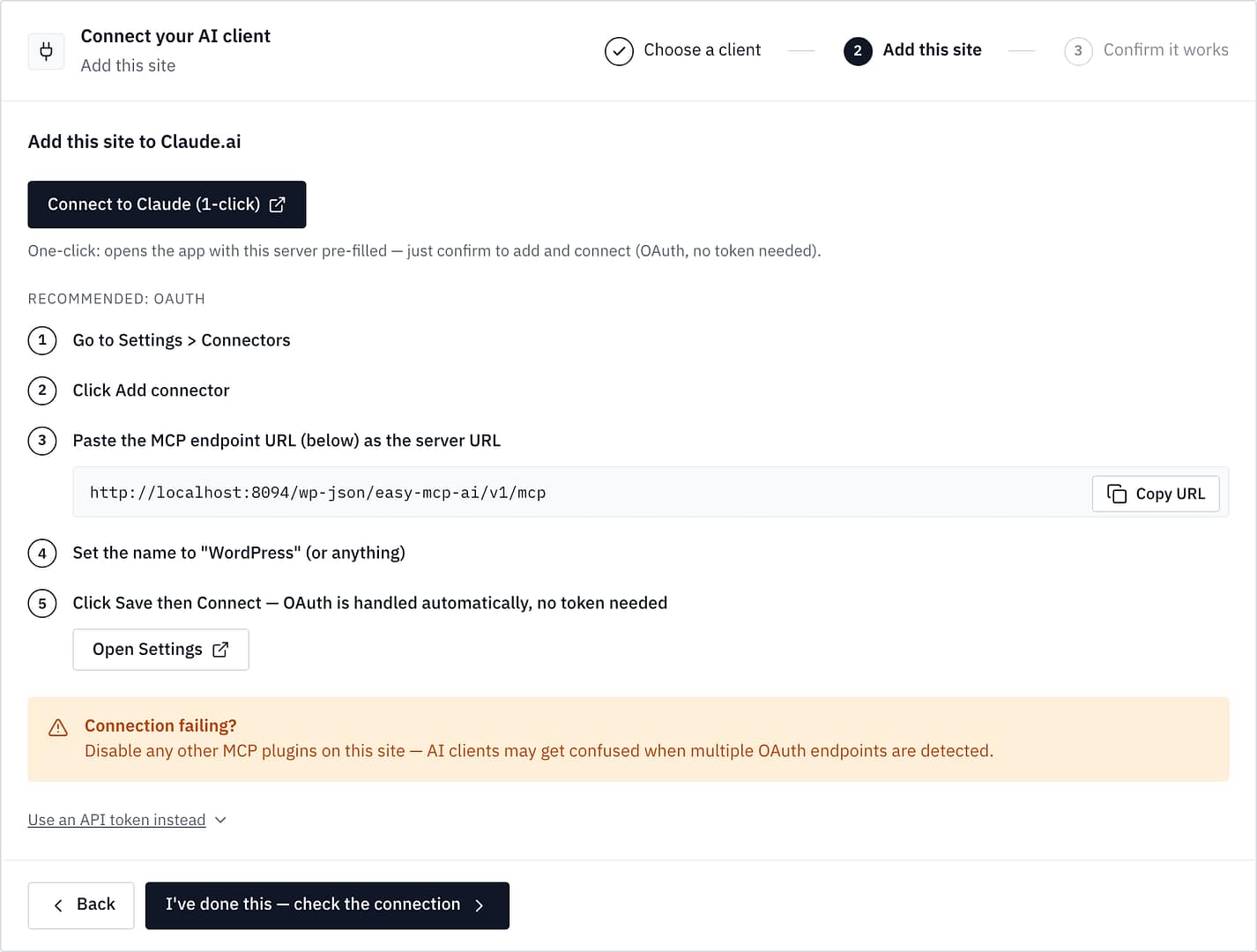
For claude.ai users, the plugin provides a 1-click Connect to Claude button that automatically routes to Claude’s connector management interface, prepopulating your site’s name and remote MCP endpoint URL (e.g., https://your-site/wp-json/easy-mcp-ai/v1/mcp).
During authentication, an OAuth approval screen prompts the user to select an access permission level:
Read-only: Grants the AI permission to view site content, settings, and user lists while strictly prohibiting creation, modification, or deletion.
Full Access: Permits operational changes.
Custom: Tailored permissions based on administrative preferences.
Dynamic client registration ensures that Claude’s configuration dialog registers the OAuth client automatically via metadata advertised by the plugin.
Step 3: Verifying the Connection
To confirm functionality without altering data, the setup card provides a standardized test prompt:
"Read the site settings using the wp_get_site_settings tool, but do not change anything."
When pasted into an active chat session with the connector enabled, Claude successfully queries the backend and returns the site’s official name and URL, confirming that the handshake is complete.
For local developers using Claude Code, the connection is executed via terminal command line:
claude mcp add --scope user --transport http wordpress http://localhost:8094/wp-json/easy-mcp-ai/v1/mcp --header "Authorization: Bearer YOUR_API_TOKEN"
5. Official Responses, Security Implications, and Best Practices
While empowering an artificial intelligence model to read and write to a content management system unlocks unprecedented productivity—such as drafting content, analyzing publishing schedules, and managing revisions—it simultaneously introduces significant security considerations.
Anthropic’s Security Guidelines
Anthropic outlines several mandatory safety protocols for managing custom connectors:
Trusted Sources Only: Connect exclusively to servers and organizations whose security posture you thoroughly verify.
Monitor Prompt Injection: Malicious actors can attempt to hide prompt injection instructions within incoming web content or database records, tricking the AI into executing unauthorized commands.
Granular Tool Management: Administrators should review tool approval requests carefully. Avoid selecting "Allow always" for destructive or write-capable tools unless absolute trust is established. Individual tools can be disabled at any time under Customize > Connectors.
Automated Research Risks
A critical operational warning: Research features can invoke connector tools automatically without prompting for secondary user approval. Consequently, administrators are strongly advised to disable tools capable of taking write actions before initiating automated research runs.
Auditing and Accountability
To maintain transparency, comprehensive audit logging is enabled by default, maintaining a 30-day retention window of every MCP tool call executed by the AI. Each log entry records whether a call returned an OK status. Additionally, built-in change history trackers maintain before-and-after snapshots of any content modified via MCP, allowing site administrators to audit modifications precisely.
Conclusion and Future Outlook
The integration of custom Claude connectors into self-hosted WordPress infrastructure marks a major evolutionary step for content management and AI automation. By leveraging the open Model Context Protocol and plugins designed for secure OAuth authentication, administrators can bridge powerful language models directly with their core publishing platforms.
Whether utilized for streamlined local development via Claude Code or enterprise-wide content operations on claude.ai, maintaining strict adherence to read-only defaults, monitoring audit logs, and enforcing robust firewall configurations ensures that AI remains a powerful, safe assistant rather than a vulnerability.
Have you connected Claude to your own WordPress site yet? What workflows do you trust it with first? Share your experiences in the comments below!