








The digital storefront is the heartbeat of any e-commerce enterprise. In the modern era of web design, shoppers expect a seamless, intuitive, and highly responsive browsing experience. A static catalog is no longer sufficient; customers demand the ability to curate their own shopping journeys through intelligent search, precise filtering, and dynamic sorting. With the release of Divi 5, Elegant Themes has fundamentally transformed how designers approach these tasks. By leveraging the power of the Loop Builder and the Post Filter Module, developers can now create sophisticated, database-driven product grids that rival custom-coded enterprise solutions—all without the need for bloated third-party plugins.
Main Facts: The Evolution of Product Discovery
The core innovation in Divi 5 lies in the decoupling of content structure from the query itself. Previously, displaying WooCommerce products often required reliance on pre-defined modules that offered limited stylistic flexibility. The new Loop Builder changes this paradigm by allowing designers to build a "Product Card" from scratch using standard Divi modules—Image, Heading, Text, and Button—and then repeating that structure dynamically across a CSS Grid.
When paired with the Post Filter Module, this creates a real-time, interactive environment. Shoppers can now filter by category, price range, stock status, or even custom attributes in an "Auto" or "Submit" mode. This functionality is not merely a design feature; it is a conversion optimization tool. By reducing the "friction to find," merchants can guide users to the products they actually intend to buy, significantly decreasing bounce rates and increasing average order values.
Chronology: Implementing Your Filterable Grid
Building a professional-grade product grid requires a systematic approach. To achieve the best results, follow this logical progression:
1. Preparation of the Catalog
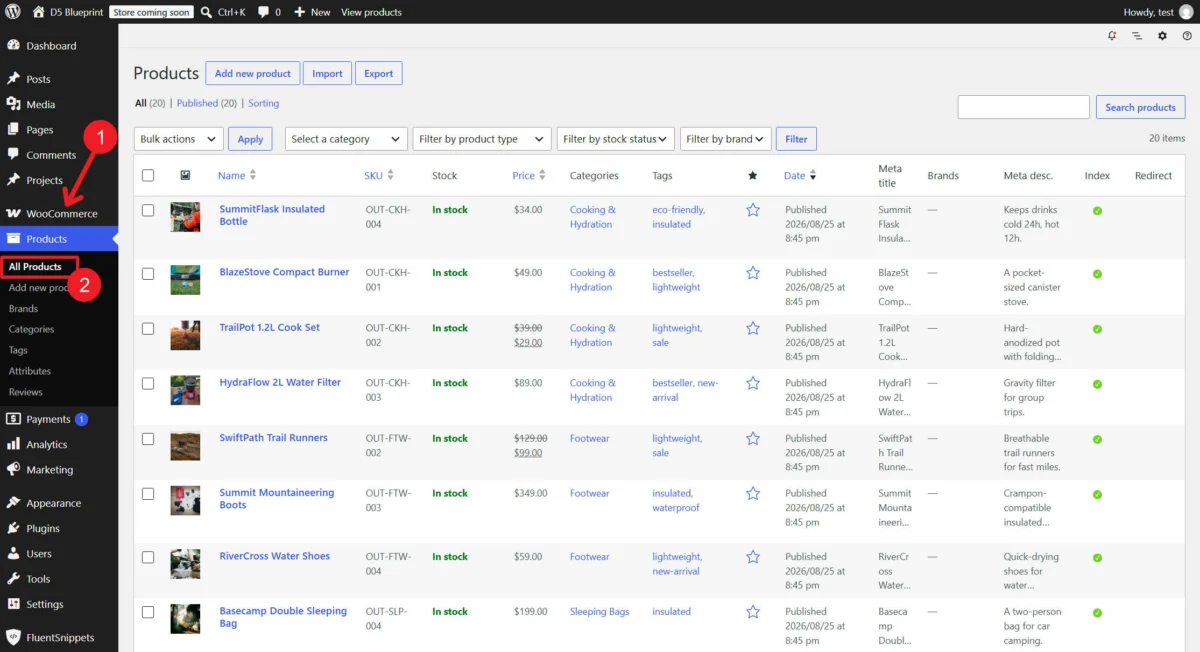
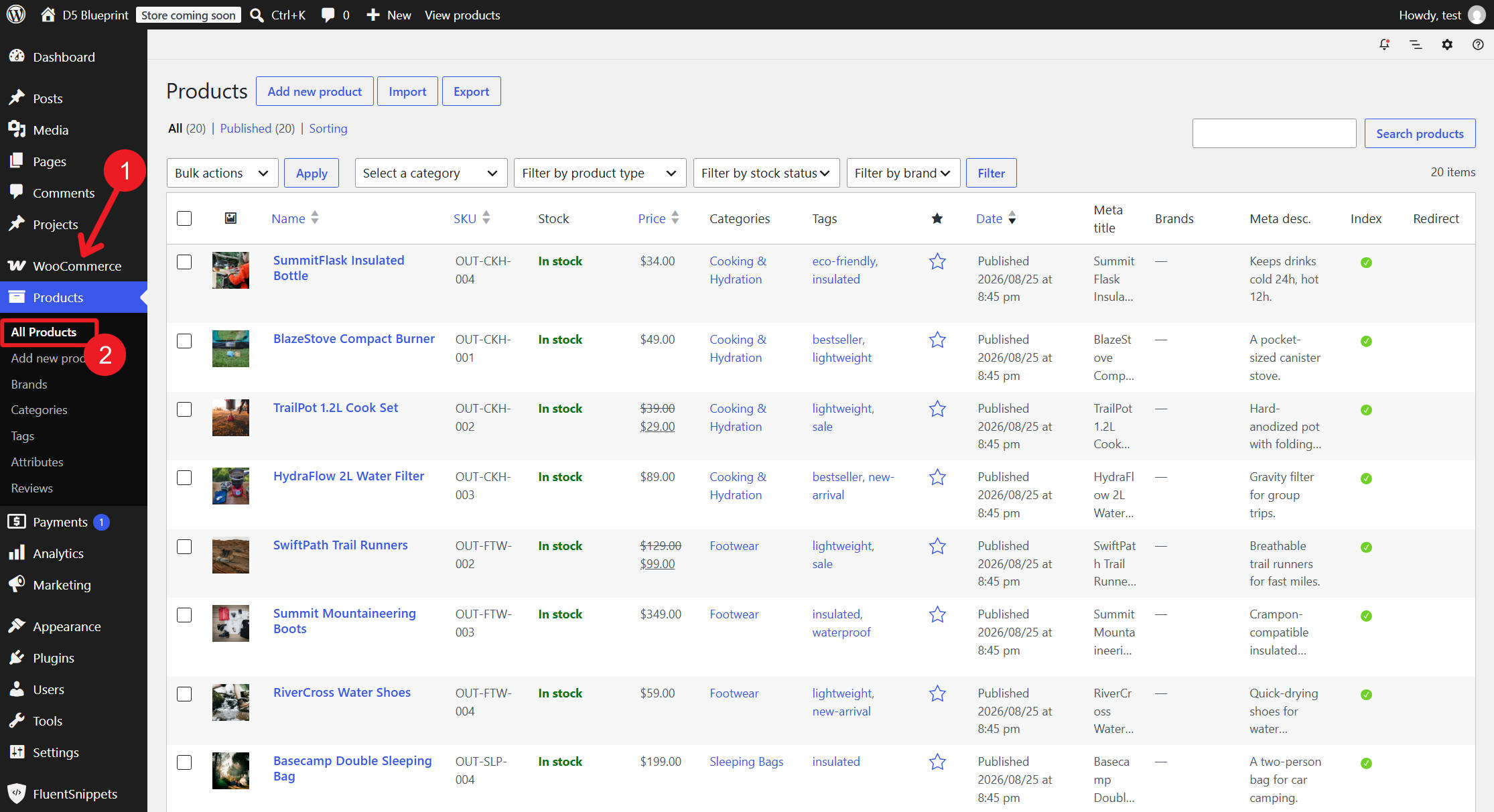
Before touching the Visual Builder, ensure your WooCommerce backend is "filter-ready." Filters are only as effective as the data they index. Verify that your products have consistent categories, assigned attributes (like size, color, or material), and accurate pricing. If your catalog lacks these metadata points, your filters will return empty results, frustrating the user.
2. The Architectural Phase: The Loop
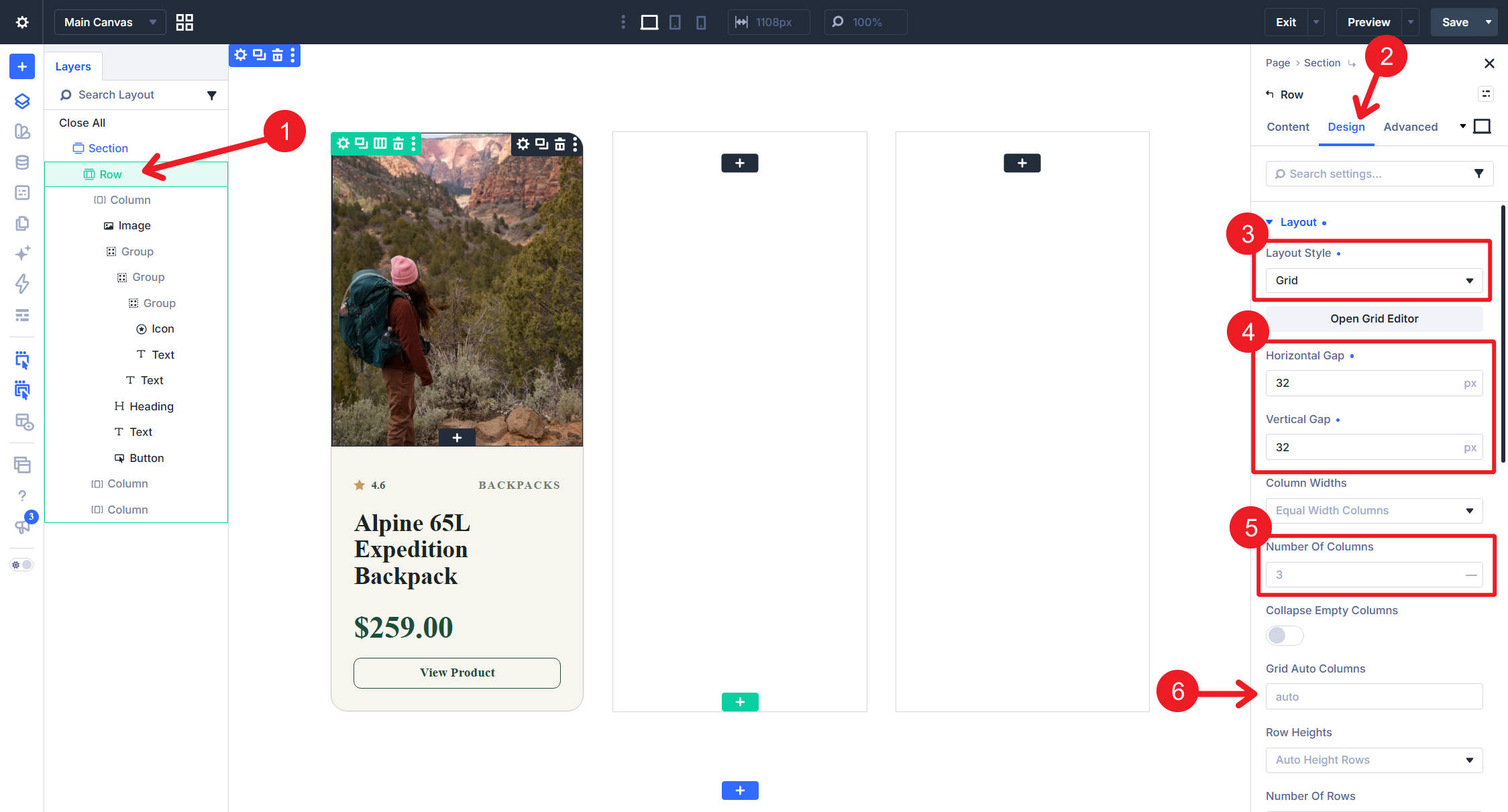
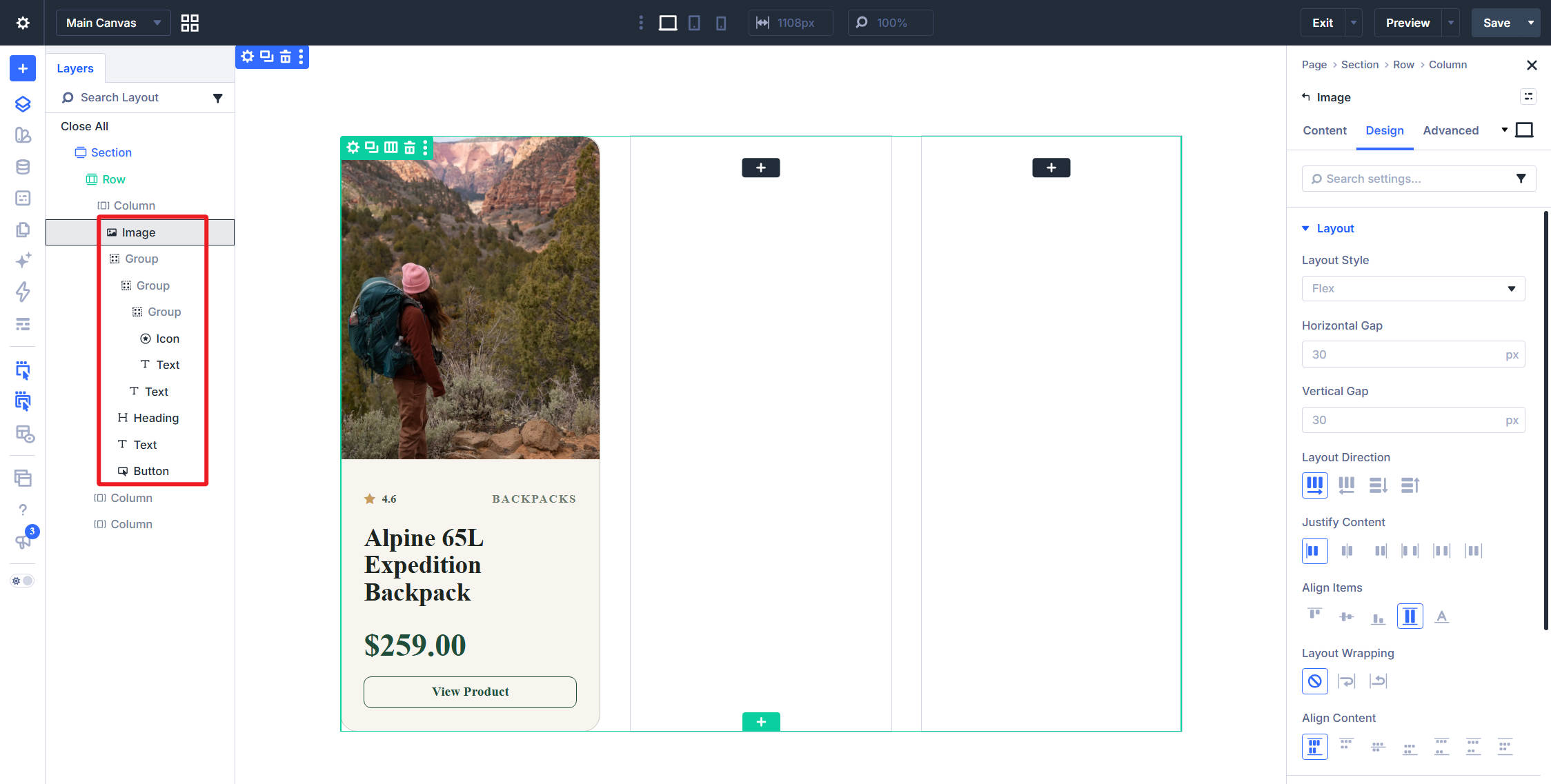
Start by opening the Divi Visual Builder and defining a container (a Row or Group). Switch the container layout to CSS Grid. This is the foundation of your responsiveness. Once the structure is set, build your "Product Card" inside this container. Use a Heading module for the Title, a Text module for the Price, and a Button module for the Call-to-Action. Once the design is finalized, enable the Loop on this container. Set the Query Type to "Products," define your post count, and link each module to its respective Dynamic Content source (e.g., Post Title, Price, Featured Image).
3. Binding and Labeling
Crucially, you must label your containers. Assign the outer grid the label "Product Grid" and the repeating inner card the label "Product Card." This is the "secret sauce" that allows the Post Filter Module to talk to your grid. Without these specific identifiers, the filter will not know which elements to target.
4. Integration of the Filter Module
Add a new row above your grid to house the Post Filter Module. Within this module, set the "Target Loop" to "Product Card." Add your filter items—Search, Category, and Price Range—and configure them to "Auto" mode to provide an instantaneous user experience.
Supporting Data: Why This Approach Outperforms Legacy Methods
Traditional WooCommerce grids often rely on heavy external plugins to handle filtering. These plugins frequently introduce "script bloat," slowing down page load times and creating conflicts with theme CSS. By using Divi 5’s native modules, you are utilizing code that is optimized specifically for the Divi ecosystem.
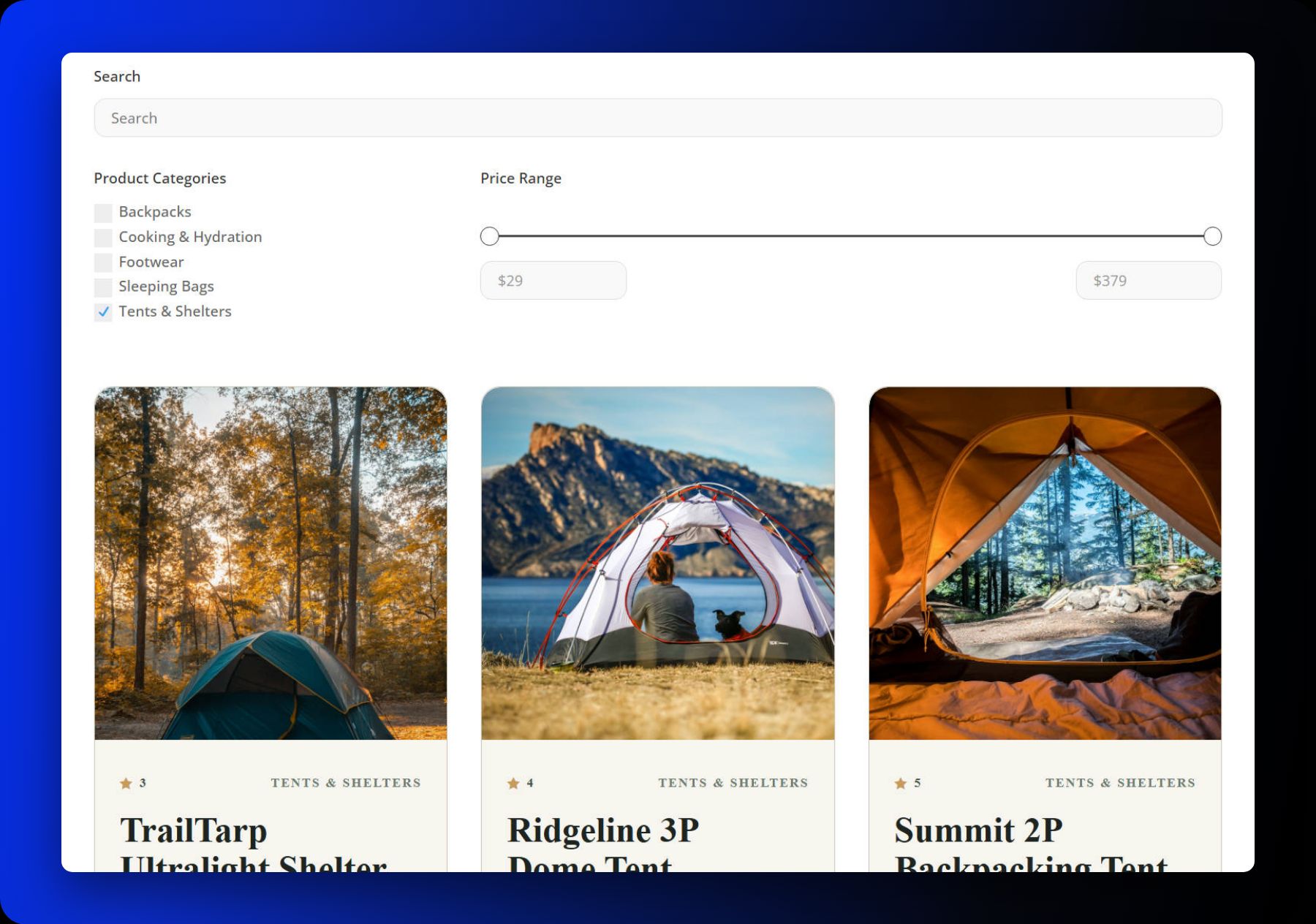
Data suggests that users interact with filters on over 70% of e-commerce sites before making a purchase. The ability to "chain" filters—for example, searching for a "Blue" (Attribute) "Jacket" (Category) under "$100" (Price)—is the industry standard for usability. Because Divi 5 stores these filter states in the page URL, the user experience becomes shareable. A customer can filter a list, copy the URL, and send it to a friend, or bookmark their search for later. This level of granular control was previously difficult to achieve without significant custom development.
Official Responses and Technical Implications
The release of Divi 5 has been met with enthusiasm from the professional design community, primarily due to its shift toward a "no-code, high-control" workflow. Elegant Themes has emphasized that this architecture is not just for products; it is a generalized system for any custom post type.
From a technical standpoint, the integration of CSS Grid with the Loop Builder allows for "Layout Fluidity." Unlike older tables or column-based systems, CSS Grid manages the spacing and alignment of product cards automatically, regardless of screen size. When combined with the Post Filter Module’s ability to handle mobile-specific breakpoints—such as stacking filters vertically on a smartphone while keeping them horizontal on a desktop—the result is a truly responsive storefront.
Implications for the Future of E-Commerce
The implications of this shift are profound. For the average web designer, it democratizes high-end functionality. Small to medium-sized businesses (SMBs) can now deploy sophisticated filtering systems that were once reserved for massive corporations with dedicated development teams.
Strategic Considerations
- Custom Fields: Beyond standard WooCommerce data, you can now filter by Custom Fields. If you sell electronics, you can create a custom field for "Battery Life" or "Weight" and add it as a filter item.
- Design Consistency: Because the filter form is built using the same design settings as the rest of the site (backgrounds, border radii, typography), the filter looks like an integrated component of the brand identity, not an "add-on."
- Scalability: The system is designed to handle large catalogs. By utilizing pagination modules alongside the Loop Builder, you ensure that even a catalog with thousands of products remains performant, as the system only renders the items visible on the current page.
The "Less is More" Philosophy
While it is tempting to add every possible filter (Stock Status, Reviews, Tags, Attributes), the most successful designs exercise restraint. A clutter-free interface encourages interaction. Start with the "Big Three"—Search, Category, and Price—and analyze your site’s analytics to see if users are requesting more granular options.
Conclusion
Building a filterable product grid in Divi 5 is an exercise in both design and logic. By preparing your data, building a clean Loop, and strategically implementing the Post Filter Module, you create a browsing experience that feels intuitive and professional. This is no longer just about showing products; it is about providing a curated path to discovery. As e-commerce continues to move toward more personalized, interactive experiences, the ability to control how users navigate your catalog will remain the most critical skill for any digital storefront architect.
Whether you are a freelance designer managing a boutique shop or an agency lead building a large-scale catalog for a client, the combination of the Loop Builder and the Post Filter Module provides the ultimate toolkit for modern web design. The barriers to creating a high-converting, professional e-commerce site have never been lower.