







For years, power users and minimalists alike have monitored Google Chrome’s notoriously aggressive appetite for computer resources. While most optimization discussions focus on RAM consumption, processor spikes, battery drain, and overloaded tab bars, a new and heavier culprit has quietly entered the ecosystem: local artificial intelligence.
As Google rapidly embeds generative AI capabilities deeper into its web browser, it is no longer just processing data in the cloud. Increasingly, it is downloading massive, multi-gigabyte neural network weights directly onto consumer hard drives. For users operating on constrained solid-state drives (SSDs), this invisible digital footprint can represent a frustrating surprise.
Understanding how Chrome manages this on-device intelligence—and knowing how to reclaim your storage if you do not use these features—has become an essential part of modern computer maintenance.
Main Facts: The Anatomy of weights.bin
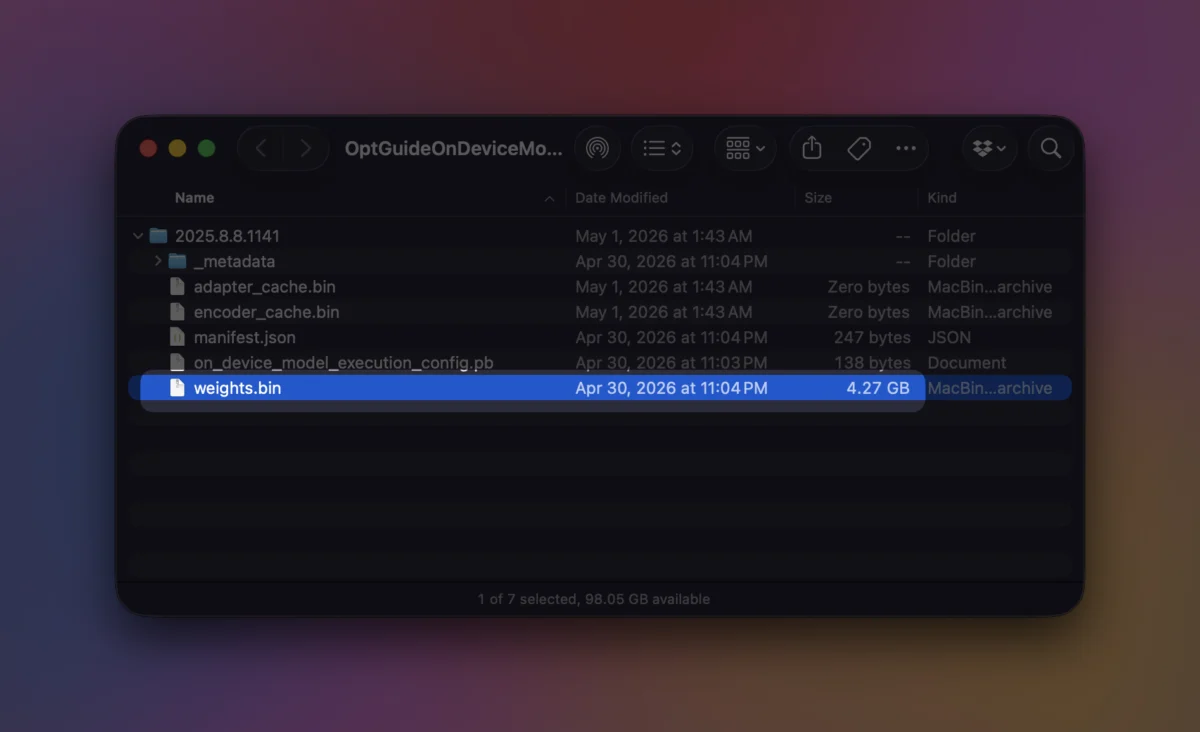
At the center of this storage discussion is a single, unassuming file: weights.bin. Buried deep within Chrome’s local browser data directory, this file serves as the physical vessel for Gemini Nano, Google’s lightweight, on-device large language model engineered specifically to run locally on desktop and laptop hardware.
Unlike traditional cloud-based AI features that send your prompts and queries to remote server farms, Gemini Nano operates entirely on your machine. This local execution offers distinct advantages, most notably enhanced privacy and lower latency, since text processing, summarization, and data parsing happen locally without leaving your hardware.
However, running a frontier-class language model locally comes with a heavy physical cost. To function without an internet connection, the browser must store the model’s parameters—its "weights"—somewhere persistent. That somewhere is your primary drive.
Depending on the specific version and updates pushed by Google, weights.bin and its accompanying configuration directories can swallow several gigabytes of storage space in an instant. This model powers a growing suite of native Chrome features, including:
- Contextual writing assistance and text generation
- Automated tab organization and grouping
- Real-time phishing and scam warnings
- Smart page summaries and content extraction
- Enhanced autofill and intelligent suggestion tools
While these utilities are designed to streamline the browsing experience, they exact a heavy toll on disk space—a toll that many users remain entirely unaware of until they encounter sudden "low disk space" warnings.
Chronology: The Evolution of Chrome’s Local AI Footprint
To understand how Chrome evolved into a local AI host, it helps to look back at the trajectory of browser architecture and Google’s broader strategic pivot toward ambient artificial intelligence.
- Early 2023 and Prior: Chrome relied almost exclusively on cloud-based infrastructure for any experimental machine-learning features. Storage footprints were largely limited to cache, history, extensions, and profile databases, rarely exceeding a few hundred megabytes for standard users.
- Late 2023: As Google introduced its Gemini ecosystem, developers caught the first glimpses of local model integrations. Experimental flags began appearing in developer channels, pointing toward the eventual integration of lightweight, on-device models capable of performing auxiliary tasks offline.
- 2024: Google formally rolled out Gemini Nano integrations across supported platforms, including Windows, macOS, Linux, and Chromebook Plus devices. APIs opened up for web developers and internal Chrome features alike, allowing the browser to autonomously download background model files to ensure immediate responsiveness.
- Present Day: On-device AI features are deeply integrated into stable builds of Chrome. Background downloading has become standard behavior for eligible profiles, resulting in multi-gigabyte model files being silently deployed across millions of consumer computers worldwide.
Supporting Data: Requirements, Paths, and Diagnostics
Google’s developer documentation and official support channels outline strict operational parameters for Gemini Nano. The system is not deployed indiscriminately; it requires specific operating system environments and hardware baselines to function properly.
Hardware and System Prerequisites
According to Google’s guidelines, local AI features require:
- Operating Systems: Windows 10 or 11, macOS 13 (Ventura) or later, mainstream Linux distributions, or specialized Chromebook Plus hardware.
- Storage Threshold: The volume housing the Chrome user profile must maintain at least 22GB of free space. Google has engineered safety valves into the system: if a computer’s available storage drops below this threshold after the model is downloaded, Chrome is designed to purge the files automatically to prevent system instability.
- RAM and Processing: While Google’s exact hardware baselines scale depending on the host architecture, integrated GPUs or neural processing units (NPUs) significantly improve inference speeds, though standard CPUs can handle the computational load.
How to Check Your Model Status
If you suspect Chrome is hoarding storage space, you do not have to guess. Google provides a native internal diagnostics page specifically for monitoring local model health.
- Open a new tab in Google Chrome.
- Navigate to the following internal URL:
chrome://on-device-internals - Review the dashboard to check whether Gemini Nano is installed, active, or currently downloading, along with its precise file size and version number.
Where the Files Live
For advanced users who prefer manual verification through file explorers, the weights.bin file can be located via specific directory paths depending on your operating system. Note that the <version> string in the path changes automatically as Google pushes updates to the model:
- Windows:
C:Users<YourUsername>AppDataLocalGoogleChromeUser DataOptGuideOnDeviceModel<version>weights.bin - macOS:
~/Library/Application Support/Google/Chrome/OptGuideOnDeviceModel/<version>/weights.bin
Official Responses and Guidelines
Google has been transparent about why these files exist, framing them as a necessary trade-off for speed and privacy. In official documentation across Chrome Help pages and developer portals, the company explains that background model downloads ensure features are instantly ready the moment a user calls upon them.
Furthermore, Google stresses that manually deleting the weights.bin file is an ineffective long-term solution. If the underlying generative AI settings remain enabled within the browser, Chrome will recognize the missing components and simply re-download the multi-gigabyte model files in the background, rendering manual file deletion a frustrating exercise in futility.
Instead, official guidance dictates that users who wish to reclaim this space must disable the feature natively through the browser’s settings interface rather than tampering with internal application directories.
Implications: Convenience Versus Resource Stewardship
The silent deployment of multi-gigabyte AI models inside a web browser raises important questions about resource stewardship, user consent, and the shifting definition of software bloat.
The Impact on Budget and Budget-Conscious Hardware
On a modern desktop rig equipped with a 2-terabyte NVMe solid-state drive, a 3GB or 4GB model file is a negligible drop in the ocean. However, the calculus changes drastically for owners of entry-level laptops, older MacBooks, or budget Chromebooks featuring constrained 256GB SSDs—or worse, 128GB configurations.
When an operating system, background applications, media libraries, and system caches already crowd a small drive, an unannounced background download consuming several gigabytes can push a machine uncomfortably close to its performance bottleneck. Operating systems degrade in speed and efficiency when storage drives reach near-capacity limits, making every gigabyte precious.
The Privacy Trade-Off
From a privacy perspective, on-device AI represents a massive step forward compared to cloud-dependent architectures. By processing text summaries, writing assistance, and security warnings locally, user data never leaves the physical machine to be processed on remote corporate servers. For privacy-conscious individuals, this local processing model is a welcome development.
However, the lack of prominent, upfront notification during the background download process has drawn criticism from minimalists who argue that software should always prompt users before allocating significant portions of local storage to optional features.
How to Remove Chrome’s On-Device AI Models
If you rarely or never use Chrome’s native writing aids, smart tab organizers, or local AI tools, you can easily remove the Gemini Nano model and prevent it from occupying your storage drive.
- Open Google Chrome.
- Click the three-dot menu icon in the top-right corner and select Settings (or type
chrome://settingsin the address bar). - Navigate to the AI features or Performance section (depending on your specific Chrome version build).
- Locate the toggle for On-device AI or related generative AI assistance tools.
- Switch the toggle to Off.
Once disabled, Chrome will automatically purge the associated generative AI model files, freeing up several gigabytes of local storage. Features that rely on local processing will cease to function, but the browser will continue to operate normally for standard web browsing, extensions, and cloud-based services.
The Final Verdict
Google Chrome remains the undisputed giant of the browser market, but its expansion into local artificial intelligence comes with a tangible physical cost. While Gemini Nano empowers the browser with impressive offline capabilities and enhanced privacy safeguards, it requires real estate on your hard drive to do so.
By checking chrome://on-device-internals and auditing your settings, you can take back control of your system resources—ensuring that your browser works for you, rather than quietly crowding you out of your own storage.